
How to manage your notifications and push alerts
Read your WashWerk notification feed, filter and clear it, choose which events alert you in-app and on your phone, and follow specific tasks or equipment — so you catch the updates that matter to your work without being buried by the ones that don't. This applies to every role on web and mobile.
Before you start
- Where: Notifications appear in both views — at the store level (the Notifications tab) and in the corporate view (where Notifications spans all your stores).
- Permission: No special permission needed; you manage your own notifications.
- You must: Be signed in. To receive push alerts, use the WashWerk mobile app and allow notifications when prompted.
View and clear your feed
- Open Notifications from the bell icon in the navigation. At a single store you see that store's notifications; in the corporate view you see notifications across all your stores.
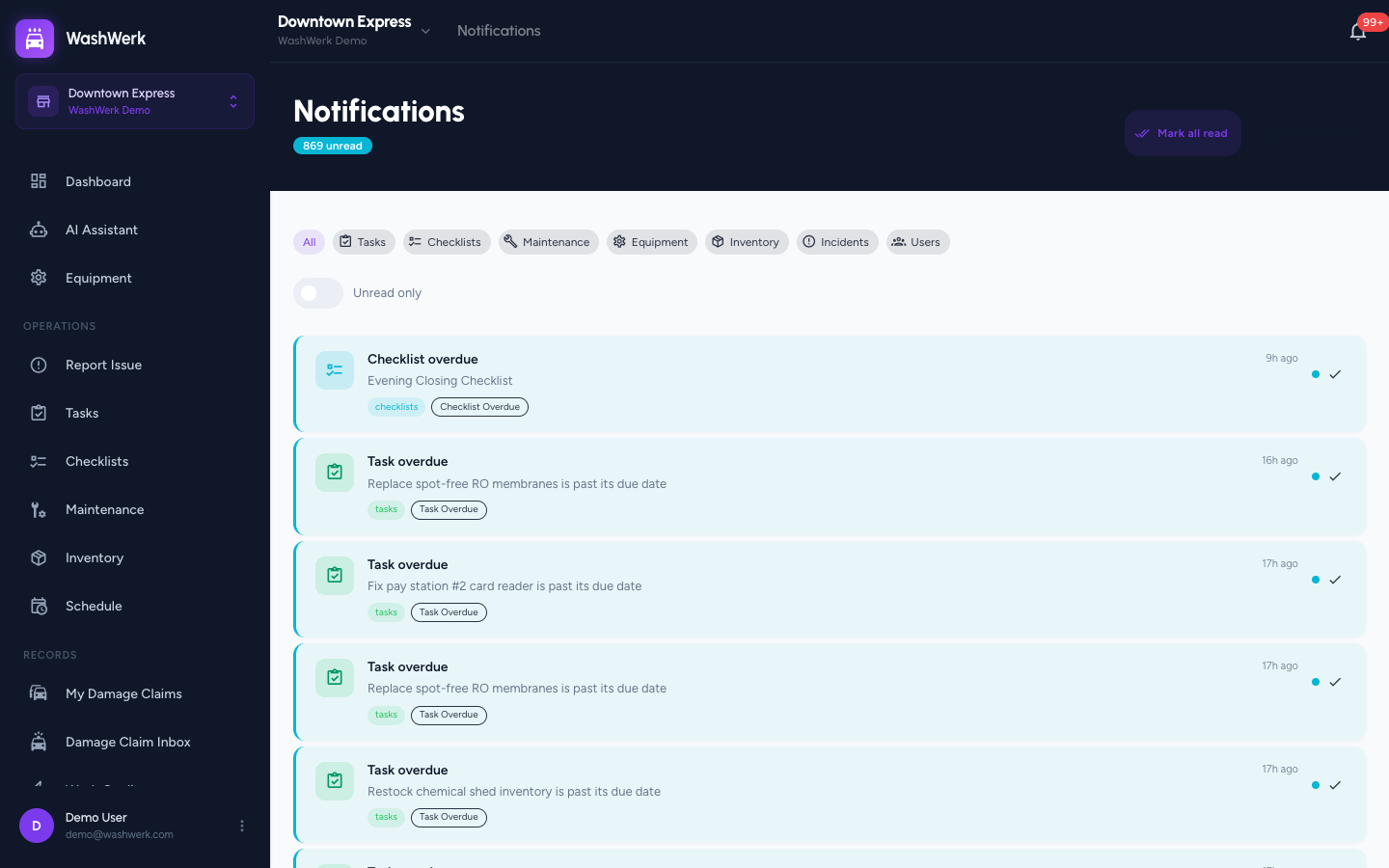
- To narrow the list, select a module chip (Tasks, Checklists, Maintenance, Equipment, Inventory, Incidents, Users) or All.
- To hide read items, turn on the Unread only switch.
Mark notifications as read
- To clear one item, select the check icon on its row.
- To clear everything, select Mark all read in the header. The unread badge resets to zero.
Open a notification's source record
- Select a notification row. WashWerk marks it read and navigates to the record it's about — for example, the task or piece of equipment that triggered it.
Set company-level notification preferences
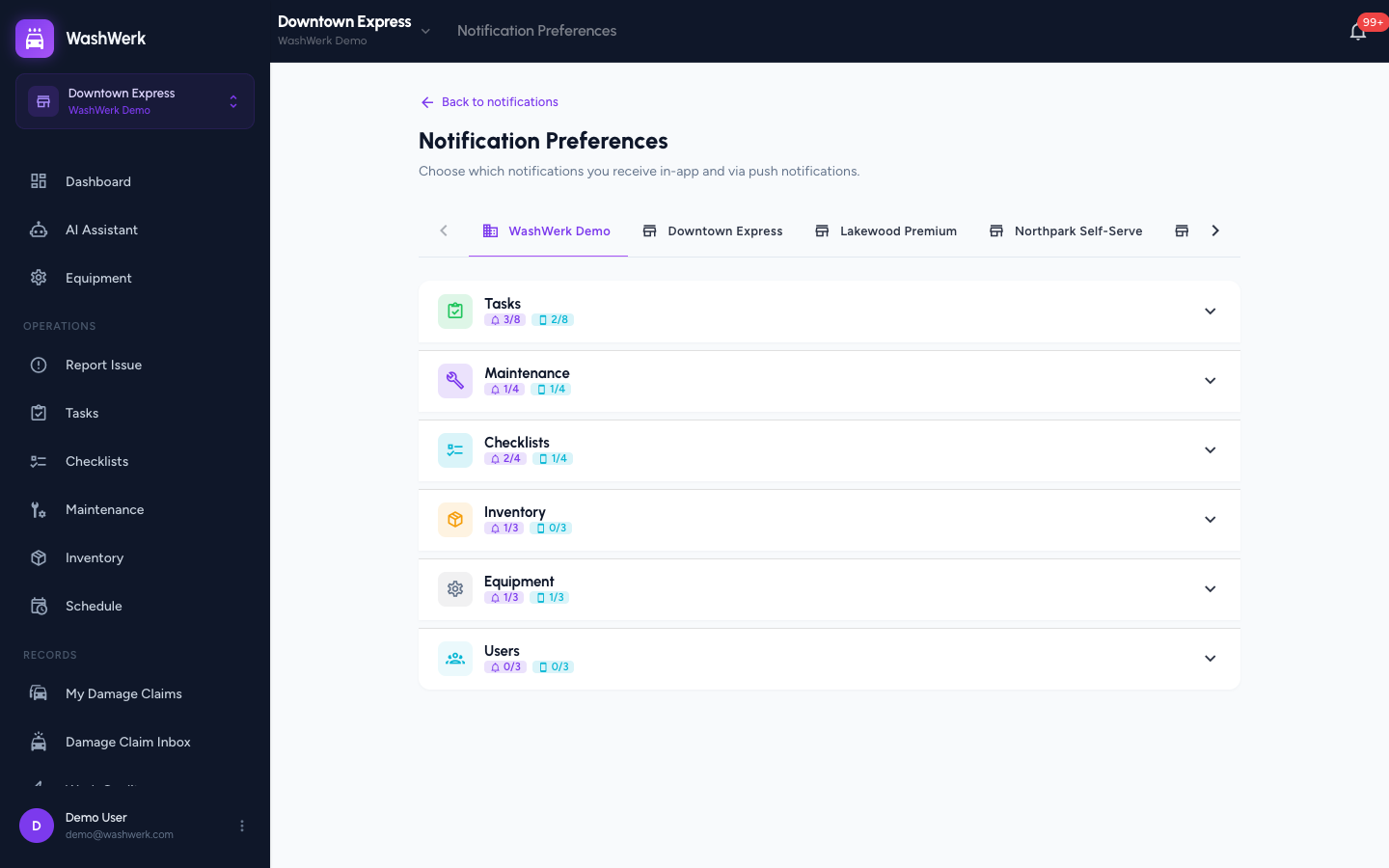
Preferences control whether each event reaches you In-app, via Push, or both. Company settings are your defaults across stores.
- On the Notifications page, select Preferences.
- Keep the first tab — your company name — selected.
- Expand a module (Tasks, Maintenance, Checklists, Inventory, Equipment, Users) and toggle In-app and Push per event. Each toggle saves immediately.
Create a store-specific override
By default each store inherits your company preferences. Overriding makes one store differ.
- On the Preferences page, select the store's tab.
- Toggle any In-app or Push switch. WashWerk asks to Create override — confirm it. This copies your company defaults to the store, then applies your change.
- Continue toggling events for that store. Changes now affect only this store.
Reset a store back to company defaults
- On a store tab that has overrides, select Reset to corporate, then confirm Reset. WashWerk removes the store's overrides and the store inherits your company defaults again. This can't be undone.
Follow a record to track its updates
Following a task or piece of equipment subscribes you to its notifications even if you weren't assigned.
- On a task or equipment detail page, select Follow. The button changes to Following, and you'll receive that record's notifications per your preferences.
Unfollow a record
- On the same detail page, select Following. It reverts to Follow and you stop receiving that record's notifications.
Receive push notifications on mobile
Push registration is automatic — there's no toggle to flip on. When you sign in to the WashWerk mobile app and allow notifications at the system prompt, your device registers itself. Removing the app, or denying notifications in your phone's system settings, stops push delivery. Use the Push toggles above to choose which events push.
Expected result
Your feed reflects your filters, the unread badge matches the unread switch, preference toggles show a brief saving state and persist, and followed records show Following.
Troubleshooting
- If the feed is empty: No notifications match your current filter. Turn off Unread only or select the All module chip.
- If a store's toggles look greyed out: That store is inheriting company defaults. Toggle any switch and confirm Create override to edit it independently.
- If push alerts never arrive on mobile: Confirm you allowed notifications in your phone's system settings and that the relevant event's Push toggle is on. Push works only in the mobile app, not the web.
- If you still get alerts for a record you don't want: Open that record and select Following to unfollow, and check the event's toggles in Preferences.