
How to act on weekly AI Insights
Turn on Weekly AI Insights so the AI analyzes your store's data each week and surfaces recommendations on your dashboard — then review each one and either implement or dismiss it. Implementing applies the suggested action automatically, such as creating a reorder or a maintenance procedure.
When to use this
Turn this on when you want the AI to proactively spot reorder, maintenance, and equipment needs for you each week; leave it off if you'd rather drive those actions yourself, since each weekly run consumes AI credits.
Before you start
- Where: Store-level — the toggle lives on the store Settings page; the insights appear on the store Dashboard. Available on web and the mobile app.
- Permission: Settings to enable or disable Weekly AI Insights. Anyone with access to the store dashboard can review, implement, or dismiss the insights it shows.
- Available by default to: Owners and Company Admins. (On custom roles, this needs the permission named above.)
- You must have: an active subscription with available AI credits — generating weekly insights consumes credits.
Enable Weekly AI Insights for a store
- Open the store, then go to Settings. Scroll to the AI Insights section.
- Turn on the Weekly AI Insights switch.
- Select Save AI Settings. A confirmation appears, and the AI begins analyzing this store's data on its weekly run.
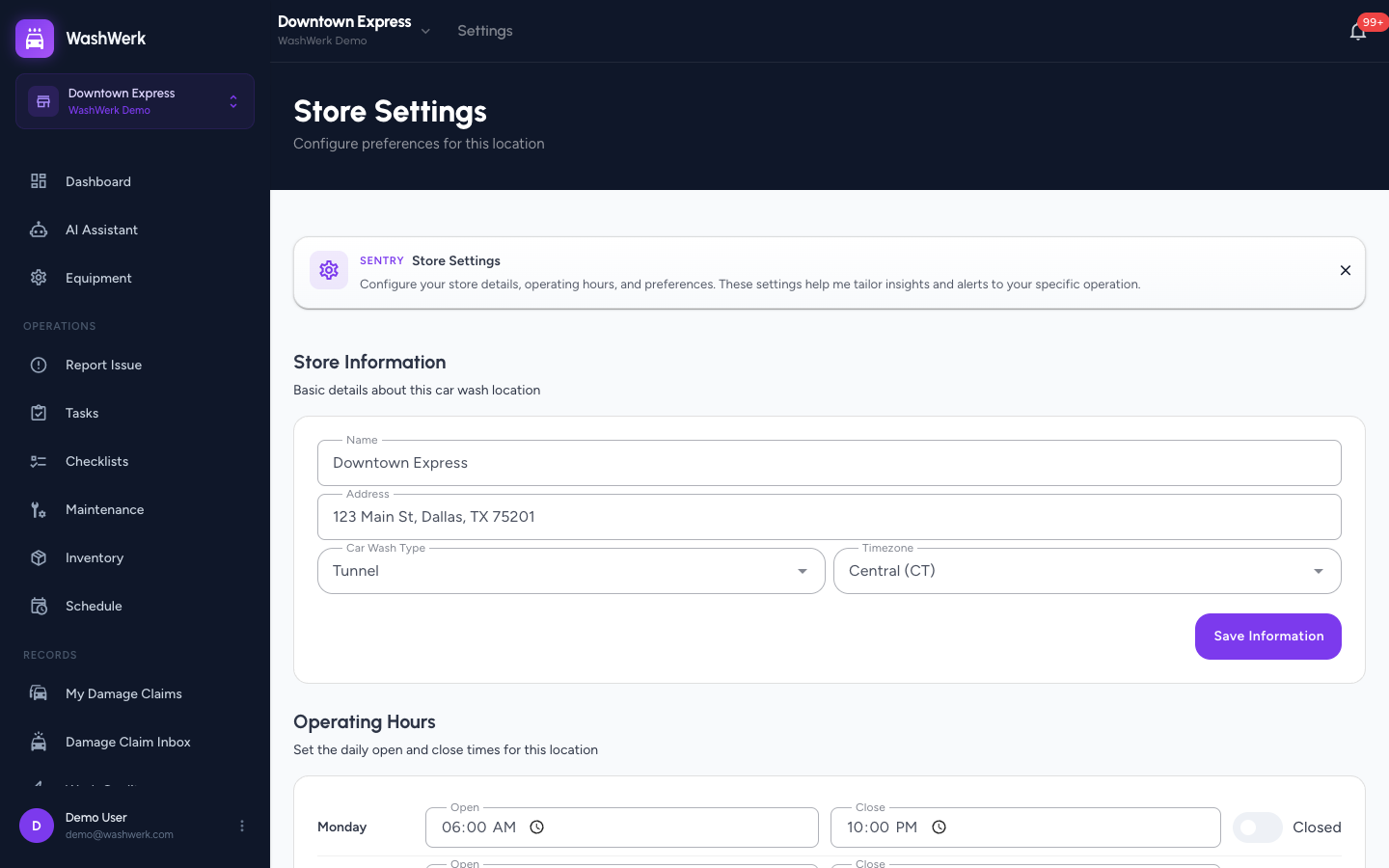
To stop generation, return to the same section, turn the switch off, and select Save AI Settings again.
Note: Insights are generated on a weekly schedule, so the first recommendations appear after the next weekly run — not immediately after you enable the toggle.
Review insights on the dashboard
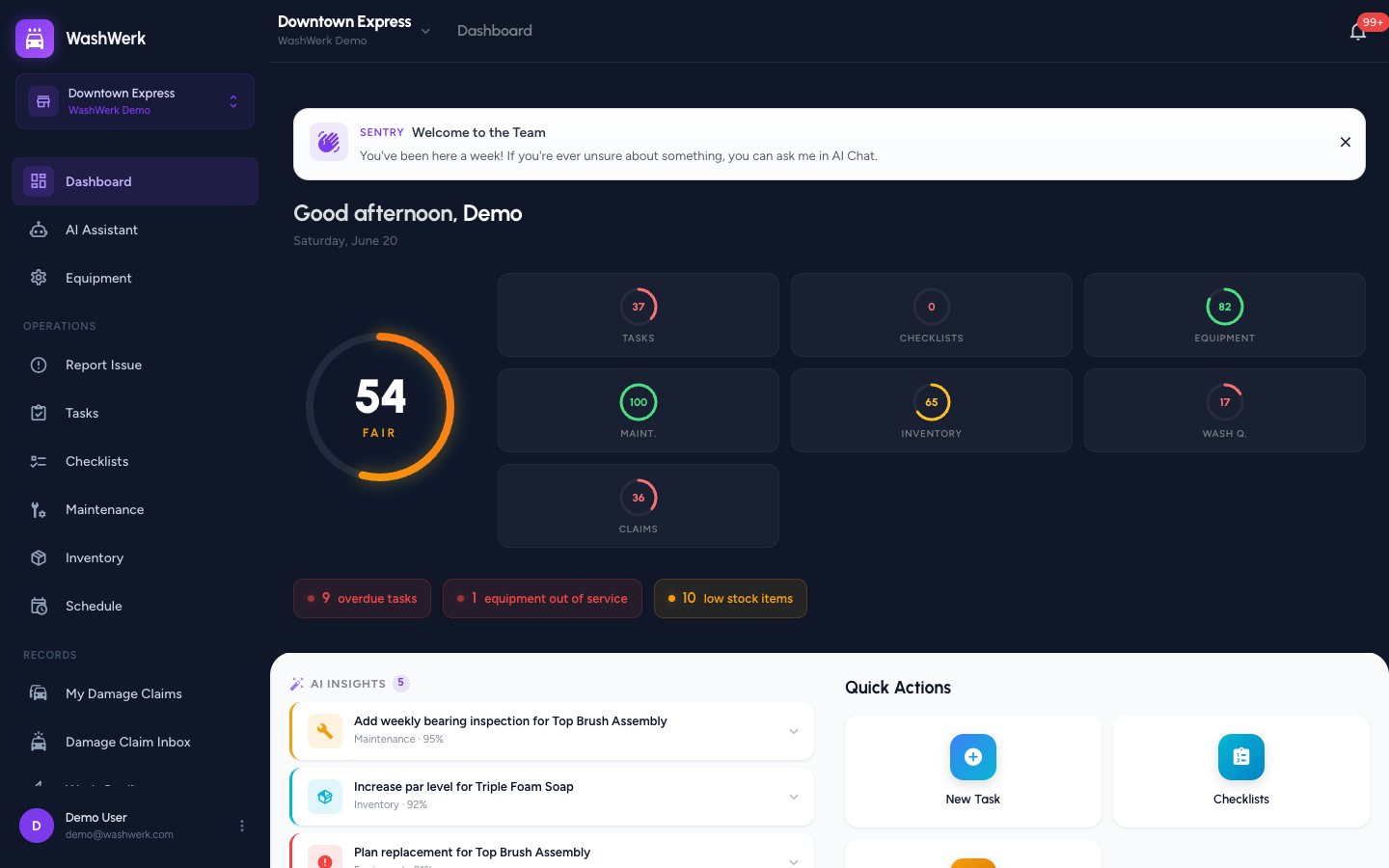
- Open the store Dashboard. The AI Insights panel appears in the overview with a count of pending recommendations.
- Select an insight card to expand it. It shows the AI's analysis of what it found and a recommendation for what to do.
Each card is labeled by type — Inventory, Maintenance, Equipment, or Wash Quality — with a confidence percentage.
Implement a recommendation
- On the expanded card, select Implement.
- Review the action summary in the Apply Recommendation dialog, then select Apply.
The AI carries out the bound action for you — for example, creating an inventory reorder, adding a maintenance procedure, or flagging an equipment replacement. The card then leaves the pending list.
Warning: Applying a recommendation cannot be undone. Confirm the action summary describes what you intend before selecting Apply.
Dismiss an insight
- On the expanded card, select Dismiss. The card is removed from the pending list and no action is taken.
Expected result
After you implement or dismiss an insight, it disappears from the AI Insights panel and the pending count drops. Implemented recommendations create their resulting record (a reorder, procedure, or equipment flag) in the matching module.
Troubleshooting
- If the AI Insights panel never appears: Weekly AI Insights isn't enabled for this store, or no insights have been generated yet. Enable it in Settings, then wait for the next weekly run.
- If Implement or Apply fails: the insight may already have been actioned, or its target record changed. Refresh the dashboard; if the card is gone, it was already handled.
- If you can't change the toggle: your role doesn't include the Settings permission. Ask an owner or manager to enable it or adjust your role.