
How to configure transfer rules and statuses
Decide how ordering from your warehouses works — whether orders need approval, whether stores can ask for stock a warehouse doesn't have, and what the order statuses are called — so transfers match how your company actually runs. This guide is for owners and company admins.
Before you start
- Where: Corporate admin — Transfer Settings in the sidebar, under Account.
- Permission: Configure Inventory Transfers
- Available by default to: Owners and Company Admins. (On custom roles, this needs the permission named above.)
- You must have: Nothing set up in advance. These rules apply company-wide and take effect immediately for every warehouse and store.
Set your ordering rules
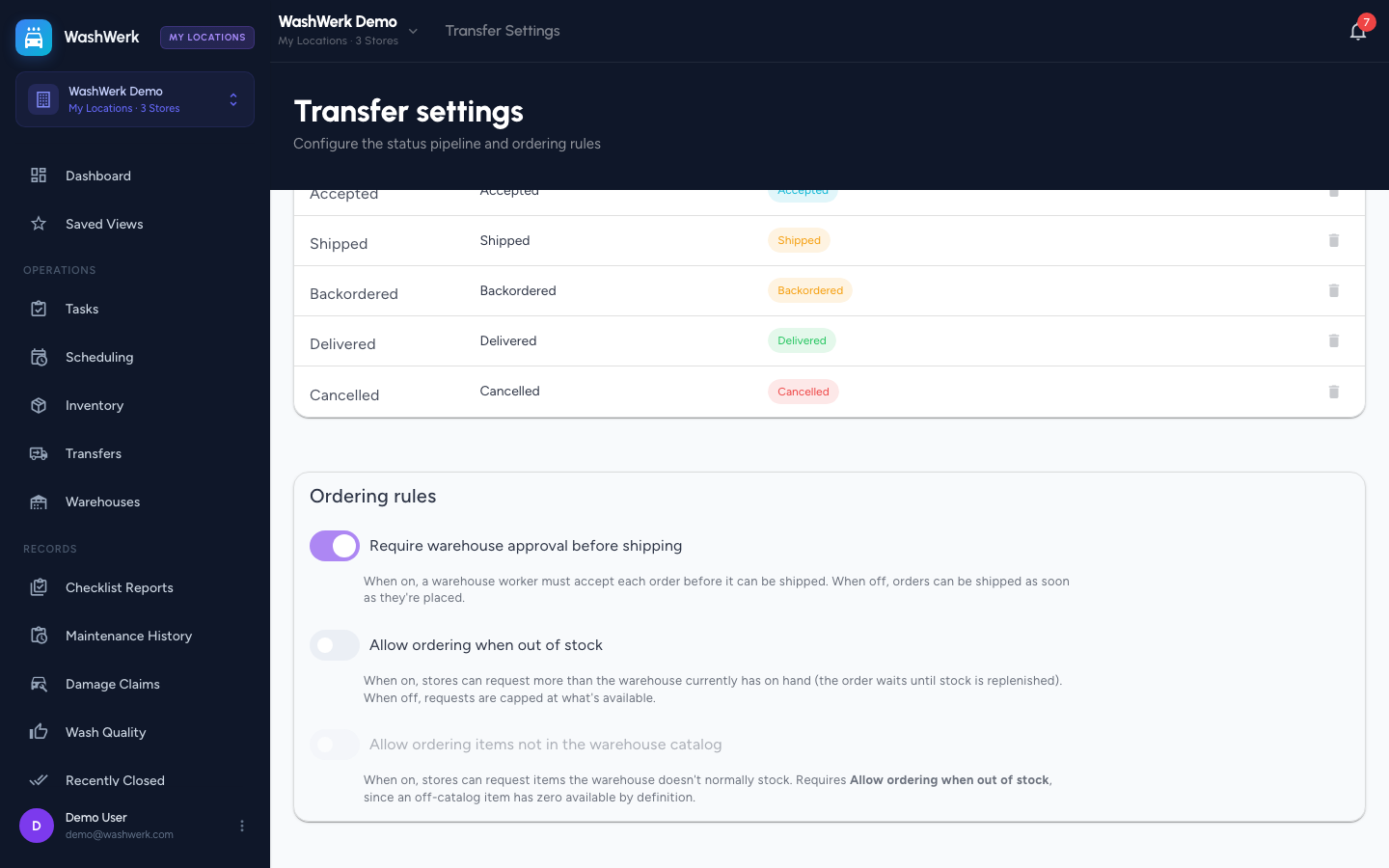
Each switch saves as soon as you change it.
- Open Transfer Settings and find the Ordering rules card.
- Set Require warehouse approval before shipping:
- On (the default) — a warehouse worker must accept each order before it can ship. Use this when the warehouse needs a say in what goes out.
- Off — orders are accepted the moment a store places them and go straight to the shipping queue.
- Set Allow ordering when out of stock:
- On — stores can request more than the warehouse currently has, and the order waits until stock is replenished.
- Off (the default) — requests are capped at what's available, and a store can follow an item to be notified when it's back.
- Set Allow ordering items not in the warehouse catalog to let stores request items a warehouse doesn't normally stock.
WARNING
Off-catalog ordering requires Allow ordering when out of stock, because an item the warehouse doesn't stock has nothing available by definition. Turning out-of-stock ordering off also turns off-catalog ordering off.
Rename an order status
The labels in this list are what stores and warehouse staff see on every order.
- In the Order statuses card, select a status Label and type the wording you want.
- Move focus away from the field. The new label saves and a confirmation reads Status renamed.
Add a status
Add a status when your process has a step the built-in pipeline doesn't name — for example, a "Packing" stage between accepting and shipping.
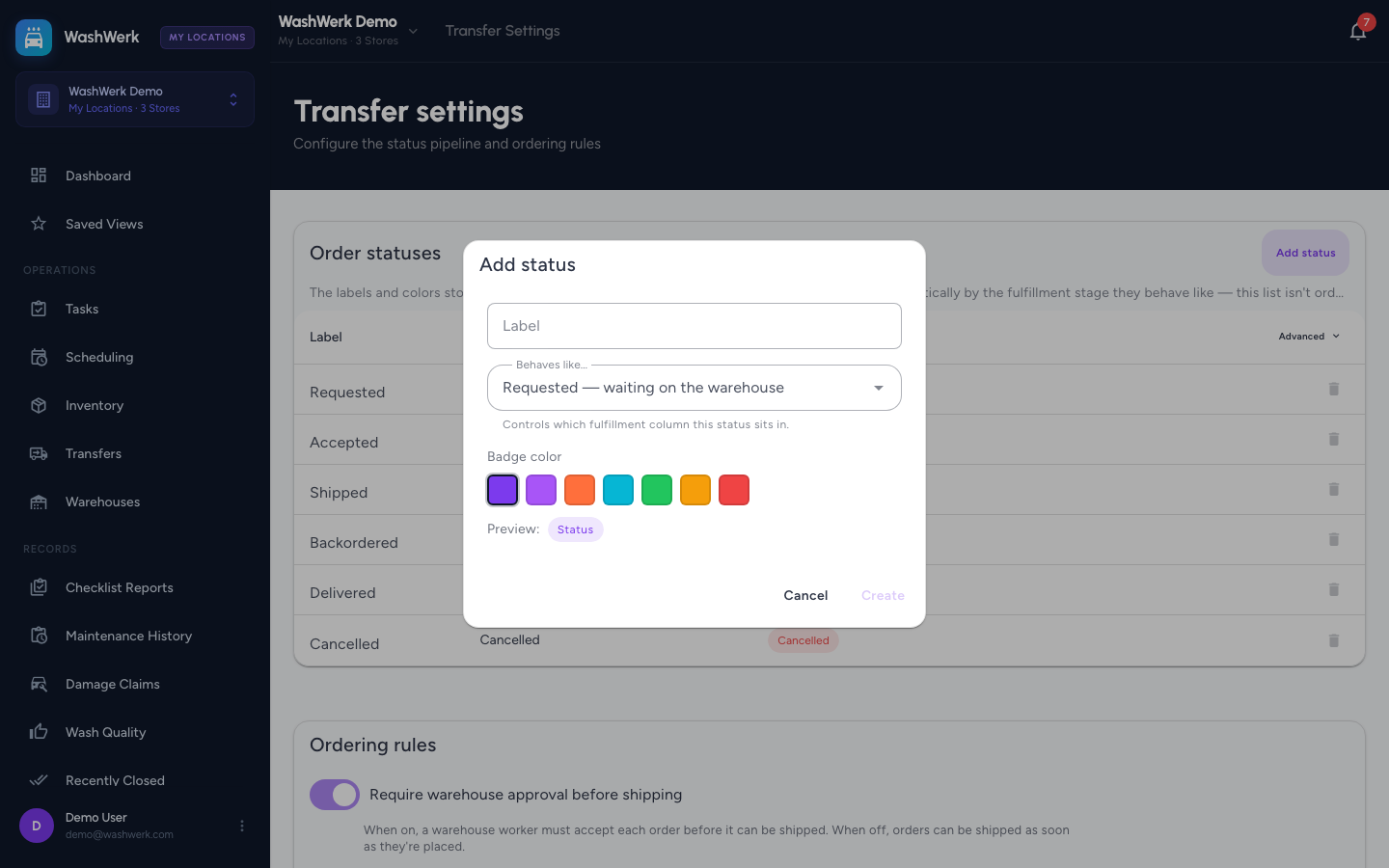
- Select Add status.
- Enter the Label your staff will see.
- Choose what it Behaves like. This is the part that matters: it decides which fulfillment stage the status belongs to and therefore what stores and warehouse staff can do while an order sits in it.
- Requested — waiting on the warehouse
- Accepted — warehouse is preparing it
- Shipped — on its way to the store
- Backordered — partly filled, warehouse owes the rest
- Delivered — received at the store
- Cancelled — order won't be fulfilled
- Pick a Badge color and check the preview.
- Select Create.
Statuses are grouped automatically by the stage they behave like — there's no manual ordering to maintain.
Delete a status
- Select the delete icon in the status row.
- Read the confirmation, then select Delete.
WashWerk blocks two deletions: the last remaining status for a stage (it's built in, and the tooltip says so), and any status whose stage currently has open transfers. In the second case, resolve or cancel those orders first.
Expected result
Ordering rules take effect on the next order placed, and renamed or added statuses appear immediately on the warehouse fulfillment board and in every store's Transfer Orders list.
Troubleshooting
- If Transfer Settings isn't in the corporate sidebar: Your role doesn't include the Configure Inventory Transfers permission — ask an owner to grant it.
- If the off-catalog switch is greyed out: Turn on Allow ordering when out of stock first.
- If Delete is disabled with "Built-in stage — can't be removed": It's the only status for that stage. Add a replacement for the same stage first, then delete this one.
- If deleting is blocked because transfers are in that stage: Open Transfers to find them, and let them complete or cancel them.
- If stores say they can't order enough of an item: Out-of-stock ordering is off and the warehouse is low. Either restock the warehouse or turn the rule on.