
How to onboard a store with the setup wizard
Walk a new store through WashWerk's guided setup so it has equipment, inventory, checklists, and a team before your first shift. The wizard has six setup steps; each can be skipped and resumed later.
Before you start
- Where: Store-level — the wizard sets up one store at a time.
- Permission: No special permission needed. The owner or store manager who created the store runs it.
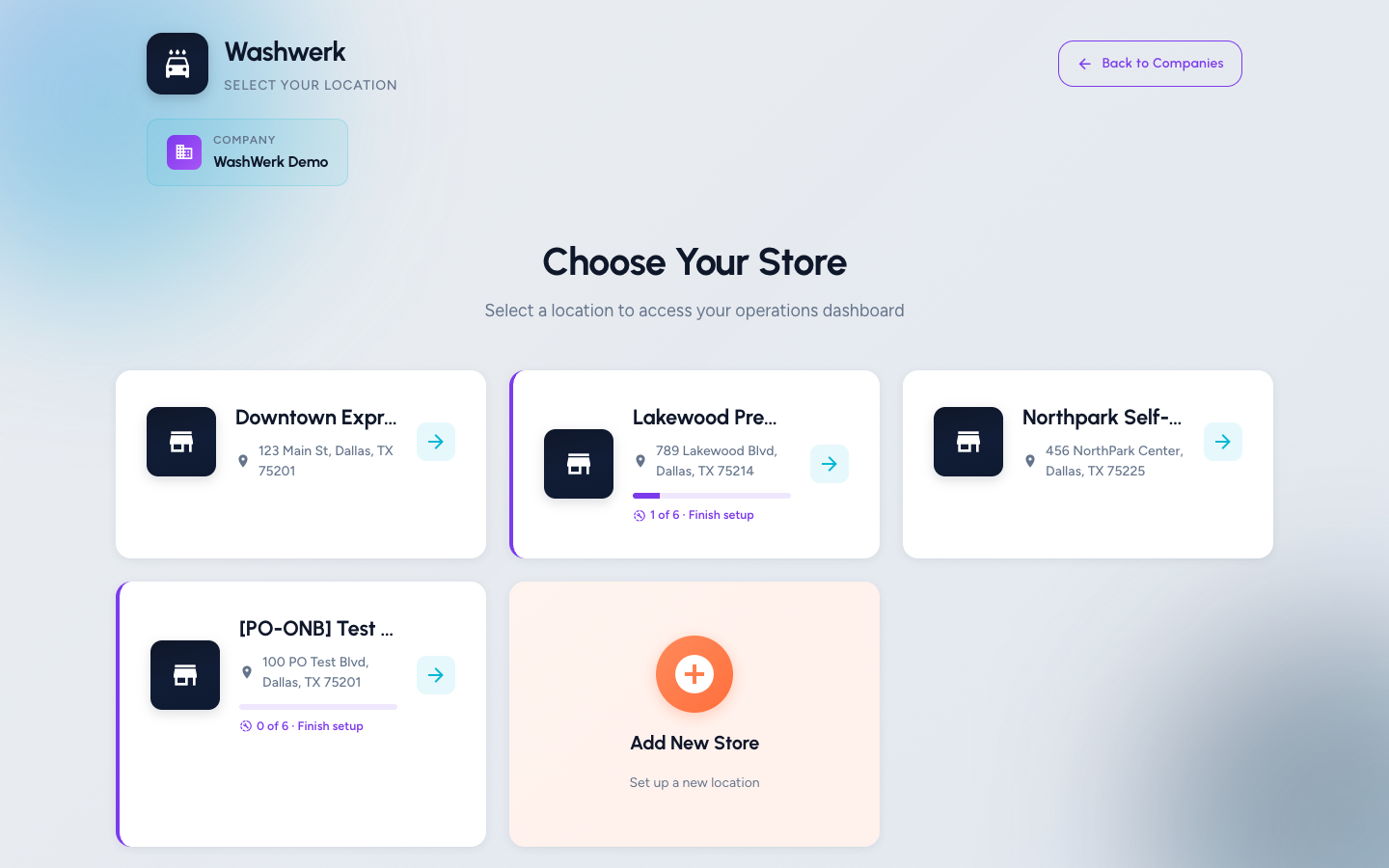
- You must have: A created store. If you left the wizard, reopen it from the store picker's Finish setup link on that store's card.
Open the wizard
- A brand-new store opens the Set Up Your Car Wash wizard automatically. To resume later, go to Choose Your Store, find the store marked with a progress bar, and select Finish setup.
Work through the steps
- Store — Confirm the store name, address, and Car Wash Type, then select Continue. The car wash type drives which templates later steps suggest.
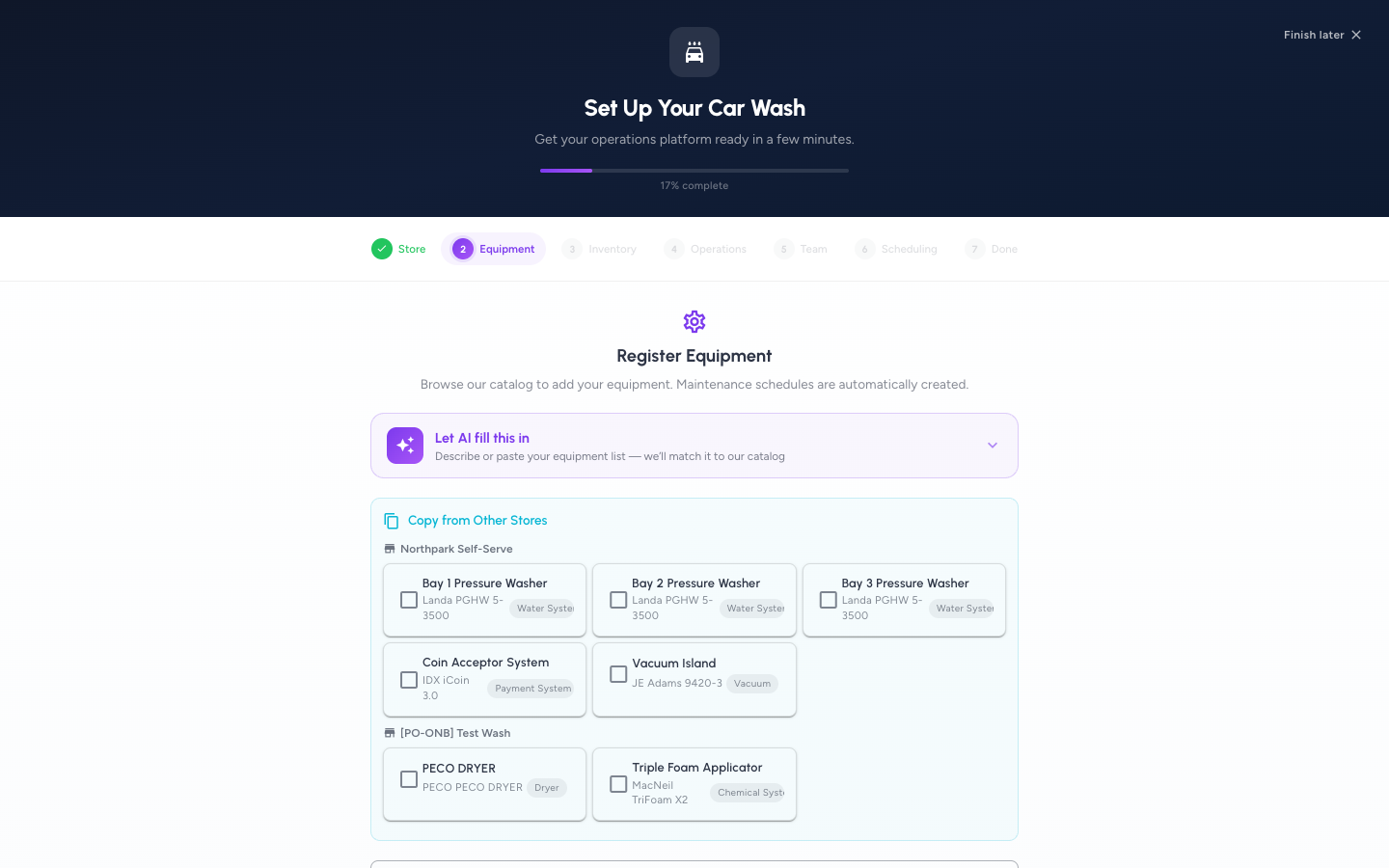
- Equipment — Add equipment from the catalog with Add, or describe your equipment to the AI assistant. Maintenance schedules are created automatically. Select Continue (or Skip — I'll Add Later).
- Inventory — Add the chemicals, towels, and parts you track under Add your own, setting par and reorder levels so low-stock alerts work from day one. Select Continue.
- Operations — Select the checklist templates you want (maintenance procedures come with the equipment you registered), then select Apply Templates. Select Continue.
- Team — Enter a colleague's Email address, pick a Role, and select Add. Repeat for each teammate, then select Continue.
- Scheduling — Set up positions and staffing, then select Continue to reach the Done step.
Reuse setup from another store
If your company already runs other stores, each step offers a Copy from Other Stores panel so you don't re-enter everything.
- Equipment: Select items under Copy from Other Stores, then Duplicate to copy them into this store.
- Operations: Select sibling checklists, then Duplicate to copy them here.
- Inventory: Tick items your other locations carry, adjust the suggested par and reorder values, then Adopt to add them.
Skip a step or finish later
- Skip this step for now: Advances past the current step without marking it done, so the store keeps prompting you to finish it. Available on steps 2 through 6.
- Finish later: Leaves the wizard for the dashboard. Your progress is saved, and the Finish setup link on the store card resumes where you left off.
- Skip the whole setup is offered from the store-level onboarding prompt rather than the wizard's per-step controls; use Finish later here to step out without completing.
Expected result
The wizard reaches the You're All Set (Done) step. Select Go to Dashboard to start working. The store no longer shows a setup progress bar in the store picker.
Troubleshooting
- If the wizard opens on a later step than expected: It resumes from your saved progress. Select any earlier completed step in the indicator bar to revisit it.
- If "Apply Templates" shows an error: The store's car wash type may be missing. Go back to the Store step, set the type, and return to Operations.
- If a teammate's email is rejected: They may already belong to the store, or the address is mistyped. Check the added-members list and correct the email.