
How to find tasks with search, filters, and saved presets
Narrow the task list to exactly what you need — so you can spot what's overdue or assigned to you without scrolling — using keyword search, one-tap quick filters, the advanced filter drawer, and reusable saved presets. For anyone working the store Tasks list day to day.
Before you start
- Where: Store-level — these controls are on the store Tasks list.
- Permission: View Tasks.
- Available by default to: Owners, Store Managers, Shift Leads, and Wash Attendants. (On custom roles, this needs the permission named above.)
- You must have: A store selected with at least one task to filter.
View and search the task list
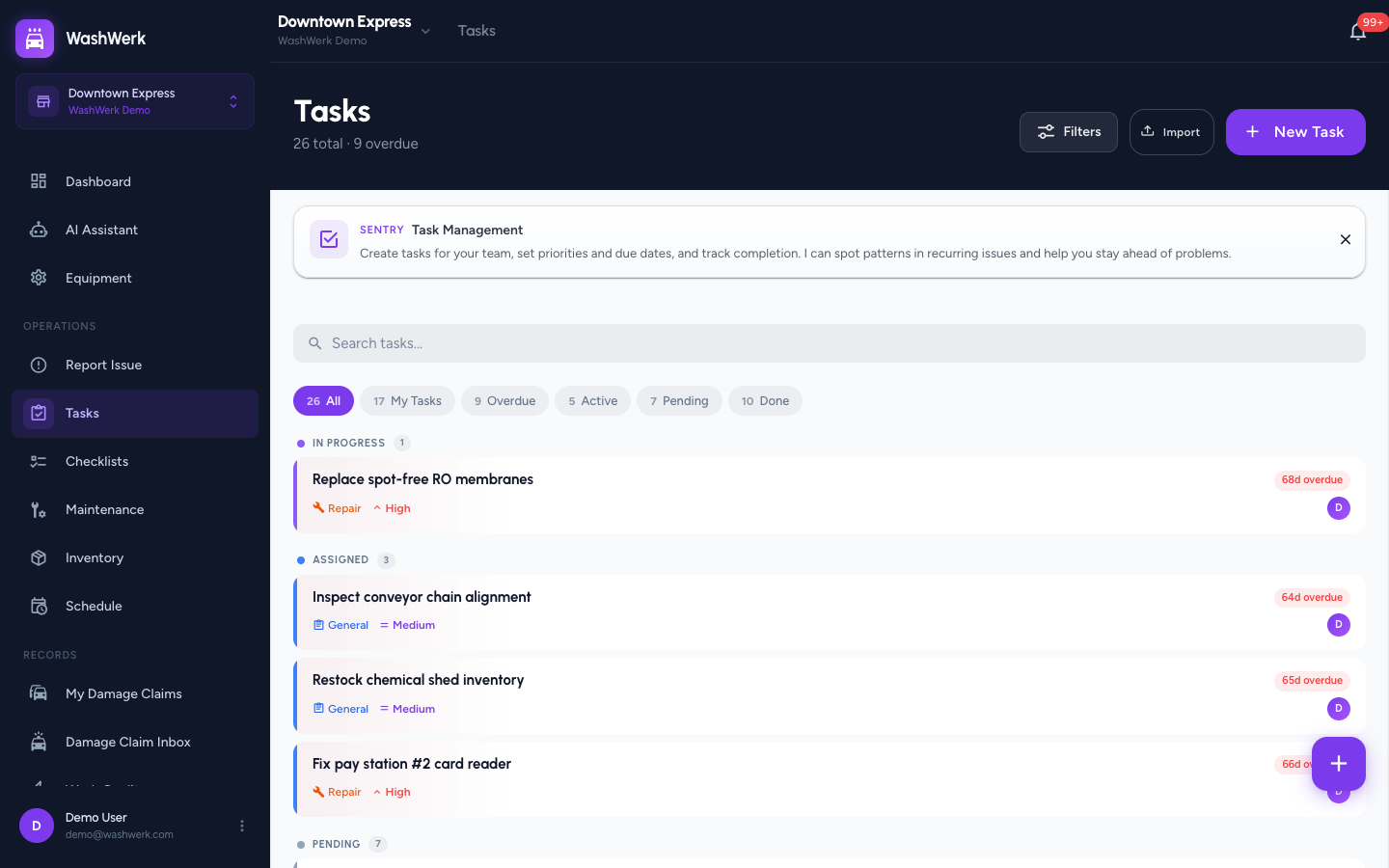
- Open the Tasks list. Tasks are grouped by status, newest first.
- Select the Search tasks... field and type a keyword. Results match the task title or description and update as you type.
- To clear the search, select the × in the search field.
Apply a quick filter
The chip row above the list gives one-tap views, each showing a count.
- Select All, My Tasks, Overdue, Active, Pending, or Done. The list updates immediately to that view.
Filter with the advanced drawer
For more precise filtering, use the filter drawer.
- Select Filters (top right). The filter drawer opens.
- Set any combination: Type, Status, Priority (select chips), and Assigned To, Assigned By, Created By, or Equipment (search and select). Add a Due Date or Completed Date range with the From/To fields.
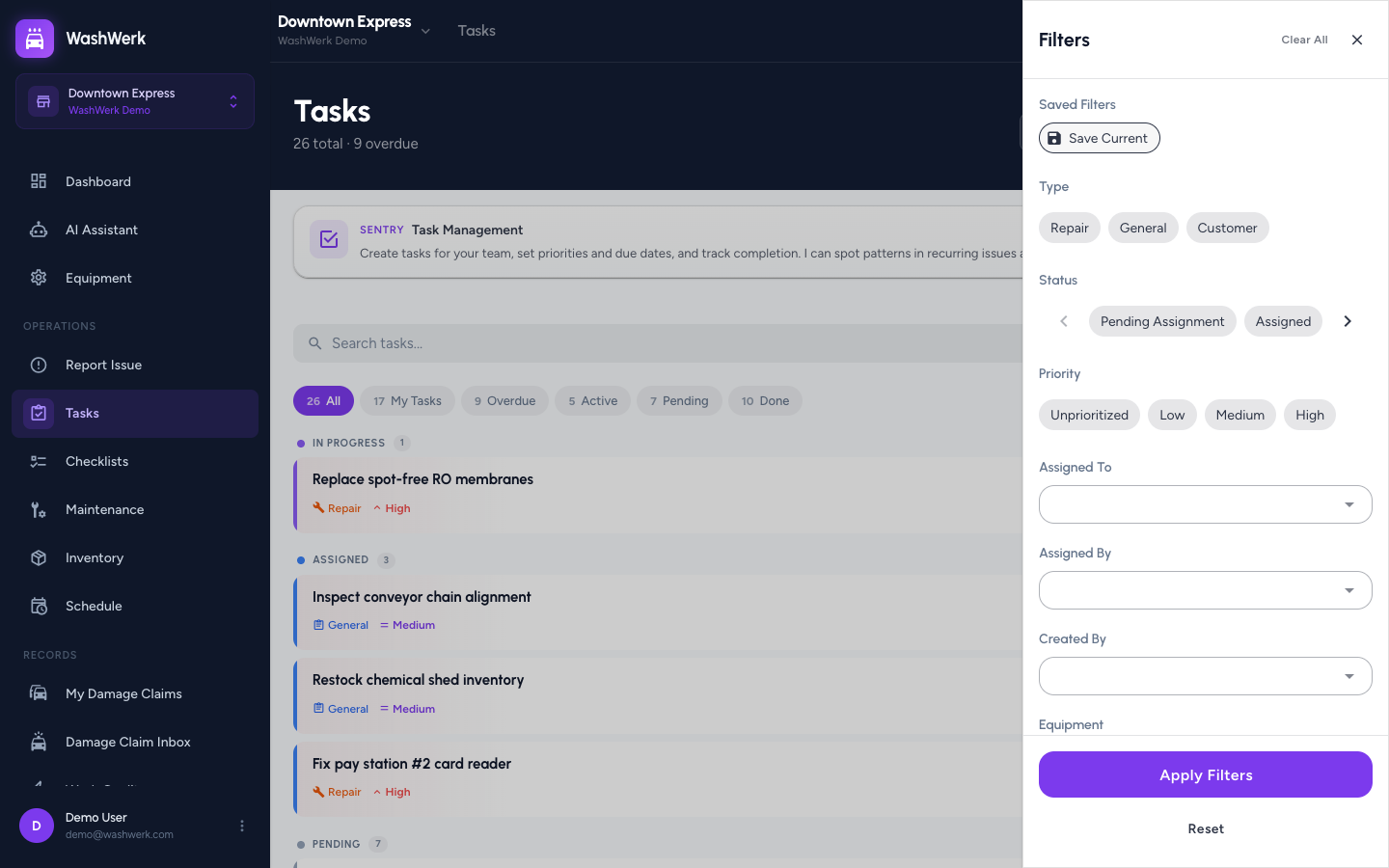
- Select Apply Filters. The drawer closes and the list shows the matching tasks; a badge on Filters shows how many filters are active.
To start over, select Reset (or Clear All) in the drawer.
Save and reuse a filter preset
- Set up the filters you want, then in the drawer's Saved Filters row select Save Current.
- Enter a name for the preset, then select Save. The preset appears as a chip in Saved Filters.
- To reuse it later, open the drawer and select the preset chip, then select Apply Filters.
- To remove a preset, select the × on its chip.
Pull to refresh on mobile
- On the task list, drag down from the top of the cards and release. A spinner appears and the list reloads with the latest tasks.
Expected result
The task list shows only the tasks matching your search and filters, and your saved presets are available as chips in the filter drawer for next time.
Troubleshooting
- If a quick filter shows no count: No tasks currently match that view (for example, nothing is overdue). The chip still works; it just returns an empty list.
- If a saved preset returns nothing: The data may have changed since you saved it (tasks completed or reassigned). Open the drawer, adjust the filters, and save a new preset.
- If pull-to-refresh doesn't trigger: Make sure the list is scrolled all the way to the top before dragging down.