
How to manage your profile and account
Update your personal details, change your password, set a profile photo, end sessions on other devices, and delete your account — all from your WashWerk profile page, so you can keep your login secure and your information current. This applies to every role on web and mobile.
Before you start
- Where: Profile page — reachable from both the store view and the corporate view.
- Permission: No special permission needed; you edit only your own account.
- You must: Be signed in.
Open your profile
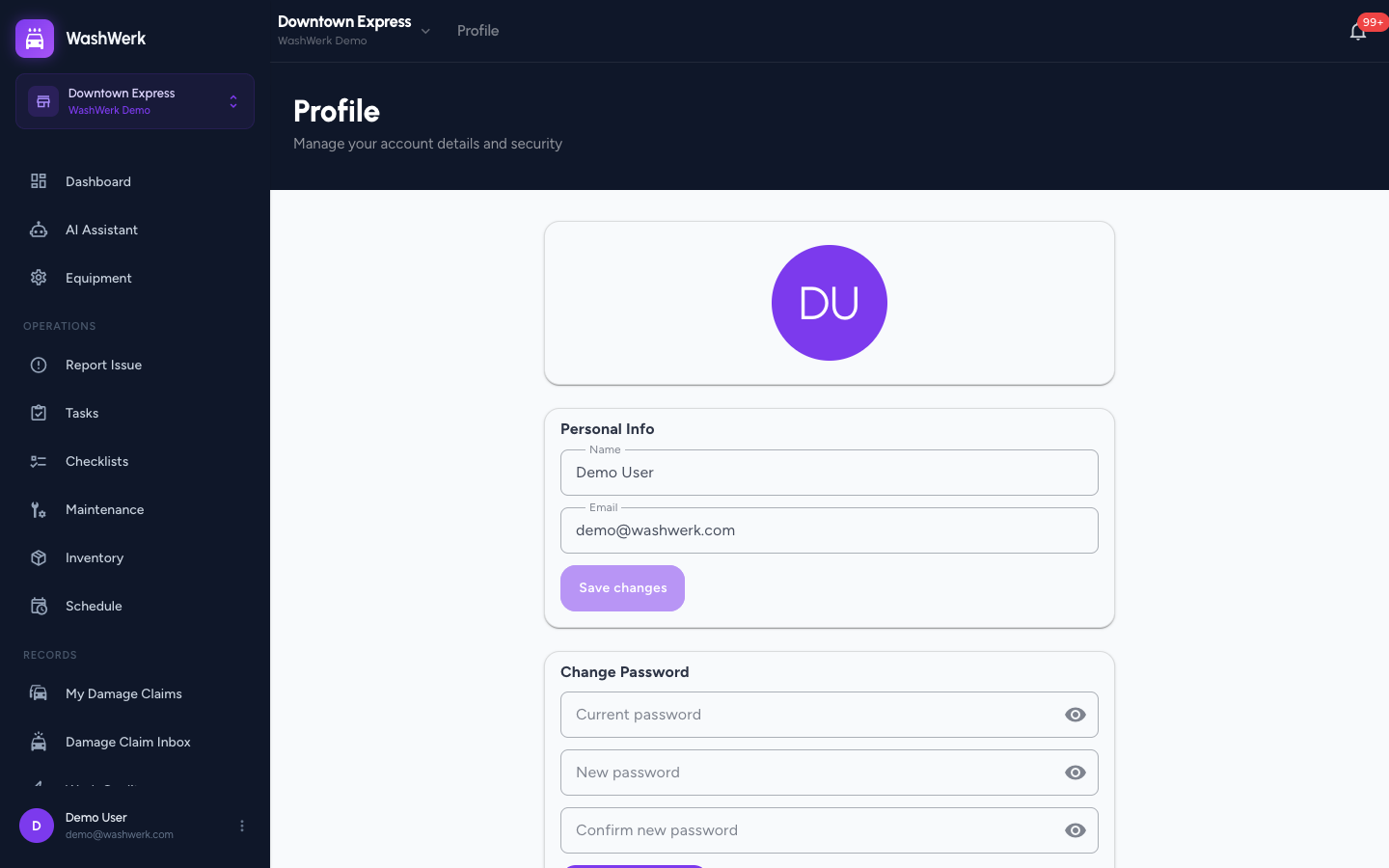
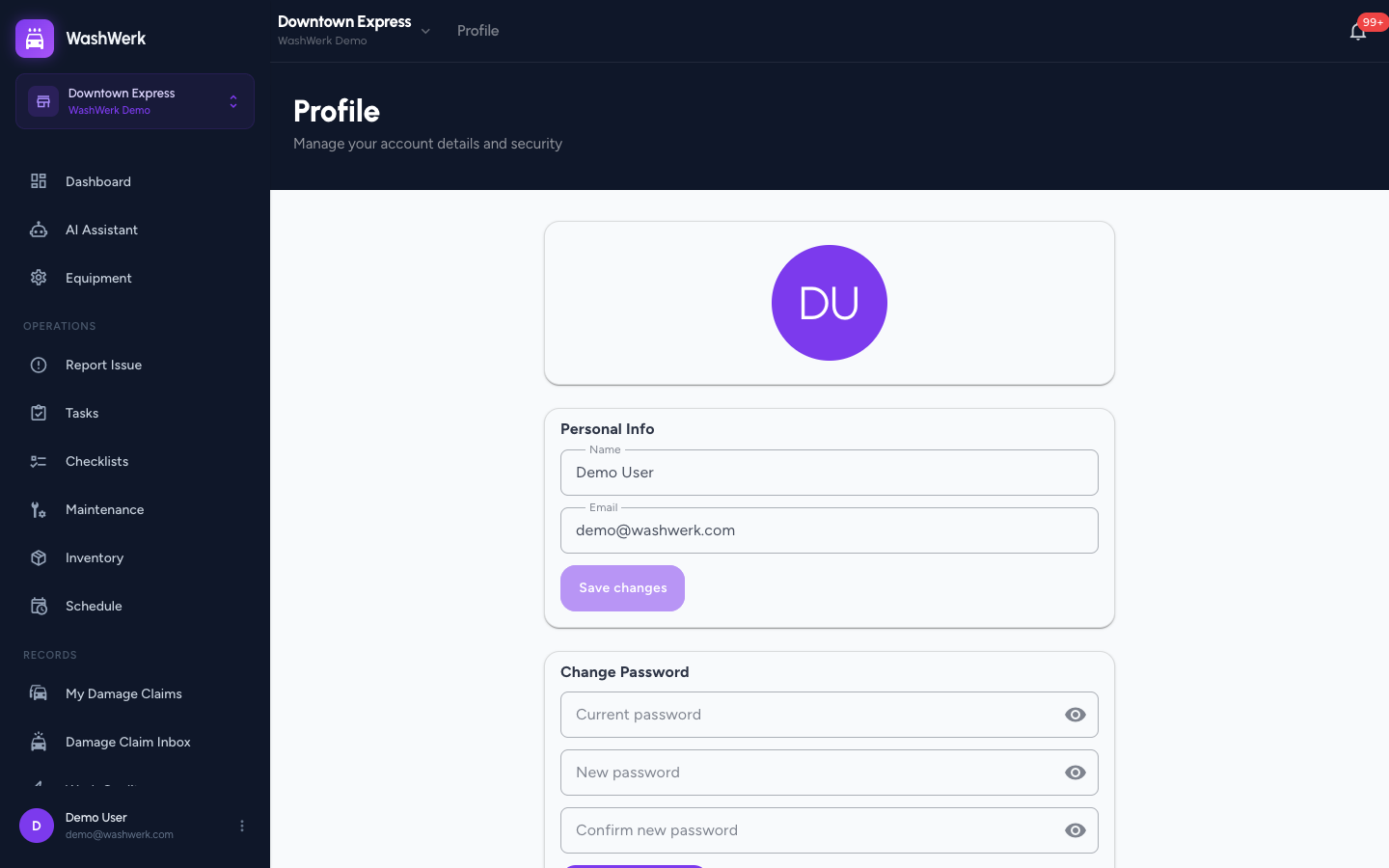
- Select your avatar in the top bar to open the user menu, then select Profile. On mobile, open the profile sheet and select Profile. The page is titled "Profile" with the sections below.
Edit your name and email
- In the Personal Info section, update Name and Email.
- Select Save changes. A "Profile updated" confirmation appears. The button stays disabled until you change a value.
Upload or change your avatar
- Select the circular avatar at the top of the page. Your camera or photo picker opens.
- Choose or capture a photo. WashWerk uploads it and shows "Avatar updated." Images must be under 5 MB.
Remove your avatar
- Below the avatar, select Remove photo. WashWerk clears the image and falls back to your initials. This link appears only when you have a photo set.
Change your password
- In the Change Password section, enter your Current password.
- Enter and confirm your New password (at least 8 characters).
- Select Update password. A "Password updated" confirmation appears and the fields clear.
Sign out of all other devices
- In the Danger Zone, next to Sign out all devices, select Sign out all. Every session except your current one is revoked. Use this if you've lost a device or suspect someone else has access.
Delete your account
This permanently removes your account and is irreversible.
- In the Danger Zone, select Delete account.
- In the Delete Account dialog, enter your Password to confirm.
- Select Delete my account. WashWerk deletes your account, signs you out, and returns you to the sign-in screen.
Expected result
Your saved changes show a green confirmation. After deleting your account, you land on the sign-in screen and can no longer access your stores or data.
Troubleshooting
- If "Save changes" stays disabled: You haven't changed any value yet. Edit your name or email to enable it.
- If the password update fails: Your current password must be correct and the new password at least 8 characters with both confirmation fields matching.
- If account deletion says "Incorrect password": Re-enter the password for the account you're signed in to. The dialog confirms with your current password, not a code.
- If you want to delete your account but can't sign in: Use the public request form instead — see How to delete your data or contact support.