
How to edit, clone, or delete a checklist
Change a checklist's items or schedule, copy one to build a similar routine, find a checklist quickly, or remove one you no longer use. This is for owners and store managers maintaining a store's checklists.
Before you start
- Where: Store-level (web)
- Permission: Manage Checklists
- Available by default to: Owners and Store Managers. (On custom roles, this needs the permission named above.)
- You must have: At least one checklist already created for the store.
Find a checklist
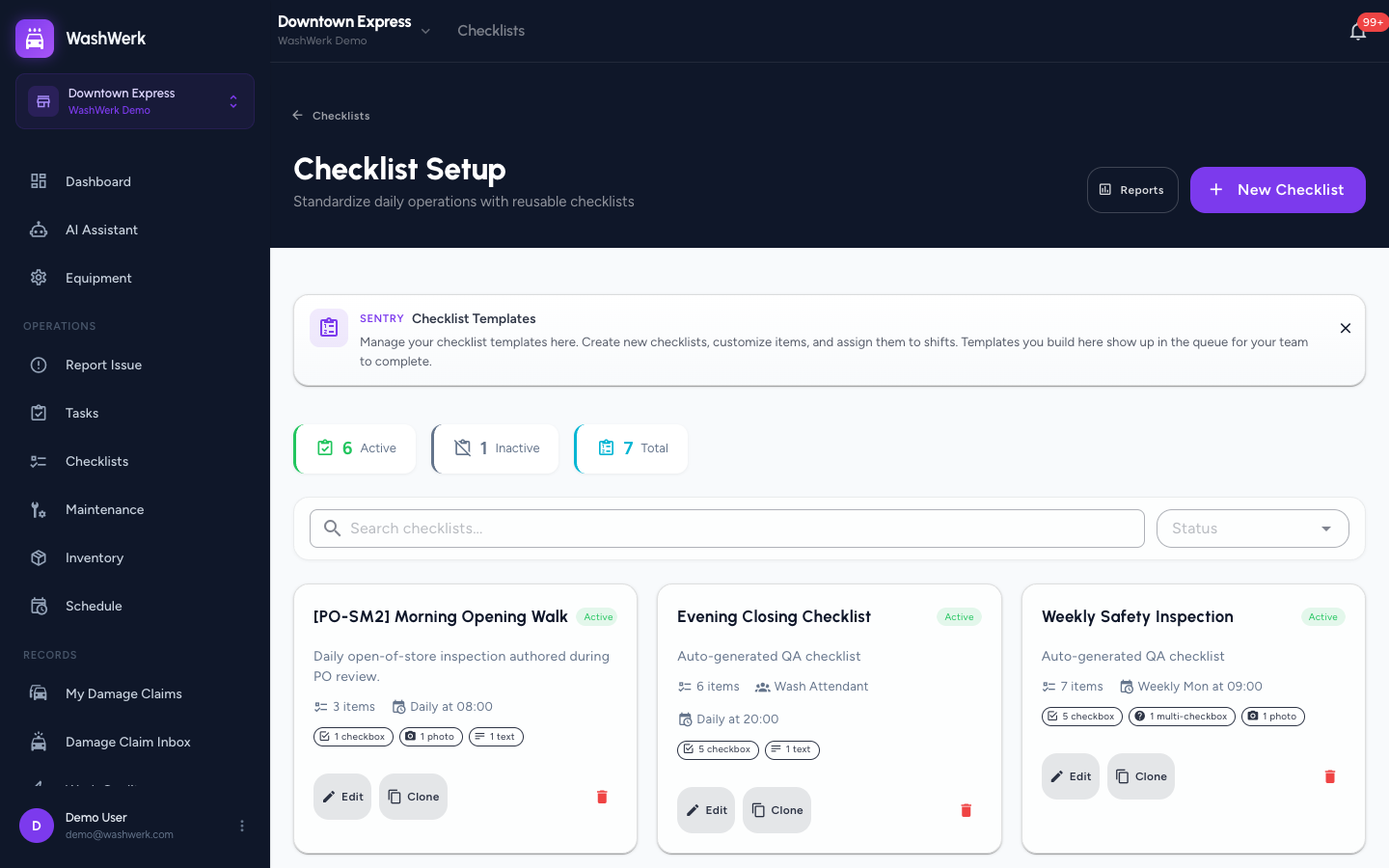
- Open Checklists, then select Setup to open the setup list. The stats row shows Active, Inactive, and Total counts.
- In the Search checklists field, type part of a title or description to narrow the list.
- Optional: Use the Status filter to show only Active or Inactive checklists.
Edit a checklist
- On the checklist's card, select Edit. The edit form opens with the current title, schedule, items, and assignment.
- Change any field — title, frequency, due time, items, or role and position assignment — using the same builder as when creating.
- Select Save. Your changes apply to every time the checklist comes due from now on.
Clone a checklist
- On the checklist's card, select Clone. A duplicate is created and the list refreshes so you can edit the copy.
Delete a checklist
- On the checklist's card, select the delete (trash) icon. A confirmation dialog opens.
- Select Delete to confirm. The checklist is removed from the setup list.
WARNING
Deleting a checklist can't be undone. If you only want to stop it from running, edit it and set it inactive instead so its past submissions stay available in Reports.
Expected result
Your edits show on the checklist's card, a cloned copy appears in the list ready to rename, or the deleted checklist no longer appears in the setup list.
Troubleshooting
- If you don't see Edit, Clone, or Delete on a card: Your role doesn't include the Manage Checklists permission — ask an owner or manager. Without it the setup list is read-only.
- If a search returns nothing: Clear the Status filter — an active-only or inactive-only filter may be hiding the match. Then check your spelling.