
How to register equipment in your store
Add a piece of equipment to your store's registry so you can track its status, attach manuals and photos, and schedule maintenance against it. This is for store managers, maintenance managers, owners, and techs who maintain the equipment fleet.
When to use this
Add from the Equipment Catalog when the machine is a known make/model — it pre-fills details and links maintenance procedures; register manually when it's not in the catalog or you only have basic details.
Before you start
- Where: Store-level — the Equipment tab in your store.
- Permission: Manage Equipment to add, edit, or delete equipment. Viewing only needs the View Equipment permission.
- Available by default to: Owners and Store Managers. (On custom roles, this needs the permission named above.)
- You must have: The equipment's basic details (name, manufacturer, model). Serial number and dates are optional.
Register equipment manually
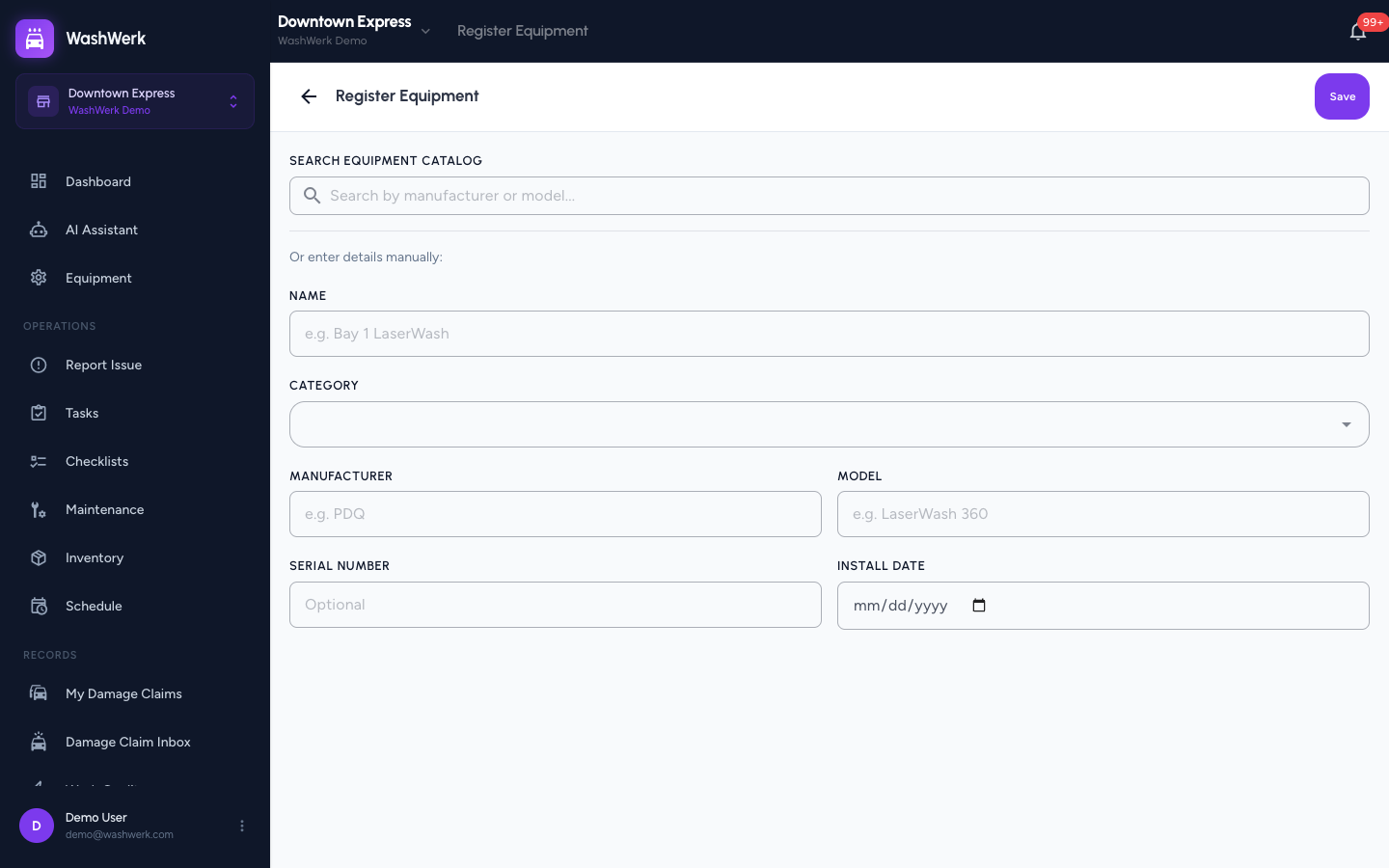
- On the Equipment tab, select Register Equipment (top right). The registration form opens.
- Enter the Name (for example, "Bay 1 LaserWash"), then choose a Category such as Conveyor, Dryer, or Vacuum.
- Enter the Manufacturer and Model. Optionally add a Serial Number and Install Date.
- Select Save. The equipment appears in the registry with an Operational status.
Add equipment from the Equipment Catalog
The shared catalog pre-fills manufacturer, model, and category — and links catalog maintenance procedures so they auto-populate your maintenance queue.
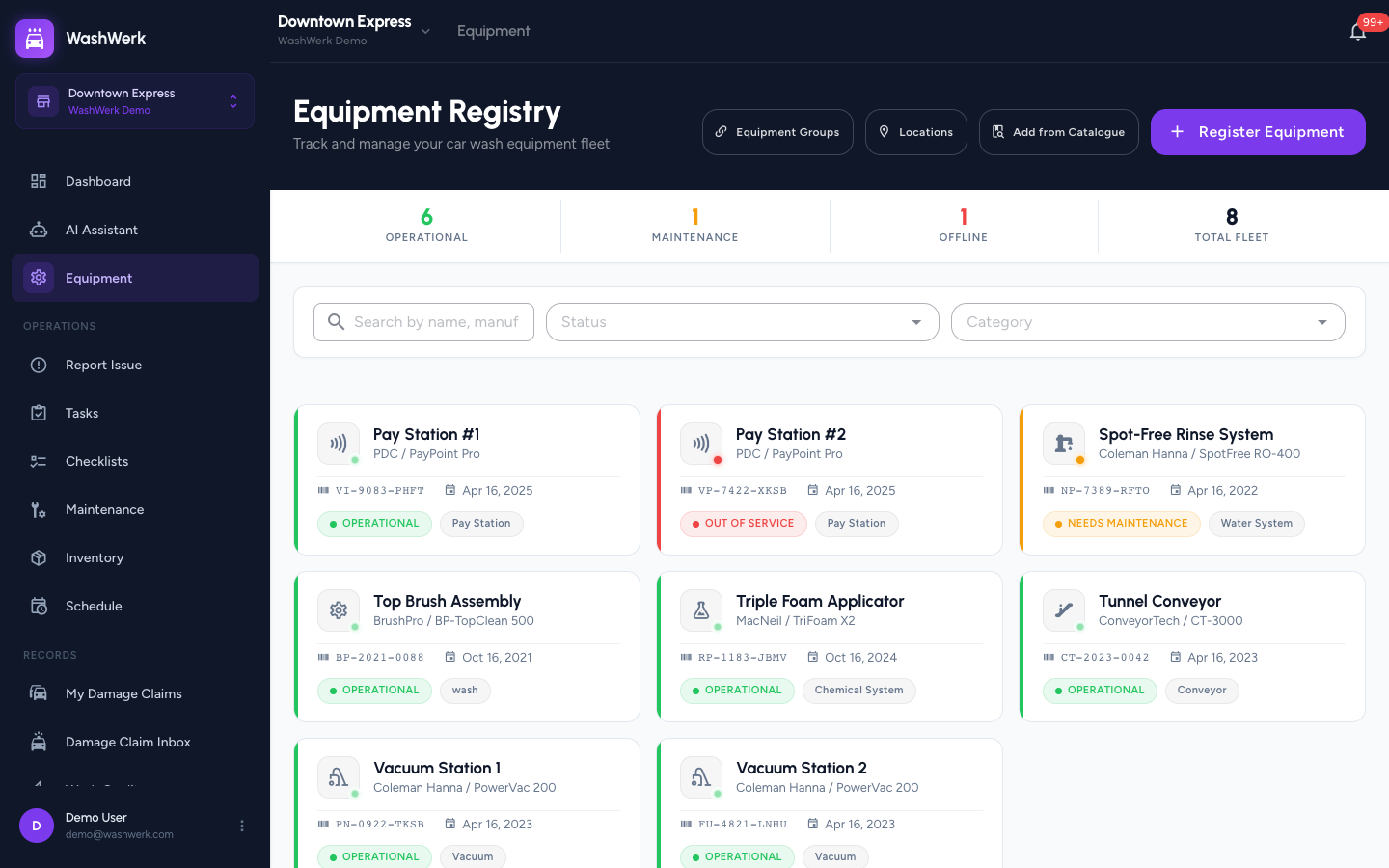
- On the Equipment tab, select Add from Catalogue. The catalogue wizard opens on step 1, Select.
- Search by manufacturer, model, or category, then select one or more catalog entries. Each selected item shows as a chip.
- Select Next to move to step 2, Configure, and set per-item details (name, serial number, install date).
- Select Complete. A confirmation appears and the equipment is added to your registry.
You can also browse the catalog inline while registering manually: on the registration form, search Equipment Catalog and select a result to copy its manufacturer, model, and category into the form.
Find and filter equipment
- On the Equipment tab, type into the search box to match by name, manufacturer, model, or serial number.
- Use the Status filter (Operational, Needs Maintenance, Out of Service) and the Category filter to narrow the list.
- If nothing matches, select Clear Filters to reset.
View and edit an equipment dossier
- On the Equipment tab, select an equipment card to open its dossier. The hero shows status, warranty, and last-maintenance summary.
- On the Overview tab, edit identity, technical details, dates, and warranty, then select Save Changes. To change status, set the Status field (Operational, Needs Maintenance, Out of Service) and save.
- Use the dossier tabs to work with the record:
- Activity — the change log and timeline for this equipment.
- Maintenance — procedures and history for this equipment.
- Comments — notes from your team.
- Files — photos and documents.
Upload photos and documents
- In the dossier, open the Files tab.
- Drag files onto the upload zone, or select browse to pick them. Photos appear under Images; manuals, invoices, and warranties appear under Documents.
- To remove a file, select the delete control on the image or document row and confirm.
Add a comment
- In the dossier, open the Comments tab, type a note, and select Post (or press Cmd+Enter). The note is saved with your name and timestamp.
Assign equipment to a location
Location assignment happens on the Locations board, not in the dossier.
- In the dossier Overview tab, under Location & Vendor, select Manage in Locations to open the board, then drag the equipment into the target location column.
For the full board workflow, see How to organize equipment with groups and locations.
Reorder equipment
Physical ordering is set on the Locations board by dragging equipment cards within a column. See How to organize equipment with groups and locations.
Delete equipment
- Open the equipment dossier and select the delete control in the hero.
- Confirm in the dialog by selecting Delete Equipment.
WARNING
Deleting equipment also removes its activity, comments, files, and maintenance records. This cannot be undone.
Expected result
The equipment appears in the registry with the correct status and category. Opening its dossier shows the details you entered, plus any photos, documents, comments, and activity you added.
Troubleshooting
- If you do not see Register Equipment or Add from Catalogue: Your role does not include the Manage Equipment permission — ask an owner or manager to grant it.
- If a catalog search returns nothing: Enter at least two characters and try the manufacturer or model name; not every machine is in the shared catalog — register it manually instead.
- If a file will not upload: Re-try a single file; very large files can time out. Photos appear under Images and everything else under Documents.