
How to receive a transfer at your store
Confirm what physically arrived from the warehouse so the units are added to your store's on-hand stock and the order is closed out. This guide is for whoever meets the delivery — store managers and shift leads.
Before you start
- Where: Store-level — Transfer Orders in the sidebar, the Incoming transfers card on the store dashboard, or the order's detail page.
- Permission: Receive Inventory Transfers
- Available by default to: Owners, Store Managers, and Shift Leads. (On custom roles, this needs the permission named above.)
- You must have: An order with stock actually in transit to this store. Until the warehouse ships, there is nothing to receive.
Receive the delivery in front of you. Stock only reaches your on-hand count when you confirm it here — nothing is added automatically when the warehouse ships.
Receive a complete delivery
- Open Transfer Orders and select Receive on the order (or open the order and select Mark received). A sheet opens summarising how many lines and units are in transit.
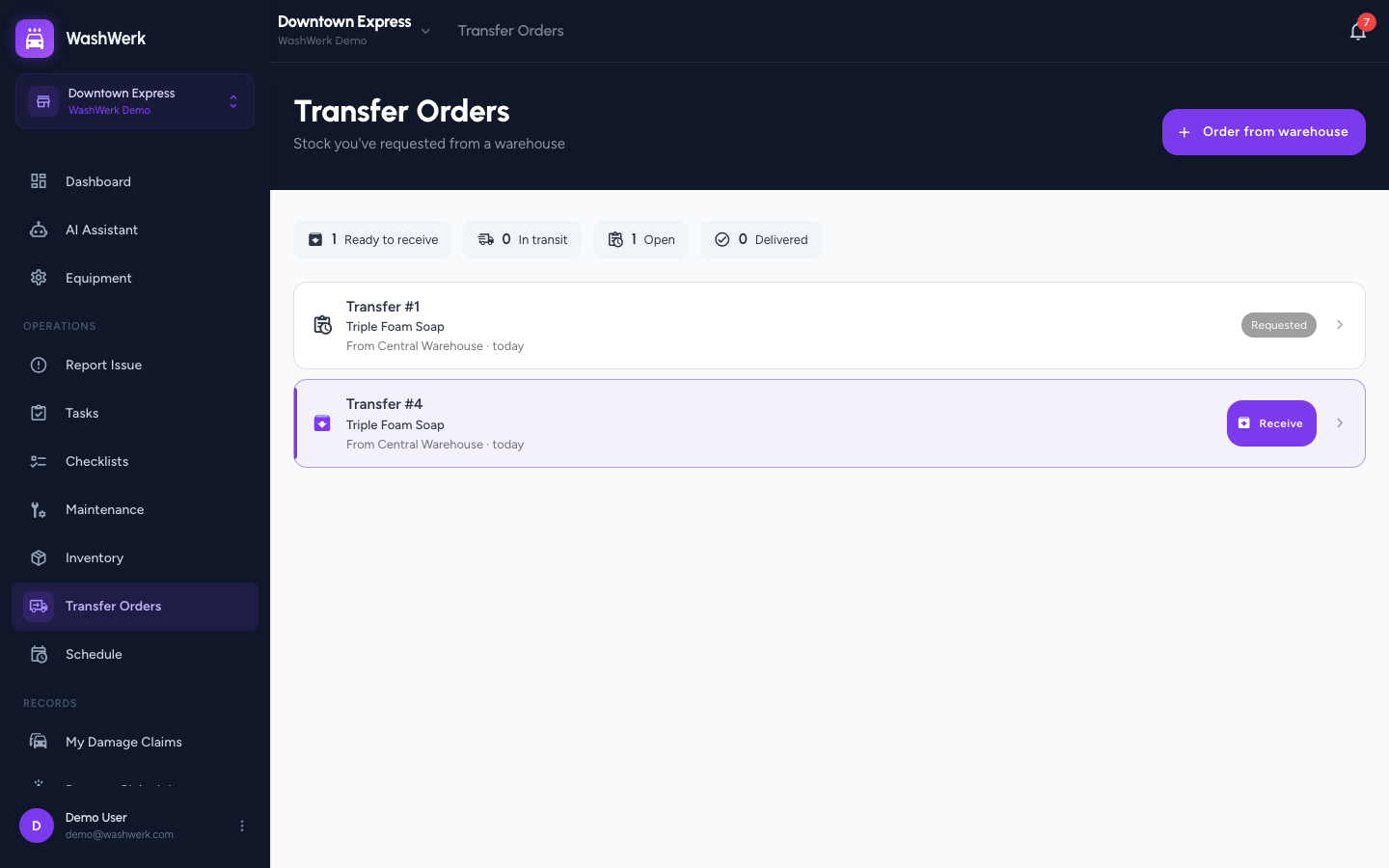
- Select Looks right — receive all. WashWerk records every in-transit unit as received.
Receive fewer units than were shipped
Take this path whenever the pallet is short, a case is damaged, or a line is missing. Record what you can actually put on the shelf — the difference stays owed to you rather than quietly disappearing.
- In the receive sheet, select Something's different. A per-line table opens showing what was ordered, what's in transit, and an editable Received figure for each line.
- Change the Received figure on each line to the number of usable units that arrived. Leave a line at its in-transit figure if it came in full.
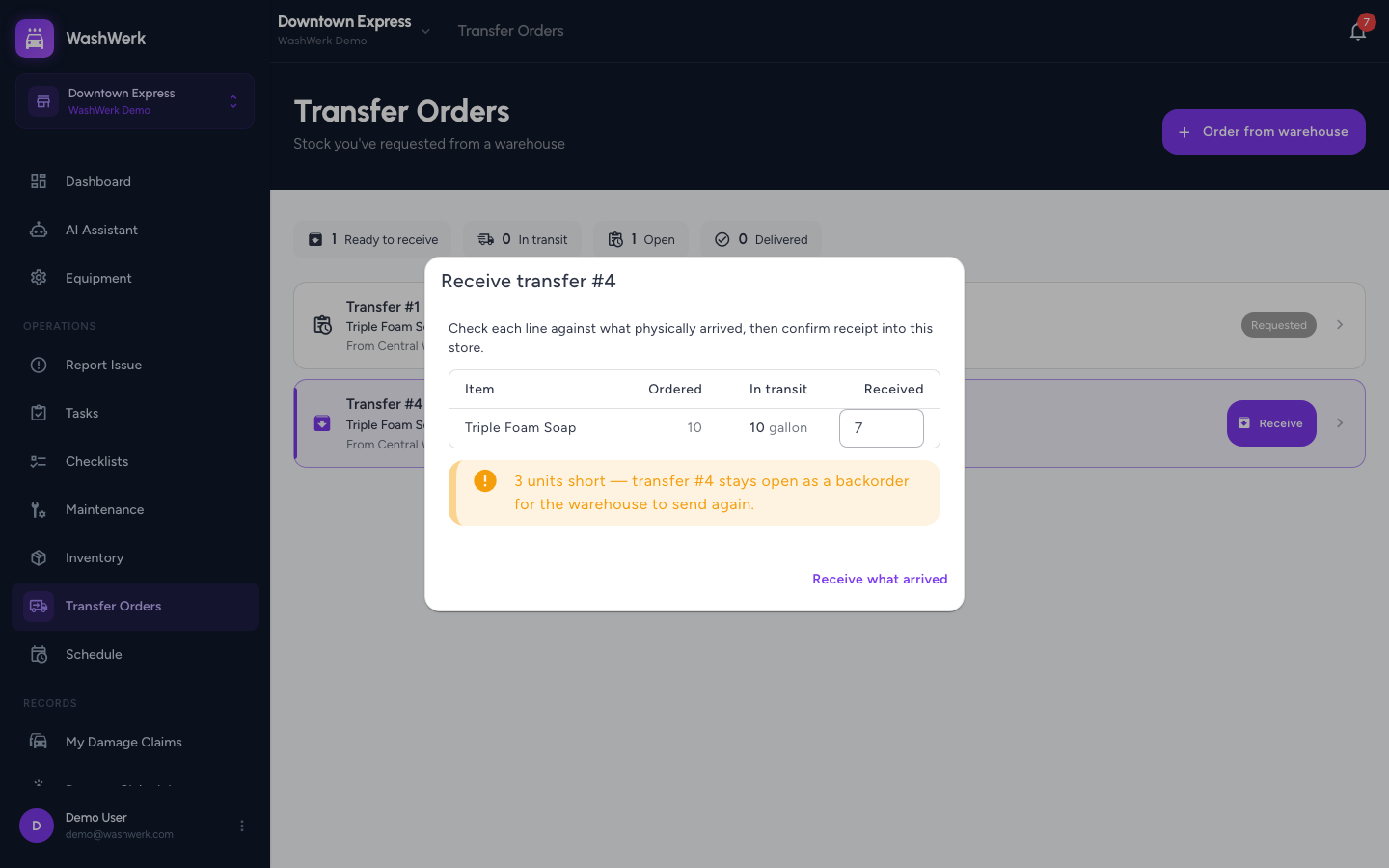
- Read the warning that appears — it names how many units short you are and confirms the order will stay open as a backorder.
- Select Receive what arrived.
Expected result
A confirmation reads Transfer #N received, the received units are added to your store's on-hand quantities, and the order shows as Delivered.
If you received short, the confirmation instead reads Transfer #N received short — N still outstanding. The order stays open, moves to Backordered, and the warehouse is notified that it still owes you the difference. See How to resolve a backordered transfer.
What "backordered" means
A backordered order is one that has been through a shipping round but isn't complete — either the warehouse shipped less than you ordered, or less arrived than it shipped. It stays open, carrying the shortfall, until the warehouse sends the rest and you receive that follow-up delivery, or someone closes it short. Nothing is lost: the units it still owes you appear as Outstanding on the order's Items table.
Damaged and missing units are treated the same way. Receive only what you can use, and the rest goes back on the warehouse's list to send again.
Troubleshooting
- If there's no Receive or Mark received button: Either nothing is in transit for this order yet, or your role doesn't include the Receive Inventory Transfers permission — ask an owner or manager to grant it.
- If the sheet says nothing is in transit: The warehouse hasn't shipped this round yet. On a backordered order this is normal between shipments.
- If you're told the order was already received: A colleague confirmed it first. The message names who and when, and the list refreshes so the button clears.
- If you receive short by mistake: You can't undo a receipt. Receive the rest when the warehouse re-sends it, or correct your on-hand figure with an adjustment — see How to record stock movements and track an item.
- If you're on the kiosk and there's no Receive button: Receiving isn't available in Kiosk Mode. Sign in with a full account, or ask a manager.