
How to switch between stores and companies
Change which store you're working in, switch to another company, or open the corporate view that rolls up every store, so you always act on the right location's data. This guide is for anyone who works across more than one location.
When to use this
Switch the active store to work in one location at a time; open the corporate "My Locations" view instead when you need numbers rolled up across every store at once.
How stores, companies, and the corporate view fit together
- A company contains one or more stores.
- Working in a single store shows that store on its own — its dashboard, tasks, equipment, and team.
- The corporate view rolls up data across all of that company's stores at once.
Switching store changes which location you're working in; switching company changes which business you're in; the corporate view sits above any single store and reports across all of them.
Before you start
- Where: Store or corporate — the switcher is available whether you're working in a single store or the corporate view.
- Permission: No special permission needed. The switcher only shows options for companies and stores you can access.
- You must have: Membership in more than one store (to switch stores) or more than one company (to switch companies). With a single store, the switcher is informational only.
Switch the active store
- Select the store name at the top of the app bar (or in the sidebar) to open Switch Store.
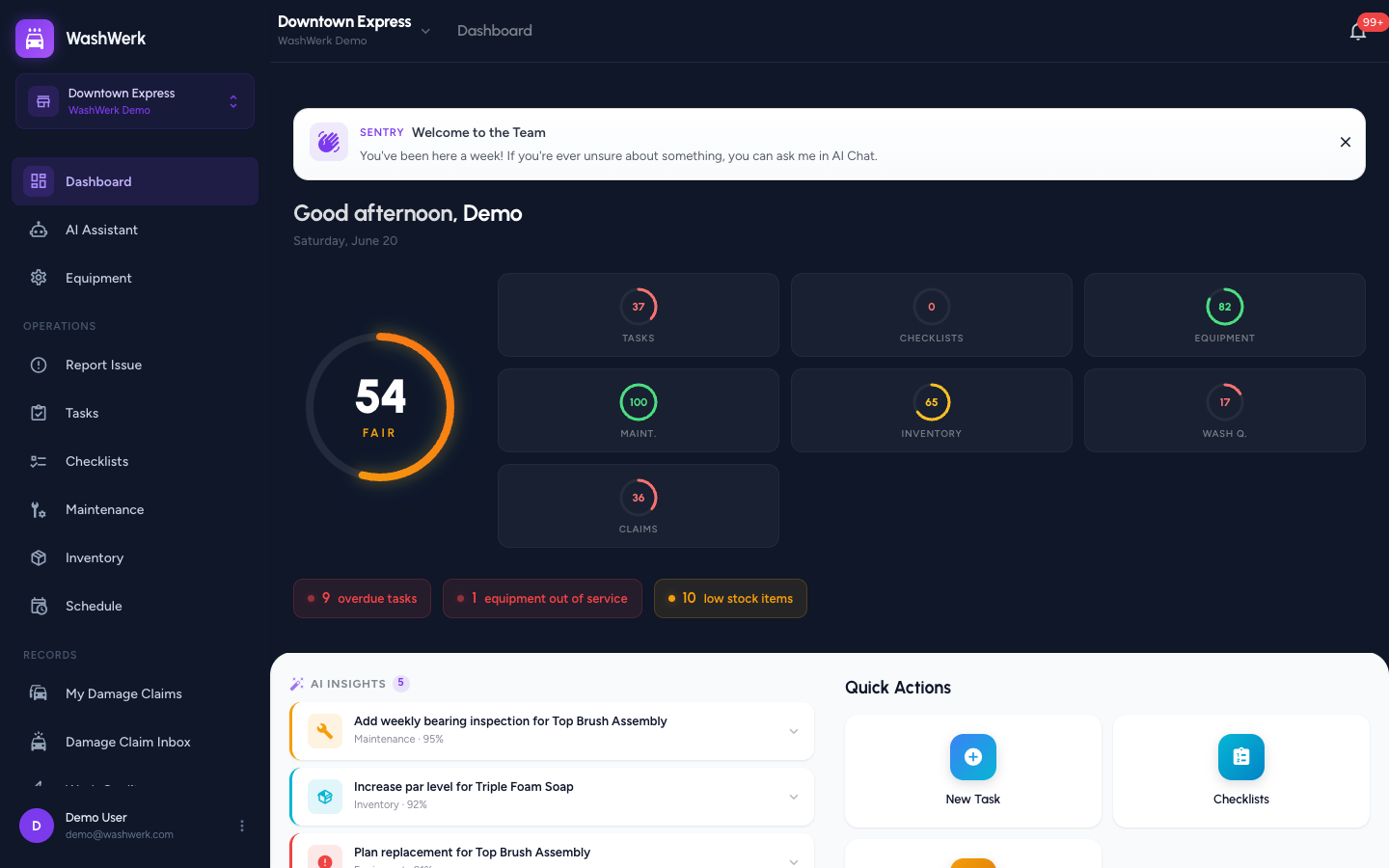
- In the list, select the store you want. WashWerk loads that store's dashboard.
Switch to a different company
- Open the store switcher and select Change next to the company name (or Switch Company from your profile menu).
- On Select Your Organization, choose the company you want. WashWerk loads that company and routes you to its store or corporate view.
Switch into the corporate view
- Open the store switcher and select My Locations.
- WashWerk opens the corporate view and shows the cross-store rollup for the company. A checkmark marks My Locations as active.
Expected result
The top bar shows your newly selected store and company, or the corporate view opens with the "My Locations" rollup. Your choice is remembered, so your next sign-in restores the same context.
Troubleshooting
- If the store name doesn't open a menu: You only belong to one store, so there's nothing to switch to. The name is shown for reference only.
- If you don't see "My Locations": It appears only when you have more than one store in the company.
- If a store shows an "Inactive" chip: That location is deactivated. Choose an active store, or have a company admin reactivate it from store settings.