
How to track transfers across stores
See every warehouse transfer for the stores you cover in one list, so you can spot orders that have stalled or been left short before a store calls to chase them. This guide is for owners, company admins, and regional managers.
Before you start
- Where: Corporate admin — Transfers in the sidebar, under Operations.
- Permission: View all Inventory Transfers
- Available by default to: Owners and Company Admins. (On custom roles, this needs the permission named above.)
- You must have: At least one store you can access that has placed a transfer order.
This view is read-only and covers your accessible stores. If you have a saved view active, it narrows further to that scope — see How to scope corporate views with Saved Views (My Locations).
Read the summary counts
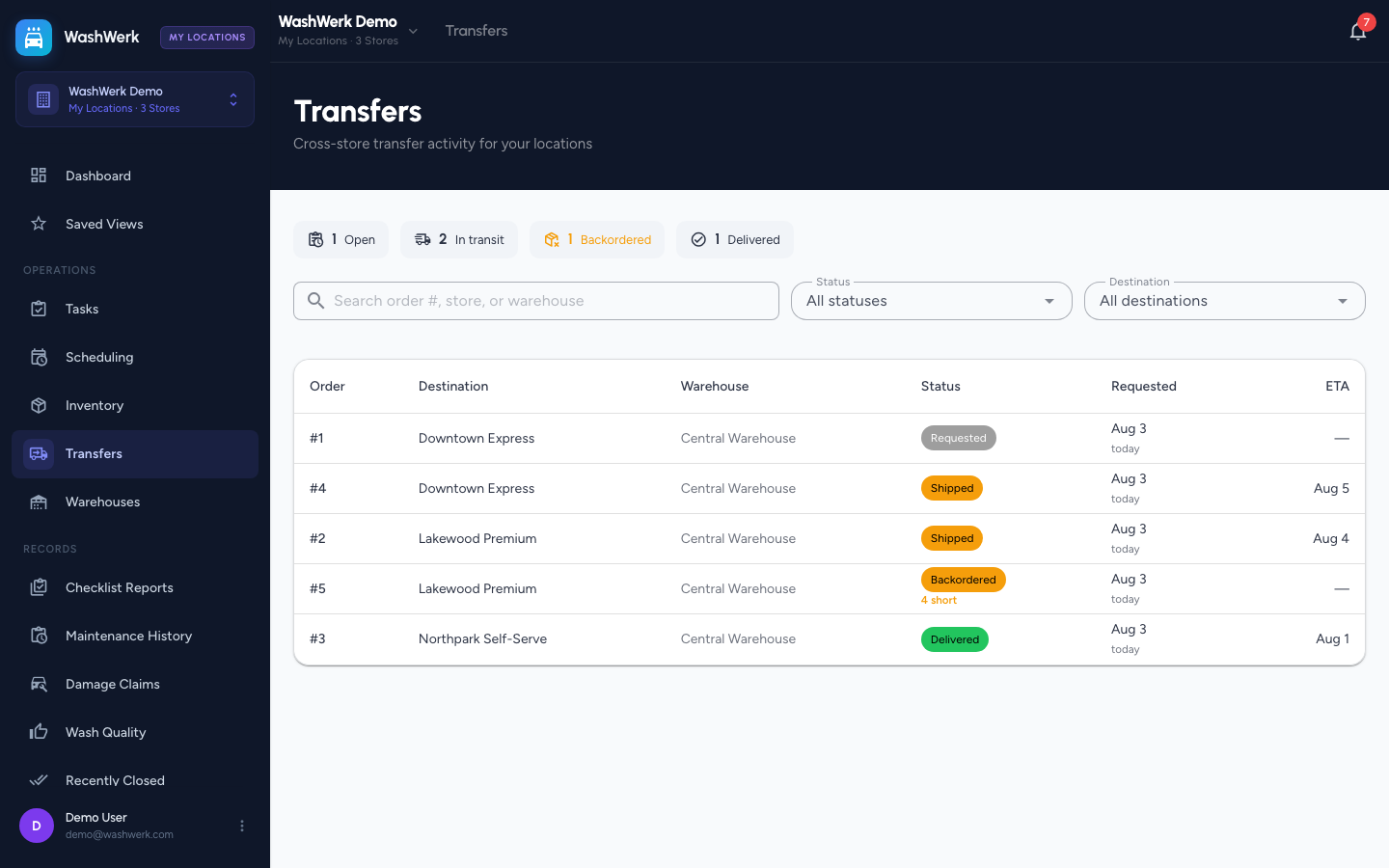
The counts across the top cover every transfer in your scope, not just what's on screen. Select one to filter the list, and select it again to clear it.
- Open — placed, but not shipped.
- In transit — shipped and on the road.
- Backordered — partly filled; a warehouse still owes the store units.
- Delivered — complete.
- Needs attention — an order sitting in its current status longer than expected. This count only appears when at least one order qualifies.
Filter and search the list
- Use the search box to match an order number, destination store, or warehouse.
- Use the Status dropdown for a precise state, including Requested, Accepted, In transit, Backordered, Delivered, and Cancelled.
- Use the Destination dropdown to narrow to one store.
- To start again, select Clear filters.
The list is ordered oldest request first, so whatever has waited longest sits at the top.
Spot orders that have stalled
Orders flagged under Needs attention are highlighted in the list with a warning marker and an age label, so you can see how long each has been sitting without reading dates. WashWerk flags an order that has been Requested or Accepted for more than two days, or In transit for more than five.
Open an order
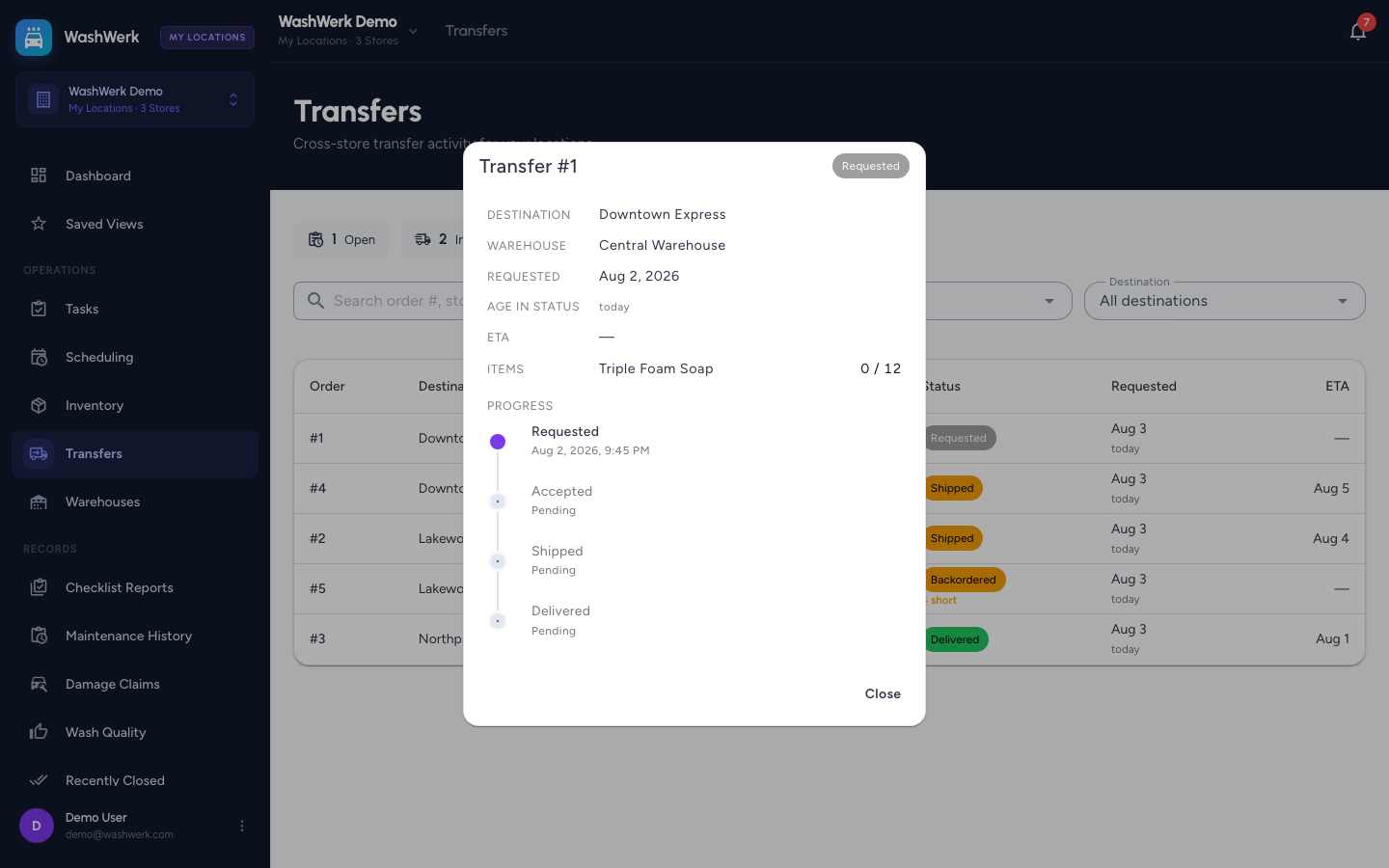
- Select any row to open a read-only summary with the destination, warehouse, request date, age in status, ETA, tracking number, any shortfall, the items with received-against-ordered quantities, and the full progress timeline.
Expected result
You can answer, for the stores you cover, which transfers are late, which are short and by how much, and which warehouse each is waiting on — without switching into each store.
Troubleshooting
- If the page says you don't have access: Your role doesn't include the View all Inventory Transfers permission — ask an owner to grant it.
- If a store you expect is missing: You either don't have access to it, or a saved view is limiting your scope. Check the location switcher and clear the active saved view.
- If the Backordered count doesn't match what you see: Backordered is fetched fresh from the server rather than filtered on screen, so it catches short orders further down the list than the page you're viewing. The other counts blank out while it's active.
- If you want to act on an order rather than read it: Accepting, shipping, receiving, and cancelling all happen in the store or warehouse the order belongs to. Switch to that location first.