
How to use the corporate dashboard
The corporate dashboard gives owners and regional managers a single cross-store view: store health rings, company-wide KPIs, a combined action queue, and shortcuts to start work at any location. This guide covers reading it, drilling into a store, working the queue, and using Quick Actions.
When to use this
Start here for an at-a-glance health check and a combined action queue across all stores; switch to a specific corporate page (Tasks, Wash Quality, Inventory) when you need that module's deeper rollup and filters.
Before you start
- Where: Corporate admin — the dashboard is the landing page of the corporate view.
- Permission: Dashboard
- Available by default to: Owners, Store Managers, Shift Leads, and Wash Attendants. (On custom roles, this needs the permission named above.)
- You must have: at least one store in the company, and a company selected in the context switcher.
View cross-store health and KPIs
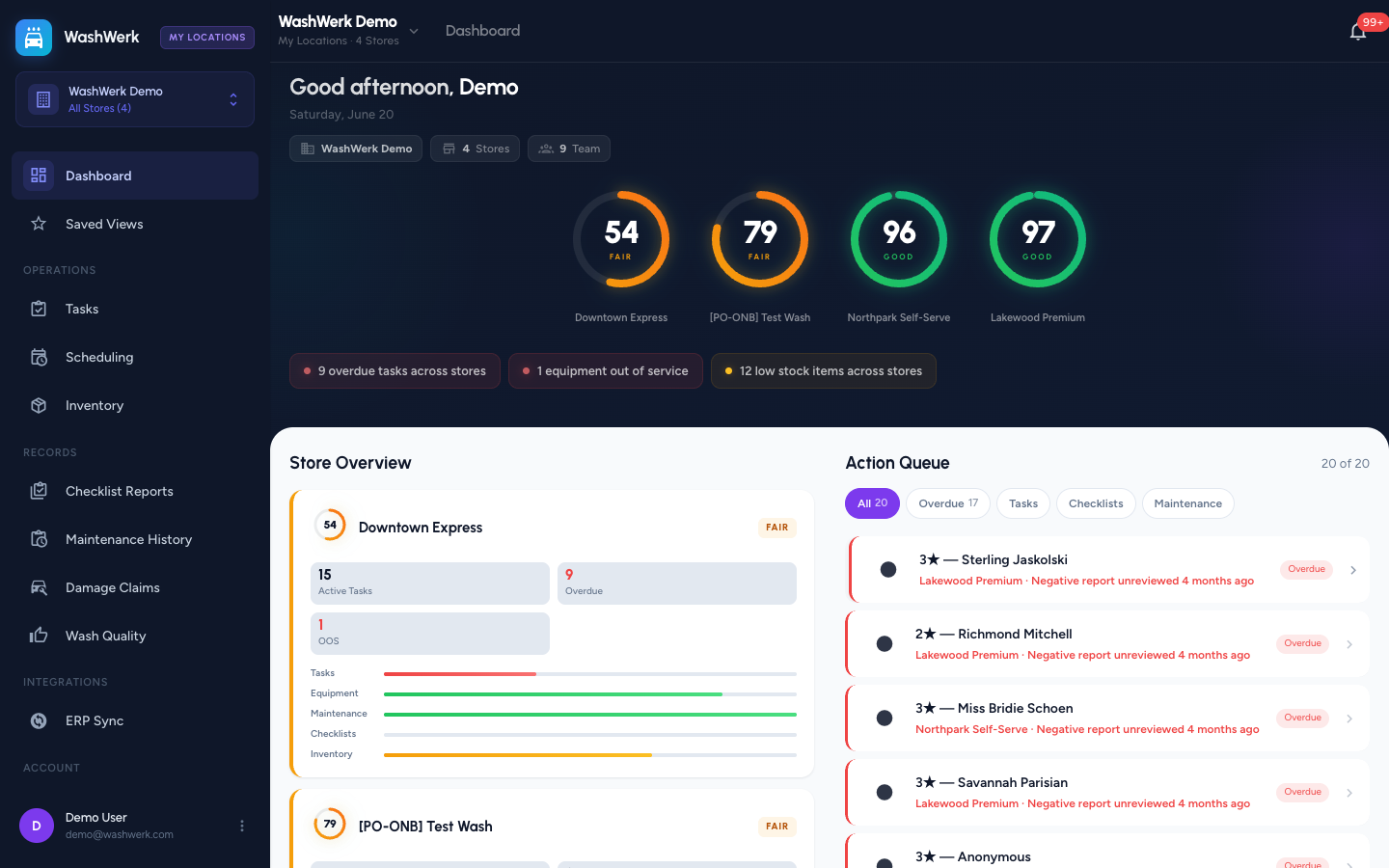
- Open the corporate view. The dashboard shows a greeting, company summary pills (company name, store count, team count), and a row of store health rings sorted worst-first.
- Read the alert chips below the rings (desktop). They surface company-wide totals such as overdue tasks, equipment out of service, and low-stock items. If no chips appear, there are no outstanding company-wide alerts.
- On desktop, scan the Store Overview cards for per-store detail — active tasks, overdue, out-of-service equipment, and module health bars for Tasks, Equipment, Maintenance, Checklists, and Inventory.
Drill into a store
- Select any health ring or, on desktop, any Store Overview card. WashWerk switches you into that store so you can work that location directly.
Work the cross-store action queue
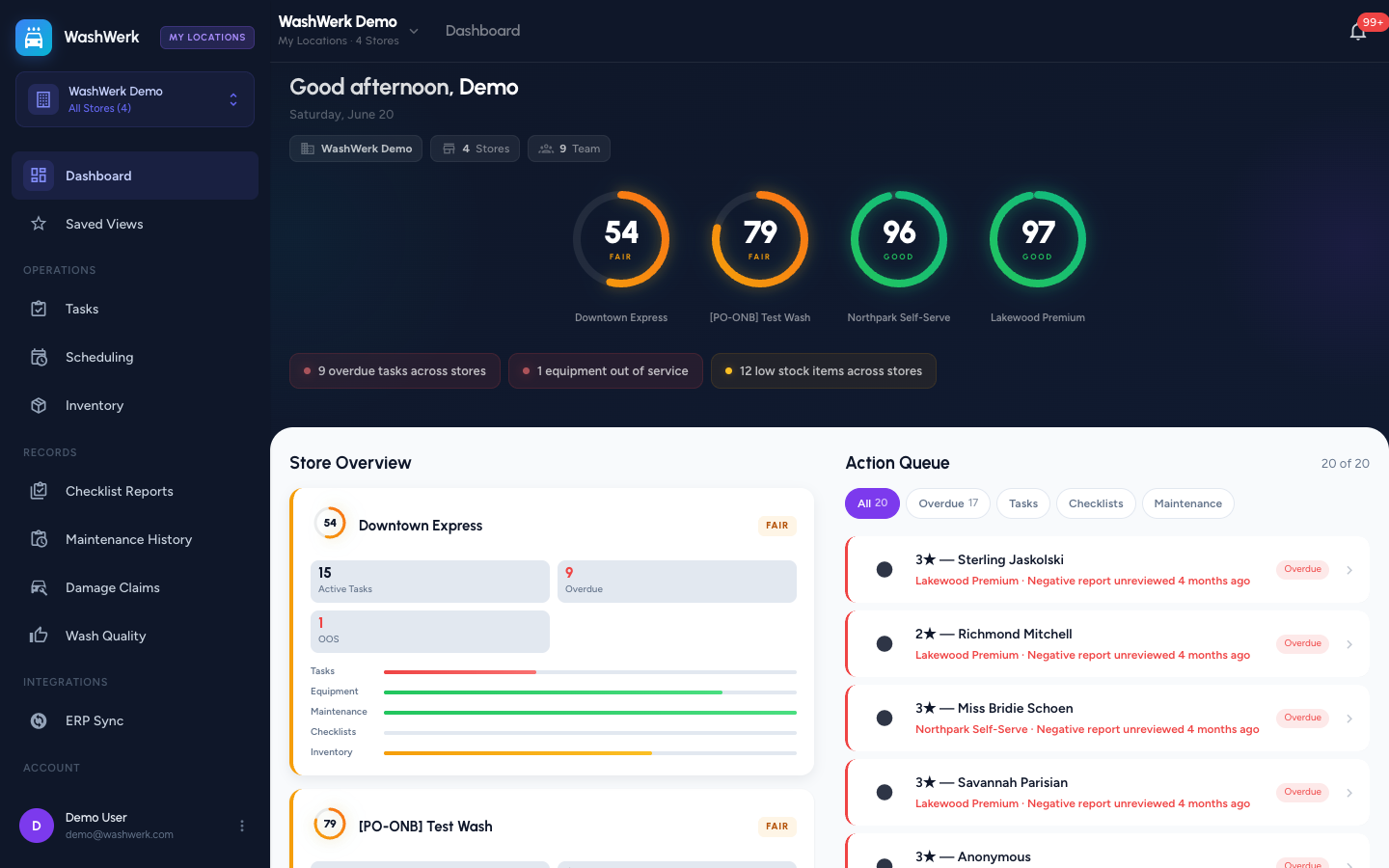
- In the right column, find the Action Queue. It lists action items from every store you can access — tasks, maintenance, checklists, inventory counts, wash quality, and damage claims — each tagged with its store.
- Select an item to open it at its store (for example, a task opens the full task at that store).
- To clear a task without leaving the dashboard, use the queue item's complete control. The queue refreshes after each action.
Use Quick Actions and the mobile button
- On desktop, use the Quick Actions tiles to jump straight to New Task, Manage Team, or Add Equipment for the company.
- On mobile, tap the floating + button in the lower right to open the speed dial with the same three shortcuts.
Expected result
You can read company-wide health at a glance, open any store from a ring or card, clear or open queue items across stores, and start a new task, team change, or equipment record without hunting through the menu.
Troubleshooting
- If the dashboard shows "Unable to load dashboard": select Retry. A persistent failure usually means a network or session issue — sign out and back in.
- If a store is missing from the rings: you may not have access to it, or an active Saved View is narrowing the scope. Clear the active Saved View from the chip in the top bar to see all stores.
- If Quick Actions or queue items do nothing: you may lack permission at the target store. Ask an owner to grant the matching store permission.