
How to run a maintenance session
Service the equipment that is due by starting a maintenance session from the queue, working through each procedure step by step with photo proof, then recording the parts you used — so service is logged, inventory is deducted, and each machine's last-maintenance date stays current. This is for technicians, shift leads, maintenance managers, store managers, and owners, on web or the mobile app.
Before you start
- Where: Store-level — the Maintenance queue, then the Conduct Maintenance screen.
- Permission: Complete Maintenance to start and run sessions. Viewing the queue only needs the View Maintenance permission.
- Available by default to: Owners, Store Managers, and Shift Leads. (On custom roles, this needs the permission named above.)
- You must have: At least one procedure due or upcoming. You can run only one active session at a time.
View the maintenance queue
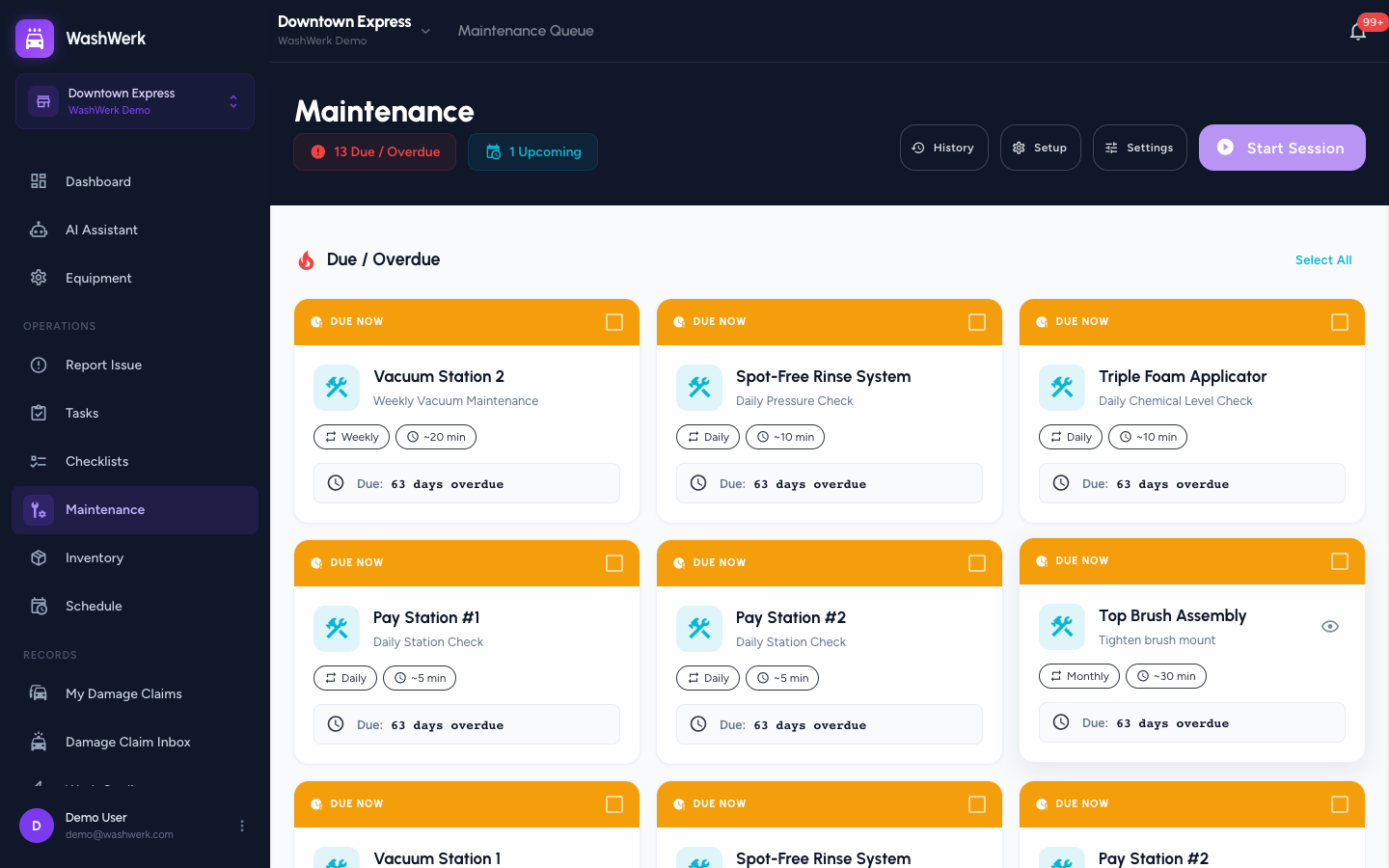
- On the Maintenance queue, review the Due / Overdue section (red) and the Upcoming section (blue). The header shows due/overdue and upcoming counts.
Preview a procedure
- On a queue card, select the preview control to open a side panel with the procedure's steps, warnings, required parts, and schedule. Use Add to Session / Remove from Session there to select it.
Select procedures and start a session
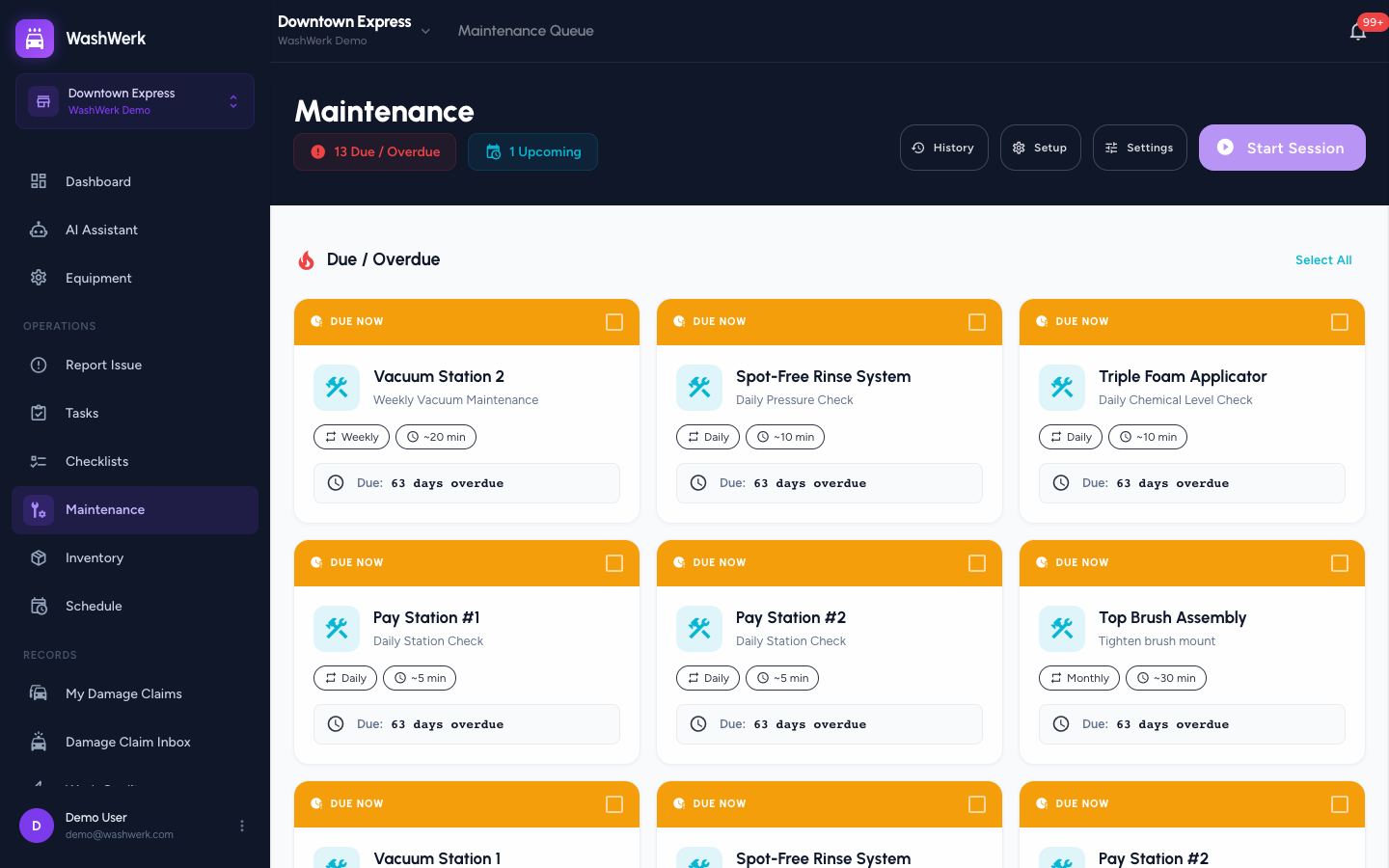
- On the queue, select one or more procedure cards. Use Select All in a section to pick everything due or upcoming at once.
- Review the Parts Needed for Selected Procedures summary at the bottom.
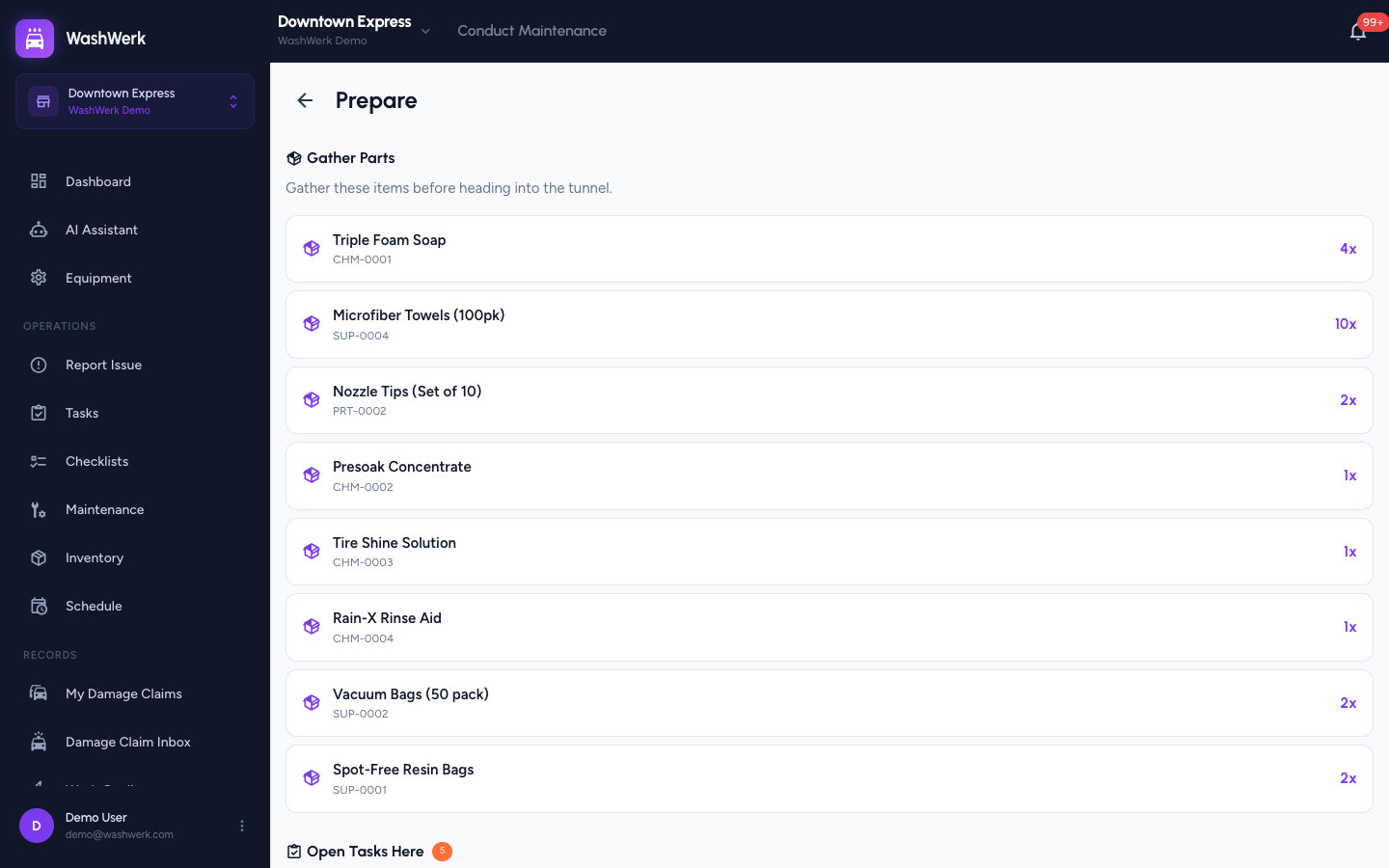
- Select Start Session. The Conduct Maintenance screen opens on the Prepare phase.
Resume or abandon an active session
If you already have a session running, the queue shows an active-session banner instead of letting you start a new one.
- Select Resume to return to where you left off.
- Select Abandon to discard it; the procedures return to the queue and no inventory is deducted.
Prepare: gather parts and clear open tasks
The Prepare phase opens first:
- Under Gather Parts, collect the listed items before heading to the equipment.
- Under Open Tasks Here, review work already open for this equipment. Select Claim to assign a task to yourself, or Done to complete it inline.
- Select Start Maintenance to move into the step-by-step phase. Selecting the back arrow here abandons the session and releases the procedures.
Complete a maintenance item
- On the Conduct Maintenance screen, pick a procedure from the left sidebar. The current item shows its warnings, steps, required parts, and a notes box.
- Work through the steps using Next Step and Previous Step. The progress bar and timer track the session.
- Optionally add notes in the Notes box.
- On the final step (or a procedure with no steps), select Mark Complete. The session auto-advances to the next incomplete item.
Upload photo proof
- On the active step, select Upload Photo and capture or choose an image. On mobile this opens the camera. The photo attaches to that item as proof.
Skip a maintenance item
- On the first step of an item, select Skip Item to pass on it. Skipped items are marked in the sidebar and left in their current state.
Create a task during a session
- Select the + action (bottom right) to open the task form. The task is pre-linked to the current procedure item and equipment, defaulting to a Repair type, so a follow-up problem you spot is captured without leaving the session.
End the session and record parts used
- When the items are done, select End Session. The Inventory Review phase opens.
- Auto-Deducted lists discrete parts that are deducted automatically.
- Under Confirm Usage, adjust the quantity for each consumable to what you actually used.
- To log something not on the checklist, select Add Item under Unlisted Items Used, enter a name and quantity, and select Add.
- Select Complete Session. Inventory for completed items is deducted and the summary appears.
Skip or abandon an entire session
- During the conduct phase, select Skip Session to end without deducting inventory; procedures stay in their current state.
- From the Prepare phase, the back arrow abandons the session and returns the procedures to the queue.
Expected result
The Session Complete summary shows how many procedures you completed and skipped, the duration, and any tasks created during the session. Completed procedures drop off the queue, serviced equipment shows an updated last-maintenance date, and inventory reflects the parts you used.
Troubleshooting
- If Start Session is disabled: Select at least one procedure, and make sure you do not already have an active session (use the banner's Resume or Abandon).
- If a photo will not upload: Re-try a single image; on mobile, grant the app camera permission. Photo proof is optional, so you can still complete the item.
- If you cannot start or run a session: Your role does not include the Complete Maintenance permission — ask an owner or manager to grant it.