
How to review wash quality across stores
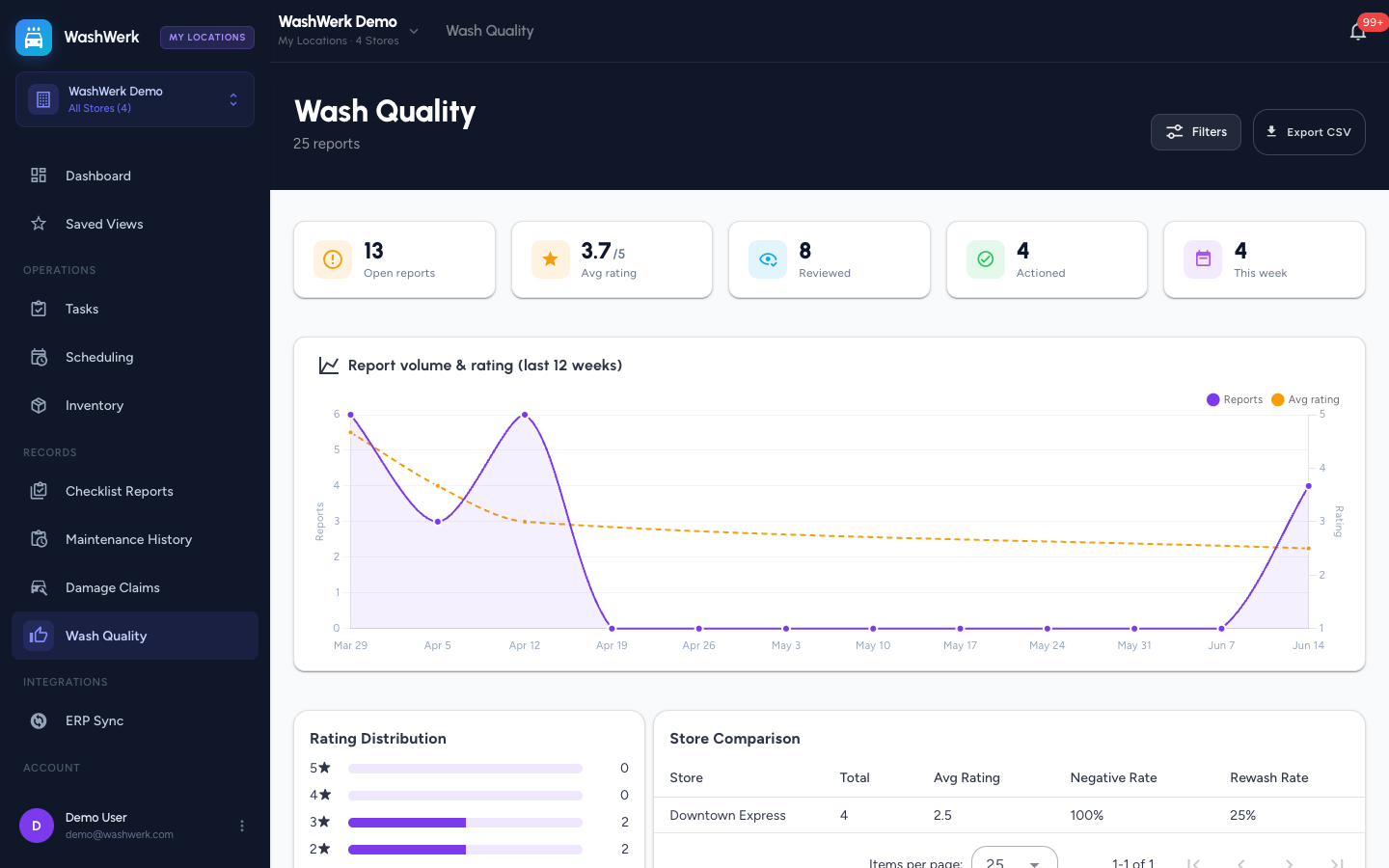
The corporate Wash Quality page combines a cross-store dashboard (status cards, trend, rating distribution, store comparison, equipment breakdown) with an inbox of every report you can access, so owners and regional managers can compare quality between locations and trace low ratings back to a store or piece of equipment. This guide covers reading the rollups, filtering and opening reports, and exporting the data.
Before you start
- Where: Corporate admin — open Wash Quality from the corporate sidebar.
- Permission: View all Wash Quality
- Available by default to: Owners and Company Admins. (On custom roles, this needs the permission named above.)
- You must have: access to stores that collect wash quality feedback.
View the corporate wash quality dashboard
- In the corporate sidebar, open Wash Quality. The page loads status cards and a volume-and-rating trend chart across your stores.
- Below the trend, read the corporate rollups: a Rating Distribution card, a Store Comparison card ranking stores, and an Equipment Breakdown card linking ratings to equipment.
Toggle the manager-only equipment filter
- On the Equipment Breakdown card, turn on the manager-only toggle to base the breakdown on manager-entered reports only. The card refetches with that scope.
Filter the inbox
- Select Filters in the page header.
- Set the store, date range, and rating, then apply. The active filter count shows on the Filters button, and both the inbox and rollups refresh. Use the table search to match comments or customer names.
Open a report
- Select a row in the Reports table. Each row shows report number, rating, status, store, customer, comment, channel, and submitted date. Opening it shows the cross-store report detail.
Export to CSV
- Select Export CSV in the page header. WashWerk downloads the current filtered report data.
NOTE
Export reflects your active filters and store scope, so narrow the inbox first to export a specific store or date range.
Expected result
The rollups and inbox reflect your filters, opening a row shows the full report, and Export CSV downloads a file of the filtered reports.
Troubleshooting
- If the page is empty: the stores have no reports yet, or filters are too narrow. Clear filters; customers leave feedback via QR or staff enter it at the counter.
- If Export CSV does nothing: check your browser's download permissions and that pop-ups/downloads aren't blocked.