
How to use the AI Assistant
Open the AI Assistant to ask questions about your store's tasks, equipment, maintenance, inventory, wash quality, and health score in plain language — or to run actions like submitting a time-off request. It queries your store's live data as you chat.
Before you start
- Where: Store-level — open your store, then AI Assistant (in the sidebar, or under More on mobile). Available on web and the mobile app.
- Permission: AI.
- Available by default to: Owners and Store Managers. (On custom roles, this needs the permission named above.)
- You must have: an active store selected. The assistant only answers about the store you're currently in.
Open the AI Assistant
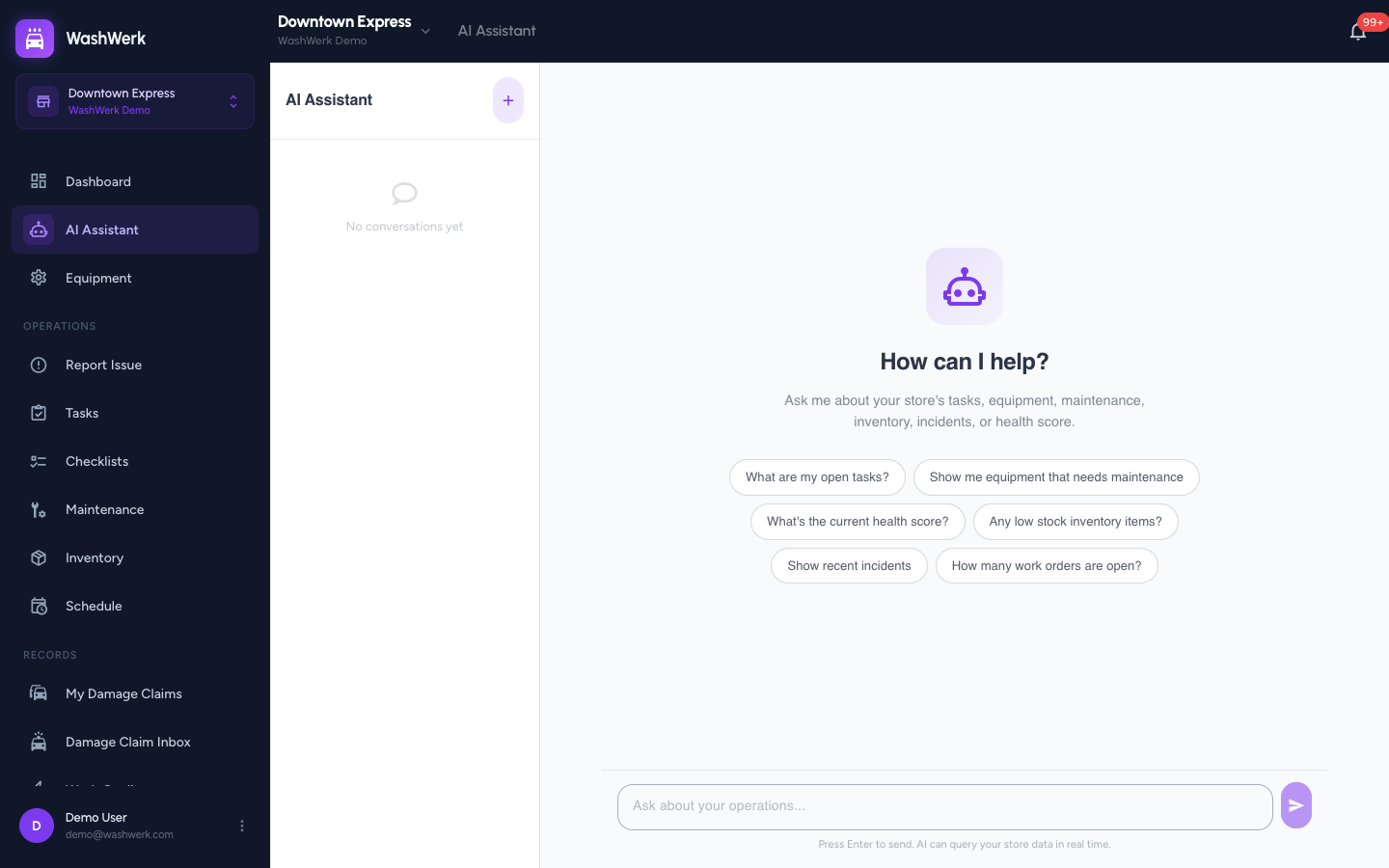
- In the store sidebar, select AI Assistant. On mobile, open the More sheet first, then select AI Assistant. The chat opens with a "How can I help?" welcome screen.
The first time you open it, an orientation card titled Ask Sentry Anything appears with example questions. Read it, then select the dismiss control to close it — it won't show again.
Ask a question
- In the message box at the bottom, type your question — for example, "What are my open tasks?"
- Press Enter or select the send button. A typing indicator appears, then the assistant replies.
If the assistant pulled data to answer, you'll see small tool badges (such as tasks or equipment) beneath its reply showing which store data it queried.
Tip: To start faster, select one of the suggested prompt chips on the welcome screen (such as "Show me equipment that needs maintenance"). It fills the message box and sends automatically.
Request time off through the assistant
You can submit your own time-off request straight from the chat instead of opening the Scheduling page.
- Send a message describing the request, including the dates — for example, "Request time off June 24 to June 26 for personal reasons."
- Confirm the assistant's summary. It creates a Pending request card in the chat once submitted.
The request goes to your managers for approval, exactly like one filed from the Scheduling page.
Manage your conversations
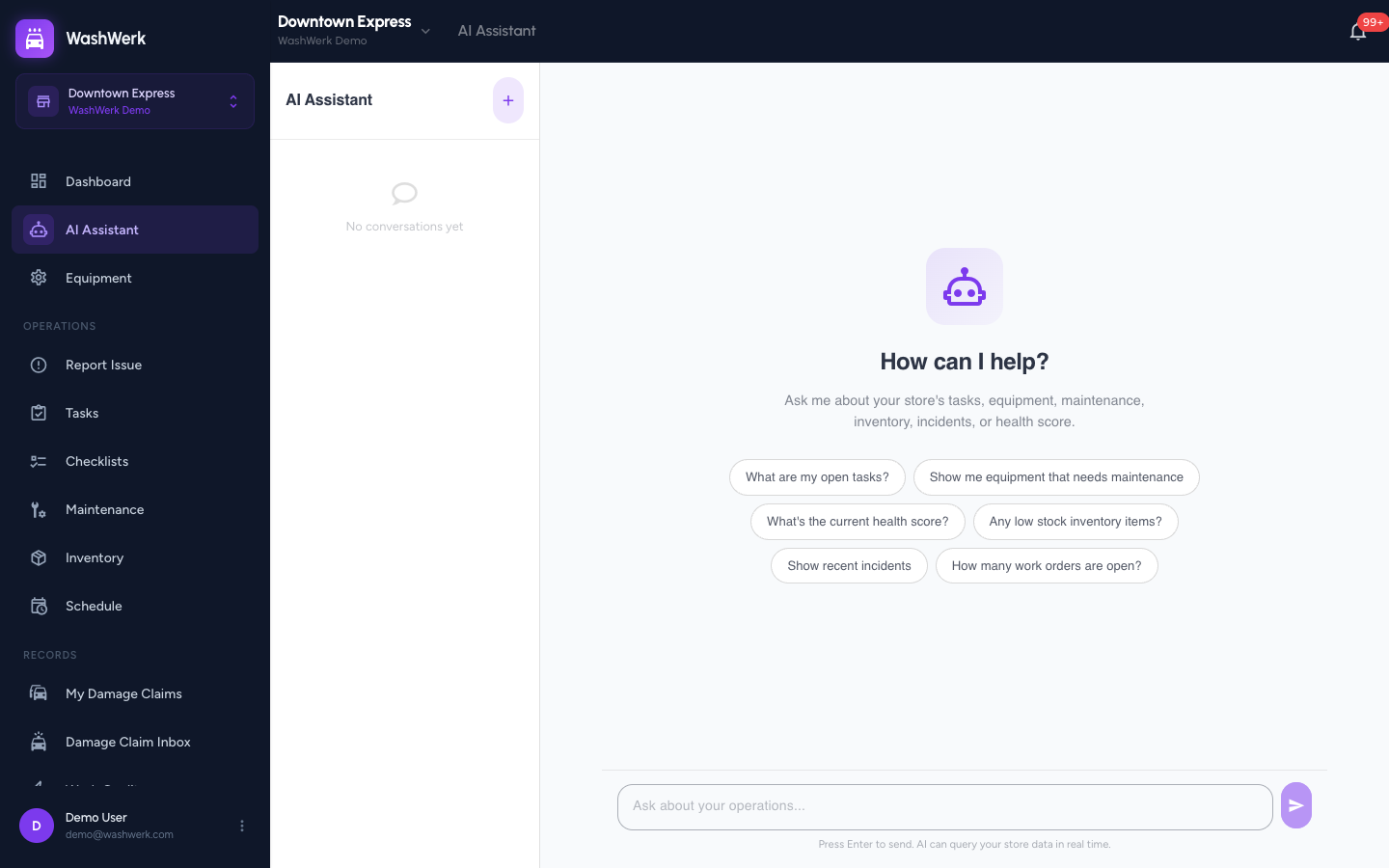
- Start a new conversation: Select the + button at the top of the conversation list (left sidebar). On mobile, open the sidebar with the menu button first. A fresh chat opens.
- Switch between past conversations: Select any conversation in the list to reopen it with its full message history.
- Delete a conversation: Hover over a conversation and select the trash icon. It's removed immediately.
Expected result
The assistant replies in the chat thread, and your conversation appears in the left sidebar list with an auto-generated title. New questions in the same chat keep their shared history.
Troubleshooting
- If you don't see AI Assistant in the menu: your role doesn't include the AI permission. Ask an owner or manager to grant it.
- If the assistant replies that the AI provider is unavailable: the AI service isn't configured or is temporarily down. Wait and retry; if it persists, contact support.
- If a question goes unanswered or seems off-topic: the assistant only sees the store you're currently in. Confirm you're in the right store, then rephrase with the specific module or time range you mean.