
How to update multiple tasks at once
Act on several tasks together so you can clear or clean up a long list in one pass instead of one card at a time: select tasks to bulk-complete or delete, open per-task actions with a long-press, delete a single task, or import a batch of tasks from a CSV file. For managers and shift leads keeping the store Tasks list tidy.
Before you start
- Where: Store-level — these actions are on the store Tasks list.
- Permission: Edit Tasks to select and edit; the Complete Tasks permission to bulk-complete; the Delete Tasks permission to delete; the Create Tasks permission to import.
- Available by default to: Owners, Store Managers, and Shift Leads. (On custom roles, this needs the permission named above.)
- You must have: A store selected. For import, a CSV file with at least a column of task titles.
Open the long-press menu
On a touch device, press and hold a task card for about half a second. A menu opens with Edit, Complete, Select, and Delete for that task.
Bulk-complete tasks
- Enter multi-select mode: long-press a task and select Select, then tap each additional task to add it. A bar at the bottom shows how many are selected.
- In the bottom bar, select Complete. Each selected task is marked complete.
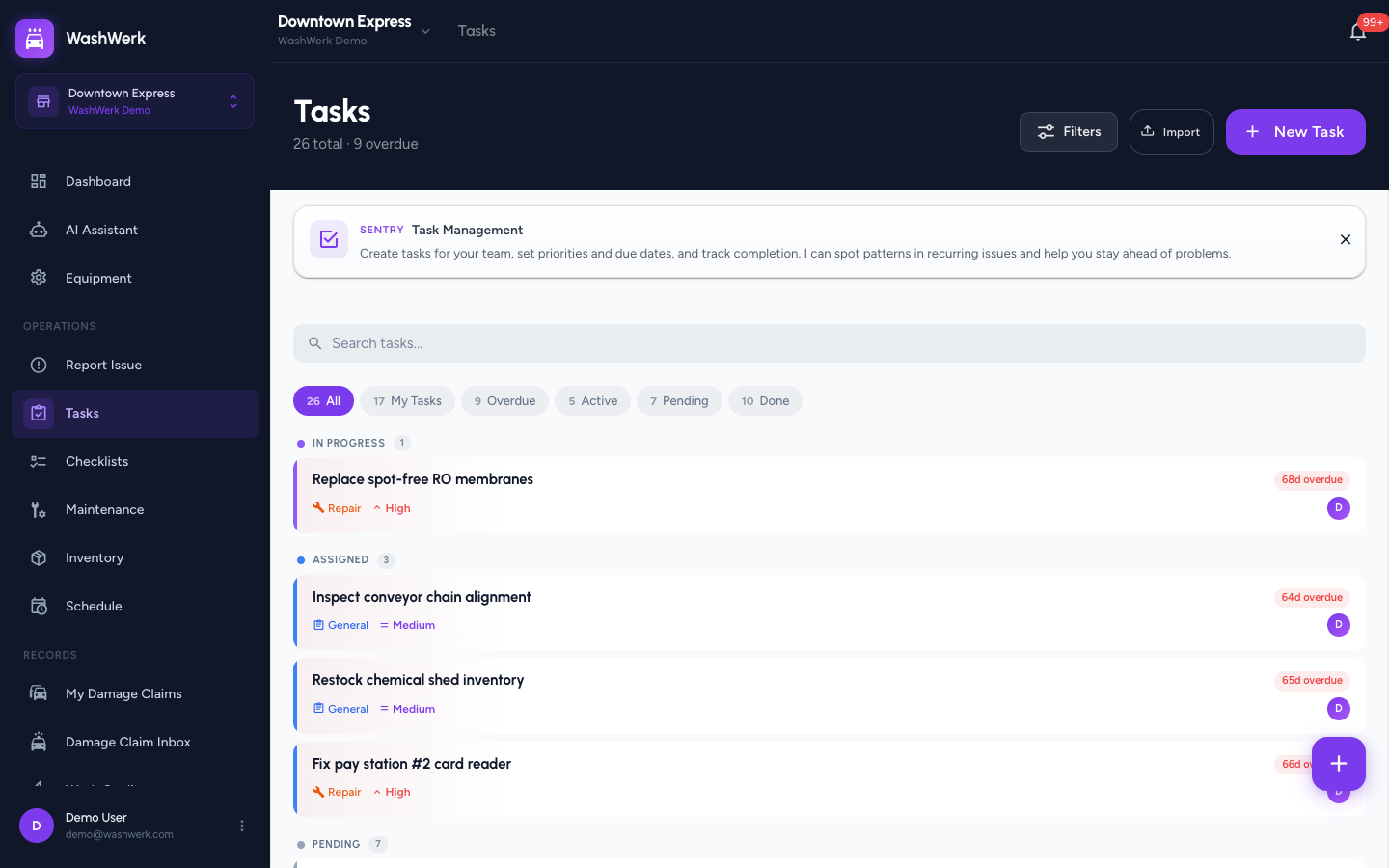
To leave multi-select without acting, select the × on the left of the bar.
Bulk-delete tasks
- In multi-select mode, select the tasks to remove.
- In the bottom bar, select Delete. The selected tasks are removed.
WARNING
Deleting a task can't be undone. Confirm you've selected the right tasks before choosing Delete.
Delete a single task
- Long-press the task and select Delete. A confirmation dialog opens.
- Select Delete to confirm. The task is removed from the list.
Import tasks from a CSV file
Import is available on desktop.
- On the Tasks list, select Import. The Import Tasks from CSV dialog opens.
- Upload: Drag a
.csvfile onto the dropzone or select browse to choose one, then select Next. - Map Columns: Match each CSV column to a task field (Title, Description, Status, Priority, Type, Due Date, or Solution). Title must be mapped; leave others as Skip. Select Next.
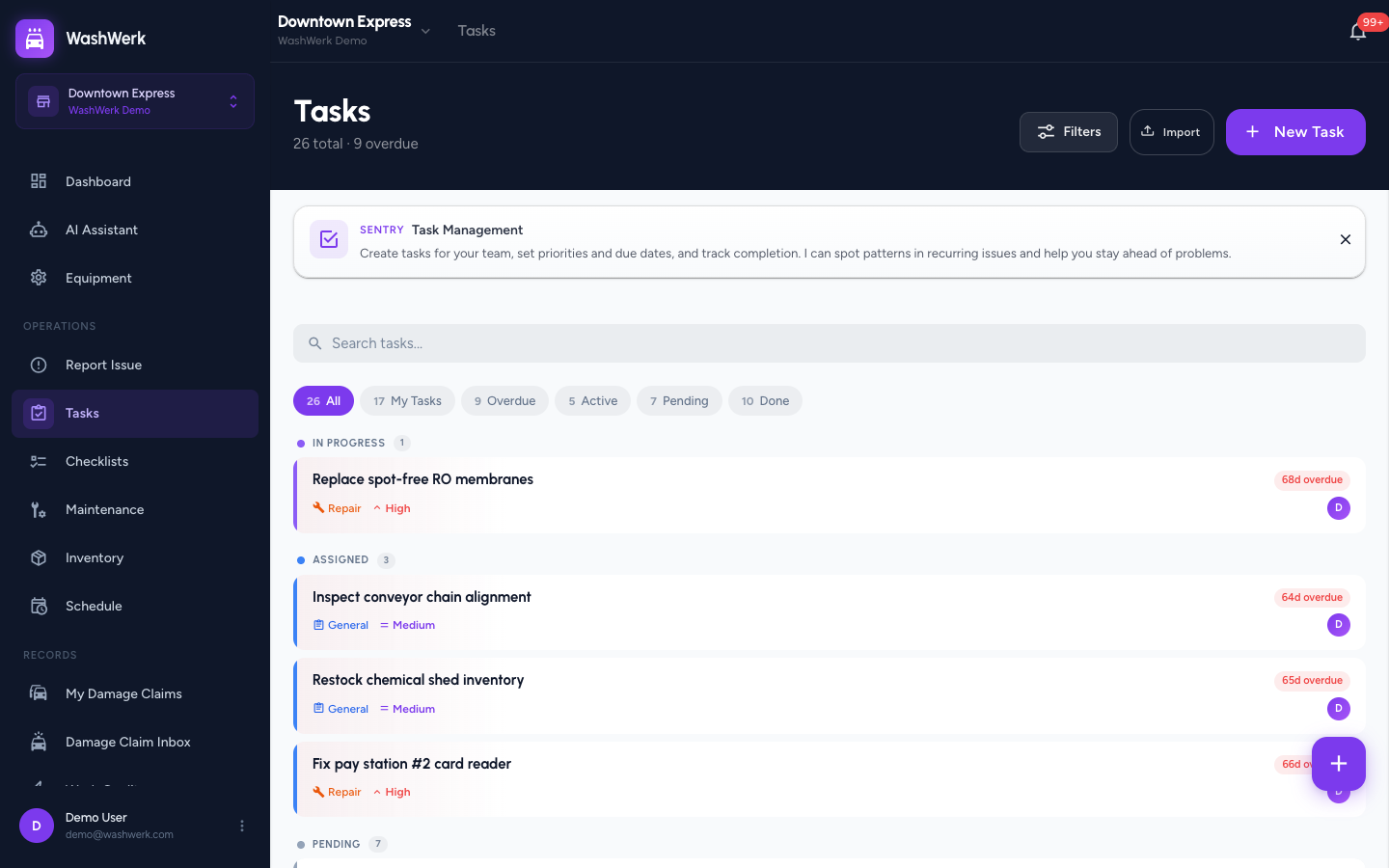
- Statuses / Priorities: If you mapped a Status or Priority column, map each CSV value to a WashWerk value, then select Next.
- Import: Review the preview, then select Import Tasks. Imported tasks are added to the store.
Expected result
Bulk-completed tasks move to the Done section, deleted tasks disappear from the list, and imported tasks appear in the list under their mapped statuses.
Troubleshooting
- If the Import button isn't visible: Import shows on desktop only and requires the Create Tasks permission. Open the Tasks list on a larger screen.
- If the import won't advance past Map Columns: No column is mapped to Title. Map your title/name column to Title.
- If bulk Complete or Delete does nothing: Your role may not include the Complete Tasks permission or the Delete Tasks permission — ask an owner or manager to grant it.