
How to manage your subscription and payment method
Manage an active WashWerk subscription from the corporate Billing page so your plan and charges stay in step with your business: change your billing cycle, update your payment method, adjust which stores you pay for, review AI credit usage, and cancel or resume your plan. This is for the owner managing an existing subscription.
Before you start
- Where: Corporate admin — open Billing from the corporate sidebar.
- Permission: Billing
- Available by default to: Owners and Company Admins. (On custom roles, this needs the permission named above.)
- You must have: an active subscription. The cycle, payment, and cancel controls appear only once billing is active.
Change your billing cycle
- In the corporate sidebar, open Billing.
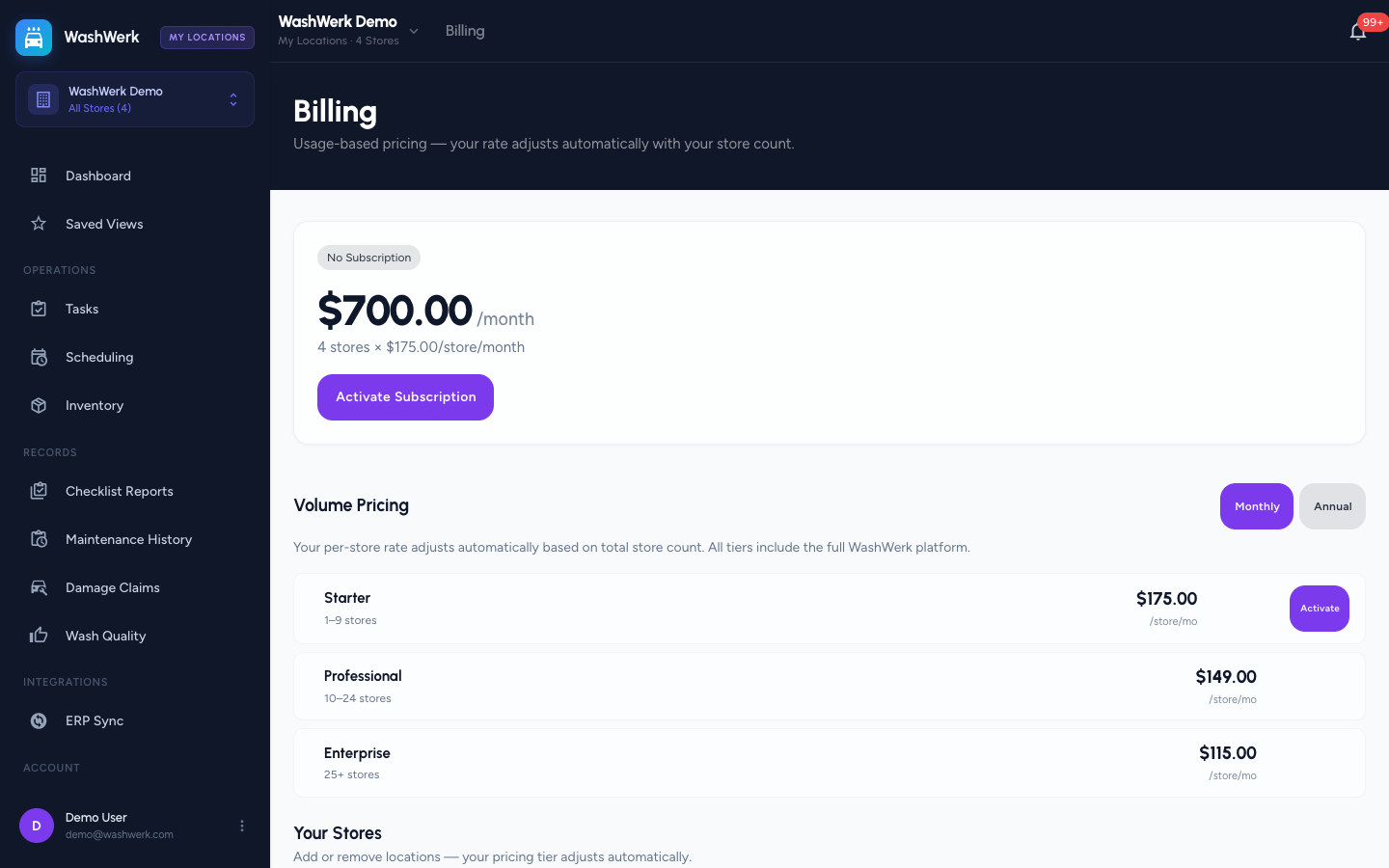
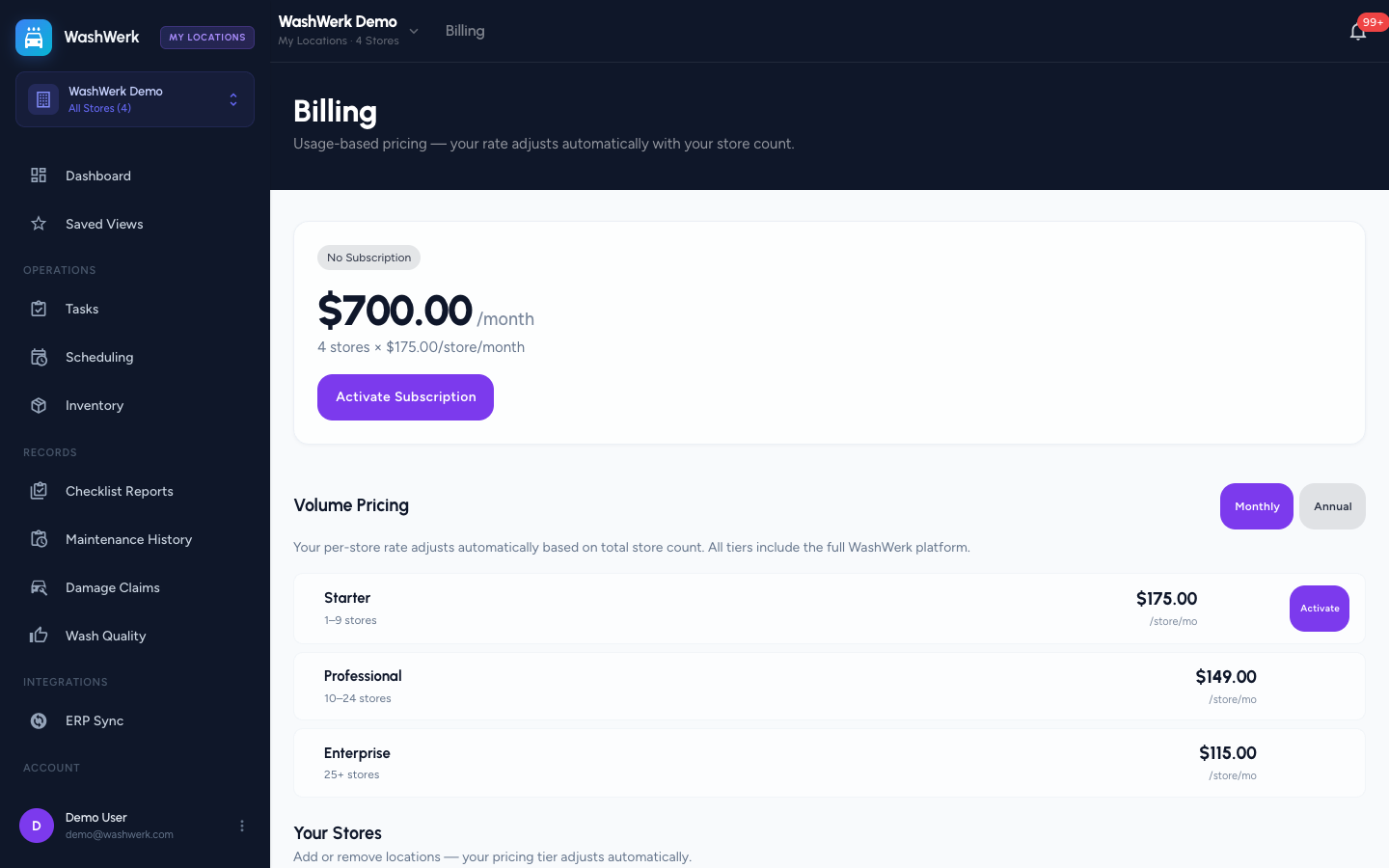
- To switch from monthly to annual, select Switch to Annual in the annual savings banner. To switch in either direction, select Monthly or Annual in the Volume Pricing toggle, then select the Switch to Annual or Switch to Monthly button on your matching tier.
- Confirm the cost in the account summary updates to the new cycle.
Annual upgrades apply immediately and are prorated; downgrades apply at the next renewal.
Update your payment method
- In the account summary card, select Manage Payment. WashWerk opens the Stripe billing portal in the same window.
- In the Stripe portal, update your card, billing address, or download invoices, then use the portal's back link to return to WashWerk.
Add or remove stores
Your pricing tier follows your store count, so changing the roster can change your rate.
- Scroll to Your Stores.
- To add a location, select Add Store, fill in the Store Name, Address, and Car Wash Type, then select Create Store.
- To remove a location, select Remove on its card, then confirm in the dialog.
- Confirm the account summary and tier list refresh to reflect the new billable store count.
Review AI credit usage
- Scroll to AI Credits. The card shows the billing period, how much of the included credit allowance you have used, the per-store included amount, and any projected overage.
- If the usage bar turns red, you are at or over the included allowance and overage will be billed for the period.
Cancel your subscription
- In the account summary card, select Cancel.
- In the Cancel Subscription? dialog, select Cancel Plan. Your access continues until the end of the current billing period.
The status chip changes to Cancelling and the card shows an "Access until" date.
WARNING
Cancelling stops future billing but does not delete your data. Access ends at the period date shown — resume before then to keep uninterrupted service.
Resume a cancelled subscription
- While the subscription is in its grace period (status Cancelling, before the access date), select Resume Subscription in the account summary card.
- Confirm the status chip returns to Active.
Expected result
The account summary reflects your latest choices: the status chip reads Active or Cancelling, the cost shows the current cycle and store-count breakdown, and the AI Credits card shows usage for the current period.
Troubleshooting
- If "Manage Payment" reports the portal is unavailable: you haven't completed payment setup yet. Set up your subscription first — see the related guide on starting a subscription.
- If a cycle switch is rejected: there's no pricing tier for the cycle you picked at your current store count. Adjust your store roster, or contact support.
- If "Resume Subscription" is missing: the grace period has ended and the plan is fully cancelled. Set up billing again from the account summary.
- If a store will not delete: the store still has activity or records tied to it, so it can't be removed yet, and the roster reloads without deleting it. Clear out the store's data, then try again.