
How to review maintenance history
See what maintenance has actually been done — which procedures were completed, by whom, how long it took, and what parts and tasks came out of it. This is for maintenance managers, store managers, owners, and regional managers checking that work is happening.
Before you start
- Where: Store-level — the History screen (open Maintenance, then History).
- Permission: View Maintenance.
- Available by default to: Owners, Store Managers, and Shift Leads. (On custom roles, this needs the permission named above.)
- You must have: At least one completed or skipped maintenance session. New stores show an empty history until the first session is finished.
View maintenance history
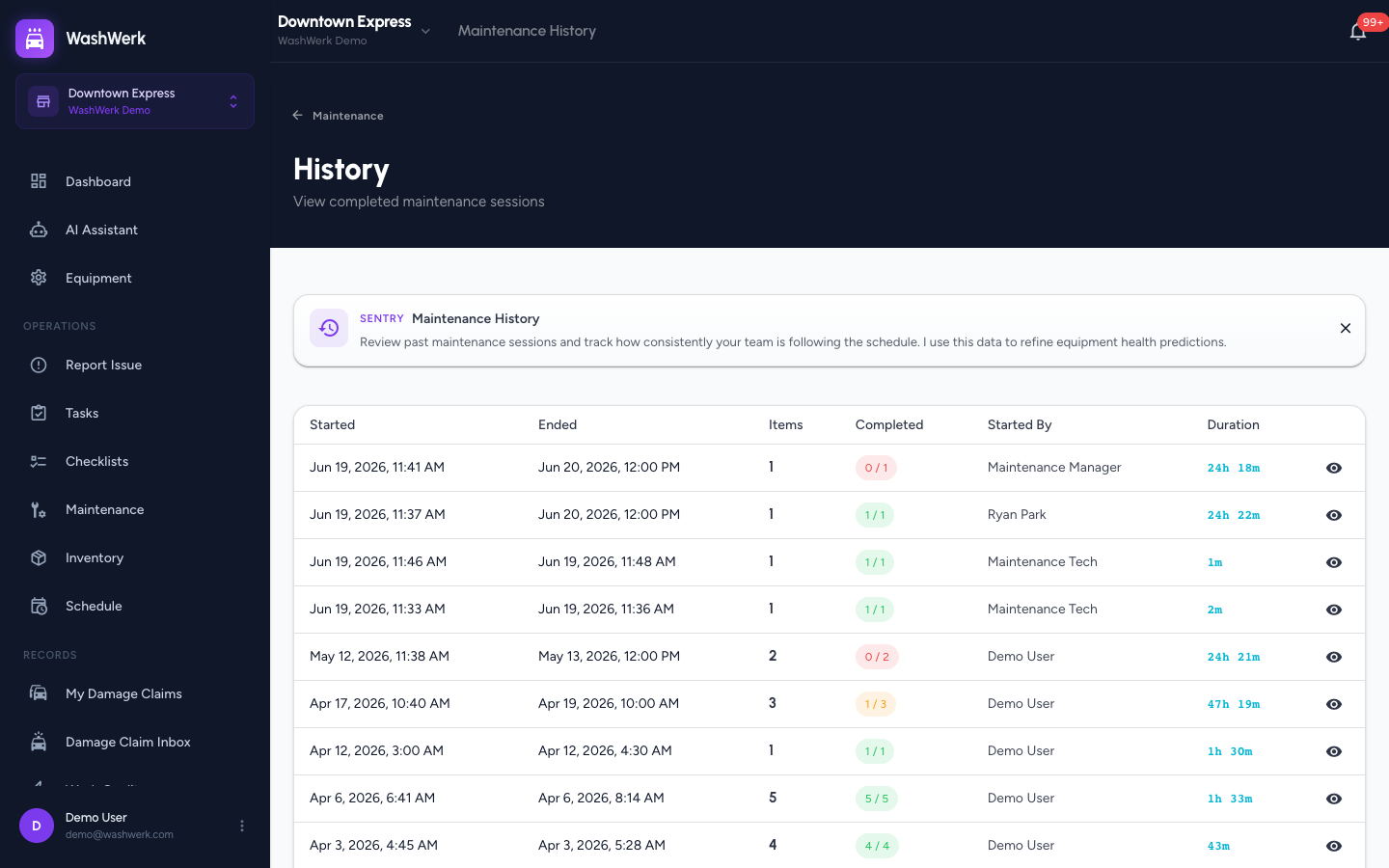
- On the Maintenance queue, select History. The completed-sessions table opens.
- Read each row for when the session started and ended, the number of items, the completed count, who started it, and the duration.
Sort the history
- Select the Started or Ended column header to sort sessions by date and find the most recent work.
::: note Filtering history by store is a corporate view. At the store level the table shows that store's sessions, sorted by date. :::
Open a session detail
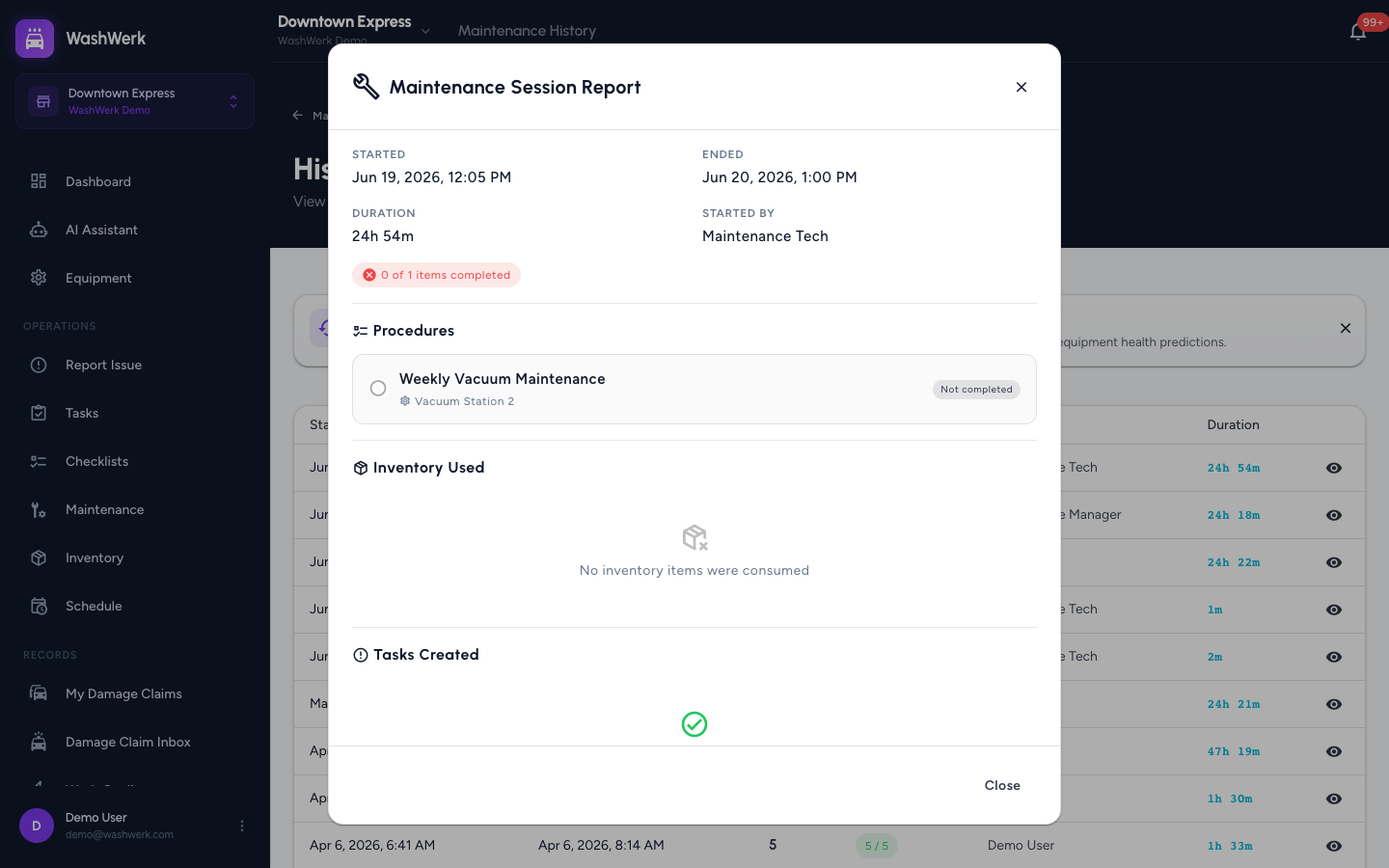
- In the history table, select a row (or its view control) to open the session detail.
- Review the procedures completed and skipped, the parts recorded as used, and any tasks created during the session.
Expected result
You can confirm a session happened, see exactly which procedures were completed or skipped, who did the work, how long it took, and what parts and follow-up tasks resulted.
Troubleshooting
- If the history is empty: No sessions have been completed yet. Run one from the queue — see How to run a maintenance session.
- If a session shows fewer completed than total items: Some items were skipped during the session; open the detail to see which ones.
- If you need history across multiple stores: Use the corporate maintenance history view, where you can filter by store.