
How to review damage claims across stores
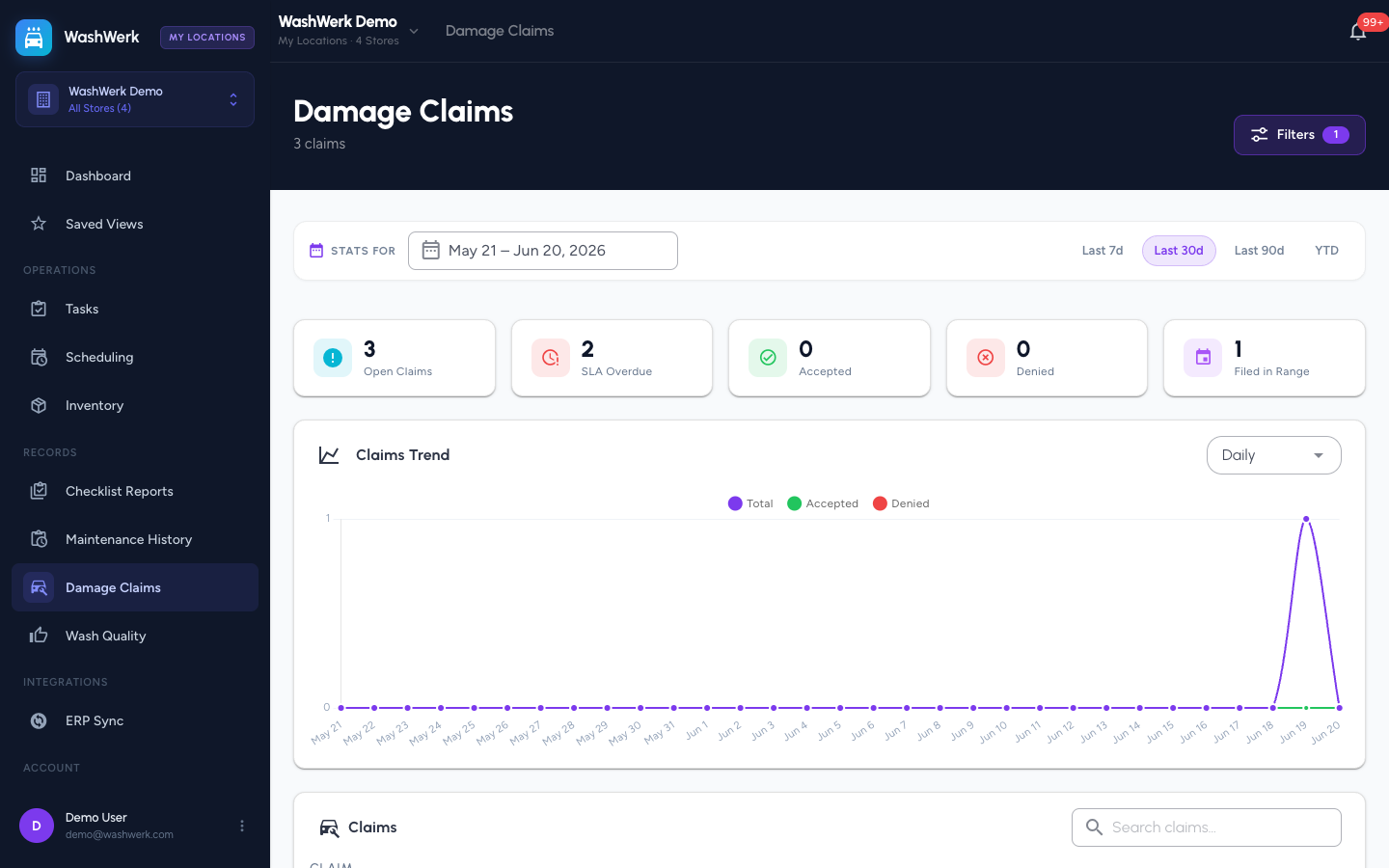
The corporate Damage Claims page combines cross-store analytics with an inbox of every claim you can access, each row tagged with its location, so owners and regional managers can track claim volume and outcomes across the company and triage from one place. This guide covers reading the rollup, filtering it, and opening a claim.
Before you start
- Where: Corporate admin — open Damage Claims from the corporate sidebar.
- Permission: View Damage Claims
- Available by default to: Owners, Store Managers, Shift Leads, and Wash Attendants. (On custom roles, this needs the permission named above.)
- You must have: access to at least one store that logs damage claims.
View the cross-store rollup
- In the corporate sidebar, open Damage Claims. Analytics load across your stores, followed by the claims inbox.
- Read the analytics cards and trend chart for cross-store volume and outcomes, then scan the inbox table. A Location column shows which store each claim belongs to.
Filter the inbox
- Select Filters in the page header.
- Set the available filters and apply. The active filter count appears on the Filters button. Use the search box to match claim text.
Open a claim
- Select a row in the inbox. WashWerk opens the full claim for that store, where you can review evidence and its investigation.
Expected result
The analytics and inbox reflect your filters, the Location column identifies each claim's store, and opening a row shows the full claim detail.
Troubleshooting
- If the analytics card shows nothing or errors: your role may lack damage-claim access at some stores — analytics covers only the stores you can view.
- If a store's claims are missing: an active Saved View may be narrowing scope. Clear the My Locations chip in the top bar.