
How to review checklist completion and submissions
Check how your store is tracking against its routines, narrow the submission history to what you need, and open any submission to verify responses, flagged readings, photos, and any follow-up tasks. This is for managers and owners overseeing daily compliance.
When to use this
Reach for this at store level to audit one store's routines; corporate users can open the same report scoped across stores to compare compliance company-wide.
Before you start
- Where: Store-level (web). Corporate users can open the same report scoped across stores.
- Permission: View Checklists
- Available by default to: Owners, Store Managers, Shift Leads, and Wash Attendants. (On custom roles, this needs the permission named above.)
- You must have: Completed checklists to populate the report.
Read the reports dashboard
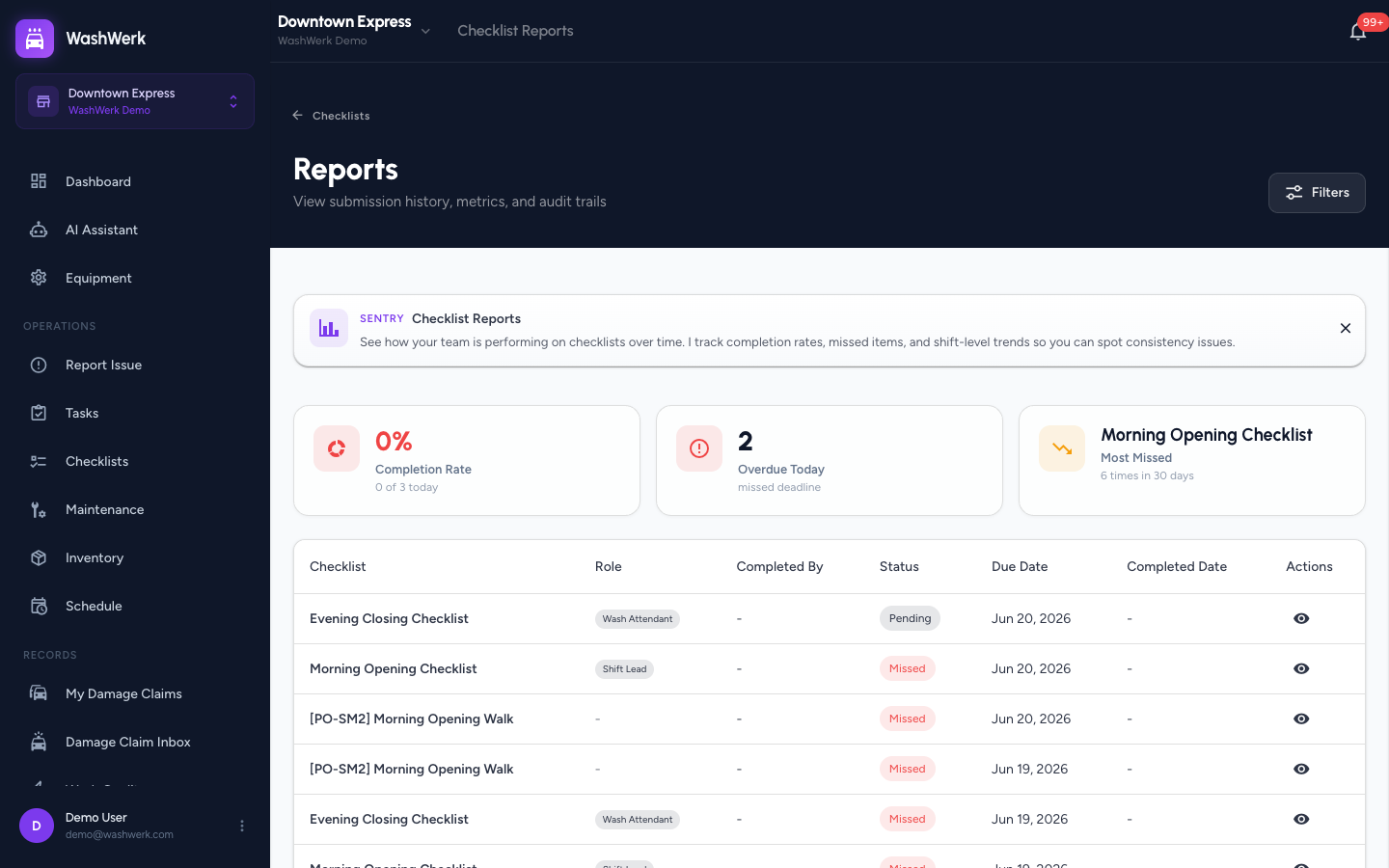
- Open Checklists, then select Reports. Three metric cards summarize recent activity:
- Completion Rate — the percentage completed, with today's completed-of-due count.
- Overdue Today — checklists that missed their deadline today.
- Most Missed — the checklist missed most often in the last 30 days.
- Below the metrics, the submissions table lists each completed or due checklist with its name, who completed it, status, due date, and completed date.
Filter the submissions
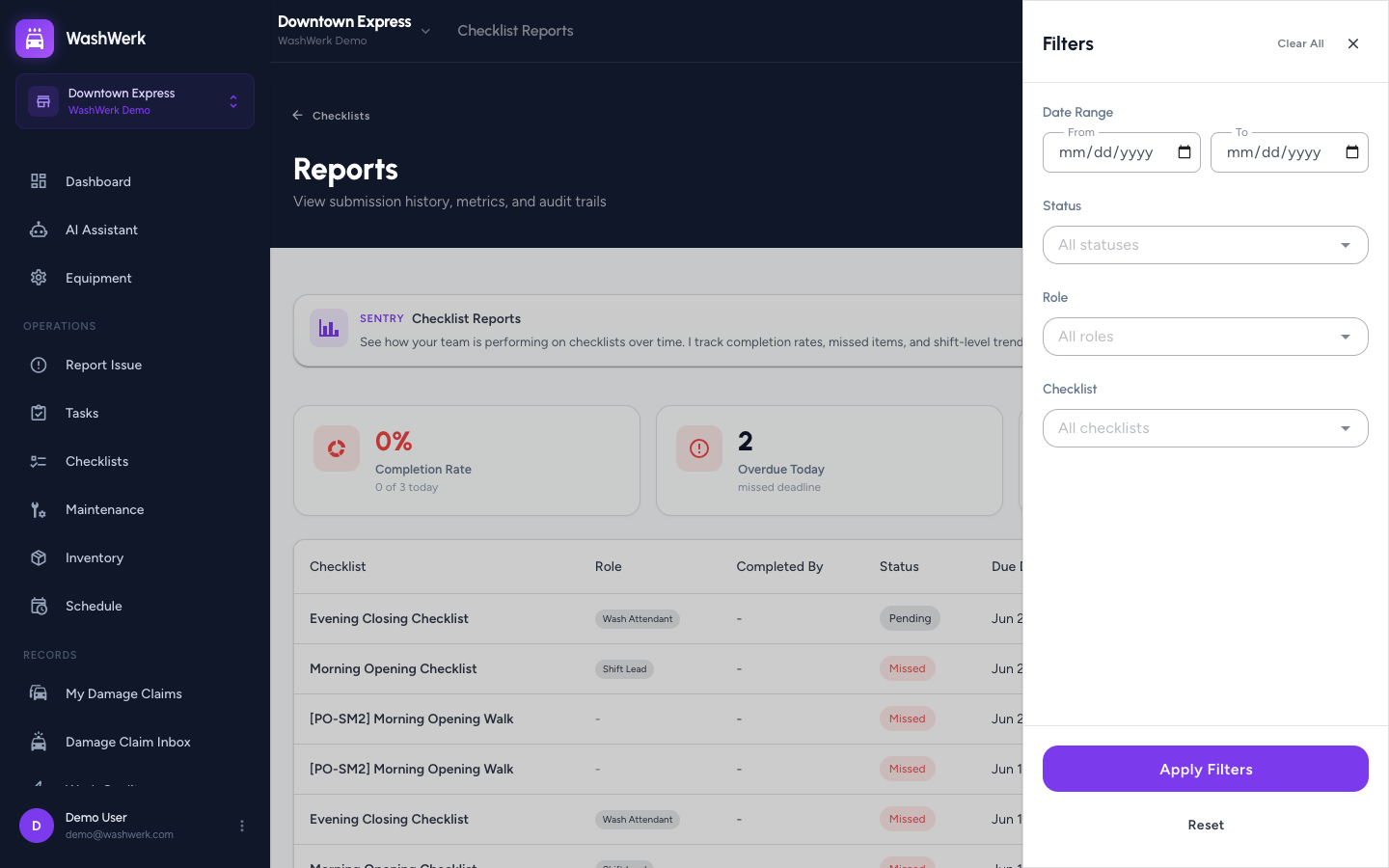
- Select Filters to open the filter panel.
- Set any of Date Range, Status, Role, or Checklist to narrow the list. (Corporate users also get a Store filter.)
- Select Apply Filters. The table updates and a badge on the Filters button shows how many filters are active. Select Reset to clear them.
Open a submission's detail
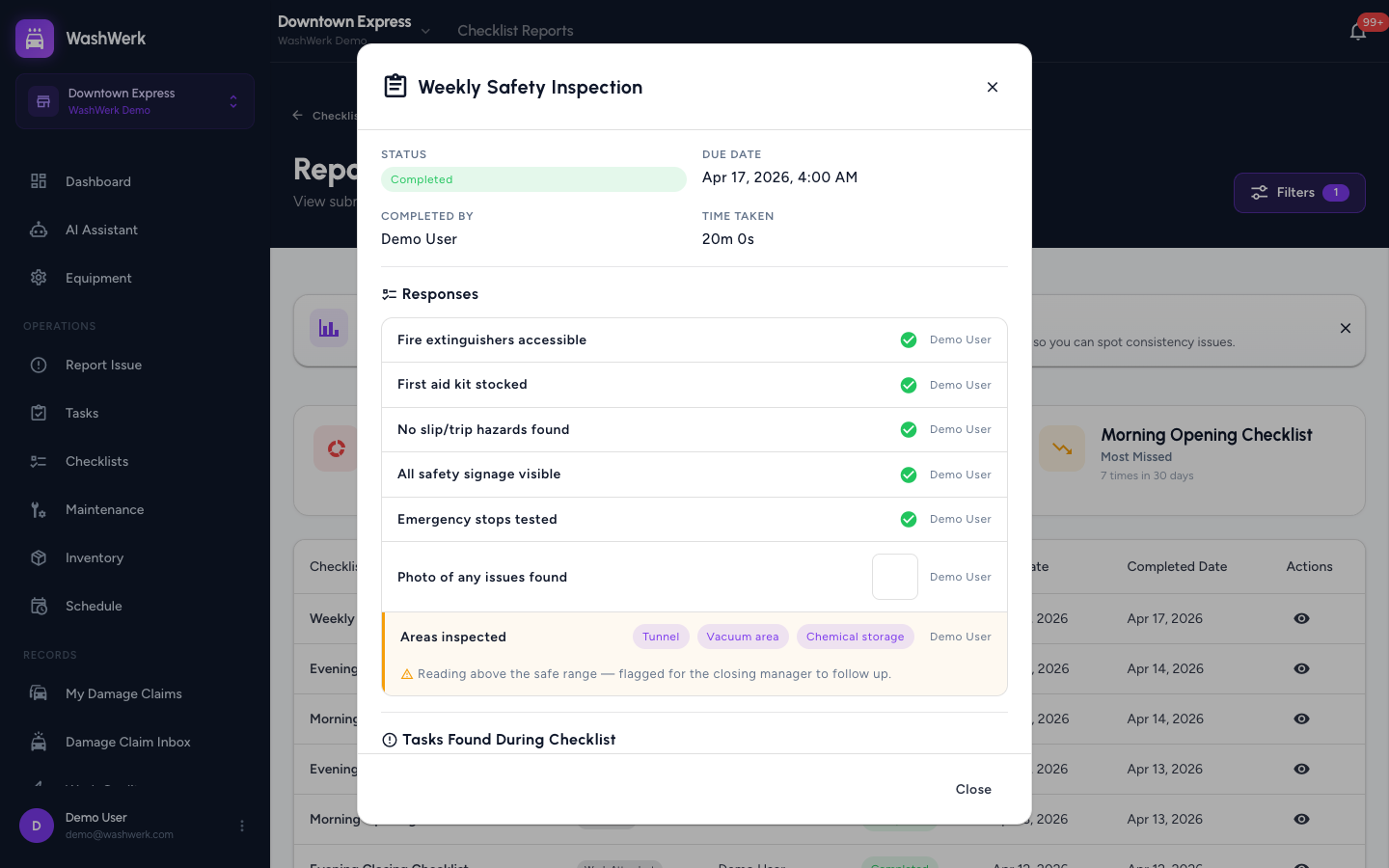
- Select a row, or its eye icon, to open the submission detail. The header shows status, due date, completed-by, and time taken.
- Review the Responses list — each item shows its recorded value. Irregular responses are highlighted amber with the attendant's note.
- Review Tasks Found During Checklist to see any follow-up tasks raised during the run, with their assignee, priority, and status.
View a photo full-size
- In the submission detail, select a photo thumbnail to open it full-size in the lightbox. Select the close icon to return.
Expected result
You can see your store's completion rate and overdue count at a glance, filter to a date range or checklist, and open any submission to confirm every response, flagged reading, photo, and linked task.
Troubleshooting
- If the table shows "No submissions found": Your filters are too narrow, or no checklists have been completed in range. Select Reset, then widen the date range.
- If Completion Rate shows red while work looks done: The rate covers every checklist that was due, not just today's. A low rate next to overdue items means earlier checklists were missed — filter by Status: Missed to find them.
- If a photo thumbnail won't open: The image may still be uploading or failed to attach. Re-open the submission, or have the attendant retake the photo from their Due Today list.