
How to handle repeat-issue customers and linked incidents
Flag a customer so future claims show a warning, group claims that came from one incident, and read the AI defect-pool hints while you investigate, so a repeat filer or a multi-vehicle incident is obvious before you decide. This is for store managers working a claim on the Work the claim tab.
When to use this
Reach for these tools when a customer's history or a wider pattern matters to the decision — a name you've seen before, or several claims that trace back to one incident.
Before you start
- Where: Store-level (web).
- Permission: The Manage Flags permission to flag customers and view the flags list, and the View Flags permission to see flag matches on a claim. Pool hints require the View Pool permission.
- Available by default to: Owners and Store Managers. (On custom roles, this needs the permission named above.)
- You must have: an open claim. Open it from the inbox and select the Work the claim tab; flags, links, and hints live in the Communications & investigation column.
Flag a customer for repeat issues
- In the customer-flag banner, select Flag this customer.
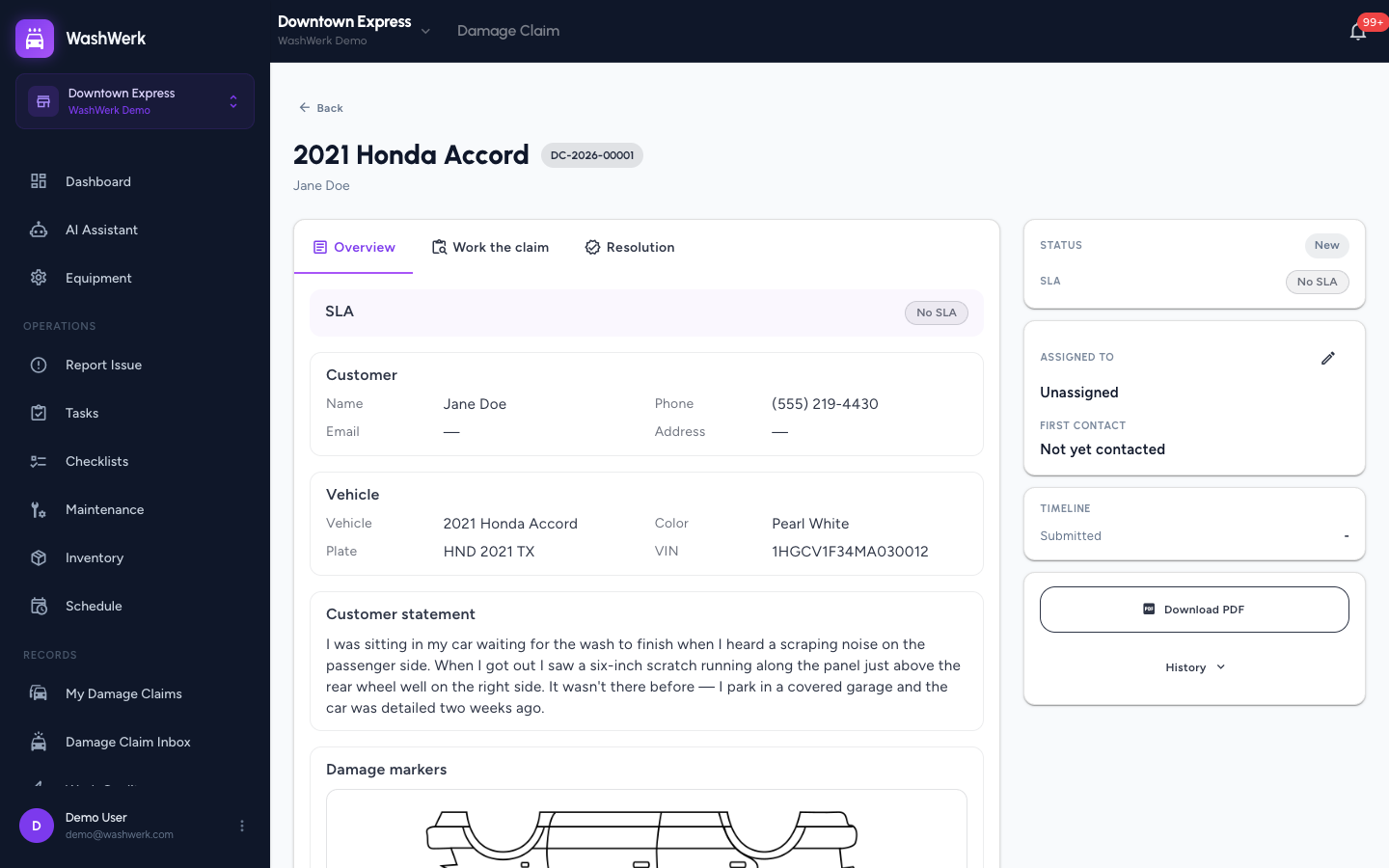
- Pick a Reason — Repeat filer, Previously fabricated or exaggerated damage, Hostile / abusive toward staff, or Other — and write an internal note describing what prompted the flag.
- Select Flag customer. The flag stays within your company and is never shared with other operators.
Review flag matches on a claim
- If the customer's name or phone matches an existing flag, the banner turns to N flags on this customer and lists each reason and date. Select View flags to expand them. This is your cue to investigate more carefully before deciding.
Link a claim into a multi-vehicle group
- In the Linked claims panel, select Link to group.
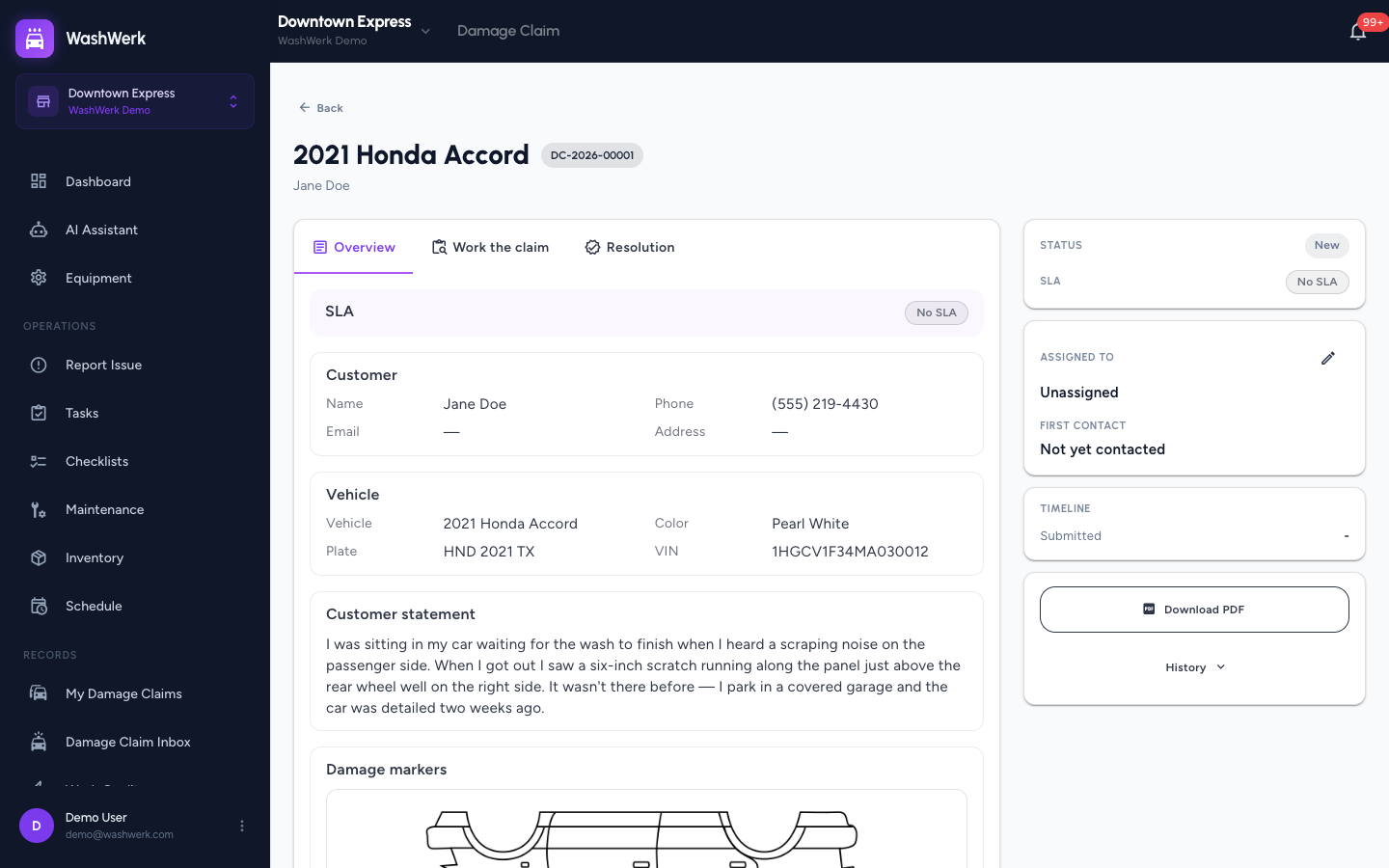
- Choose Create a new group (optionally name it and add notes), or choose Attach to existing group and enter the group's number.
- Select Create & link (or Link). Sibling claims in the group then appear in the panel, each linking to its own detail page.
- To remove this claim from its group, select Detach in the panel header.
Read AI pool hints
- When the shared defect pool has matching patterns and your company shows hints, a Cross-operator pattern card appears at the top of the investigation column with a suggested verdict, a confidence level, and an accepted-versus-denied breakdown. Treat it as a general signal only.
Important: Pool hints are AI-generated investigation guidance. Do not cite them in claim-closing documentation or customer communication.
Manage the customer flags list
- From store Settings, open Customer flags to see every flag in your company with its name, phone, reason, note, and date.
- To remove a flag, select the trash icon on its row and confirm. Future claims from that customer will no longer surface a warning.
Expected result
A flagged customer surfaces a warning banner on every future claim that matches their name or phone, and a grouped claim lists its siblings in the Linked claims panel.
Troubleshooting
- If the flag button is disabled: the claim has no customer name or phone to match on. Add customer contact details first.
- If no pool hint card appears: there may be too few matching contributions, your company may have hints turned off, or your role doesn't include the View Pool permission — ask an owner or manager. Hints are optional, and their absence is not an error.
- If you don't know the group ID to attach to: create a new group from the first claim instead, then attach the others to it.