
How to manage tasks across stores
The corporate Tasks page rolls up tasks from every store you can access into one list, with a store chip on each card, so owners and regional managers can track and act on work across locations without switching into each store. This guide covers viewing and filtering the rollup, opening a task, and creating, editing, completing, or deleting a task at any store.
Before you start
- Where: Corporate admin — open Tasks from the corporate sidebar.
- Permission: View Tasks to see tasks. Each write action checks its own permission at the target store: the Create Tasks permission, the Edit Tasks permission, the Complete Tasks permission, the Delete Tasks permission.
- Available by default to: Owners, Store Managers, Shift Leads, and Wash Attendants. (On custom roles, this needs the permission named above.)
- You must have: access to at least one store with tasks.
View the cross-store task rollup
- In the corporate sidebar, open Tasks. Tasks from all your stores load grouped by status, each card tagged with a store chip.
- Read the totals in the page subtitle and queue. Corporate task stats cover active, overdue, completed this week, and unassigned counts across stores.
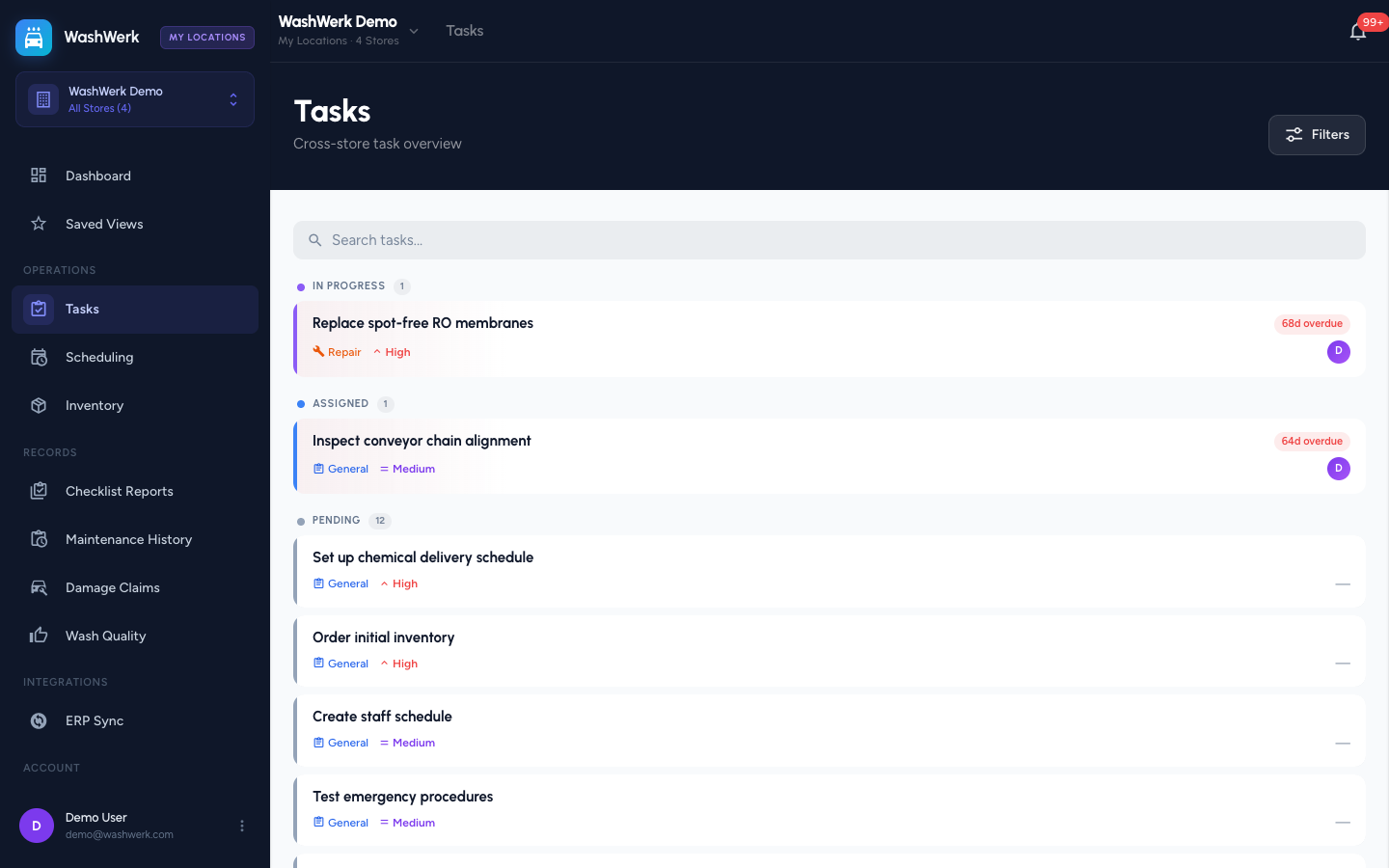
Filter tasks by store and field
- Select Filters in the page header to open the filter drawer.
- Choose one or more stores to scope the list, and set any of status, type, priority, assignee, or a due-date range.
- Select Apply. The active filter count appears on the Filters button. Use the search box to match task title or description.
Open a task
- Select a task card. WashWerk opens the full task at the store it belongs to, with that store's details loaded.
Create a task at a chosen store
- Open the task create form and set the store the task belongs to (only stores where you have the Create Tasks permission are selectable).
- Enter the title, priority, status, and optionally a description, type, assignee, due date, or equipment.
- Save. The new task appears in the rollup under its store.
Edit, complete, or delete a task
- Open the task from the rollup, or long-press a card on mobile for the quick menu.
- Edit a field and save — the change is scoped to that store's task.
- Complete the task to mark it done and stamp the completion time and user.
- Delete the task and confirm in the prompt. This cannot be undone.
Expected result
The rollup reflects your change immediately: a created task appears under its store chip, an edited field updates in place, a completed task moves to the Complete group, and a deleted task is removed.
Troubleshooting
- If the store dropdown is empty when creating a task: you lack the Create Tasks permission at every store. Ask an owner to grant it where you need to create tasks.
- If a complete or delete action is rejected: that store requires the Complete Tasks permission or the Delete Tasks permission, which you don't hold there.
- If the list looks short: an active Saved View or store filter may be narrowing it — clear the My Locations chip or reset the store filter.