
How to manage inventory across stores
The corporate Inventory page has two views — a Catalog rollup (one row per item, totaled across stores) and a Per-Store view (one row per store's stock) — so owners and regional managers can manage stock company-wide and keep one shared item list instead of duplicate entries per store. This guide covers reading both, creating and editing items, recording a transaction at a store, and merging duplicate items.
Before you start
- Where: Corporate admin — open Inventory from the corporate sidebar.
- Permission: View Inventory to read. Writes check per-store permissions at the target store: the Manage Inventory permission (create / edit / delete), the Receive Inventory permission (record transactions). Merging items requires permission to edit shared company-catalog item details.
- Available by default to: Owners, Store Managers, and Shift Leads. (On custom roles, this needs the permission named above.)
- You must have: access to at least one store that carries inventory.
View the cross-store catalog and stats
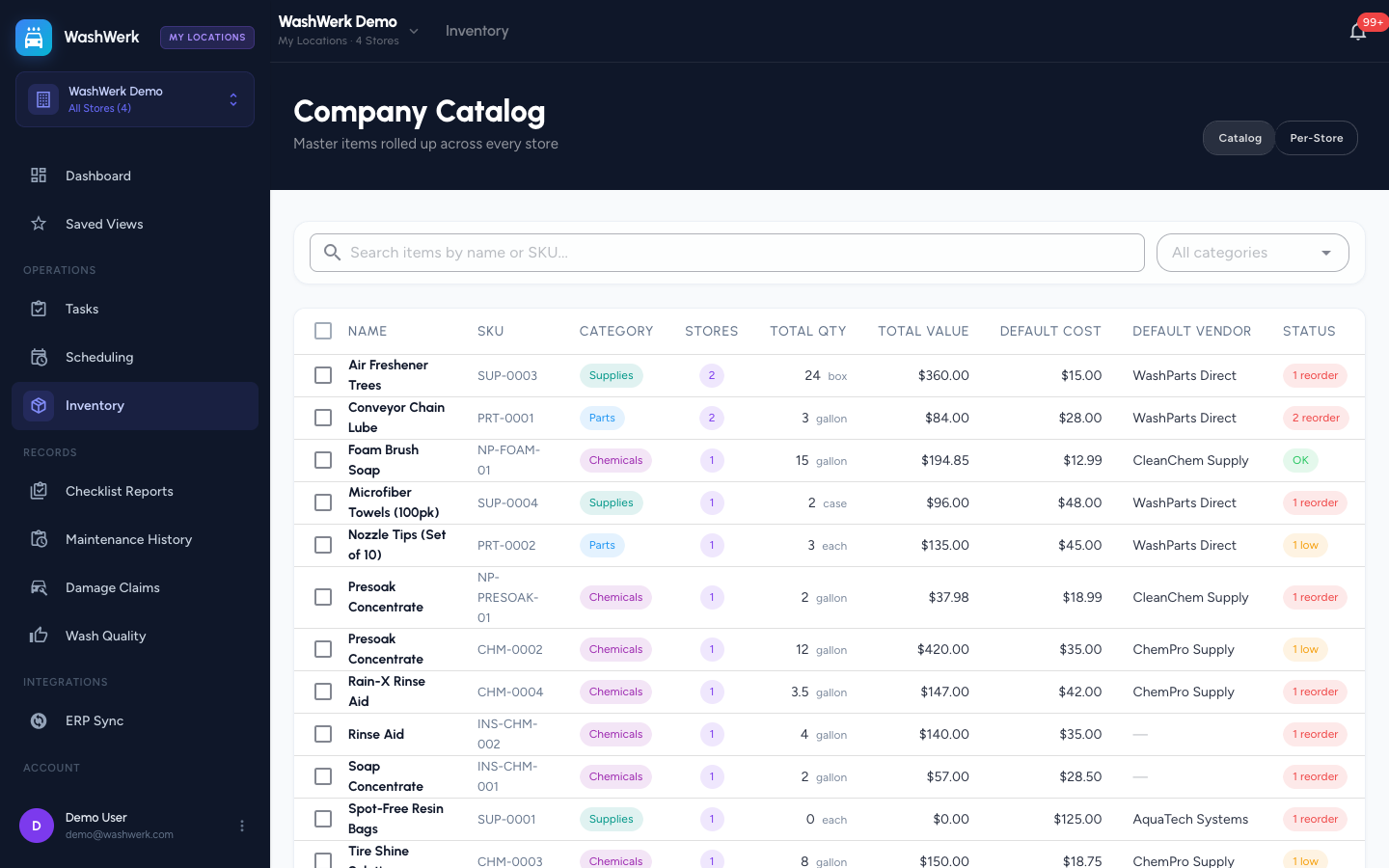
- In the corporate sidebar, open Inventory. The Catalog view loads: one row per item with stores carrying, total quantity on hand, total value, default cost, default vendor, and a status chip (reorder, low, or OK).
- To inspect per-store stock instead, use the Catalog / Per-Store toggle and select Per-Store. Each row shows one store's stock for an item, with that store named.
- Corporate inventory stats roll up active items, low-stock, needs-reorder, distinct vendors, and total value across accessible stores.
Filter the catalog
- Use the search box (name or SKU) and the category dropdown above the table. In the Per-Store view you can also filter by vendor, active state, and low-stock.
Create an inventory item at a chosen store
- Open the create form and pick the store to stock it at (only stores where you have the Manage Inventory permission are selectable).
- Enter the name and category, plus optional SKU, unit, description, starting quantity, par level, reorder point, cost, vendor, and location.
- Save. WashWerk adds the item to your catalog and sets up its starting stock at that store.
Edit shared item or per-store fields
- Open the item from the catalog.
- Update the shared item fields (name, SKU, category, unit, description) or the per-store fields (quantity, par level, reorder point, cost, vendor, location). Changes apply across the stores you can access that carry the item; choose a store to limit a per-store change to one location.
- Save.
NOTE
If your inventory is synced from a connected ERP system, some fields are controlled by that system and can't be changed here. WashWerk shows why those fields are locked.
Record a transaction at a store
- Open the item and start a transaction. Choose the type — restock, usage, adjustment, or write-off — and enter the quantity.
- If the item is carried at more than one store, select the store so WashWerk records against the right stock. Add an optional unit cost and notes.
- Save. The store's quantity on hand updates and the transaction is logged.
Merge duplicate items
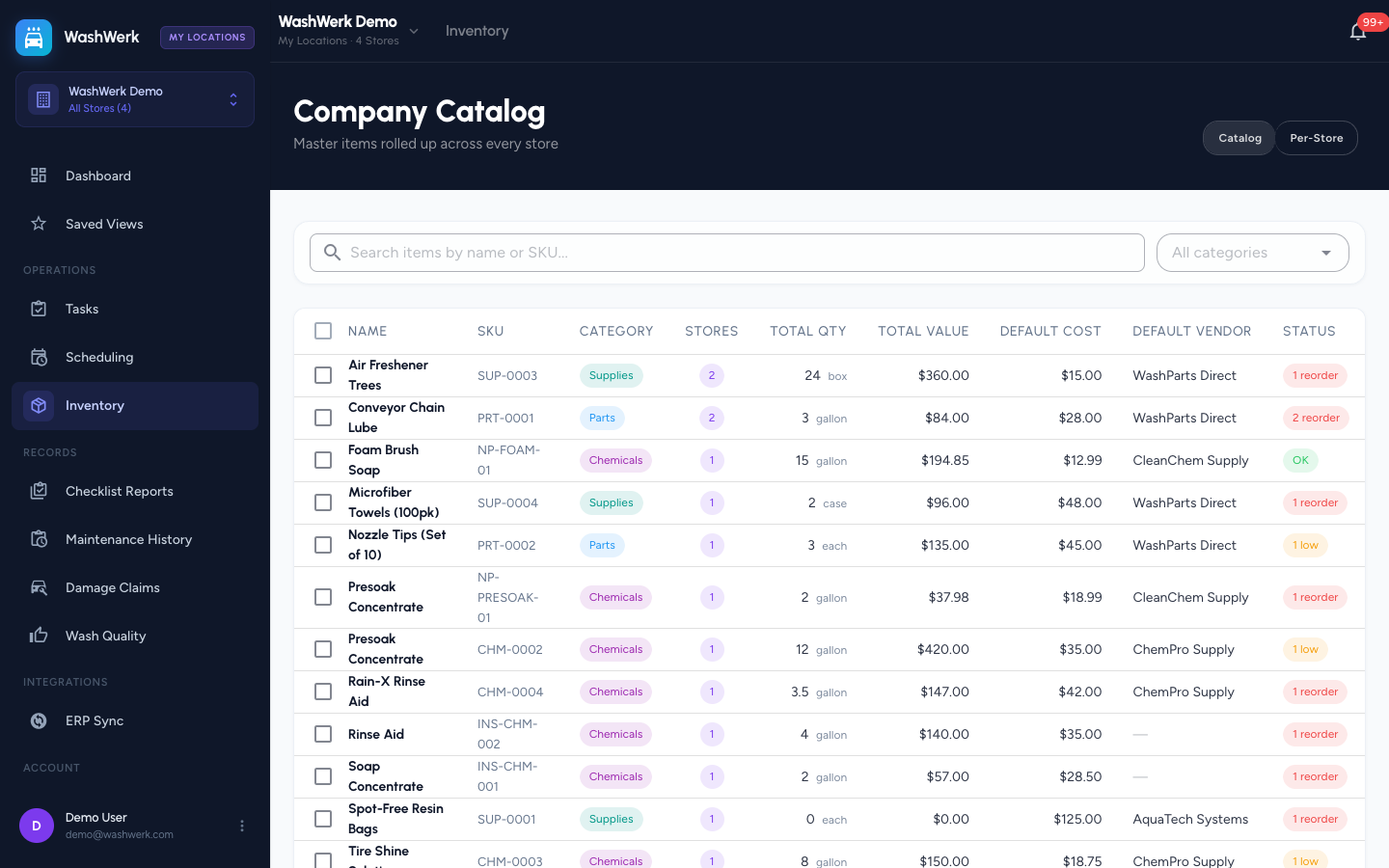
- In the Catalog view, tick the checkbox on two or more rows that are really the same item entered more than once.
- Select Merge N Items in the header and confirm which entry to keep. WashWerk moves the other entries' stock and history into the one you keep.
Stop carrying an item
- Open the item and delete it. This removes it from the stores you can access (their stock is cleared). The item stays in your records for history unless no store anywhere carries it.
Expected result
The catalog reflects your change: a new item appears with one store carrying it, edited fields update across stores, a recorded transaction changes that store's quantity, and a merge combines duplicates into one item.
Troubleshooting
- If the store selector is empty when creating: you lack the Manage Inventory permission at every store. Ask an owner to grant it.
- If a transaction won't save and asks you to choose a store: the item is stocked at multiple stores — pick one before saving.
- If Merge is missing or won't run: your role may not include permission to edit shared company-catalog item details — ask an owner or manager. Merging is also turned off while inventory is synced from a connected ERP system, which keeps the item list in step with that system.