
How to track progress on a task with comments and files
Keep a task moving and everyone informed — so a job's history, parts, and hand-offs live in one place instead of in someone's head: change its status, add comments and files, log the inventory you used, set a reminder, follow it for updates, and review its activity log. For the staff and managers working an in-progress task.
Before you start
- Where: Store-level — open a task from the store Tasks list.
- Permission: Edit Tasks to change status, log items, attach files, and add comments. Following a task and setting a personal reminder need no special permission.
- Available by default to: Owners, Store Managers, and Shift Leads. (On custom roles, this needs the permission named above.)
- You must have: A task open in detail view. Inventory items must exist at the store to log them as used.
Change task status
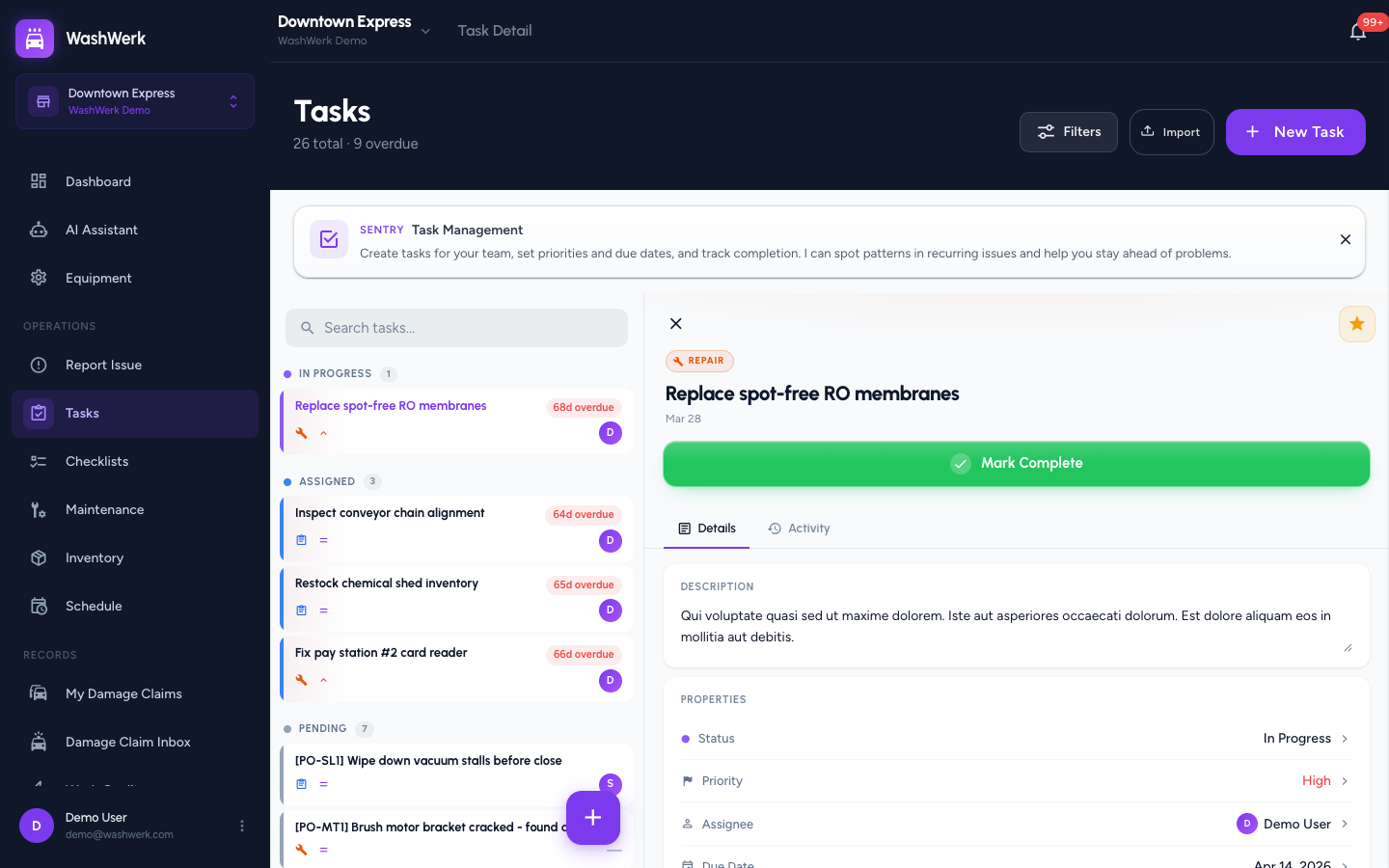
- Open the task. On the Details tab, in the Properties card, select Status.
- Choose a status — for example In Progress, Waiting, or Monitoring. The change saves immediately and is recorded in the activity log.
Set or remove a reminder
A reminder is only available once the task has a due date.
- In Properties, select Set Reminder next to Reminder.
- Choose how far ahead to be reminded — 15 minutes, 1 hour, 1 day, 2 days, or 1 week before the due date. Options that have already passed are unavailable.
- To remove it, select the × on the reminder chip.
::: note If you change the due date later, preset reminders move with it automatically; reminders that would fall in the past are dropped. :::
Follow a task
Following a task subscribes you to its notifications even if it isn't assigned to you.
- In the task header, select the star icon. A filled star means you're following; select it again to unfollow.
Add a comment
- Scroll to the Comments card at the bottom of the Details tab.
- Select the Write a comment... field, type your note, then select the send button (or press Enter). Your comment appears with your name and timestamp.
Attach or remove a file
- In the Attachments card, select Add file and choose a file (up to 20 MB). It uploads and appears in the list.
- To open an attachment, select its name. To remove one, select the × beside it.
Log inventory used
Logging items used draws the quantity down from store inventory.
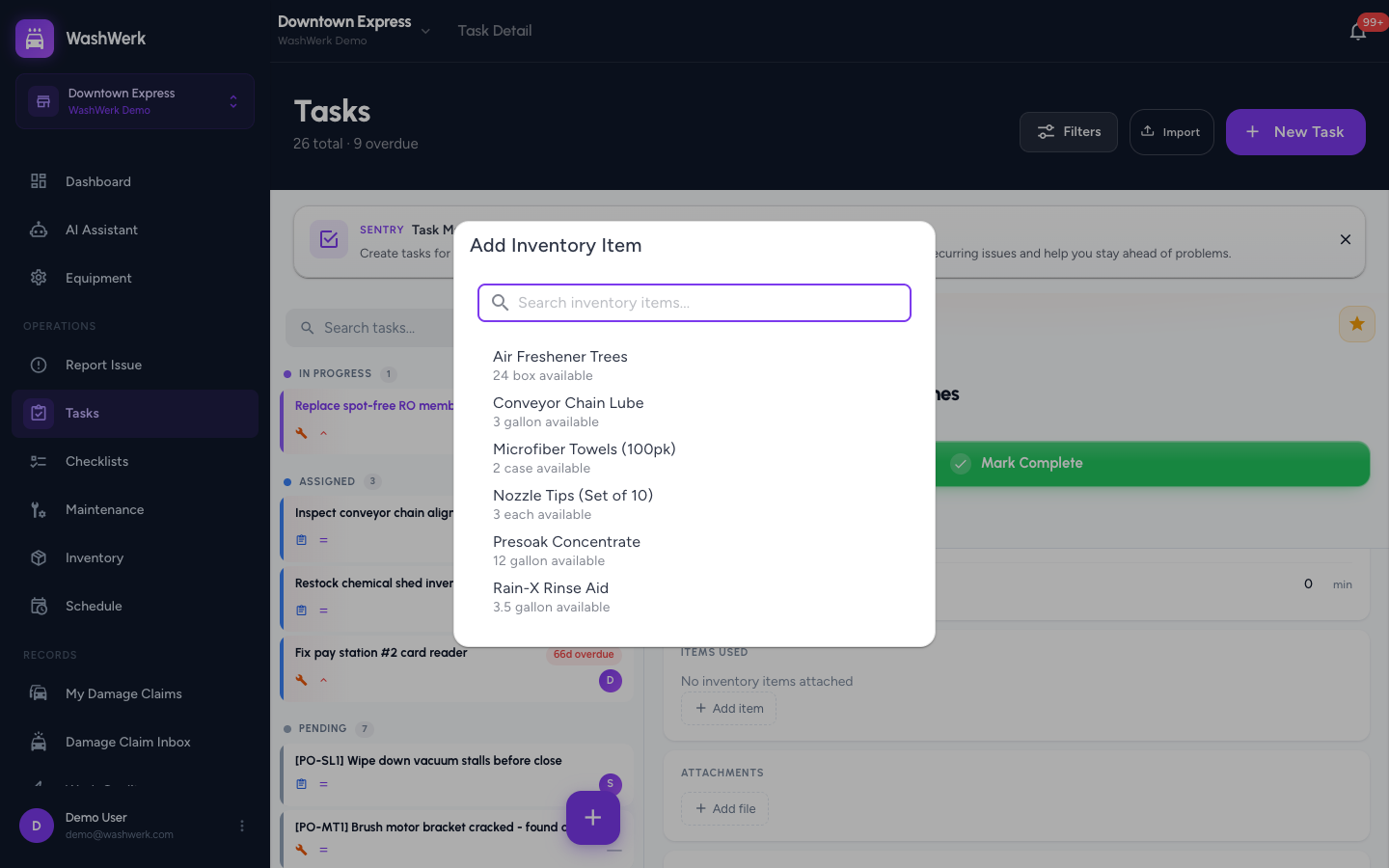
- In the Items Used card, select Add item.
- Search inventory and select an item. It's added with a quantity of 1.
- Adjust the quantity with the − and + stepper next to the item. Stock is recalculated as you change it.
- To remove an item, select the × on its row. The quantity is returned to inventory.
View the activity log
- Select the Activity tab. Each status change, assignment, and edit is listed with who did it and when.
Expected result
The task reflects your latest status, comments and files are attached, items used are deducted from inventory, and your reminder and follow settings are saved. The Activity tab records the full history.
Troubleshooting
- If the Reminder row doesn't appear: The task has no due date. Set a due date first, then add a reminder.
- If an inventory item isn't in the Add item list: The item either isn't stocked at this store or is already attached to the task. Add it to store inventory or adjust the one already on the task.
- If a file won't attach: Files must be 20 MB or smaller. Compress or split larger files and try again.