
How to join the manufacturer defect pool and AI hints
Decide whether your company contributes anonymized damage patterns to the shared manufacturer defect pool, and whether your store managers see AI pattern hints while investigating claims, so your managers can spot cross-operator damage patterns when judging a claim. These are company-wide policy switches for the owner.
When to use this
Turn these on when you want the shared defect-pool signal to help judge claims; leave hints off if you'd rather managers decide without an AI nudge.
Before you start
- Where: Corporate admin (web).
- Permission: The Configure Damage Claims permission to change these switches (the corporate Settings page also requires the Settings permission to reach).
- Available by default to: Owners and Company Admins. (On custom roles, this needs the permission named above.)
- You must have: corporate access for your company.
Open the settings
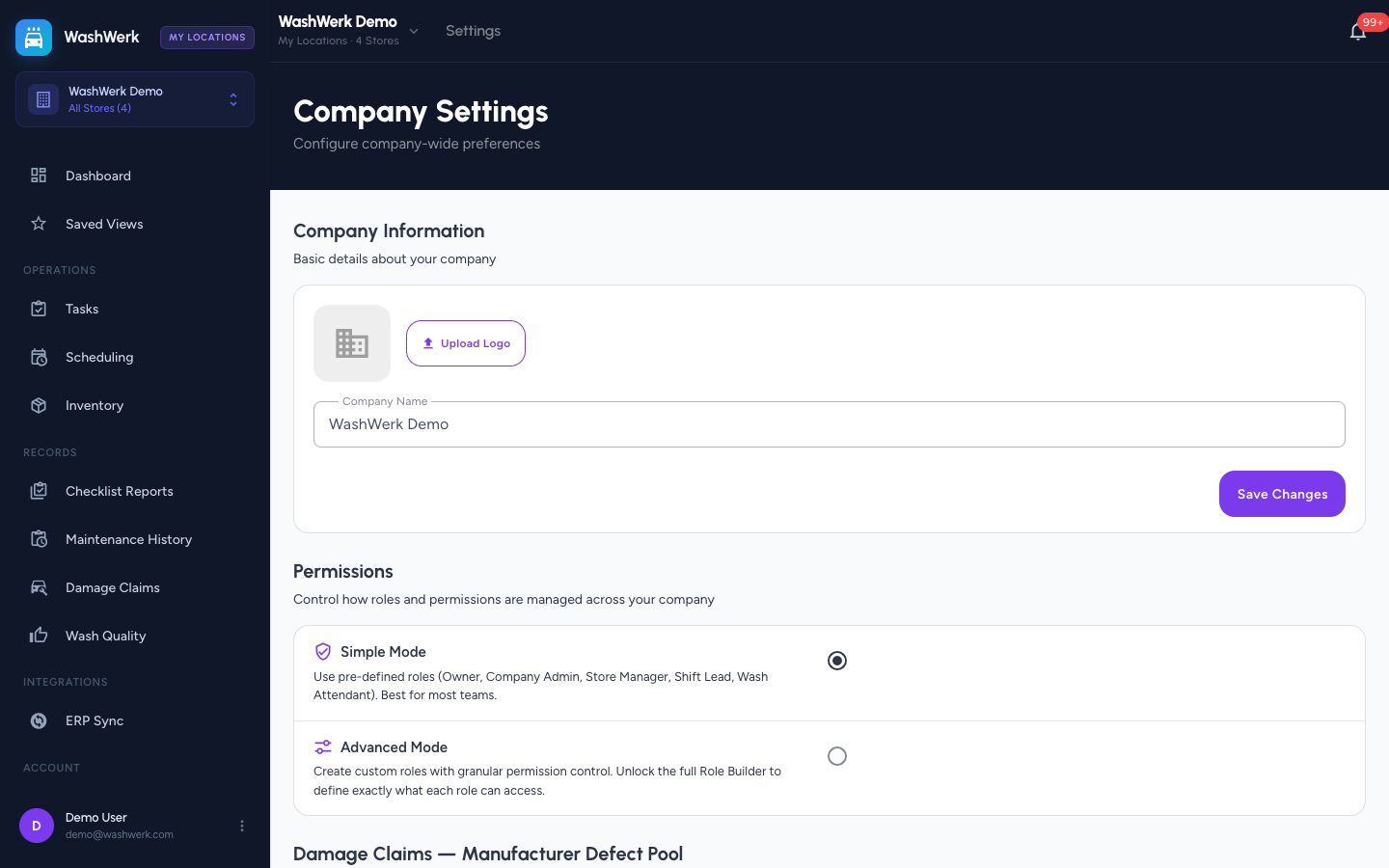
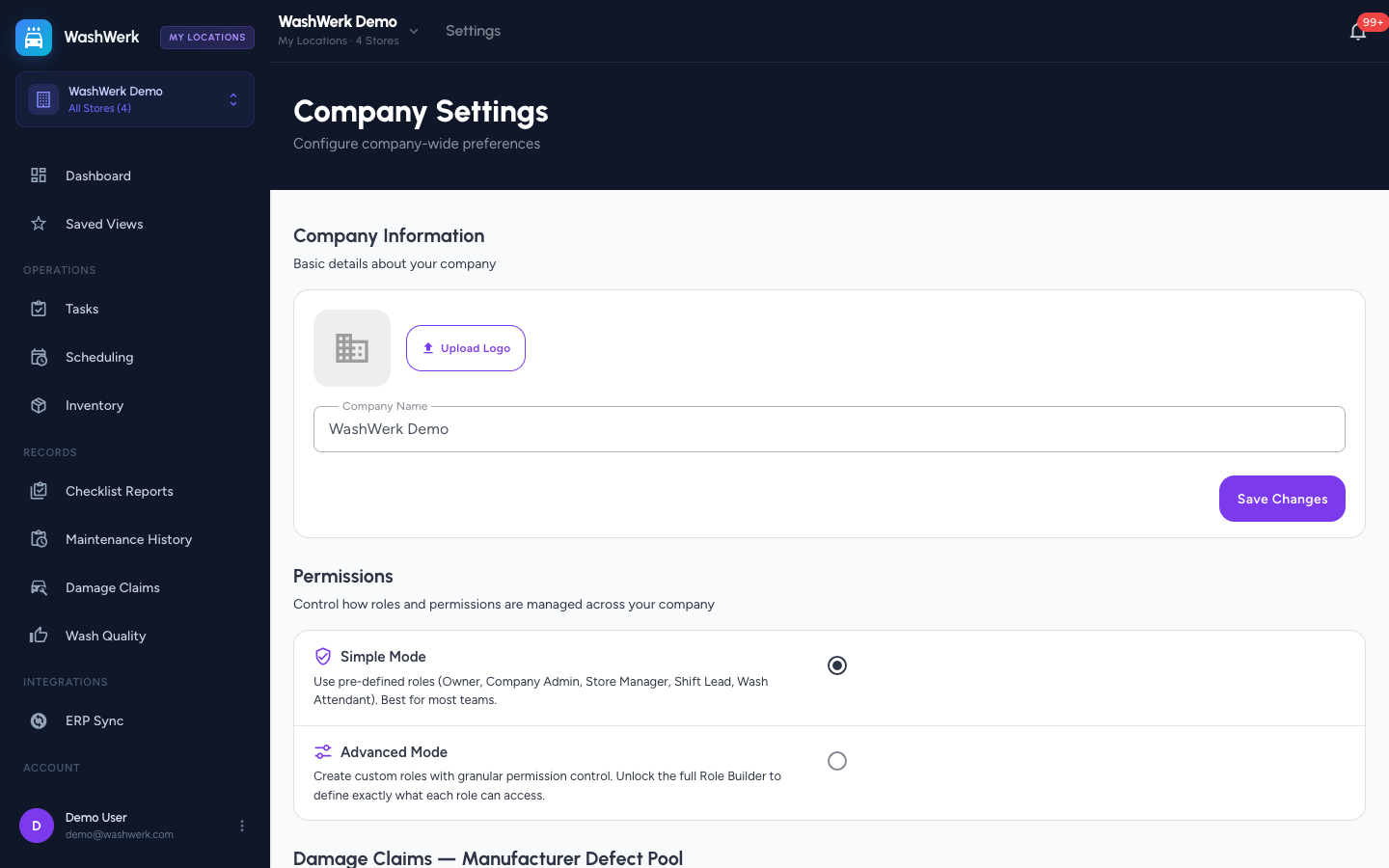
- From the corporate view, open Settings and find the Damage Claims — Manufacturer Defect Pool section.
Opt in or out of the defect pool
- Switch on Contribute to the defect pool. A participation-terms dialog opens.
- Read the terms — only the vehicle make, model, year, general damage area, and outcome are contributed, all customer details are removed, and your company is anonymized so it can't be traced back to you — then select I agree — opt in.
- To leave the pool, switch the toggle off. Opting out takes effect immediately and queues a purge of every entry your company contributed.
Note: Reading the pool is open to every company regardless of this toggle. Opting out only stops your company from contributing.
Control whether managers see AI hints
- Switch Show pattern hints to managers on or off. When it's off, the AI pattern-hint card is hidden everywhere in the investigation view so managers aren't nudged by AI patterns. This is a safeguard against bias, and it works independently of whether you contribute to the pool.
Expected result
A confirmation appears after each change. Opting in shows that your company is now contributing; opting out confirms past contributions are being purged. Turning hints off removes the pattern-hint card from every claim investigation immediately.
Troubleshooting
- If the terms dialog reappears after you decline: the toggle reverts to its previous state — opting in only completes once you accept the terms.
- If managers still don't see hints after turning them on: hints only appear when the shared pool has enough matching contributions for a given vehicle; an empty card is normal, not an error.