
How to organize equipment with groups and locations
Group similar machines into maintenance sets and place equipment into physical locations so your registry maps to your real site. Groups let one procedure service many machines; locations organize the floor plan. This is for store managers, maintenance managers, and owners.
Before you start
- Where: Store-level — the Equipment Groups and Locations screens, reached from the Equipment tab.
- Permission: Manage Equipment to create, edit, assign, or delete. Viewing only needs the View Equipment permission.
- Available by default to: Owners and Store Managers. (On custom roles, this needs the permission named above.)
- You must have: At least one piece of equipment registered. See How to register equipment in your store.
Create an equipment group
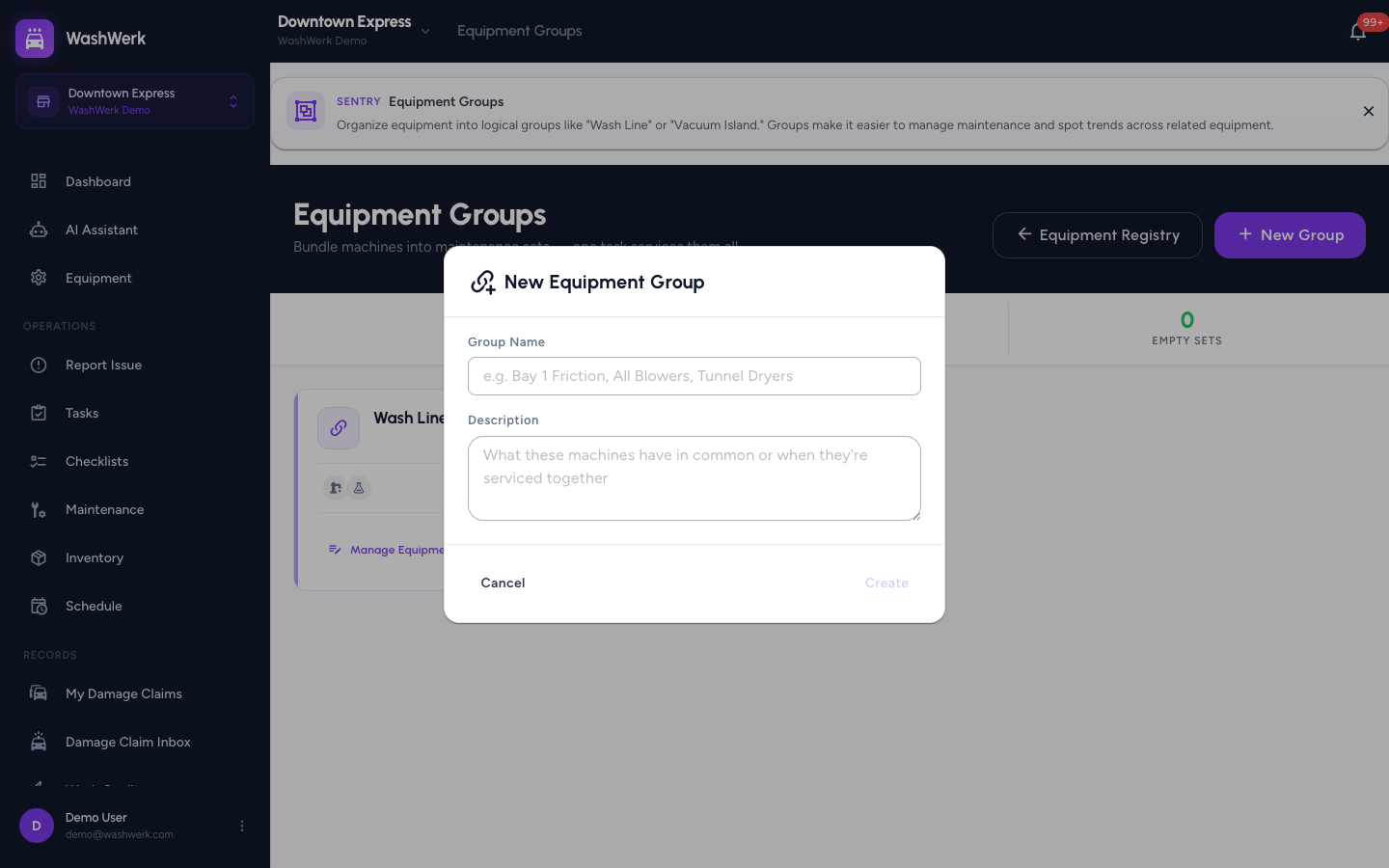
- On the Equipment tab, select Equipment Groups, then select New Group.
- Enter a Group Name (for example, "Tunnel Dryers" or "Bay 1 Friction") and an optional Description.
- Select Create. The group appears as a card showing zero machines.
Assign or remove equipment in a group
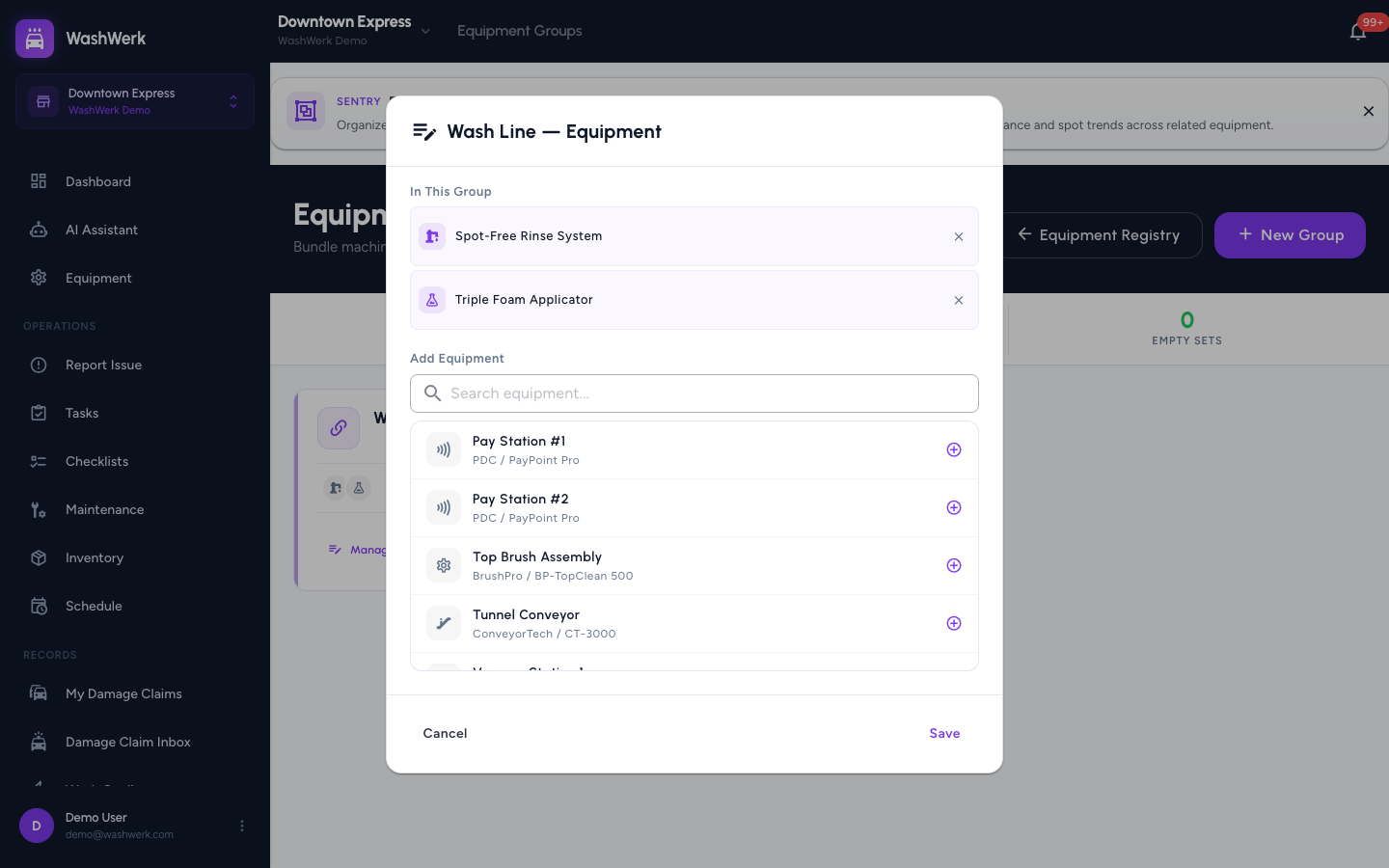
- On the Equipment Groups screen, select Manage Equipment on a group card.
- Search under Add Equipment and select a machine to add it; it moves into In This Group.
- To drop a machine, select the remove control next to its name under In This Group.
- Select Save. The card updates with the new machine count.
Edit a group
- On a group card, select the edit control, change the name or description, and select Update.
Delete a group
- On a group card, select the delete control.
- Confirm by selecting Delete Group.
::: note Deleting a group does not delete its equipment — only the group and any maintenance procedures linked to it. :::
Create a location
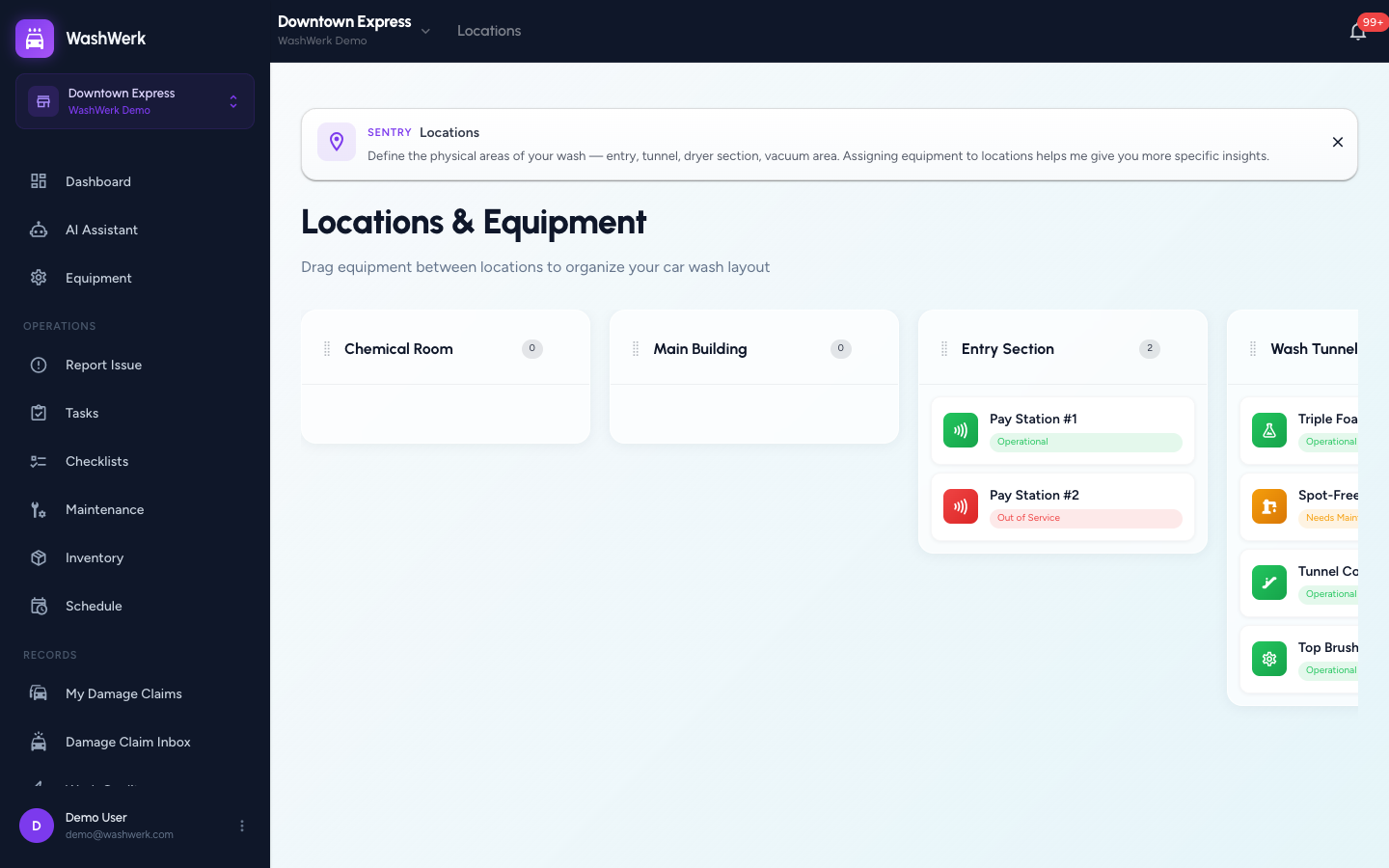
- On the Equipment tab, select Locations to open the board. Each location is a column; unassigned equipment sits in the Unassigned column.
- Add a new location column and give it a name.
- The location is ready to receive equipment.
Assign or move equipment between locations
- On the Locations board, drag an equipment card from one column into another. The assignment saves automatically. Drag a card within a column to set its physical order.
Edit a location
- On the Locations board, select a location's name to edit it inline, then press Enter or move focus away to save.
Reorder locations
- Drag a location column by its drag handle to change the order of columns on the board.
Delete a location
- On the Locations board, remove the location column. Equipment in that column returns to Unassigned rather than being deleted.
Expected result
Your groups list shows each set with an accurate machine count, and the Locations board shows equipment sitting in the right columns in the order you arranged. Group-based maintenance procedures can now service every machine in a set at once.
Troubleshooting
- If a machine will not stay in a location after dragging: Wait for the board to finish saving before dragging the next card; reload if a card snaps back.
- If a group shows "No equipment assigned": Open Manage Equipment and add machines — an empty group has nothing to maintain.
- If you cannot create or edit: Your role does not include the Manage Equipment permission — ask an owner or manager to grant it.