
How to view the cross-store schedule overview
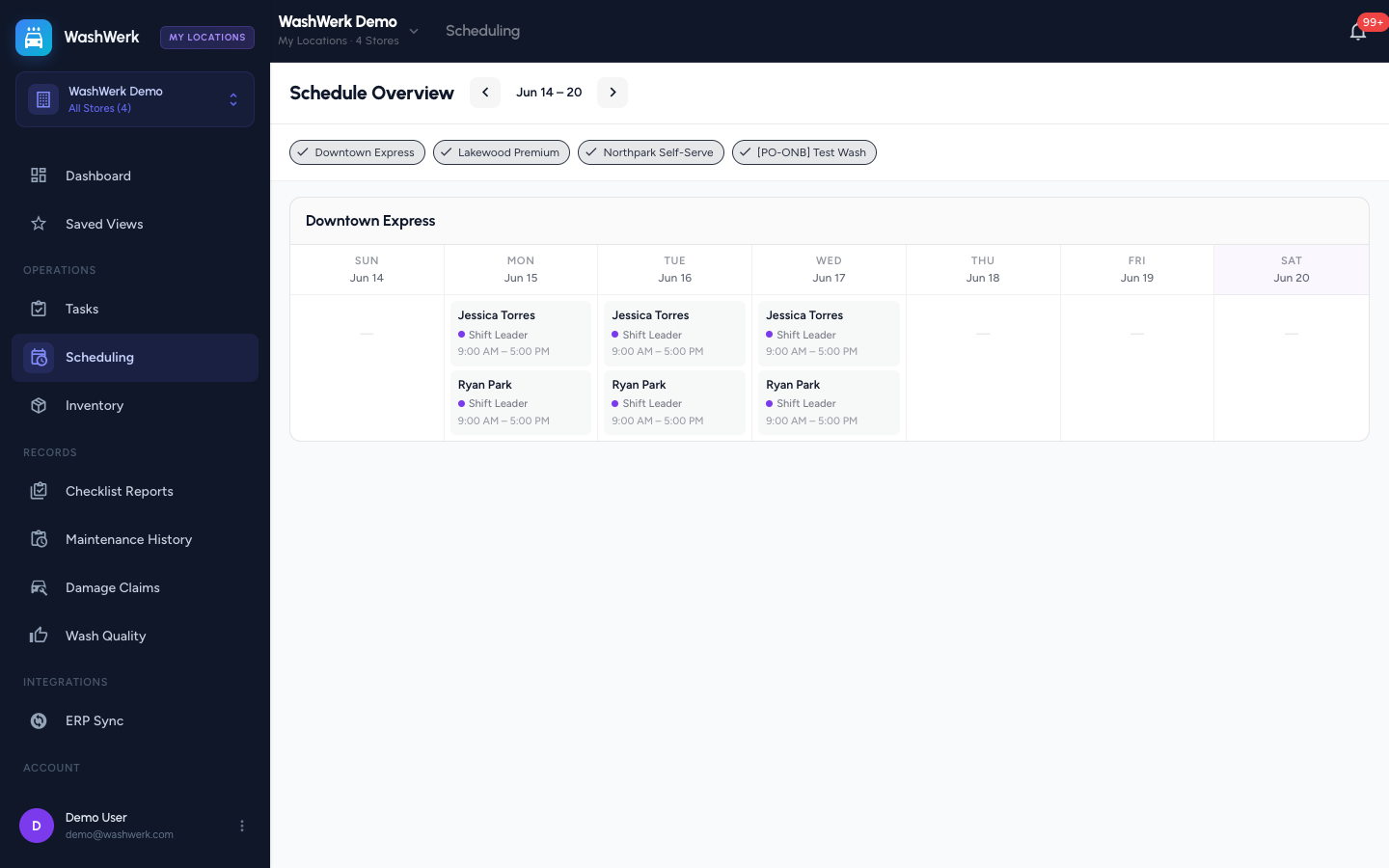
The corporate Schedule Overview shows published shifts for every store you can access, one weekly grid per store, so owners and regional managers can see coverage across locations at a glance without opening each store's schedule. This guide covers reading it, moving between weeks, and filtering to specific stores.
Before you start
- Where: Corporate admin — open Scheduling from the corporate sidebar.
- Permission: View Scheduling
- Available by default to: Owners, Store Managers, Shift Leads, and Wash Attendants. (On custom roles, this needs the permission named above.)
- You must have: at least one store with published shifts for the week you're viewing.
View the weekly overview
- In the corporate sidebar, open Scheduling. Each store you can access gets its own section with a seven-day grid; each day lists its shifts (employee, position, and time).
- The current day's column is highlighted. Stores with no published shifts that week show an empty grid.
Navigate between weeks
- Use the ‹ and › arrows beside the week label to move back and forward a week. Select the week label itself to jump back to the current week.
Filter to specific stores
- Use the store chips above the grids to toggle which stores appear. By default every store in your active scope is selected; deselect chips to focus on a few. (When a Saved View is active, only that view's stores are available.)
Expected result
You see published shifts for the chosen stores and week, with each store's grid stacked in alphabetical order and the current day highlighted.
Troubleshooting
- If a store shows no shifts: only published shifts appear here — unpublished drafts won't show. Publish the schedule at the store to surface it.
- If shift times look off: times display as the store's wall-clock time, not your local timezone, so they match what staff see on site.