
How to review maintenance compliance across stores
The corporate Maintenance History page lists completed maintenance sessions from every store you can access, each tagged with its store, duration, and completion count, so owners and regional managers can confirm equipment upkeep is happening across locations and follow up where it isn't. This guide covers reading the rollup, filtering by store, and opening a session.
Before you start
- Where: Corporate admin — open Maintenance History from the corporate sidebar.
- Permission: View Maintenance
- Available by default to: Owners, Store Managers, and Shift Leads. (On custom roles, this needs the permission named above.)
- You must have: access to at least one store that has run maintenance sessions.
View the cross-store maintenance rollup
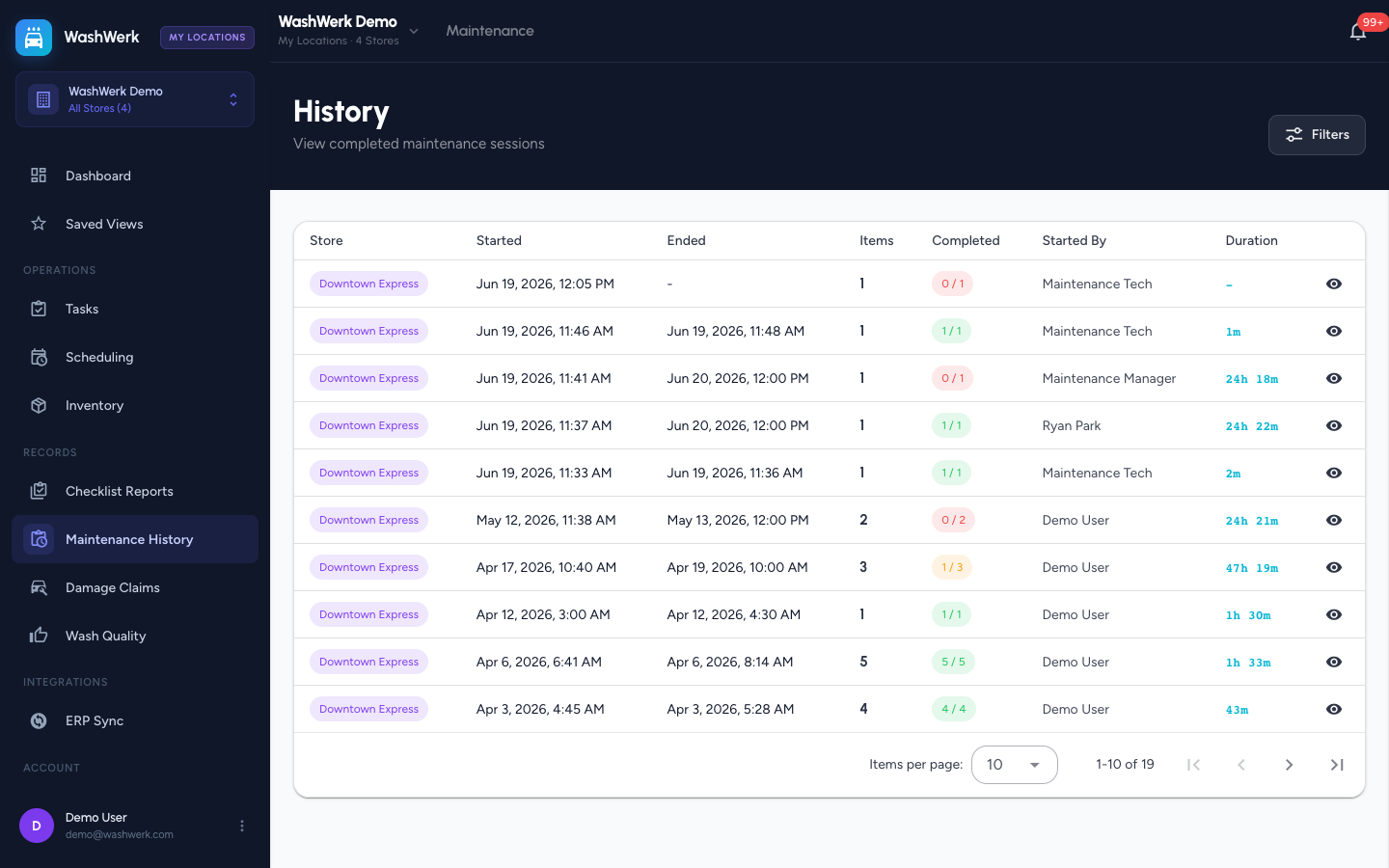
- In the corporate sidebar, open Maintenance History. The table lists sessions with Store, started and ended times, item count, a Completed chip (completed / total, colored by how much finished), the person who started it, and duration.
- Sort by store or start time using the column headers.
Filter by store
- Select Filters in the page header.
- Choose one or more stores, then close the drawer. The active filter count appears on the Filters button and the list refreshes.
Open a session detail
- Select a row (or its eye icon) to open the session. The detail shows the worked items, procedures, parts, tasks generated, and inventory used for that session.
Expected result
The list reflects the selected stores, and opening a session shows its full breakdown so you can confirm the work was completed.
Troubleshooting
- If "No history yet" appears: the selected stores have no completed sessions, or the store filter is too narrow. Widen the filter.
- If a store is missing: an active Saved View may be scoping the view — clear the My Locations chip in the top bar.