
Why you can't see some shifts on the schedule
If shifts are missing from your schedule, it is usually because they are still in draft. WashWerk only shows published shifts to team members, while managers can see both drafts and published shifts. This guide explains the difference and how to make a schedule visible.
Before you start
- Where: Store-level — the Scheduling page.
- Permission: The View Scheduling permission lets you see published shifts. Seeing drafts and publishing the schedule require the Manage Scheduling permission.
- Available by default to: Owners, Store Managers, Shift Leads, and Wash Attendants. (On custom roles, this needs the permission named above.)
- You must have: A schedule that a manager has built for the week you are viewing.
Why some shifts are hidden
WashWerk separates a schedule into two states so managers can build a week without confusing the team mid-draft:
- Draft shifts are visible only to managers (the Manage Scheduling permission) while they are still arranging the week.
- Published shifts are visible to everyone with the View Scheduling permission.
If you have the View Scheduling permission but not the Manage Scheduling permission, you will only ever see published shifts — draft shifts will look "missing" until a manager publishes them.
Make a schedule visible (managers)
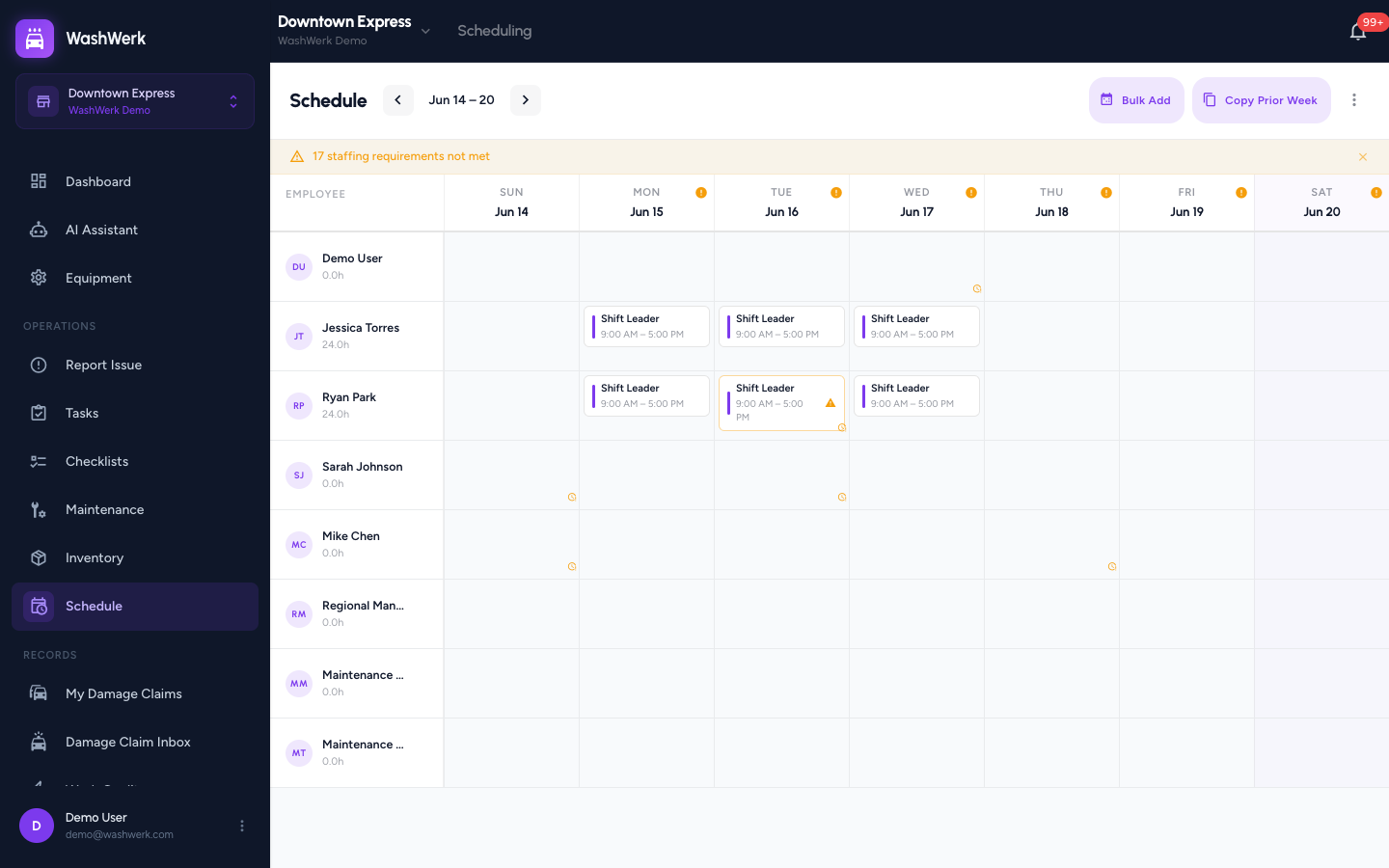
- On the Scheduling page, build or finish the week's shifts.
- Select Publish. WashWerk marks the week's shifts as published and notifies affected team members.
Expected result
After publishing, team members with the View Scheduling permission see the week's shifts the next time they open Scheduling. Unpublishing a week hides those shifts from the team again.
Troubleshooting
- If you are a team member and your shift is missing: it has not been published yet. Ask your manager to publish the week.
- If you are a manager and a team member can't see a published shift: confirm they have the View Scheduling permission, and check that the shift was not later unpublished.
- If you are viewing the wrong week: shifts only show for the date range you have selected. Move to the correct week.