
How to adopt items from the company catalog
Add items that other stores in your company already carry to your own store, so every location shares the same item details and consistent supply standards. This guide is for store managers, owners, and maintenance managers.
When to use this
Use this to copy an item's details from the company catalog (name, SKU, unit, suggested par and reorder levels) — to have physical stock sent to your store from a warehouse, order a transfer instead.
Adopting an item copies its definition only. Your store starts at zero on hand and keeps its own quantity from then on. To change that quantity, either record a stock movement or receive a transfer from one of your company's warehouses.
Before you start
- Where: Store-level — Inventory module, Items tab
- Permission: Manage Inventory
- Available by default to: Owners and Store Managers. (On custom roles, this needs the permission named above.)
- You must have: At least one other store in your company already carrying items your store does not. If no other store carries anything new, the catalog is empty.
Adopt items from the company catalog
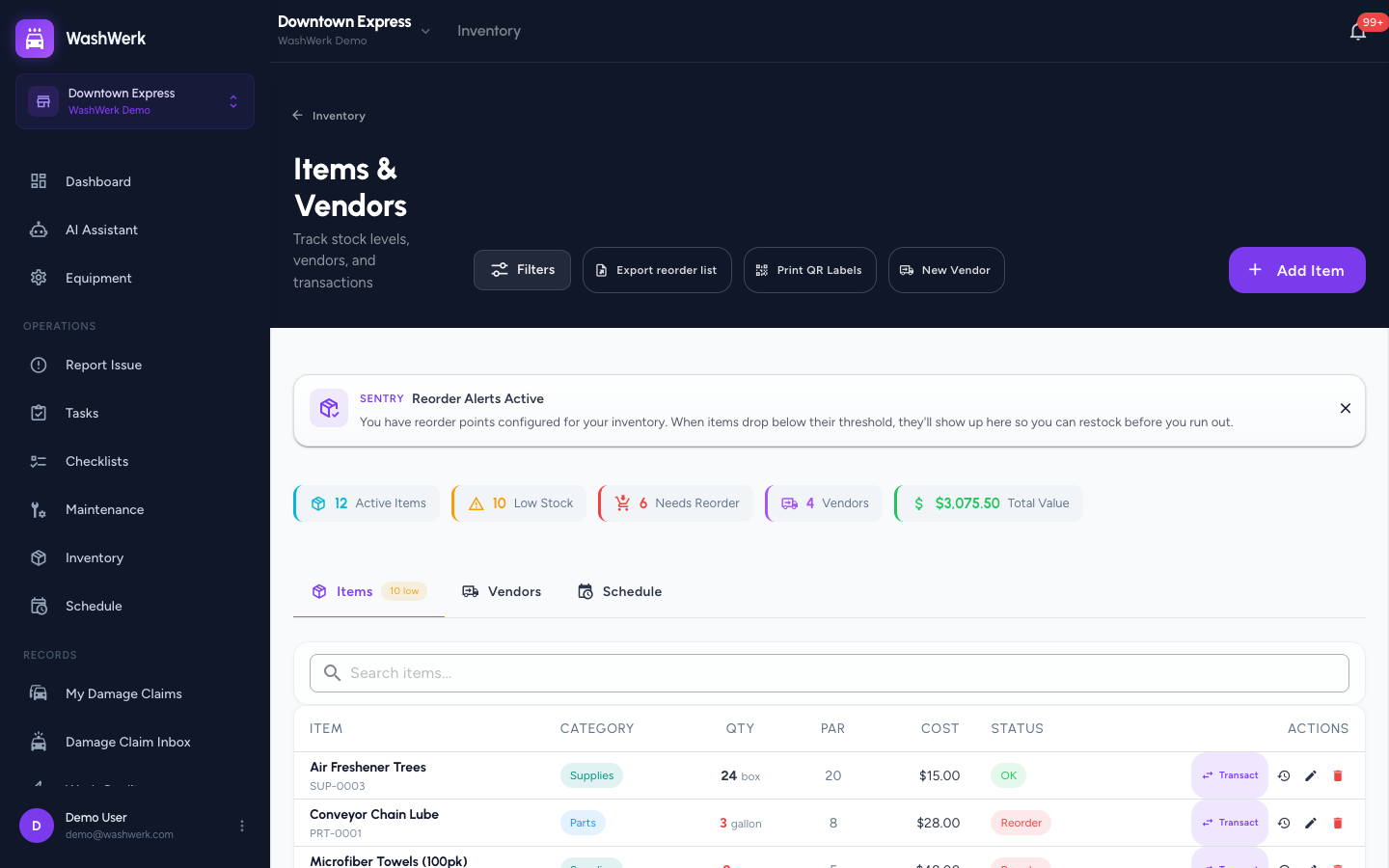
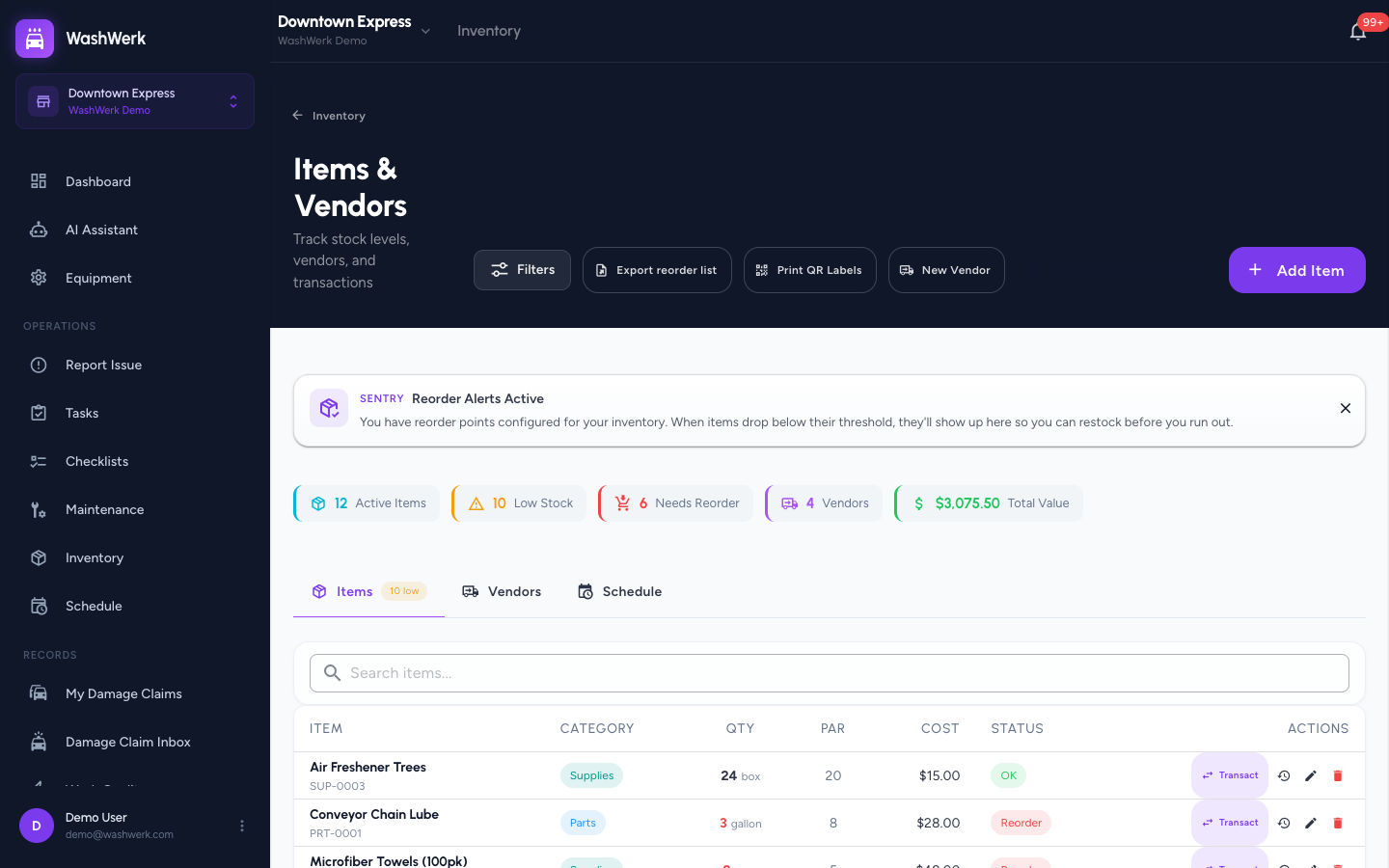
- Open Inventory in the sidebar and stay on the Items tab.
- Select Add from Company Catalog. The catalog picker opens, listing items other stores in your company carry that yours does not.
- Select an item to check it. The Carried at line shows which other stores stock it.
- Optional: For each selected item, adjust the Par Level and Reorder Point. WashWerk pre-fills a suggested value based on what other stores in your company use.
- Select Add N items. Your store starts carrying the selected items at zero on hand, and they appear in your Items list.
Set starting stock
Adopted items begin at zero on hand. To set their actual quantity, record a transaction for each one — see How to record stock movements and track an item. Use a Restock to add received stock, or an Adjustment to set the exact counted amount.
If the item is stocked at one of your company's warehouses, order a transfer instead — confirming receipt of the delivery adds the units to your on-hand quantity for you.
Expected result
The adopted items show in your store's Items list sharing the same name, SKU, category, and unit as the company's standard item, with the par and reorder levels you set. A confirmation banner reports how many items were added.
Troubleshooting
- If the catalog is empty: No other store carries an item yours is missing. Create the item directly instead — see How to add inventory items.
- If the Add from Company Catalog button is missing: Your role doesn't include the Manage Inventory permission — ask an owner or manager to grant it.
- If you see a message that adding items is turned off: Your company keeps its inventory in a connected outside system. Adopt or add items in that system instead, and they will appear here.