
How to set up a store faster with AI-guided onboarding
Describe your store to the AI setup assistant and let it suggest equipment and checklist templates so you finish onboarding faster than entering everything by hand. The assistant lives inside the setup wizard's Equipment and Operations steps, for anyone running a store's setup.
When to use this
Reach for the AI assistant when you'd rather describe your store in plain words than hunt through the catalog yourself — it's optional, so skip it and add items manually any time you prefer.
Before you start
- Where: Store-level — the assistant appears on the Equipment and Operations steps of the setup wizard, on web and mobile.
- Permission: No special permission needed. Anyone running the store's setup wizard can use it.
- You must have: The store's setup wizard open. On mobile, allow microphone access to use voice input.
Describe your store with text
- On the Equipment or Operations step, select Let AI fill this in to open the AI Setup Assistant.
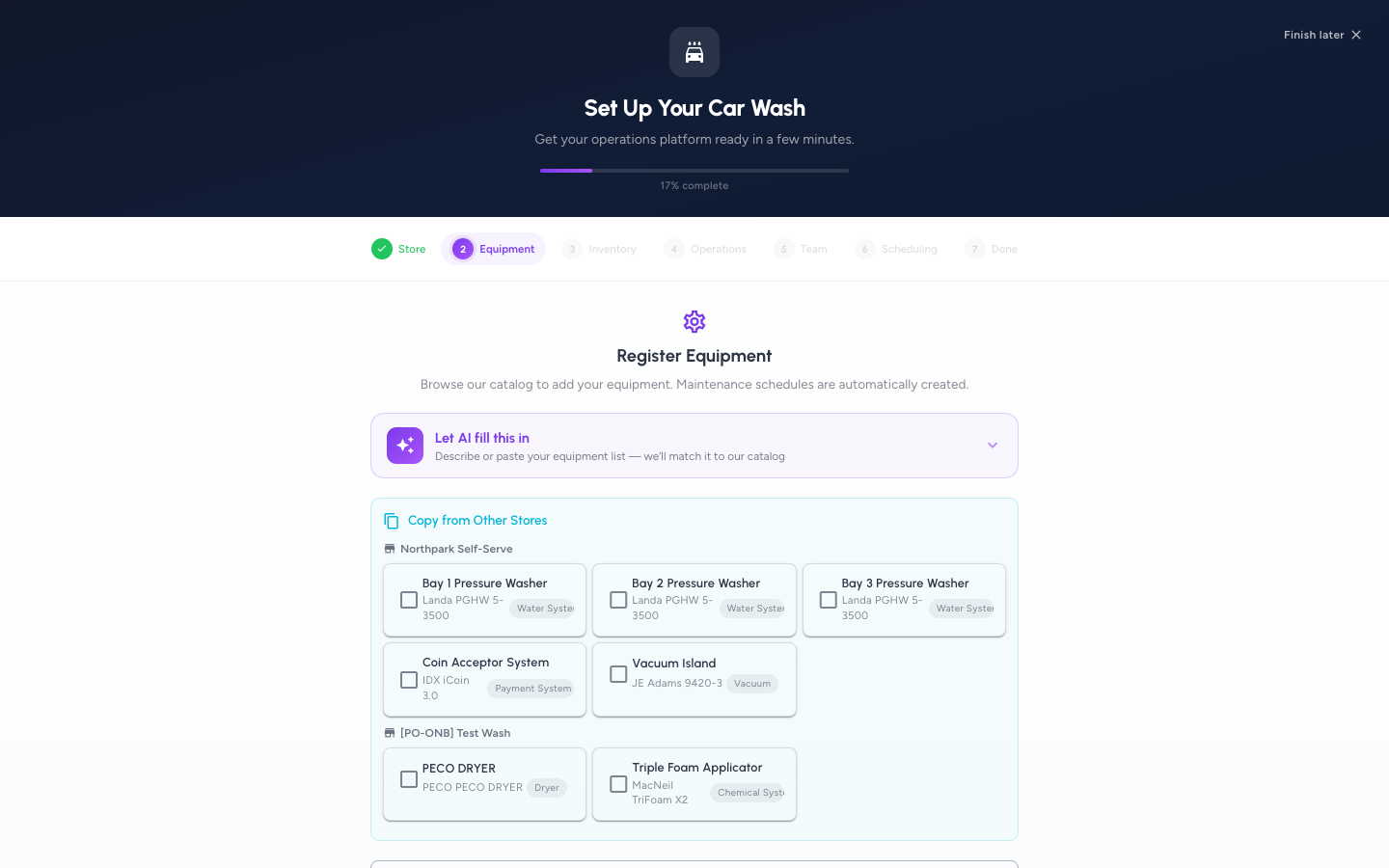
- In the text box, describe what you have — for example, "Sonny's tunnel conveyor at the entrance, a PECO dryer at the exit, two pay stations."
- Press Enter or select Send. The assistant replies with guidance and suggestion cards.
Use voice input on mobile
- With the assistant open on a phone, press and hold the microphone button.
- While holding, describe your equipment ("walk your tunnel") or your routines.
- Release to send. The assistant transcribes your description and returns suggestions. To type instead, select Type instead.
Accept or remove suggested equipment
- Review each equipment match card the assistant returns.
- On a card, set the quantity and location, then accept it to add the equipment to your store. Its maintenance schedule comes along automatically.
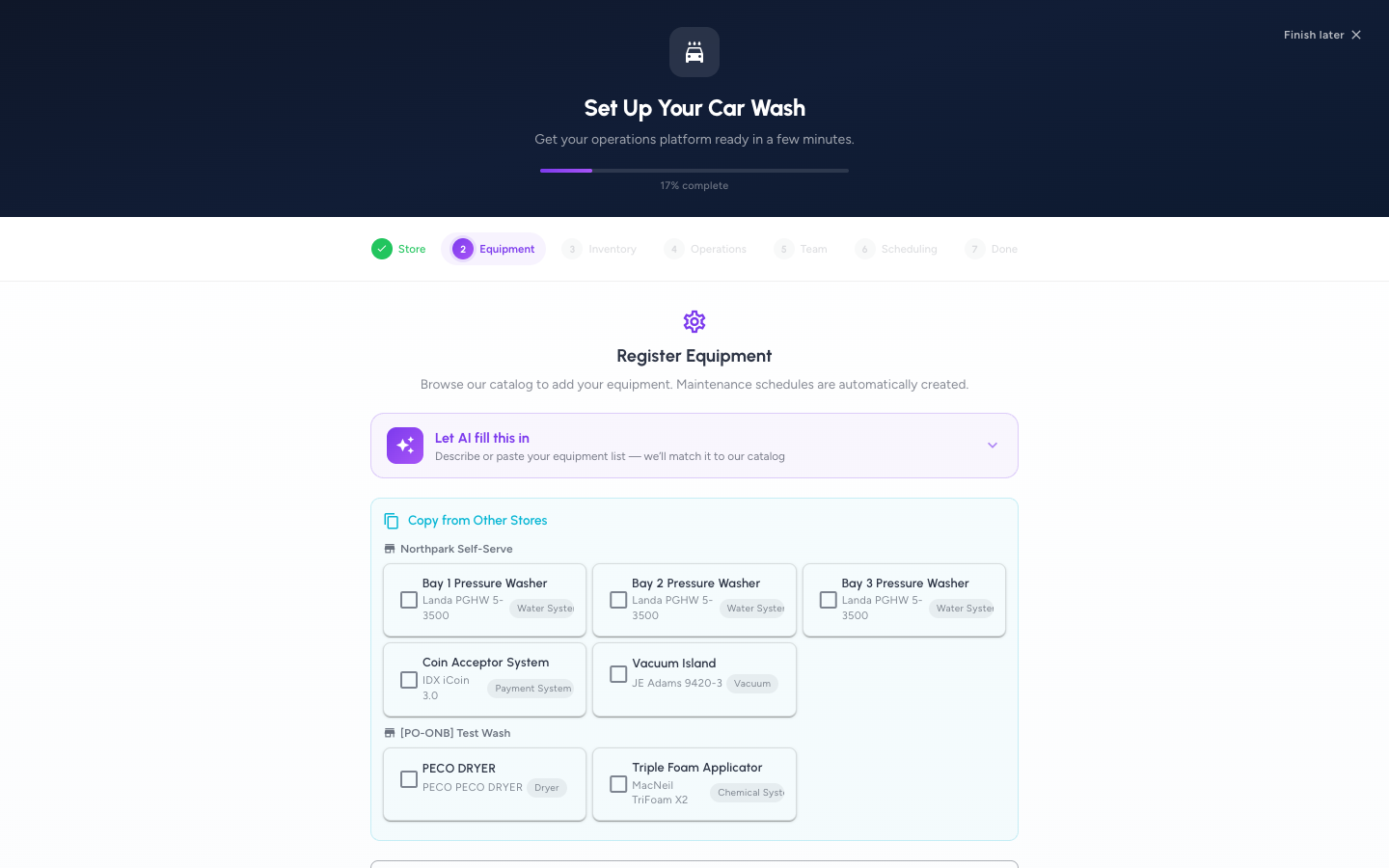
- To drop something you already added, remove it from its card. The catalog grid above updates to match.
Apply suggested checklist templates
- On the Operations step, describe your daily routines to the assistant.
- In the returned checklist suggestions, the assistant pre-selects each one. Toggle any off that you don't want.
- Select Apply Selected. A Checklists applied badge confirms they were added to the store.
Expected result
Accepted equipment appears with "added" counts in the catalog grid, and applied checklists show as selected in the Operations list. Continue through the wizard as normal — the AI suggestions are saved like any manual entry.
Troubleshooting
- If you see "The AI assistant is unavailable" or "temporarily unavailable": The service could not be reached. Try again, or add equipment and checklists manually from the controls below the assistant — the AI is optional, not required.
- If voice switches to typing with "Microphone access denied": Your device blocked the microphone. Grant microphone permission in your device settings, or keep typing instead.
- If a quick tap does nothing: Voice needs a short hold to record. Press and hold for at least half a second before releasing.