
How to collect and submit wash feedback
Capture a wash quality issue either as anonymous customer feedback from a QR code or as a report you enter at the counter. Use the QR form for customers; use the in-app report for staff logging a complaint or an internal rewash.
Before you start
- Where: Customers use a public QR page (no sign-in). Staff work in the store view.
- Permission: Create Wash Quality to enter a report in the app. The QR form needs no account or permission.
- Available by default to: all five standard roles (Owners, Company Admins, Store Managers, Shift Leads, and Wash Attendants). (On custom roles, this needs the permission named above.)
- You must have: For the QR form, a printed or displayed feedback QR code for the store. See How to set up customer wash feedback (QR codes and alerts) to generate one.
Submit feedback from a QR code (customer)
Scanning the QR code opens a single-page feedback form for the store in the customer's web browser. No sign-in is required.
- Scan the store's feedback QR code with a phone camera. The feedback form opens showing the store name and a short intro.
- Under the prompt, select a star rating from 1 to 5. The rating is required — Submit feedback stays disabled until you choose one.
- Optional: In Tell us more, type a comment (up to 2,000 characters).
- Optional: Select Add photo to attach up to three images of the issue.
- Optional: Under Contact info, enter a name, phone, or email so the store can follow up.
- Select Submit feedback. A thank-you page confirms the submission.
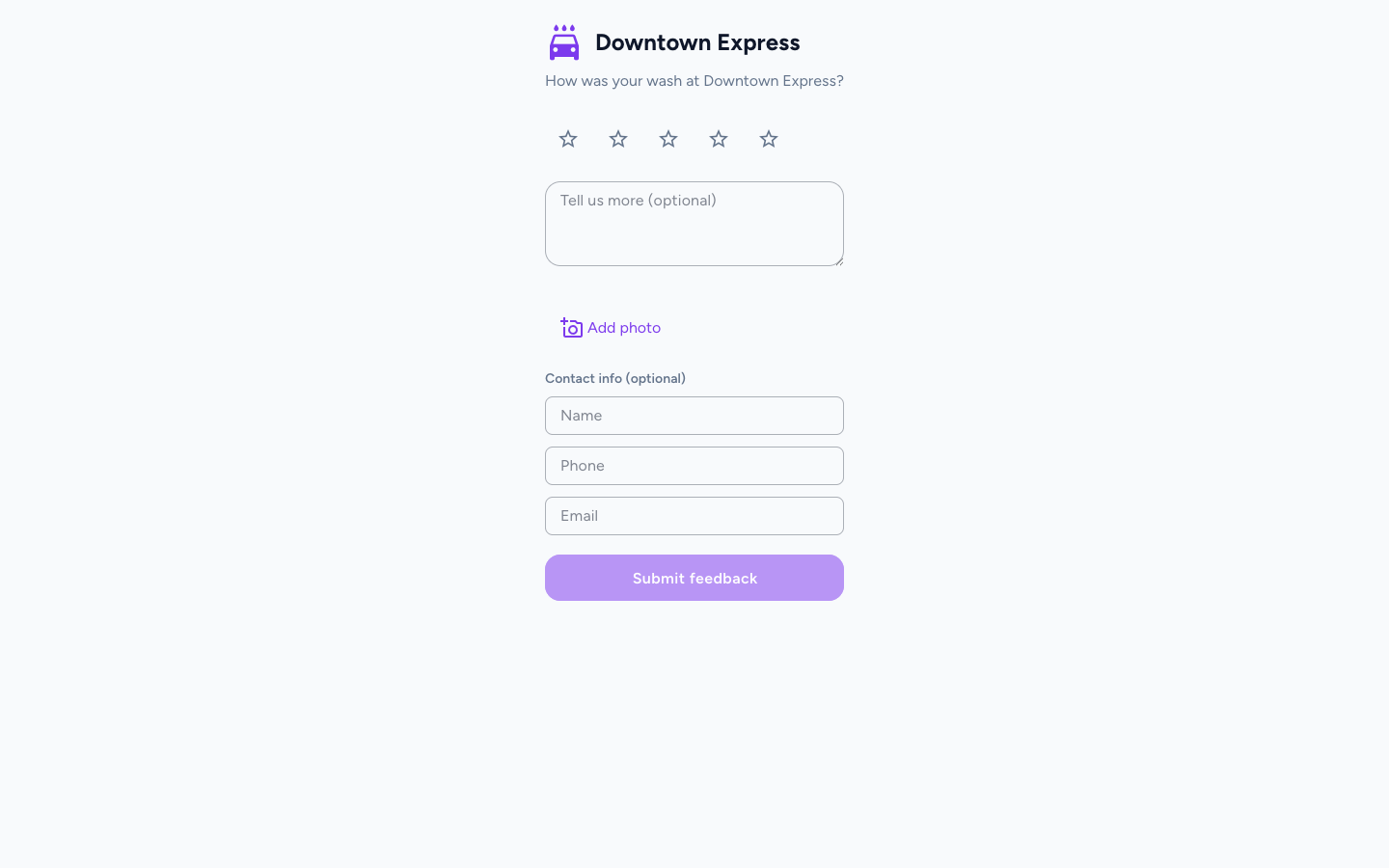
A rating of 4 or 5 shows a positive thank-you page (with a Google review link if the store set one up). A rating of 3 or below shows a thank-you page that reassures the customer the team will follow up.
Submit a report at the counter (staff)
Use this when a customer complains in person, or to log an internal rewash.
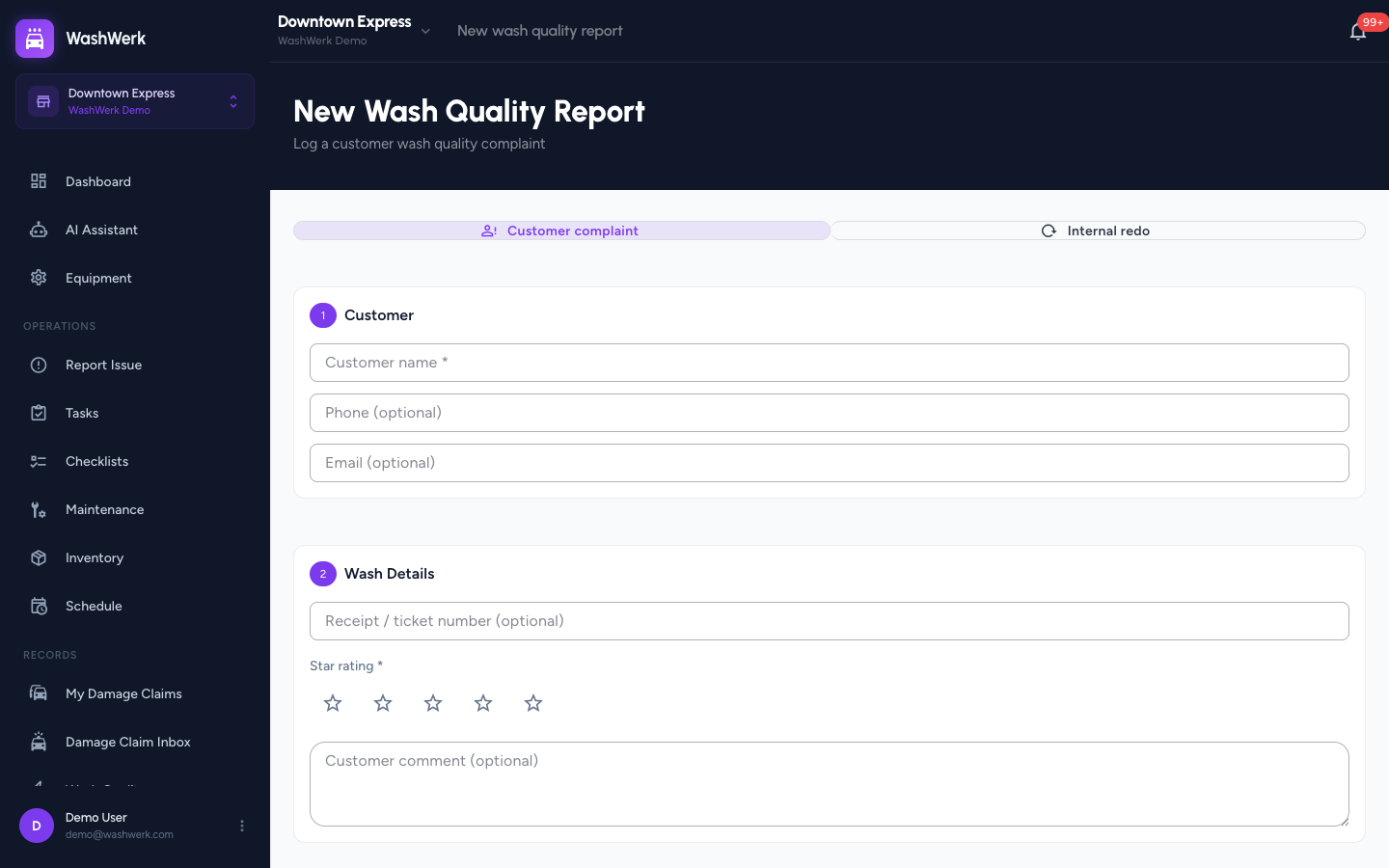
- Open Wash Quality from the navigation, then select New report.
- At the top, choose the intake mode: Customer complaint (default) or Internal redo. Internal redo hides the customer fields.
- For a customer complaint, in the Customer section enter the Customer name (required), and optionally a phone and email.
- In the Wash Details section, optionally enter a receipt or ticket number, then select a Star rating (required).
- Optional: Add a customer comment.
- If the rating is 1–3, a Resolution section appears. Optionally toggle Rewash offered, pick a resolution type, and add notes.
- Optional: In the Photos section, select Add photo to attach up to 10 images.
- Select Submit report.
Expected result
The QR form shows a thank-you page. The staff report shows a "Report submitted successfully" message and returns you to the Wash Quality inbox, where the new report appears with an Open status.
Troubleshooting
- If the QR form shows "This feedback form isn't available": the link is wrong or QR feedback is turned off for that store. Ask a manager to confirm public QR feedback is enabled in Wash Quality Settings.
- If the QR form shows "Too many submissions": the form is rate-limited per device. Wait a few minutes and try again.
- If Submit feedback stays greyed out: a star rating has not been selected. Choose 1–5 stars to enable the button.
- If Submit report stays disabled at the counter: for a customer complaint you must enter a customer name and a star rating; for an internal redo only the star rating is required.