
How to add and manage warehouses
Set up the central locations that hold bulk stock for your stores, so stores can order supplies internally instead of from an outside vendor. This guide is for owners and company admins.
When to use this
Add a warehouse when a location holds stock for other locations to draw on — a store that only stocks for itself is a regular store, not a warehouse.
Before you start
- Where: Corporate admin — Warehouses in the sidebar, under Operations.
- Permission: Manage Warehouses
- Available by default to: Owners and Company Admins. (On custom roles, this needs the permission named above.)
- You must have: An active subscription. Each warehouse is a separately billed location at half the per-store monthly rate.
Add a warehouse
- In the corporate sidebar, open Warehouses, then select New warehouse.
- Enter the Name your staff will recognise — for example, "Central Distribution."
- Optional: Enter the Address and Timezone. The timezone is used for delivery timestamps at this location; leave it blank to use your company's.
- Select Create.
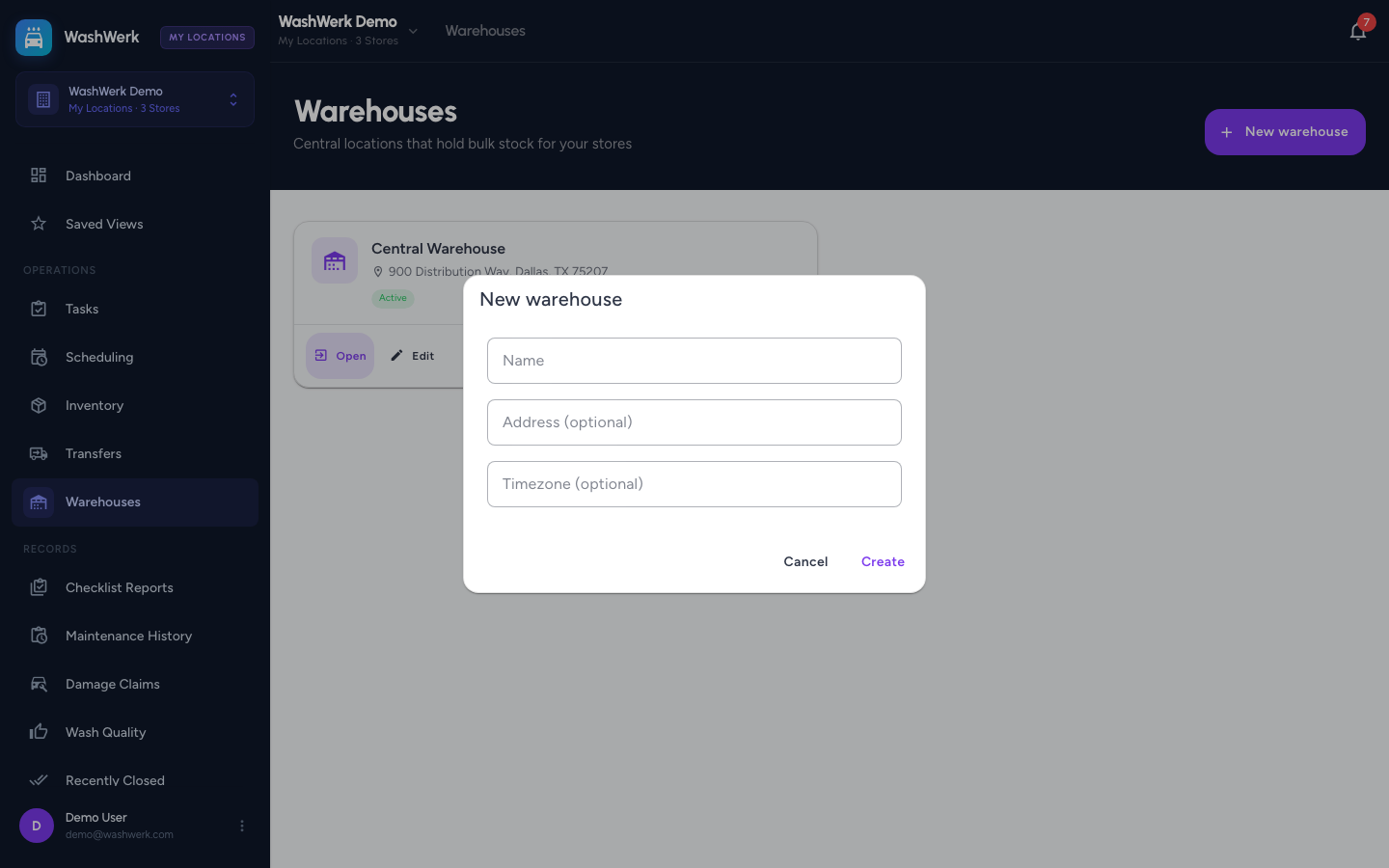
Expected result
The warehouse appears as a card on the Warehouses page marked Active, and your stores can start ordering from it. If your plan bills warehouses, a banner at the top of the page counts them and states how they're charged.
Open a warehouse
- Select Open on a warehouse card to go straight to its fulfillment board and work its incoming orders. See How to accept and ship a transfer order from the warehouse.
You can also switch to a warehouse from the location switcher at any time — warehouses are listed under their own Warehouses heading, separate from your stores.
Edit a warehouse
- Select Edit on the warehouse card.
- Update the name, address, or timezone, then select Save.
Stock a warehouse
- Open the warehouse, then use its Inventory page to add items and record what it holds, exactly as you would at a store. See How to add inventory items and How to record stock movements and track an item.
A store can only order items the warehouse actually carries, unless off-catalog ordering is turned on — see How to configure transfer rules and statuses.
Staff a warehouse
- Add the people who pick and ship orders to the warehouse as team members and give them the Warehouse Operator role, which grants fulfillment plus read access to the warehouse's own stock. See How to add a team member and assign a role.
Fulfilling an order requires being assigned to the warehouse it was placed against, so a manager at one of your stores can't ship on the warehouse's behalf.
Deactivate a warehouse
- Select Deactivate on the warehouse card.
- Read the confirmation and select Deactivate.
Stores can no longer order from a deactivated warehouse and it stops counting toward your billed locations. Orders already placed against it are unaffected and can still be shipped and received.
Troubleshooting
- If the New warehouse button is missing: Your role doesn't include the Manage Warehouses permission — ask an owner to grant it.
- If Warehouses isn't in the corporate sidebar: Same cause — the entry only appears for roles that can manage warehouses.
- If a warehouse is still listed after you deactivate it: WashWerk reports this rather than reporting a success it can't confirm. Refresh the page, and contact support if it persists.
- If your store count looks wrong: Warehouses are counted and billed separately from stores, so they don't appear in your store totals.