
How to order stock from the kiosk
Request supplies from one of your company's warehouses from the shared floor tablet, so you can reorder the moment you notice something running low instead of finding a manager. This guide is for attendants and shift staff working in Kiosk Mode.
Before you start
- Where: Kiosk Mode — Transfers in the kiosk navigation. On a phone-sized device it's under More.
- Permission: Create Inventory Transfers to order; View Inventory Transfers to track. The kiosk uses your own permissions once you sign in with your PIN.
- Available by default to: Owners, Store Managers, Shift Leads, and Wash Attendants. (On custom roles, this needs the permission named above.)
- You must have: Signed in to the kiosk with your 4-digit PIN, and at least one active warehouse in your company.
When to use this
The kiosk covers ordering and tracking only — confirming a delivery and warehouse fulfillment need a full account, so use the app or web for those.
Place an order
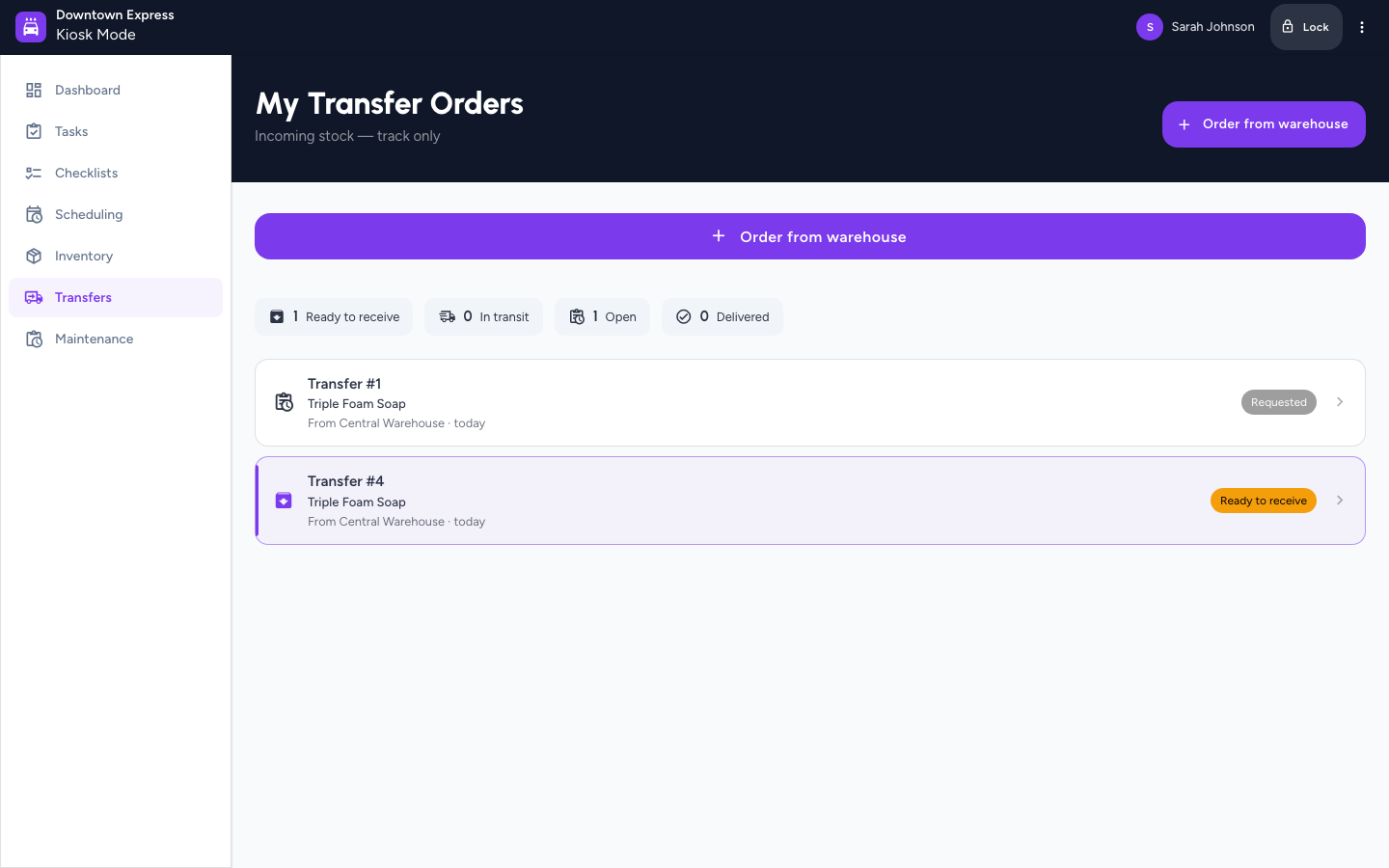
- Open Transfers. Orders for this store load under My Transfer Orders.
- Tap Order from warehouse.
- Select the Source warehouse. Its catalog loads, one card per item, each showing how many units are available.
- Enter a Quantity on each item you need.
- Optional: Add a Note for the warehouse.
- Tap Submit order.
Expected result
A confirmation reads Transfer #N requested and the kiosk returns to the transfers list with your order at the top.
Track your order
- Stay on Transfers to watch the order move from Requested to Accepted, In transit, and Delivered. Tap any order to see its items, progress, and — once the warehouse ships — its carrier, tracking number, and ETA.
The kiosk labels this screen Incoming stock — track only, because a manager or shift lead confirms the delivery when it arrives.
Troubleshooting
- If Transfers isn't in the kiosk navigation: Look under More on a narrow screen. If it's not there either, your account doesn't include the View Inventory Transfers permission — ask your manager.
- If there's no Order from warehouse button: Your account can watch transfers but not place them. Ask a manager to order, or to grant the Create Inventory Transfers permission.
- If there's no Receive button on an arriving order: Receiving isn't available in Kiosk Mode. Ask a manager or shift lead to confirm the delivery from their account.
- If a quantity is flagged as more than available: The warehouse doesn't have that many free. Lower the quantity, or tap Follow on the item to be notified when it's restocked.
- If the warehouse list is empty: Your company has no active warehouse yet. Ask an owner or company admin.