
How to start your WashWerk subscription
Activate billing for your company by reviewing the per-store pricing tiers, choosing a billing cycle, and completing Stripe checkout, so your team moves from trial to full paid access. This is for the owner setting up paid access for the first time.
Before you start
- Where: Corporate admin — open Billing from the corporate sidebar.
- Permission: Billing
- Available by default to: Owners and Company Admins. (On custom roles, this needs the permission named above.)
- You must have: at least one store added to the company. Pricing is per store, so checkout cannot start with zero stores.
Review your account summary
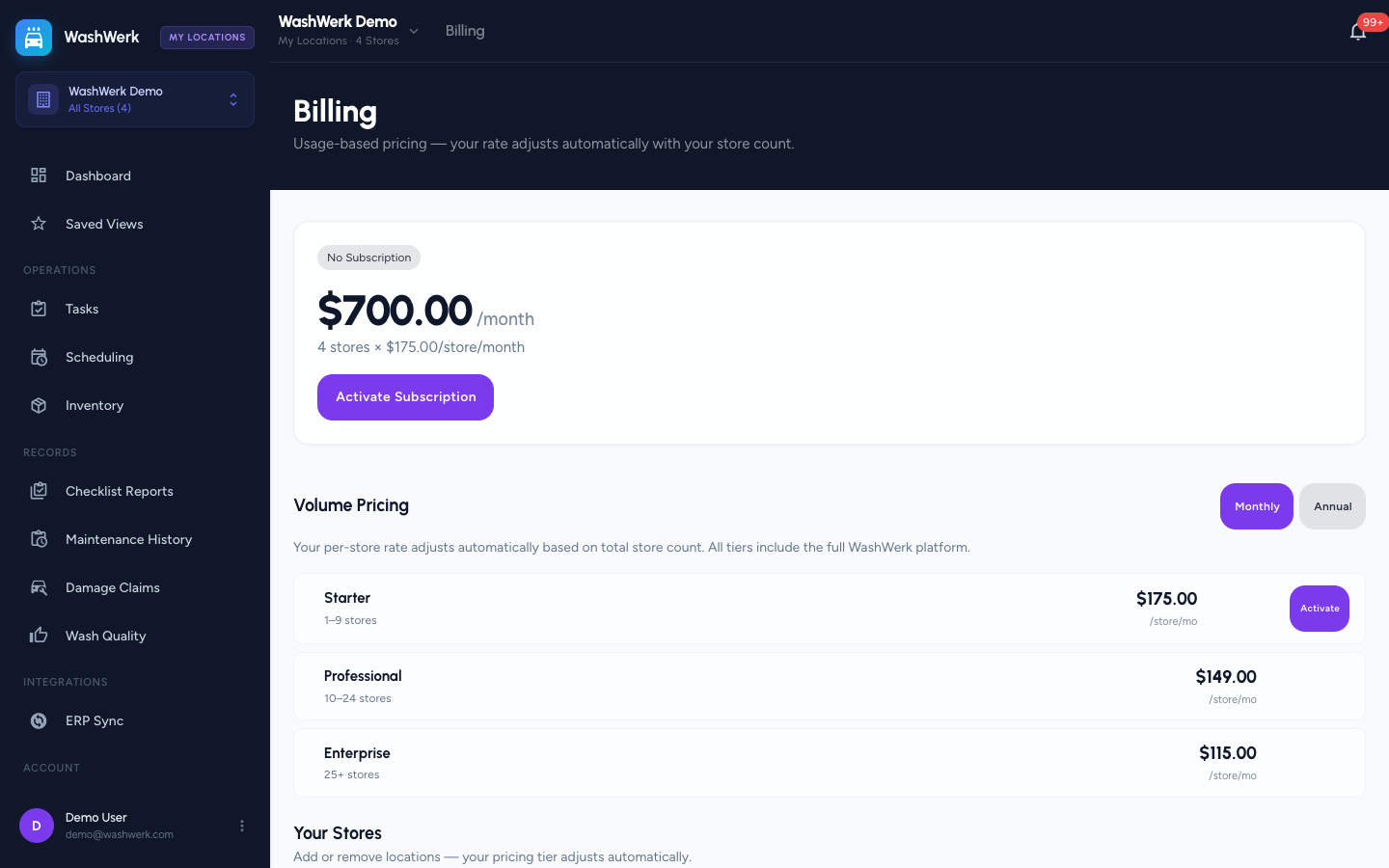
- In the corporate sidebar, open Billing. The account summary card shows your subscription status (a No Subscription chip until you activate), your current monthly or annual cost, the billing period, and AI credit usage for the period.
Browse pricing tiers and pick a cycle
- Scroll to Volume Pricing. Each tier shows a store-count range and the per-store rate; your per-store rate drops automatically as your store count grows.
- Select Monthly or Annual in the cycle toggle to compare rates. Annual shows the per-store yearly price plus its monthly-equivalent, and annual billing charges for 10 months instead of 12.
Activate the subscription
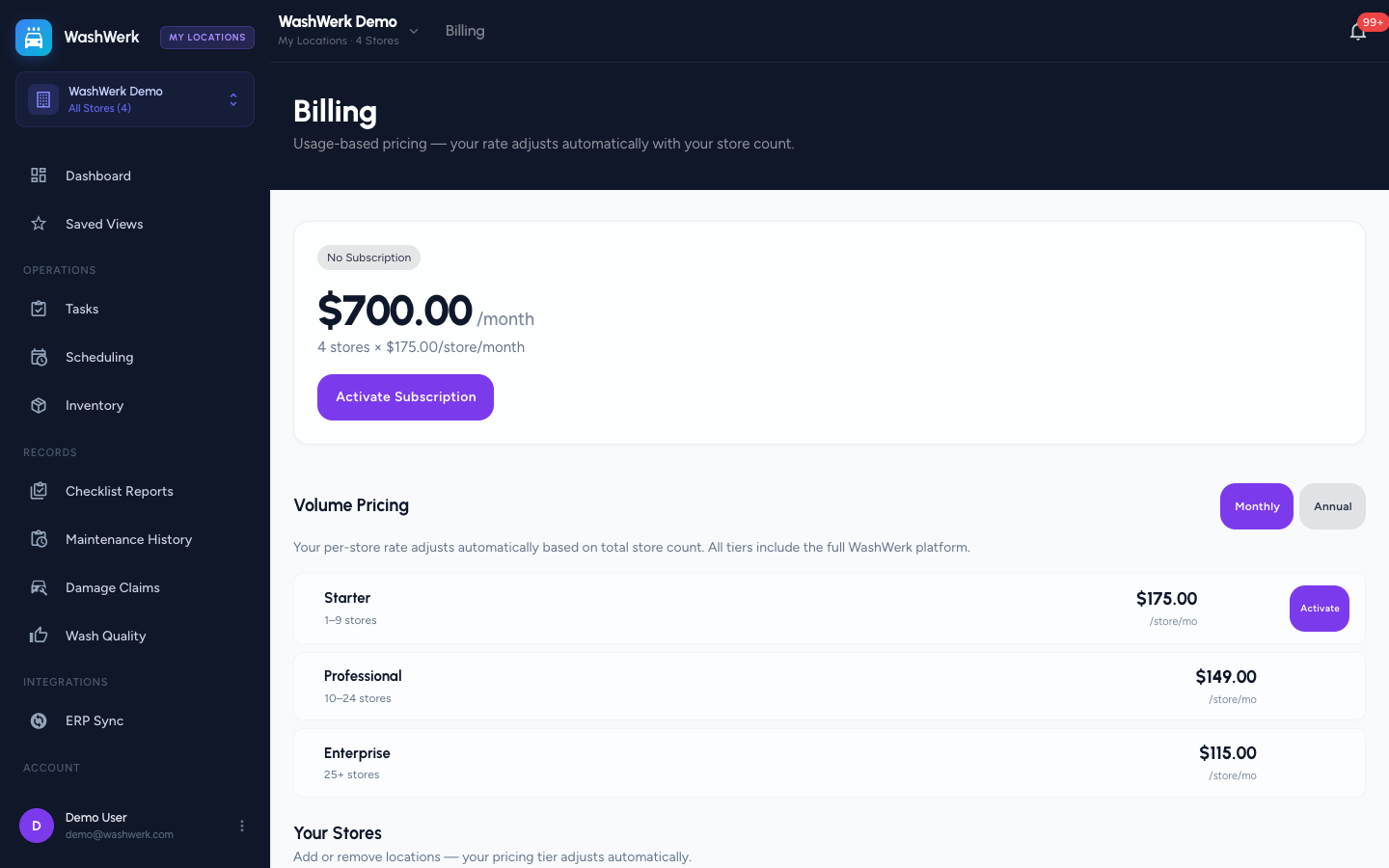
- In the account summary card, select Activate Subscription. WashWerk picks the tier that matches your current store count and the cycle you chose, then opens the Stripe checkout dialog.
- In the Complete Subscription dialog, enter your card details and confirm payment.
- Wait for the Confirming payment dialog to finish. WashWerk verifies the payment with Stripe automatically; this usually takes a few seconds.
Expected result
The status chip changes to Active, the account summary shows your cost with the store-count breakdown (for example, "3 stores × $X/store/month"), and the billing period dates appear. Manage Payment and Cancel buttons replace Activate Subscription.
Troubleshooting
- If you see "Add your first store below to get started": the company has no stores yet. Add a store in the Your Stores section, then activate billing.
- If checkout reports no pricing tier for your store count: no active tier covers your current number of stores. Adjust your store roster, or contact support to confirm tier configuration.
- If payment still shows "Payment processing" after a minute: Stripe is still settling. Leave the dialog open and select Check Status, or refresh the Billing page — confirmation completes in the background.