
How to resolve a backordered transfer
Get a partly filled transfer order finished — either by receiving the units the warehouse still owes you, or by writing off the remainder so the order stops sitting in your queue. This guide is for store managers and anyone chasing stock that only half arrived.
When to use this
Use this when an order shows Backordered — a shortfall the warehouse still owes you — rather than Cancelled, which is for an order that never shipped at all.
Before you start
- Where: Store-level — Transfer Orders in the sidebar, then open the order.
- Permission: View Inventory Transfers to track a backorder; Receive Inventory Transfers to take in the follow-up delivery; Create Inventory Transfers to close an order short.
- Available by default to: Owners, Store Managers, and Shift Leads. (Closing short is also available to the warehouse that owes the stock. On custom roles, this needs the permissions named above.)
- You must have: An order in the Backordered state. An order becomes backordered when the warehouse ships less than you asked for, or when you receive fewer units than were shipped.
Find your backordered orders
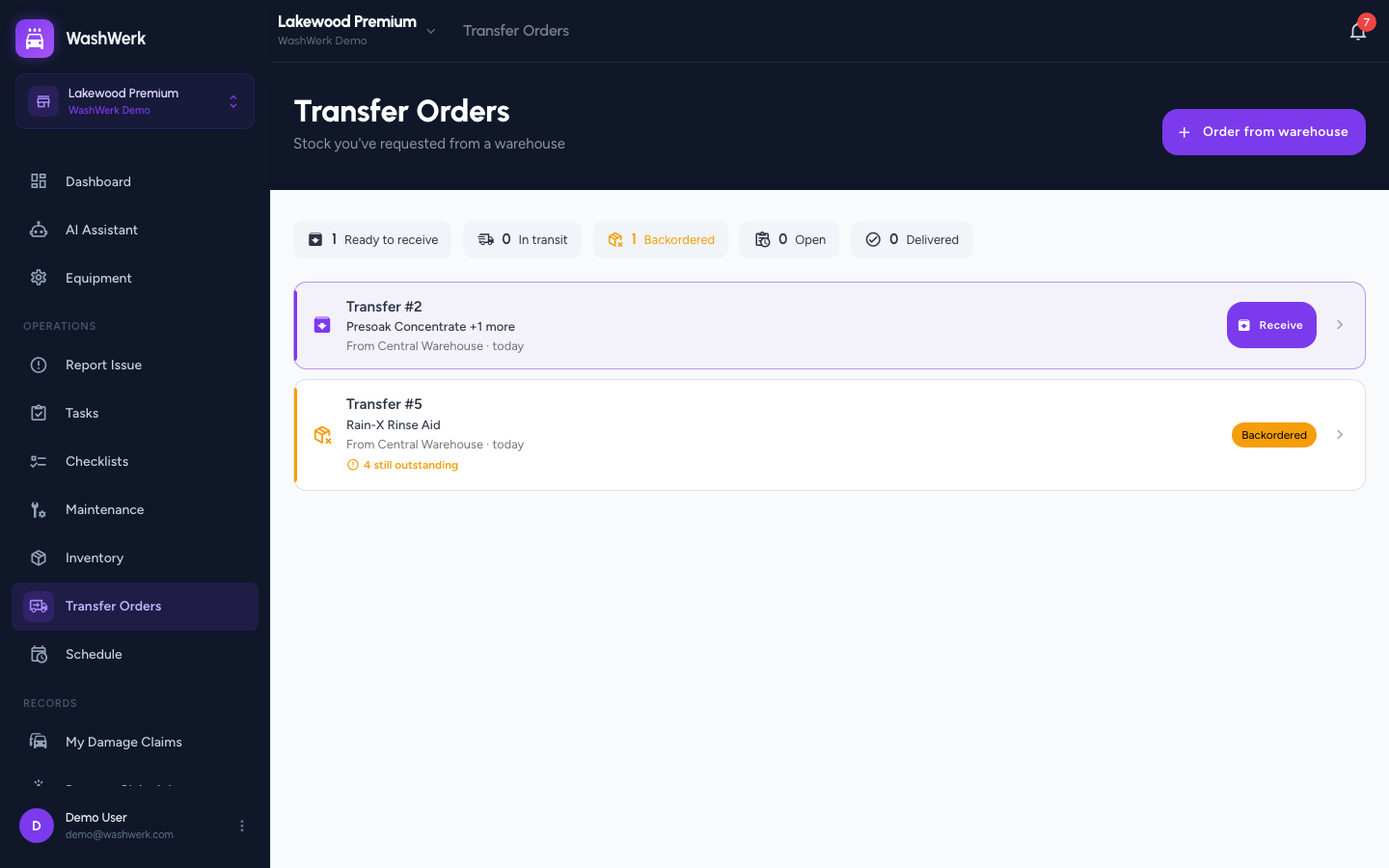
- Open Transfer Orders. The Backordered count appears above the list whenever at least one order is short.
- Select the Backordered count to show only those orders. Each row names how many units are still outstanding.
Check what's still owed
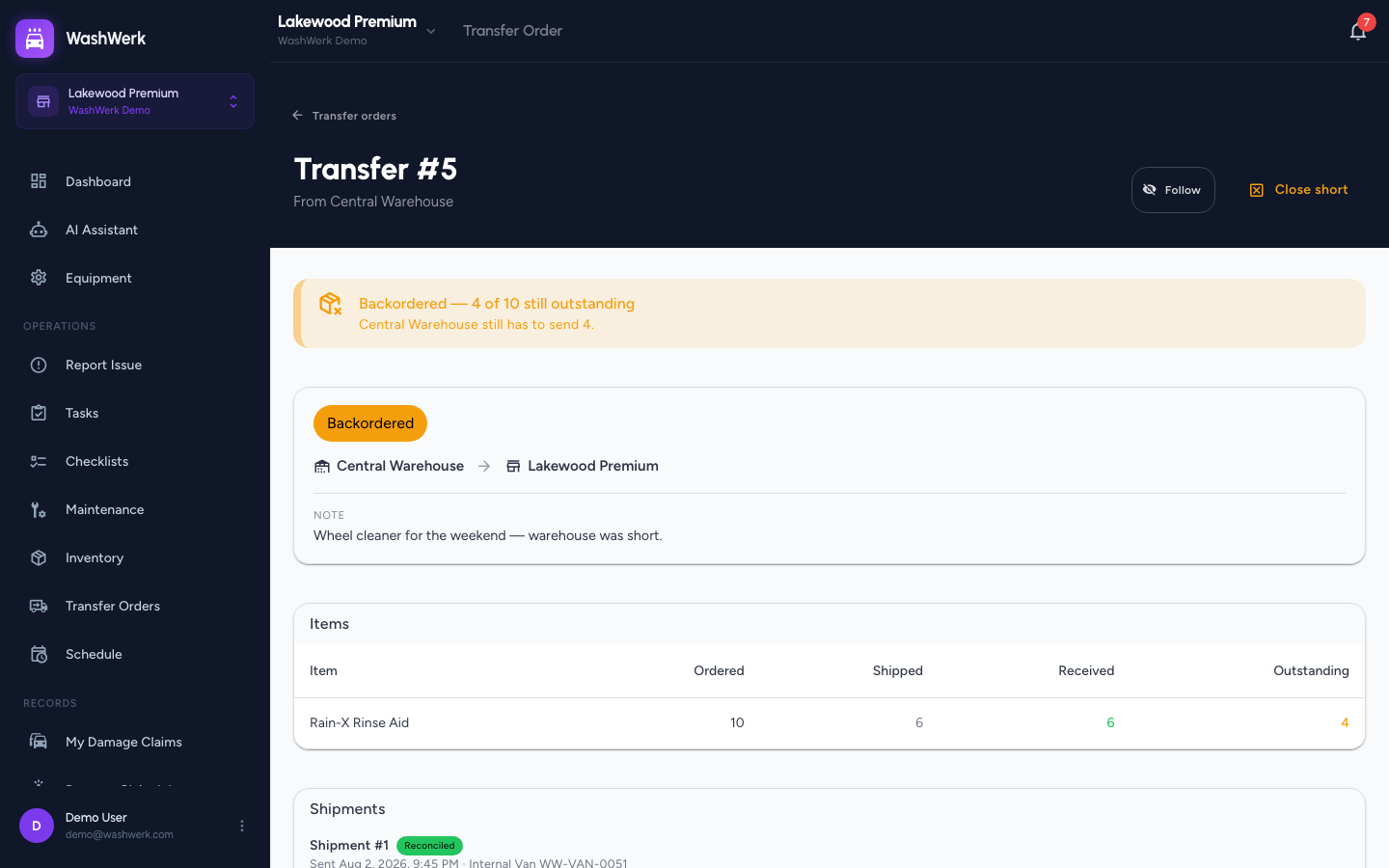
- Open the order. The banner at the top states how many of the ordered units are still outstanding, and whether they're already on the road or still sitting at the warehouse.
- Read the Items table for the per-line breakdown — Ordered, Shipped, Received, and Outstanding.
- Read Shipments to see each round the warehouse has sent, with its own carrier, tracking number, and ETA.
Receive the follow-up delivery
- When the warehouse sends the rest, the order reappears under Ready to receive. Confirm it the same way as any other delivery — see How to receive a transfer at your store.
Ship-and-receive rounds repeat until nothing is outstanding, at which point the order moves to Delivered on its own.
Close the order short
Close an order short when the warehouse isn't going to send the rest — the item was discontinued, you sourced it elsewhere, or the shortfall is too small to chase. The warehouse stops owing the units and the order leaves your backorder queue.
- Open the order and select Close short.
- Optional: Enter why, so the order's history explains it to whoever reads it later.
- Select Close short to confirm.
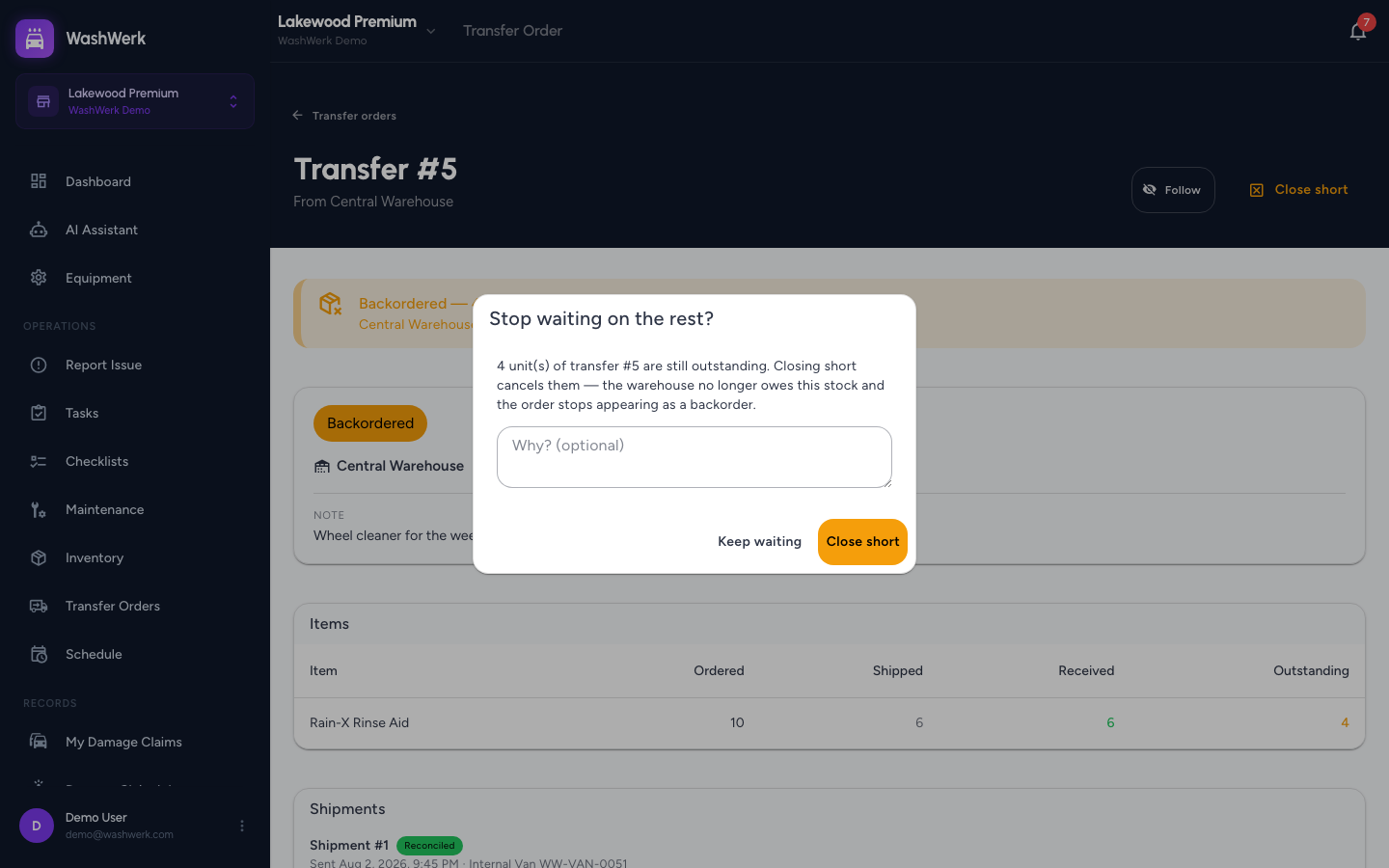
Closing short can't be undone, and it only writes off the units that were never sent — anything you already received stays in your stock.
Expected result
A resolved order no longer appears under Backordered. An order you received in full shows as Delivered. An order you closed short shows a note reading Closed short, naming how many units were cancelled and how many arrived.
Troubleshooting
- If the Close short button is missing: Units are still in transit — receive those first, then close the rest short. The button is also hidden if your role doesn't include the Create Inventory Transfers permission.
- If closing short is refused because units are in transit: The warehouse has already sent another round. Confirm that delivery, then decide about anything still outstanding.
- If a backordered order shows nothing in transit and nothing arriving: The warehouse hasn't shipped the remainder yet. It appears on their fulfillment board as still to ship — contact them if it's urgent.
- If you closed short too early: You can't reopen the order. Place a new order for the units you still need.