
How to record stock movements and track an item
Record every stock change — a delivery, daily usage, a count correction, or a write-off — so your on-hand quantities stay accurate, and review an item's full history when numbers look off. This guide is for anyone who handles stock: store managers, shift leads, maintenance techs, maintenance managers, and owners, on web or mobile.
Before you start
- Where: Store-level — Inventory module
- Permission: Receive Inventory to record transactions; the View Inventory permission to browse history
- Available by default to: Owners, Store Managers, and Shift Leads. (On custom roles, this needs the permission named above.)
- You must have: The item already carried at your store. To add one first, see How to add inventory items.
Record a stock movement
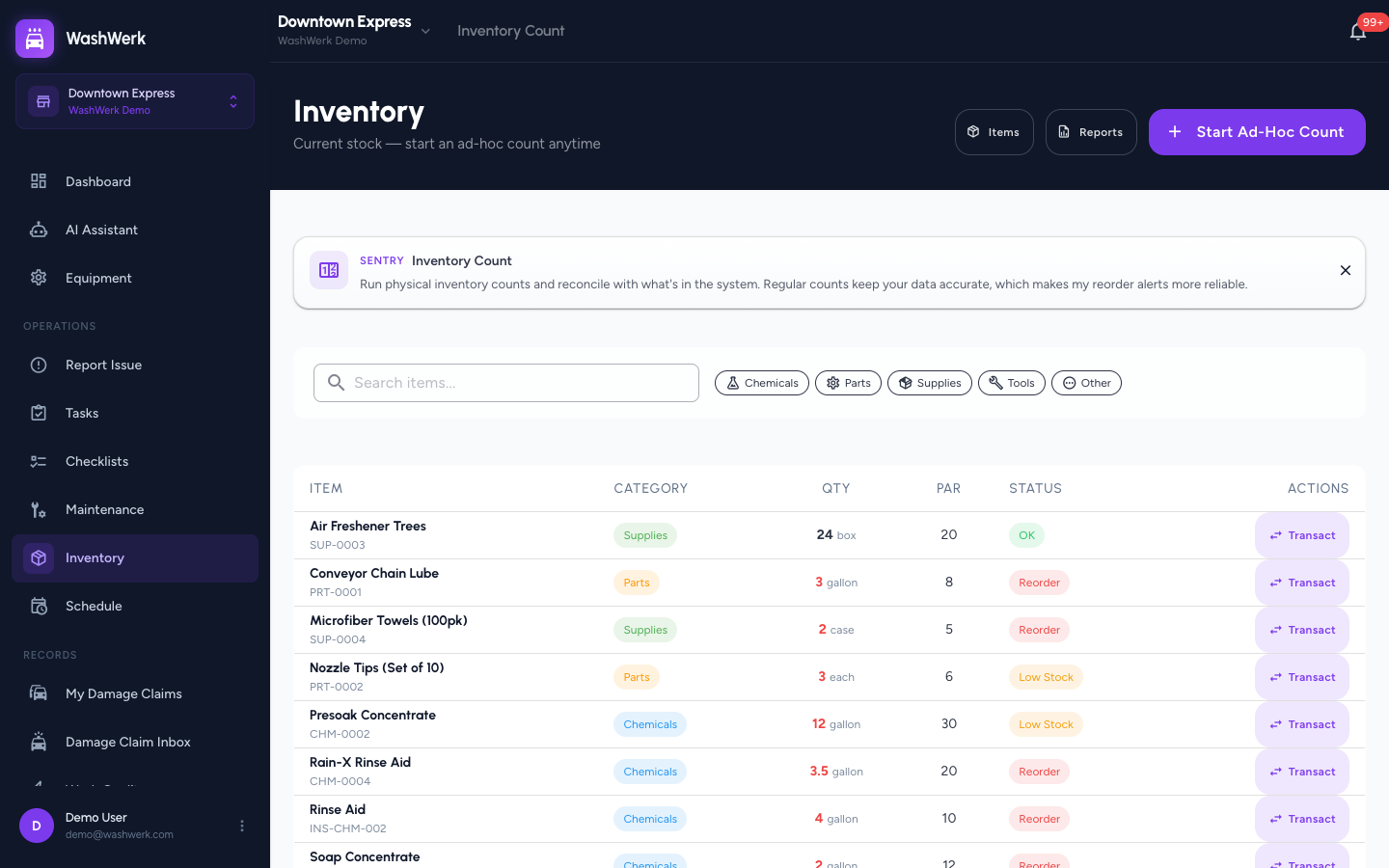
- Open Inventory in the store sidebar. The current-stock view opens.
- Find the item and select Transact (or tap the item card on mobile). The Record Transaction dialog opens, showing the current quantity.
- Select a Transaction Type:
- Restock — Add to inventory for a delivery (adds to on hand).
- Usage — Deduct from inventory for stock consumed in operations (subtracts).
- Adjustment — Set to exact amount to overwrite on hand with a counted figure.
- Write Off — Remove damaged/expired to remove unusable stock (subtracts).
- Enter the Quantity. For a restock, optionally enter the Unit Cost — this updates the item's per-store cost.
- Optional: Add Notes (for example, "Weekly delivery from supplier"). Check the Result preview to confirm the new on-hand total.
- Select Record Transaction. The dialog closes and the item's quantity updates.
View an item's transaction history
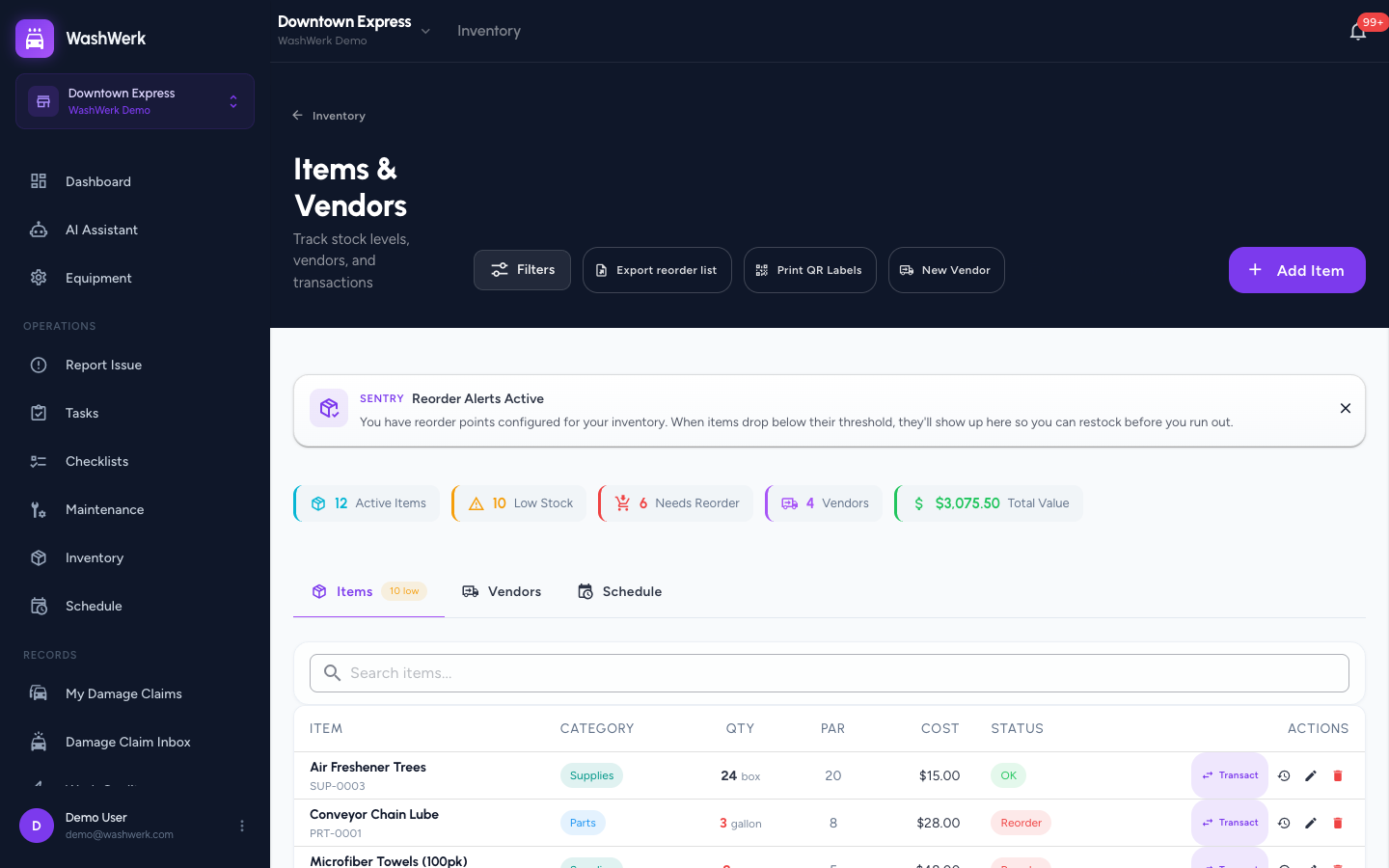
- On the Items tab of the Items & Vendors page, select the history (clock) icon in the item's row (or the three-dot menu then History on mobile).
- Review the list of past transactions — each shows the type, quantity, before/after totals, who performed it, and when.
Search and filter the item list
- On the Items tab, type in the Search items box to match by name, SKU, or location.
- Select Filters to narrow by Category, Vendor, or Low stock only. A badge on the Filters button shows how many filters are active.
- Select Apply to update the list.
Export the reorder (low-stock) list
The Export reorder list button appears only when at least one item is low on stock or needs reordering.
- On the Items tab, select Export reorder list (top right).
- WashWerk downloads a CSV named
reorder-list-<date>.csvwith each low item's vendor, on-hand quantity, par level, and suggested order quantity.
Note: This link downloads a CSV file to your device.
Expected result
The item's on-hand quantity reflects every recorded movement, the history list shows the new entry at the top, and the exported CSV opens in your spreadsheet app with the current reorder list.
Troubleshooting
- If the Transact button is missing: Your role doesn't include the Receive Inventory permission — ask an owner or manager to grant it.
- If a usage or write-off can't drop below zero: WashWerk floors on-hand at zero. Use Adjustment to set the exact figure if the stock was miscounted.
- If Export reorder list isn't showing: No items are currently low or below reorder point — there is nothing to export.