
How to review checklist compliance across stores
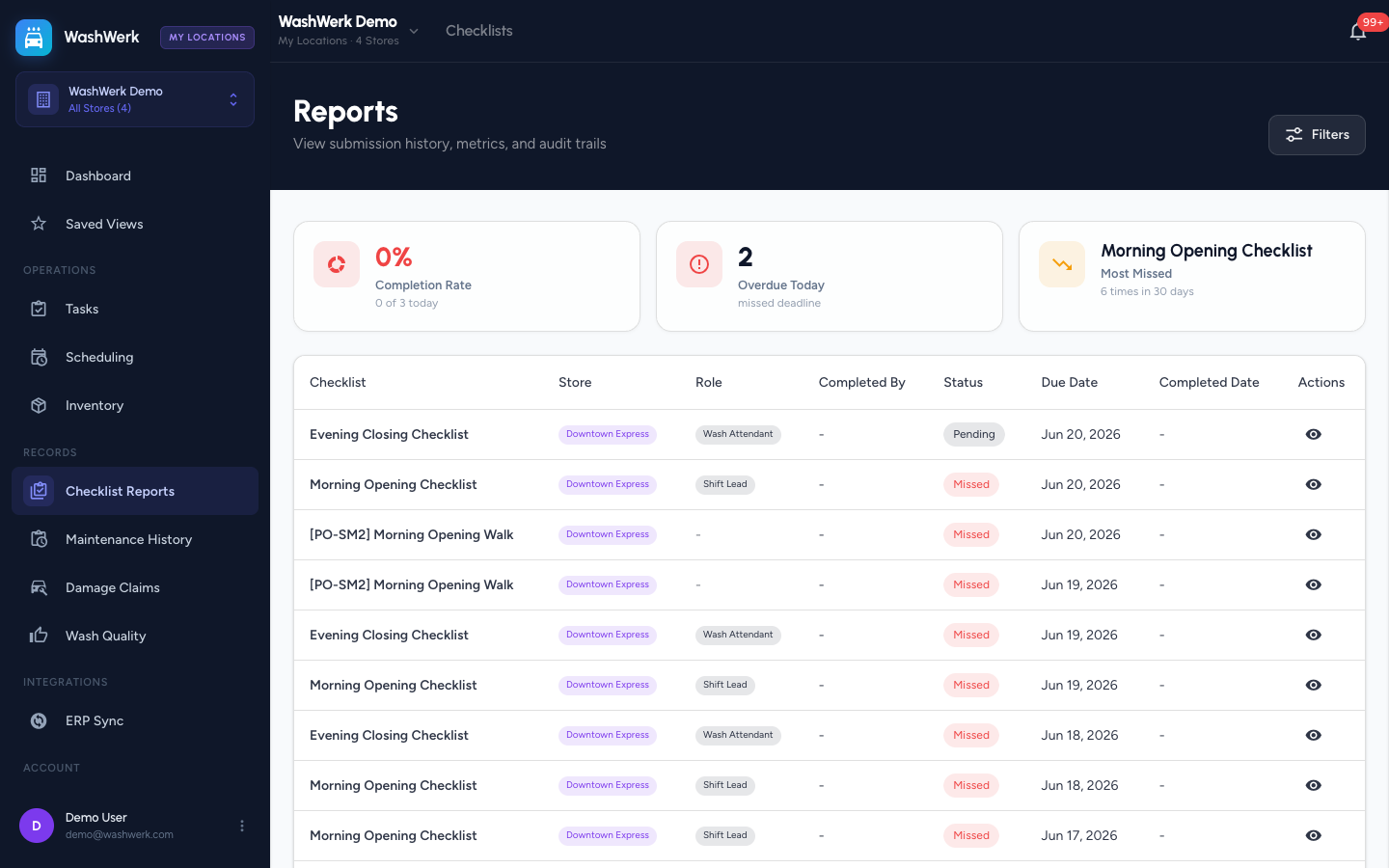
The corporate Checklist Reports page rolls up completion KPIs and submission history from every store you can access, with a store chip on each row, so owners and regional managers can spot which locations are falling behind on routines without checking each store one by one. This guide covers reading the summary, filtering submissions, and opening an individual submission.
Before you start
- Where: Corporate admin — open Checklist Reports from the corporate sidebar.
- Permission: View Checklists
- Available by default to: Owners, Store Managers, Shift Leads, and Wash Attendants. (On custom roles, this needs the permission named above.)
- You must have: access to at least one store that runs checklists.
View cross-store completion KPIs
- In the corporate sidebar, open Checklist Reports. Three summary metrics load across your stores: Completion Rate (with completed-vs-due today), Overdue Today, and Most Missed checklist.
- The completion rate is colored by tier — green at 80%+, amber at 50–79%, red below — so a low rate reads as a warning, not a success.
Filter submissions by store and field
- Select Filters in the page header.
- Choose one or more stores, and optionally a date range, status, role, or specific checklist.
- Select Apply. The submissions table and the summary metrics both refresh to the filtered scope.
Browse and open a submission
- In the submissions table, each row shows the checklist, its store, completed-by user, status, due date, and completed date.
- Select a row to open the submission detail, including its task-level results.
View instances for a specific checklist
- Filter by a single checklist to see only that checklist's instances across stores, so you can compare how one routine performs location by location.
Expected result
The summary reflects the filtered scope, and the table lists matching submissions tagged by store. Opening a row shows the full submission with its task results.
Troubleshooting
- If "No submissions found" appears: the filters are too narrow, or the stores have no matching submissions. Clear filters or widen the date range.
- If a store is missing: an active Saved View may be narrowing scope — clear the My Locations chip in the top bar.