
How to sign in, sign out, and reset your password
Get into your WashWerk account on the web or mobile app, sign out when you're done, and regain access if you forget your password. This applies to every role, from wash attendant to owner.
Before you start
- Where: Public sign-in screen — no company or store context yet.
- Permission: No special permission needed.
- You must have: A WashWerk account. If you don't have one, ask your manager to add you, or create a company from the sign-up page.
Sign in with your password
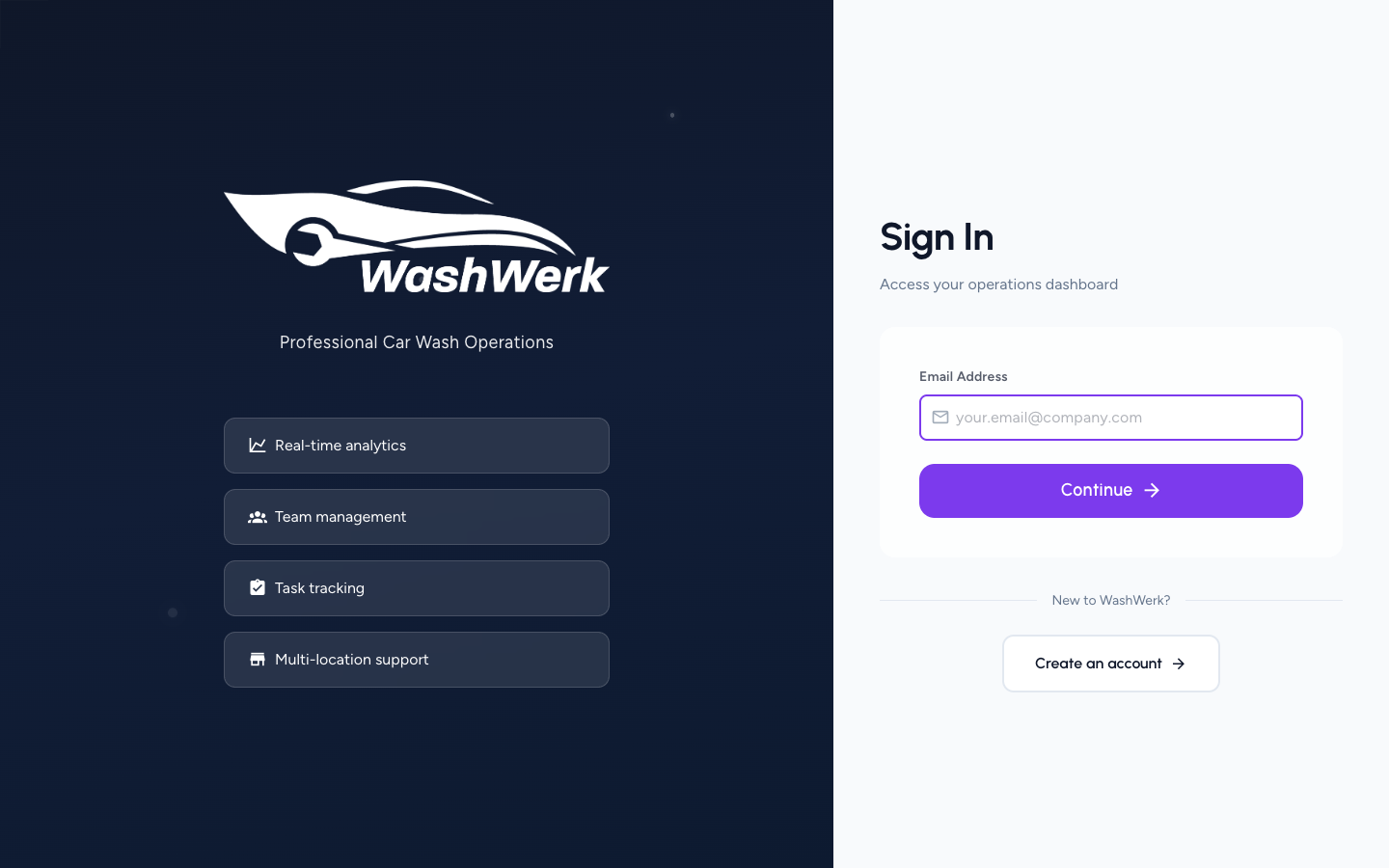
WashWerk asks for your email first, then your password.
- On the sign-in screen, enter your Email Address and select Continue.
- Enter your Password and select Sign In. WashWerk takes you to your store dashboard, or to company selection if you belong to more than one.
Sign in with single sign-on (SSO)
If your company uses SSO, WashWerk detects it from your email domain after the Continue step.
- Enter your Email Address and select Continue.
- Select Continue with [your company]. Your identity provider opens and signs you in, then returns you to WashWerk.
If your company enforces SSO, the SSO button is the primary option and the password field is reserved for administrators (see below).
Sign in with a password under enforced SSO (owners)
When SSO is enforced, most users must use SSO. Owners keep a password "break-glass" path for when the identity provider is unavailable.
- Enter your owner Email Address and select Continue.
- Below the SSO button, under or sign in with a password, enter your Password and select Sign In.
If you see "Your organization requires single sign-on," your account is not an owner break-glass account — sign in with SSO instead.
Sign out
- Open the user menu from your avatar in the top bar (or the profile sheet on mobile).
- Select Sign out. WashWerk returns you to the sign-in screen and clears your session on this device.
Reset a forgotten password
- On the password step, select Forgot password?.
- Enter your Email Address and select Send Reset Link.
- Open the email titled with a reset link and select it. The link carries a one-time token, so use it from the same place you can reach your inbox.
- On the Set New Password screen, enter your New Password, confirm it, and select Reset Password. WashWerk returns you to sign-in with a "Your password has been reset" confirmation.
Expected result
You reach your store dashboard after signing in, see the sign-in screen after signing out, or land on sign-in with a reset confirmation after setting a new password.
Troubleshooting
- If sign-in says "Invalid credentials": Your email or password didn't match. Re-enter your password, or reset it using the steps above.
- If you see "Your organization requires single sign-on": Your company enforces SSO and your account isn't an owner break-glass account. Select Continue with [your company] instead.
- If the reset link says it's invalid or expired: Reset links are single-use and time-limited. Select Request a new link and use the newest email.
- If no reset email arrives: Check your spam folder. For security, WashWerk shows the same confirmation whether or not an account exists, so confirm you entered the email tied to your account.