
How to set up maintenance procedures
Define what gets serviced, on which equipment or group, and how often — so the right work shows up in your maintenance queue on time. This is for maintenance managers, store managers, and owners.
Before you start
- Where: Store-level — the Maintenance Setup screen (open Maintenance, then Setup).
- Permission: Manage Maintenance to create, edit, or delete procedures. Tuning scheduling thresholds uses the Settings screen and requires the Manage Stores permission.
- Available by default to: Owners and Store Managers. (On custom roles, this needs the permission named above.)
- You must have: At least one piece of equipment or an equipment group to attach the procedure to. See How to register equipment and groups and locations.
Create a custom maintenance procedure
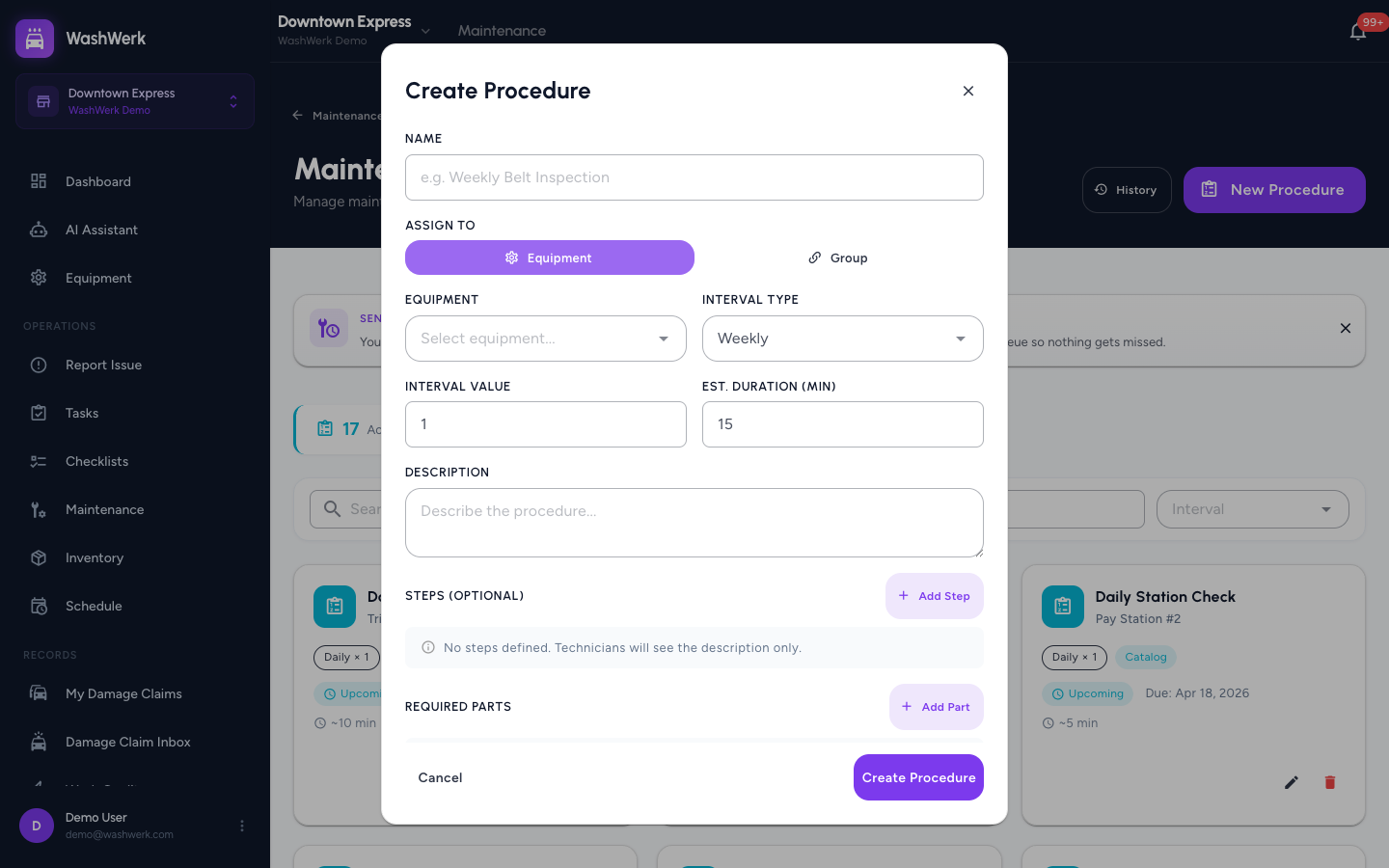
- On the Maintenance Setup screen, select New Procedure. The procedure form opens.
- Enter a Name (for example, "Weekly Belt Inspection").
- Under Assign To, choose Equipment or Group, then select the specific equipment or equipment group.
- Set the Interval Type (Daily, Weekly, Monthly, Quarterly, Annual, Hours, or Cars Washed) and the Interval Value (for example, every
2weeks). - Optionally add an Estimated Duration in minutes and a Description, then select Save. The procedure appears in the list, tagged Custom.
Where catalog procedures come from
You do not clone catalog procedures by hand. When you register equipment from the Equipment Catalog, its catalog maintenance procedures are created automatically and tagged Catalog in this list. To pull in those procedures, register the matching equipment from the catalog — see How to register equipment in your store.
Edit a procedure
- On the Maintenance Setup screen, select the edit control on a procedure card.
- Change the name, interval, duration, or description. The equipment or group it is assigned to is fixed once created.
- Select Save.
Search and filter procedures
- On the Maintenance Setup screen, type into the search box to match by name, description, or equipment name.
- Use the Interval filter to show only procedures on a given cadence (for example, Weekly).
Delete a procedure
- On a procedure card, select the delete control.
- Confirm by selecting Delete.
Configure scheduling thresholds
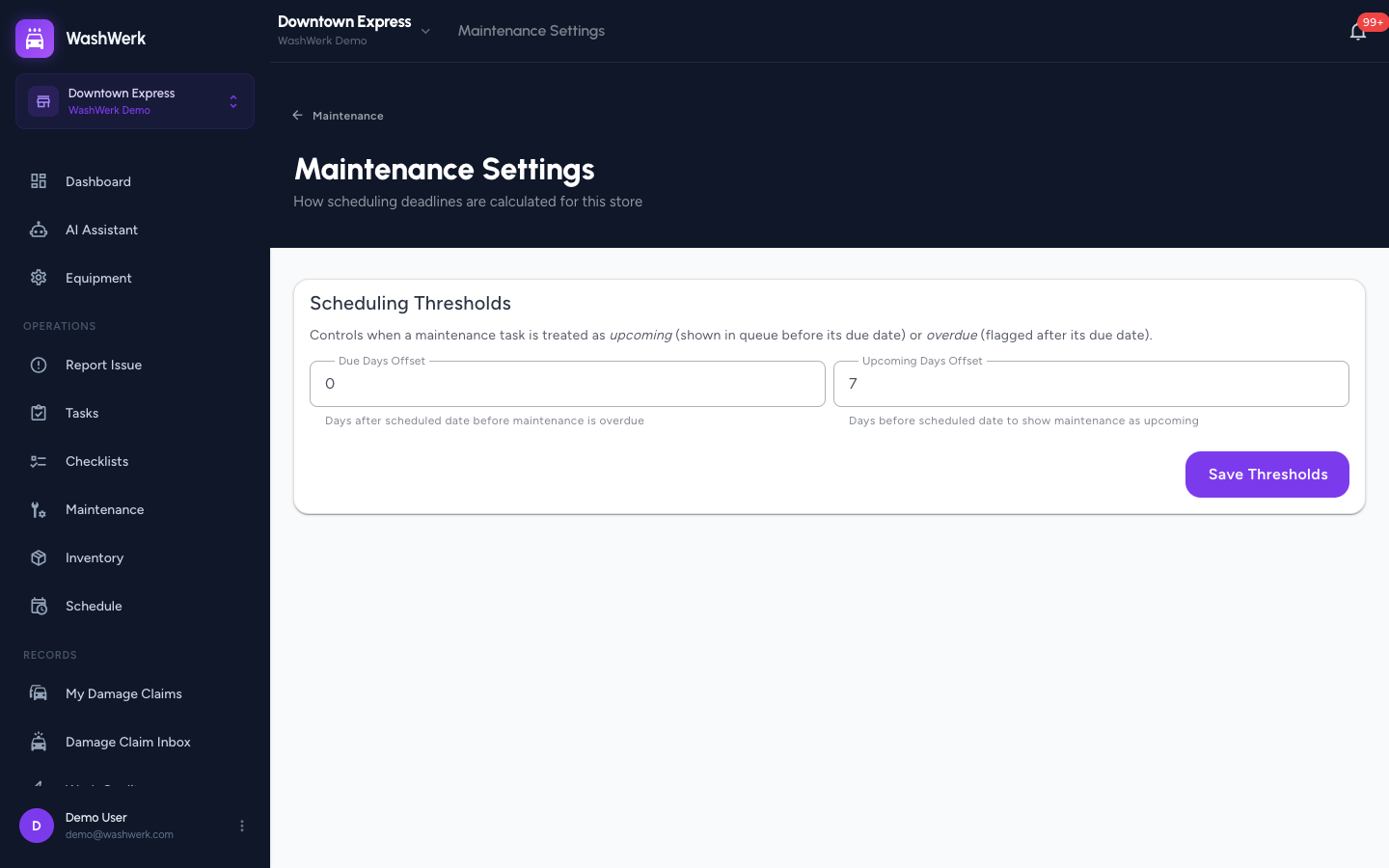
Thresholds decide when a procedure is flagged Upcoming (before its due date) or Overdue (after it).
- From the Maintenance queue, select Settings to open Maintenance Settings.
- Set Upcoming Days Offset (days before the due date to surface a procedure as upcoming) and Due Days Offset (days after the due date before it is treated as overdue).
- Select Save Thresholds.
Expected result
Your active procedures appear on the Maintenance Setup screen with their interval and schedule status. Due and upcoming procedures flow into the maintenance queue according to the thresholds you set, ready for a technician to service.
Troubleshooting
- If New Procedure or the edit and delete controls are missing: Your role does not include the Manage Maintenance permission — ask an owner or manager to grant it.
- If you cannot pick an equipment group: Create the group first on the Equipment Groups screen, then re-open the procedure form.
- If the Settings button is missing: Threshold tuning needs the Manage Stores permission; ask a company admin to adjust the offsets.