
How to track an incoming transfer order
Find out where stock you requested from a warehouse has got to, so you know whether to expect it today or chase it. This guide is for anyone at a store waiting on a delivery — store managers, shift leads, and attendants.
Before you start
- Where: Store-level — Transfer Orders in the sidebar (under Operations), or More → Transfer Orders on mobile.
- Permission: View Inventory Transfers
- Available by default to: Owners, Store Managers, Shift Leads, Warehouse Operators, and Wash Attendants. (On custom roles, this needs the permission named above.)
- You must have: At least one transfer order placed against your store. To place one, see How to order stock from a warehouse.
Filter the list by status
The counts across the top of the Transfer Orders page are also filters — select one to show only those orders, and select it again to clear it.
Open Transfer Orders. Every order to or from your store loads, newest first.
Select a count to narrow the list:
- Ready to receive — stock is on the road to this store and waiting for you to confirm it arrived.
- In transit — shipped, but headed to a different store.
- Backordered — partly filled; the warehouse still owes you units. This count only appears when there's something in it.
- Open — placed, but not shipped yet.
- Delivered — complete.
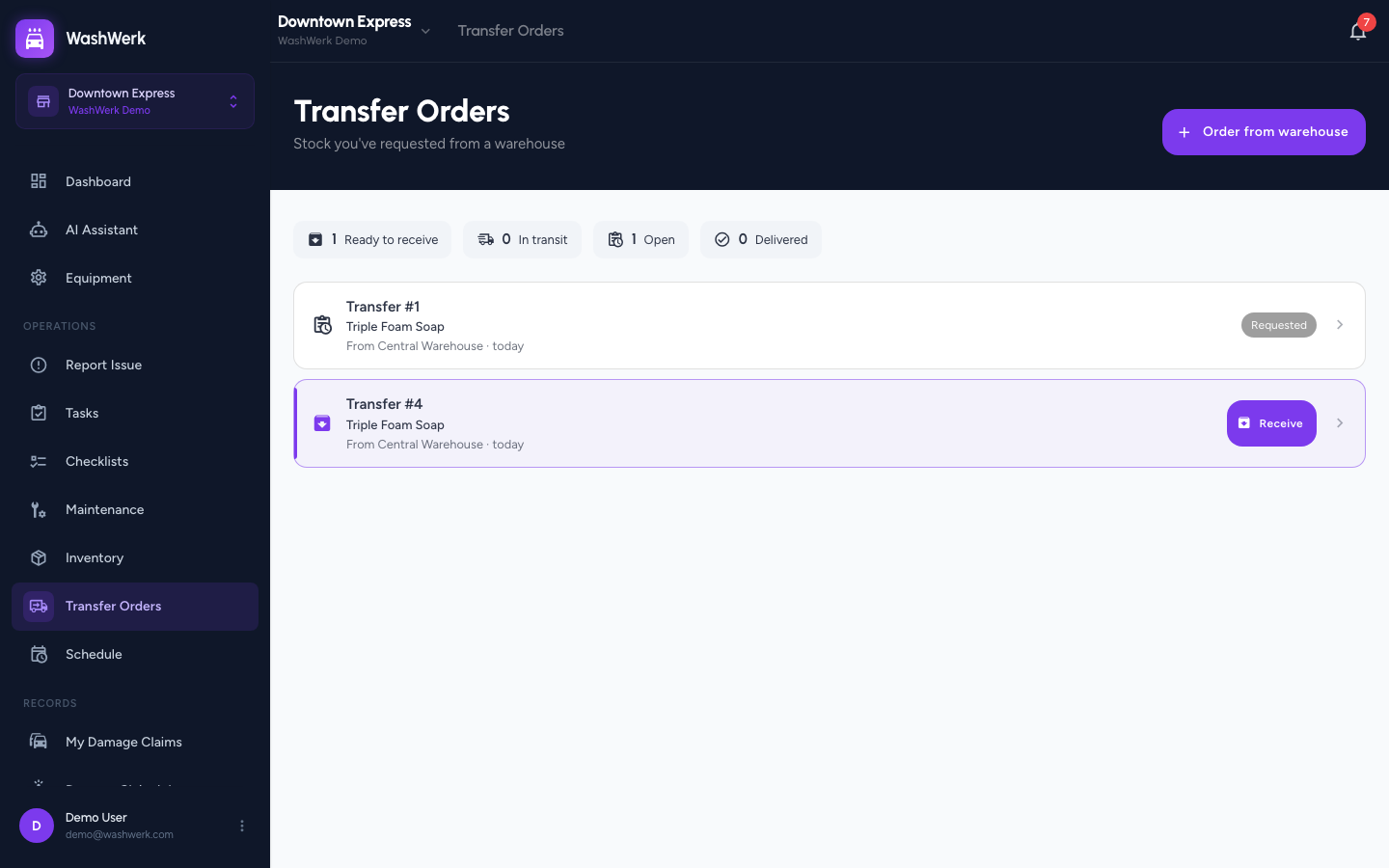
To go back to the full list, select the active count again, or select Reset filters.
Read a row at a glance
Each row carries the answer to "is mine here yet?" without opening it: the order number, its lead item plus how many other lines it has, the source warehouse, and either the ETA (once it's on the road) or how long ago it was placed. A short order also shows how many units are still outstanding, and a shipped order shows the carrier and tracking number the warehouse entered.
Open an order for the full picture
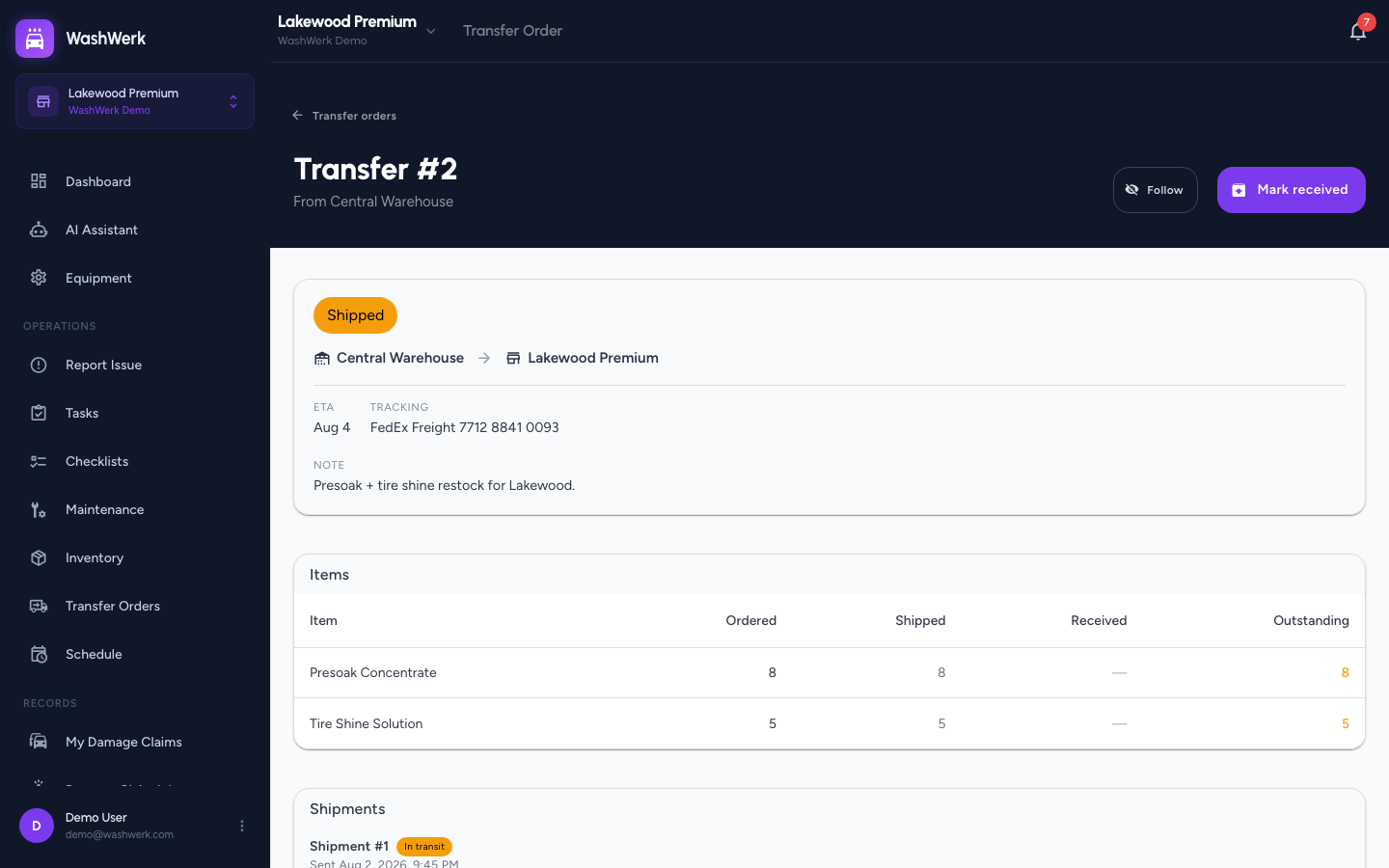
Select any row to open it. The detail page shows:
- Items — a per-line breakdown of how much was ordered, shipped, received, and is still outstanding.
- Shipments — one entry per truck, each with its own carrier, tracking number, ETA, and whether it has been reconciled.
- Progress — the pipeline from Requested through Accepted, Shipped, and Delivered, with the timestamp for each stage reached.
- History — every change, who made it, and when.
Get notified instead of checking
- Select Follow on the order detail page to be notified as it moves through the pipeline. If you placed the order, you already follow it automatically.
WashWerk notifies followers when an order is accepted, shipped, delivered, cancelled, left short, or closed short. To choose how those reach you, see How to manage your notifications and push alerts.
Check from the dashboard
- The store dashboard shows an Incoming transfers card listing every order with stock on the road to you, with its ETA and a Mark received button, so you can confirm a delivery without leaving the dashboard.
Expected result
You can say for any order whether it is waiting on the warehouse, on the road with a tracking number and ETA, short by a known number of units, or complete.
Troubleshooting
- If the page says you don't have access: Your role doesn't include the View Inventory Transfers permission — ask an owner or manager to grant it.
- If the list is empty: No transfer orders have been placed for this store yet.
- If a filter shows "No matching transfers": No orders are in that state right now. Select Reset filters to see everything.
- If an order has no ETA or tracking number: The warehouse enters those by hand when it ships, and they're optional. Ask the warehouse if you need a firm date.
- If the page title reads "Incoming Transfers" instead of "Transfer Orders": Your role can receive stock but not order it. A manager places the orders; you confirm them when they arrive.