
How to use Kiosk Mode during a shift
Work from the shared store tablet during your shift by signing in with your 4-digit PIN. The kiosk gives you the operational tools you need — tasks, checklists, maintenance, inventory, and a view-only schedule — without a full account login.
Before you start
- Where: Store-level — the kiosk is locked to one store and cannot switch stores.
- Permission: No special permission needed. You sign in with your assigned PIN.
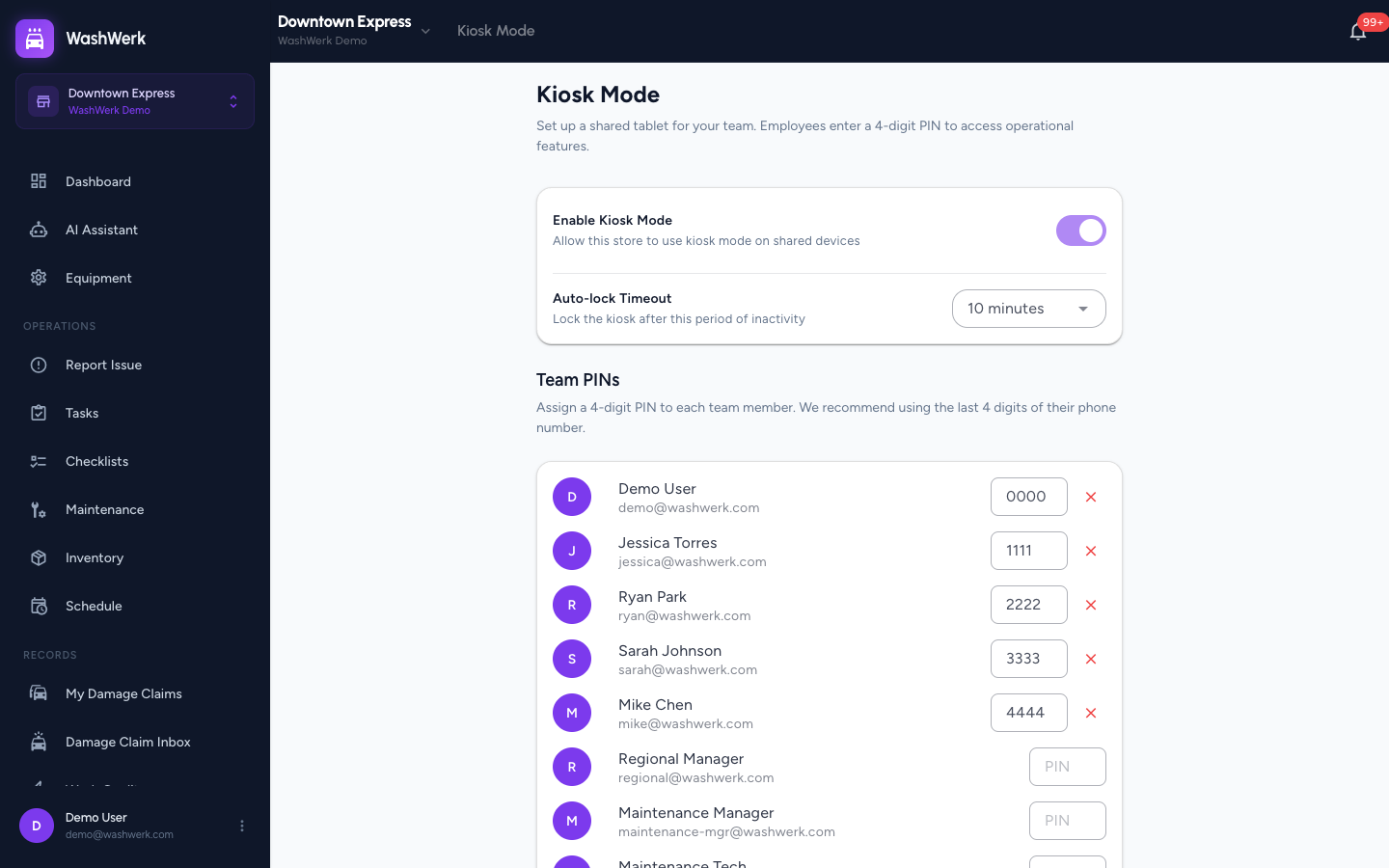
- You must have: A 4-digit kiosk PIN set by your manager. If you do not have one, ask your manager to set one in Kiosk Mode setup.
Sign in with your PIN
- On the kiosk lock screen, tap your 4-digit PIN on the numeric keypad. The kiosk submits automatically once you enter the fourth digit.
- Wait for the Welcome, [your name] message. The kiosk unlocks to the dashboard.
Move around the kiosk
- Use the bottom navigation bar (tablet) or the left sidebar to switch between Dashboard, Tasks, Checklists, Scheduling, Inventory, and Maintenance. On a phone-sized device, the remaining items live under More.
Use the dashboard
- Open Dashboard to see your store's action queue — the items that need attention right now. Select any item to jump straight to it.
Run tasks
- Open Tasks to view the task queue for your store.
- Select a task to open it, then work through it and mark it complete. See How to complete or reopen a task for the full flow.
- To add a task, select New task, fill in the details, and save. See How to create and assign a task.
Conduct a checklist
- Open Checklists to view today's checklist queue.
- Select a checklist to start conducting it. Work through each item, supplying any required readings or selections, then select Complete to submit it with your name and a timestamp. See How to complete the opening checklist.
Conduct maintenance
- Open Maintenance to view the maintenance queue, select a due procedure, and work through the maintenance session. See How to run a maintenance session for the full procedure.
Work with inventory
- Open Inventory to view per-store stock levels.
- To do a count, start an inventory count and enter the on-hand quantities. See How to run an inventory count.
- To log stock received or used, select Record and enter the transaction. See How to record inventory transactions.
Note: Cross-store and company-wide inventory actions are not available on the kiosk — it only works with the store it is locked to.
View the schedule
- Open Scheduling to see the published shift schedule for your store. On the kiosk you can only view the schedule; managers publish and edit it from a full account.
Lock the kiosk when you step away
- Select Lock in the top bar to sign yourself out and return to the PIN screen. The kiosk also locks automatically after the inactivity timeout your manager set.
Exit Kiosk Mode
- Select the three-dot menu in the top bar, then select Exit Kiosk Mode. A password dialog opens.
- Enter the manager password and select Exit. The tablet returns to the normal store view.
Expected result
After entering your PIN you see your name and the kiosk dashboard, and you can work through tasks, checklists, maintenance, and inventory for your store. Lock returns you to the PIN screen; Exit Kiosk Mode with the manager password ends the kiosk session entirely.
Troubleshooting
- If the keypad shows "Invalid PIN": The four digits do not match a PIN at this store. Re-enter carefully, or ask your manager to confirm or reset your PIN.
- If you see "Store switching is not available in kiosk mode": The kiosk is locked to one store by design. Exit Kiosk Mode with the manager password to change stores.
- If "Exit" rejects the password: Only the manager who started the kiosk session can exit it, using their account password. Have that manager enter it.
- If an action shows "This action is not available in kiosk mode": That feature is intentionally outside the kiosk's scope (for example, wash-quality triage or cross-store inventory). Use a full account for it.