
How to manage company team members and admins
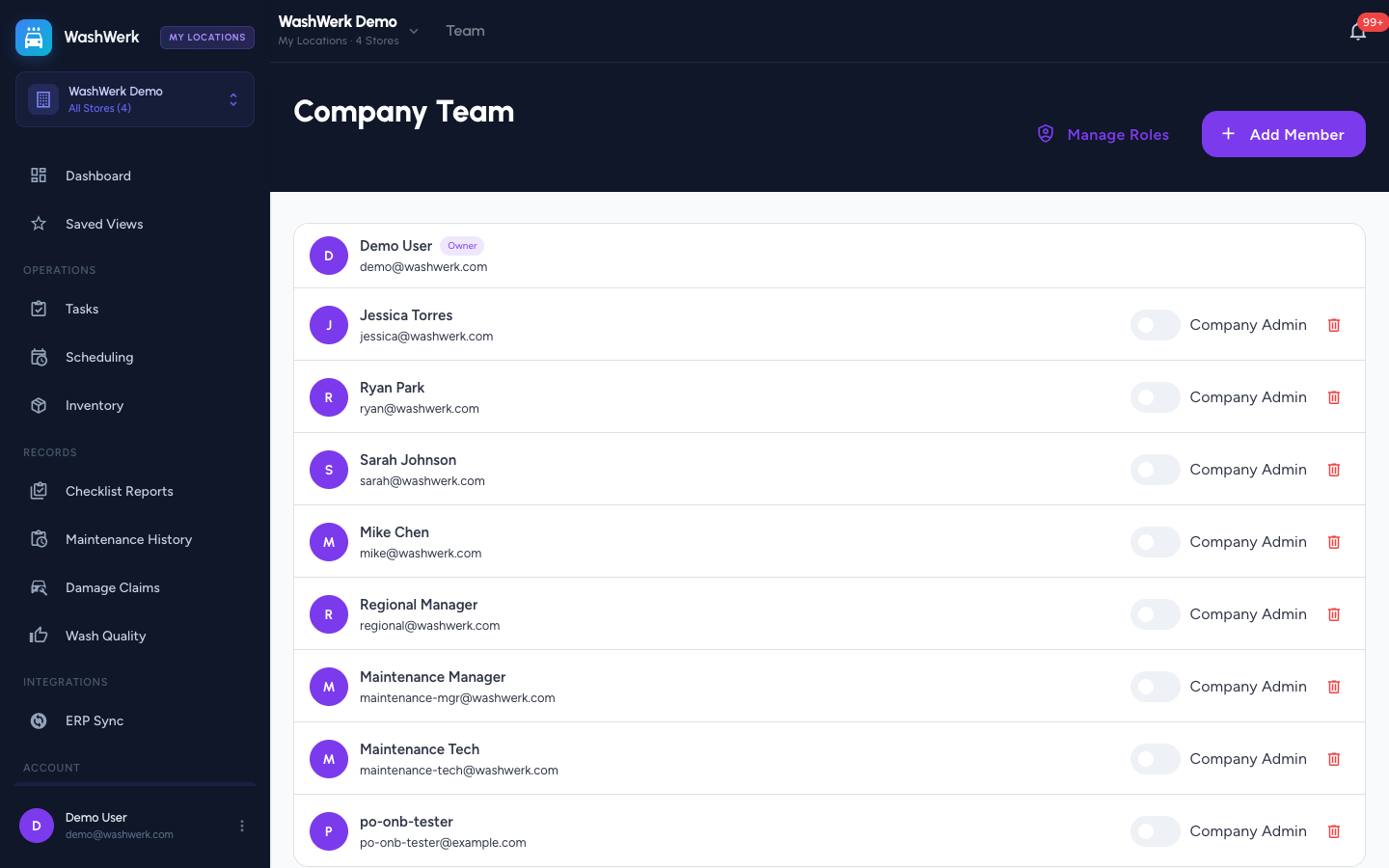
Manage who belongs to your company and who has company-wide admin access, so trusted people can oversee every store while everyone else stays scoped to their own. This is for owners and regional managers working in the corporate admin area.
Before you start
- Where: Corporate admin — the Company Team page in the corporate area
- Permission: Manage Team
- Available by default to: Owners and Company Admins. (On custom roles, this needs the permission named above.)
- You must know: Whether your company uses Simple or Advanced permissions mode — the controls on this page differ. Simple mode shows a Company Admin toggle; Advanced mode shows a role dropdown. The company Owner is shown with an Owner badge and cannot be changed or removed here.
Add a company team member
- In the corporate sidebar, open Team. The Company Team page opens.
- Select Add Member. The Add Company Team Member dialog opens.
- Enter the person's Email address.
- Set their access for this dialog:
- In Simple mode: select Grant Company Admin access if they should be an admin. Leave it unchecked for a standard member.
- In Advanced mode: choose a Role (optional) from the dropdown, or leave it blank to add them with no role yet.
- Select Add Member. The person is added to the company and, if they're new to WashWerk, emailed an invitation.
Grant or revoke Company Admin access (Simple mode)
In Simple mode each non-owner member has a Company Admin switch next to their name.
- On the Company Team page, turn the Company Admin switch on to grant admin access, or off to revoke it. The change saves immediately.
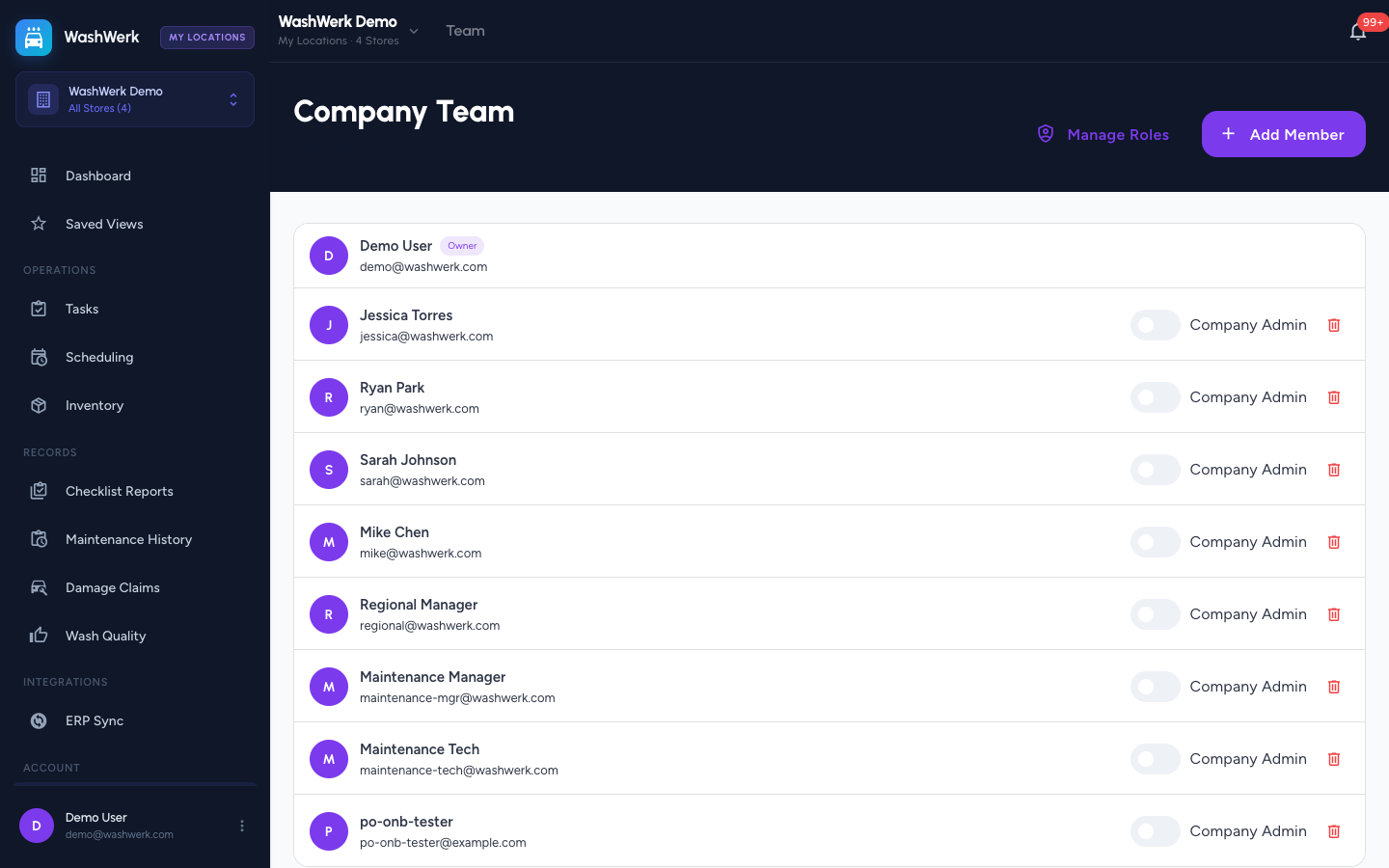
Company Admins get every company permission except the ability to manage roles, which stays with the Owner.
Change a member's role (Advanced mode)
In Advanced mode each non-owner member has a role dropdown instead of the admin switch.
- On the Company Team page, pick a role from the dropdown next to the member's name, or clear it to leave them with no role. The change saves immediately.
Remove a company team member
- On the Company Team page, select the trash icon next to the member's name. A confirmation dialog opens.
- Select Remove. The member is removed from the company team.
Expected result
The member appears in the Company Team list with the access you set — a Company Admin chip in Simple mode, or their chosen role in Advanced mode. New people receive an email to finish setting up their account.
Troubleshooting
- If you can't open the Company Team page: Your role doesn't include the Manage Team permission. Only owners and members with that permission can manage the company team.
- If a member has no controls and shows an Owner badge: That's the company Owner — their access can't be edited or removed from this page.
- If you see a role dropdown instead of the Company Admin toggle: Your company is in Advanced mode. Assign a role from the dropdown, or switch back to Simple mode in corporate Settings.