
How to set up Kiosk Mode on a shared tablet
Set up a single shared tablet that any team member can use by entering a 4-digit PIN, without logging in to a full account — so the front desk or wash bay has one always-on device the whole crew shares. This is for owners and managers configuring the device; it covers enabling Kiosk Mode, setting the auto-lock timeout, assigning and removing PINs, and starting the kiosk.
When to use this
Choose Kiosk Mode when one shared tablet serves the whole floor; give staff the mobile app instead when each person works from their own phone with a full login.
Before you start
- Where: Store-level — Kiosk Mode is configured per store.
- Permission: Manage Kiosk
- Available by default to: Owners and Store Managers. (On custom roles, this needs the permission named above.)
- You must have: A store selected, at least one team member assigned to the store, and the manager account password (you will need it to exit Kiosk Mode later).
Enable or disable Kiosk Mode
- In the store sidebar, open Kiosk Mode. The Kiosk Mode settings page opens.
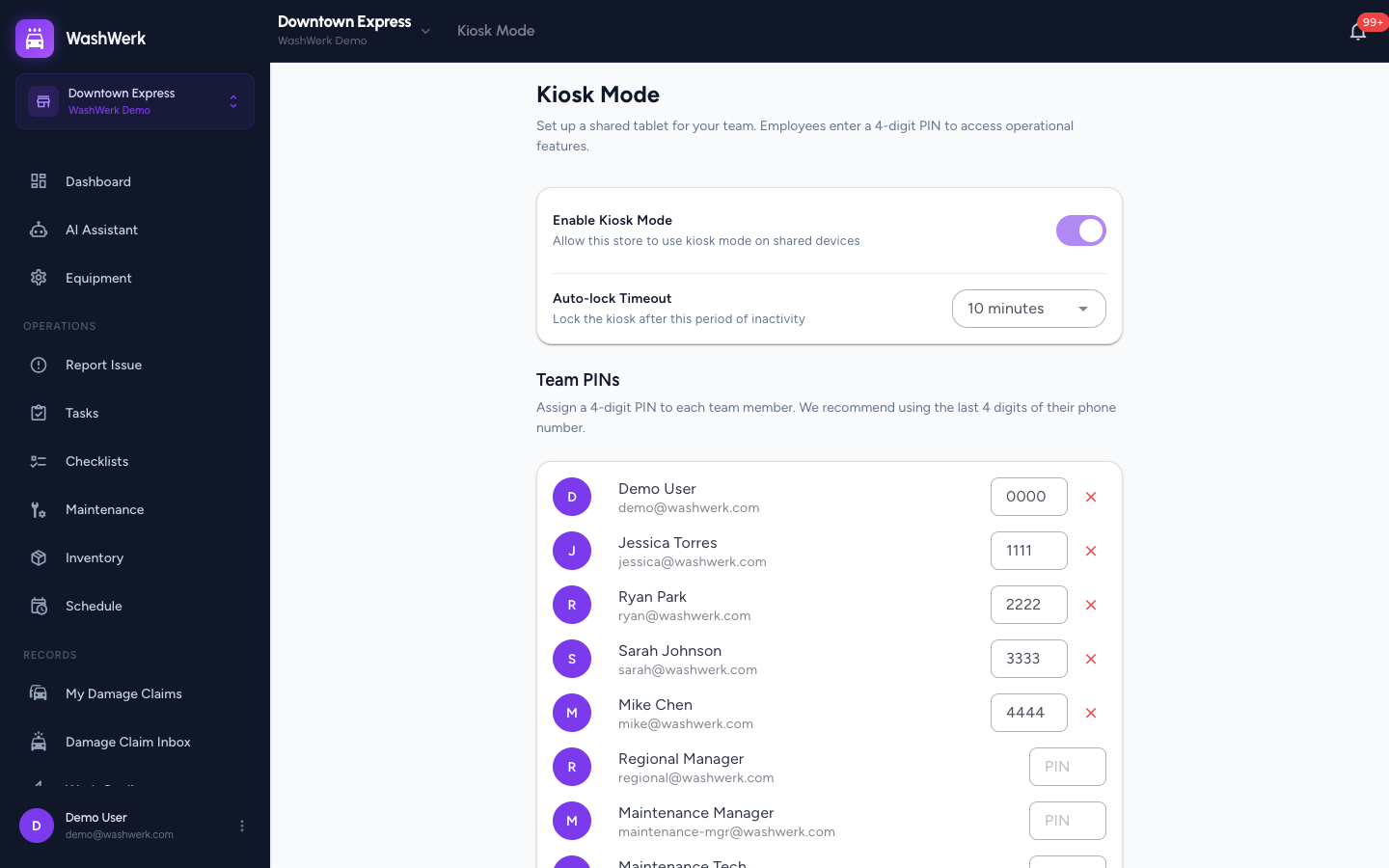
- Turn on the Enable Kiosk Mode switch. The setting saves automatically and a confirmation appears. To turn the feature off later, toggle the same switch off.
Set the auto-lock timeout
- In the Auto-lock Timeout dropdown, select 5 minutes, 10 minutes, or 15 minutes. The kiosk locks back to the PIN screen after this period of inactivity. The setting saves automatically.
Set or change a team member's PIN
- In the Team PINs list, find the team member and type a 4-digit PIN in their PIN field.
- Select the check button next to the field to save. The PIN is stored for that team member.
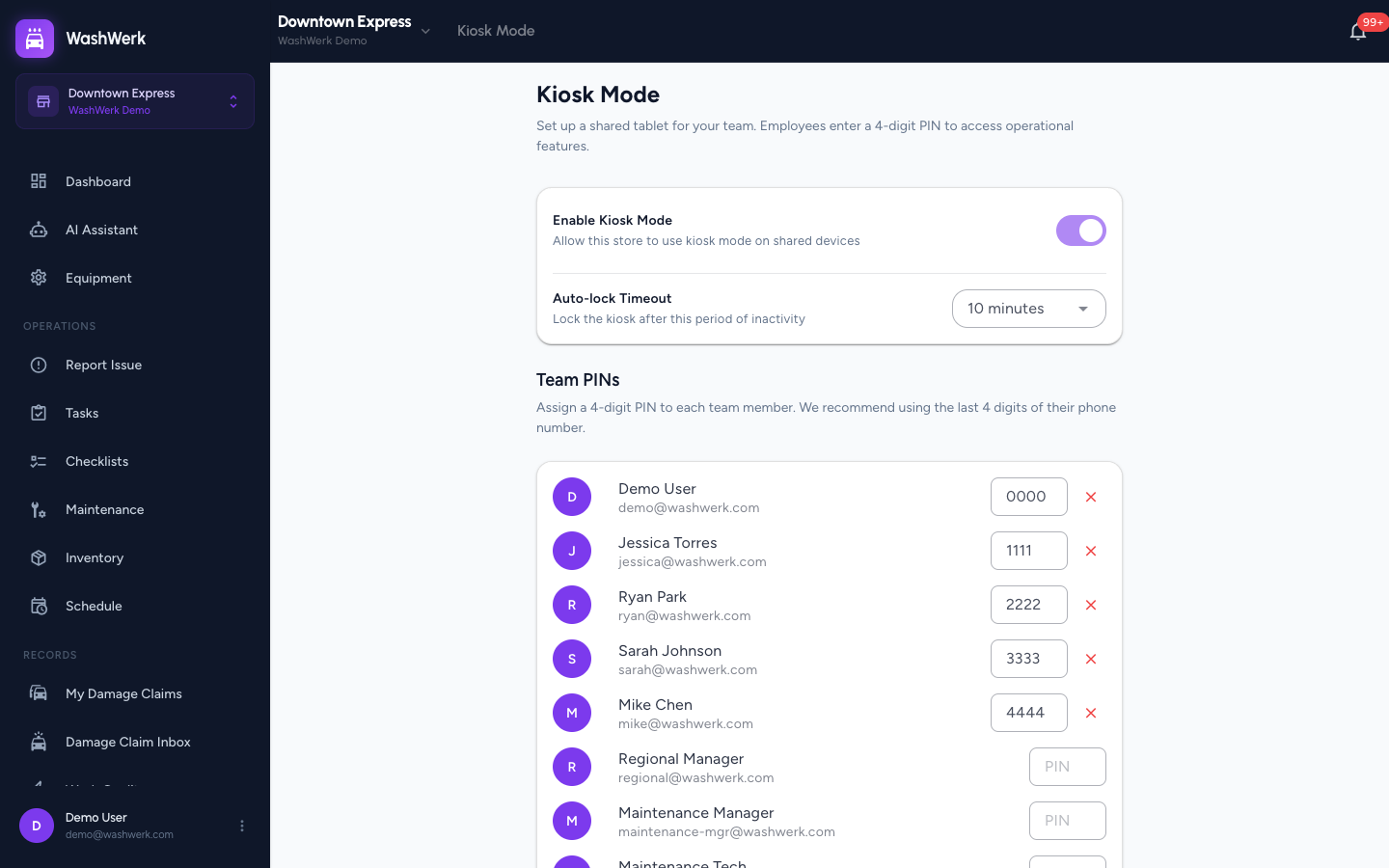
Tip: Use the last 4 digits of each person's phone number so PINs are easy to remember.
Remove a team member's PIN
- In the Team PINs list, select the x button next to a team member who has a saved PIN. The PIN is removed and that person can no longer sign in to the kiosk.
Start Kiosk Mode on the device
- Select Enter Kiosk Mode at the bottom of the page. A confirmation dialog opens.
- In the dialog, select Start Kiosk Mode. The tablet switches to the restricted kiosk view and shows the PIN lock screen.
Expected result
The tablet now shows the dark kiosk lock screen with your store name and a numeric keypad. Team members with a saved PIN can sign in, and the screen auto-locks after your chosen timeout. Your manager session is preserved so you can exit later with your password.
Troubleshooting
- If Enter Kiosk Mode is greyed out: Either Kiosk Mode is not enabled or no PINs are set. Turn on the Enable Kiosk Mode switch and save at least one team member's PIN, then try again.
- If saving a PIN shows "This PIN is already in use": Another team member at this store has that PIN. Choose a different 4-digit number.
- If a PIN won't save: PINs must be exactly 4 digits. Remove any letters or spaces and re-enter four numbers.