
How to complete or reopen a task
Close out a task with a resolution and solution note so the store keeps a record of what was done and who fixed it, complete it quickly by swiping on mobile, and reopen it if more work is needed. For anyone doing the work — attendants through managers.
Before you start
- Where: Store-level — open the task from the store Tasks list.
- Permission: Complete Tasks.
- Available by default to: Owners, Store Managers, Shift Leads, and Wash Attendants. (On custom roles, this needs the permission named above.)
- You must have: A task that isn't already complete or cancelled. A Solution note is required to complete a task.
Complete a task
- Open the task and select Mark Complete. The Complete Task dialog opens.
- Select a Resolution chip — Replace Parts, Adjusted Settings, Cleaned, or Other.
- In the Solution field, describe what was done to resolve the task. This field is required.
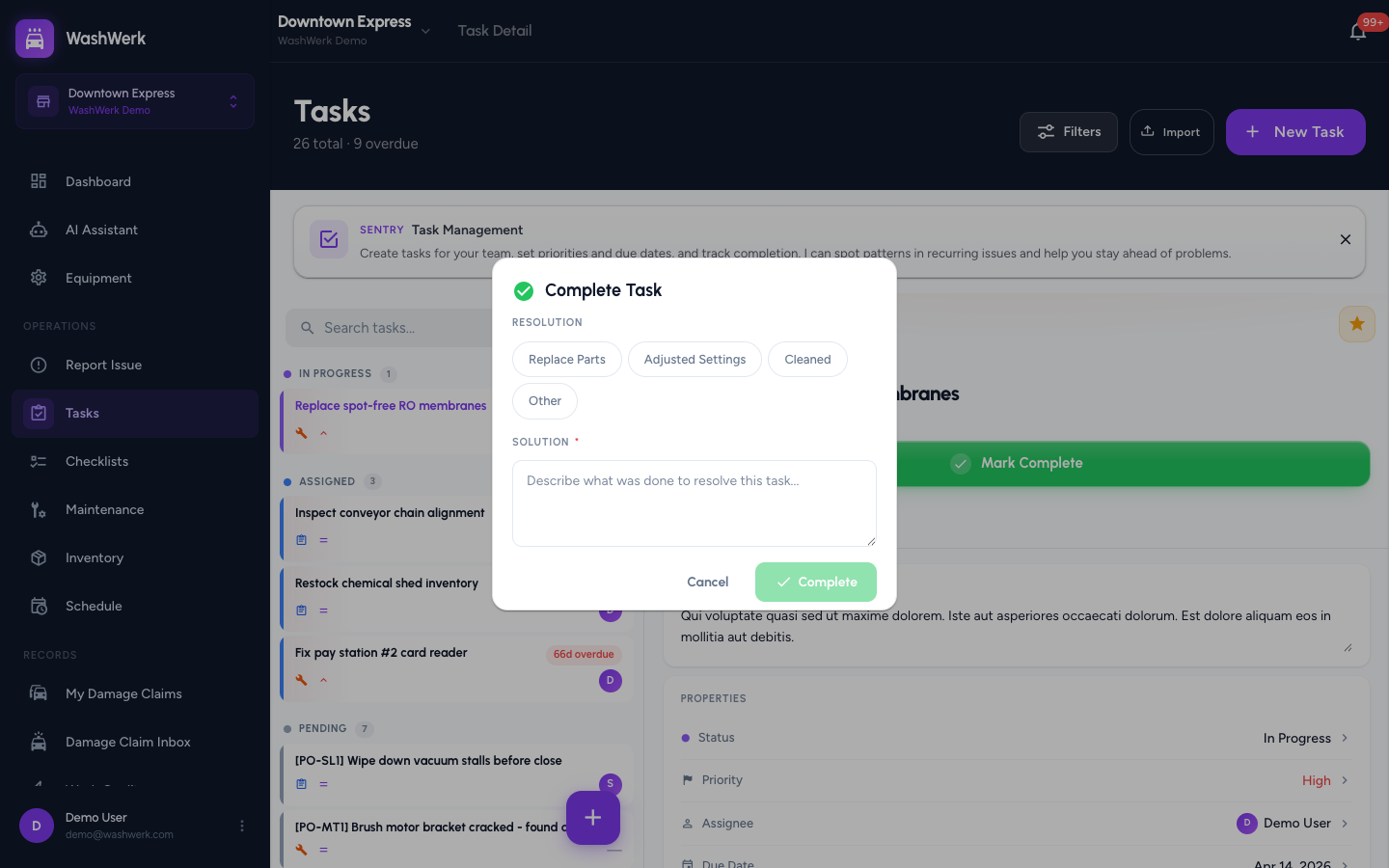
- Select Complete. The task's status changes to Complete and it moves to the Done section of the list.
Complete a task by swipe (mobile)
- On the Tasks list, swipe a task card left and release. The Complete Task dialog opens so you can add the resolution and solution, then select Complete.
Document or edit the solution after completion
Once a task is complete, a Solution card appears on the Details tab.
- Open the completed task. On the Details tab, find the Solution card.
- Select the field, edit the text, then select away. The updated solution saves on its own.
Reopen a task
- Open the completed task and select Reopen Task.
- The task returns to In Progress and the completion details are cleared, so it shows again in the active sections of the list.
Expected result
A completed task shows in the Done section with its resolution and solution recorded. A reopened task returns to In Progress and appears among active tasks again.
Troubleshooting
- If the Complete button is disabled: The Solution field is empty. Enter a solution note to enable it.
- If you don't see Mark Complete: The task is already complete (you'll see Reopen Task instead) or cancelled, or your role doesn't include the Complete Tasks permission — ask an owner or manager.
- If the swipe doesn't open the dialog: Completed and cancelled cards can't be swiped to complete. Swipe must be mostly horizontal — try a longer, flatter swipe.