
How to request and manage time off
Employees submit time-off requests from the store Time Off page; managers review and approve or deny them. Approved time off blocks scheduling on those days.
Before you start
- Where: Store-level — open your store, then Scheduling, then Time Off. Available on web and the mobile app.
- Permission:
- Available by default to: Owners, Store Managers, Shift Leads, and Wash Attendants. (On custom roles, this needs the permission named above.)
- To submit a request: the Request time off Scheduling permission (shown that way in your role settings).
- To approve or deny other people's requests: the Manage Scheduling permission.
- You must have: the start and end dates for the time off you're requesting.
Submit a time-off request
- On the Scheduling page, open the toolbar overflow menu (three dots) and select Time Off Requests.
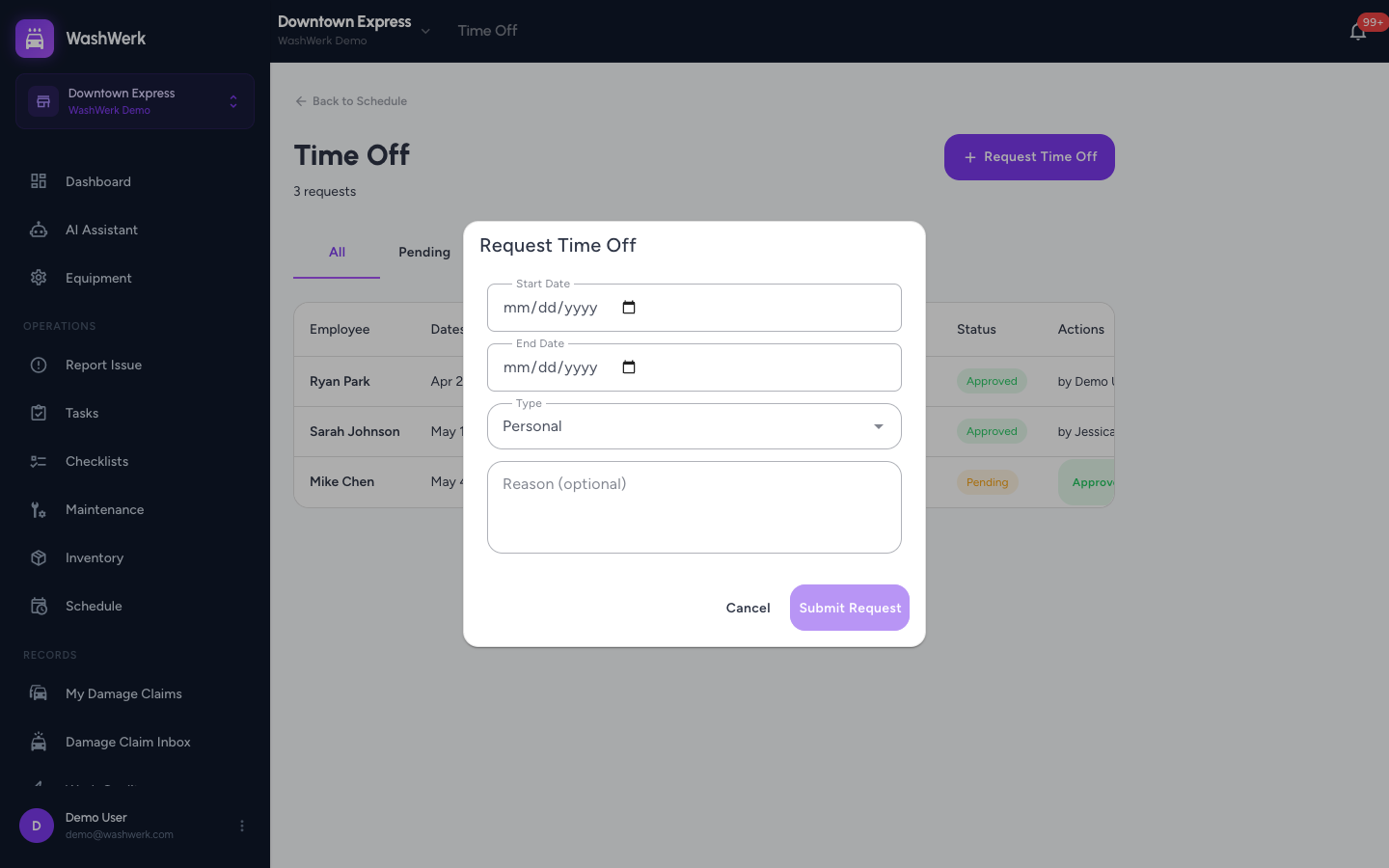
- Select Request Time Off.
- Set the Start Date and End Date. The end date must be on or after the start date.
- Choose a Type — Holiday, Personal, Sick, or Other — add an optional Reason, then select Submit Request.
The request appears in the list with a Pending status until a manager reviews it.
View and filter requests
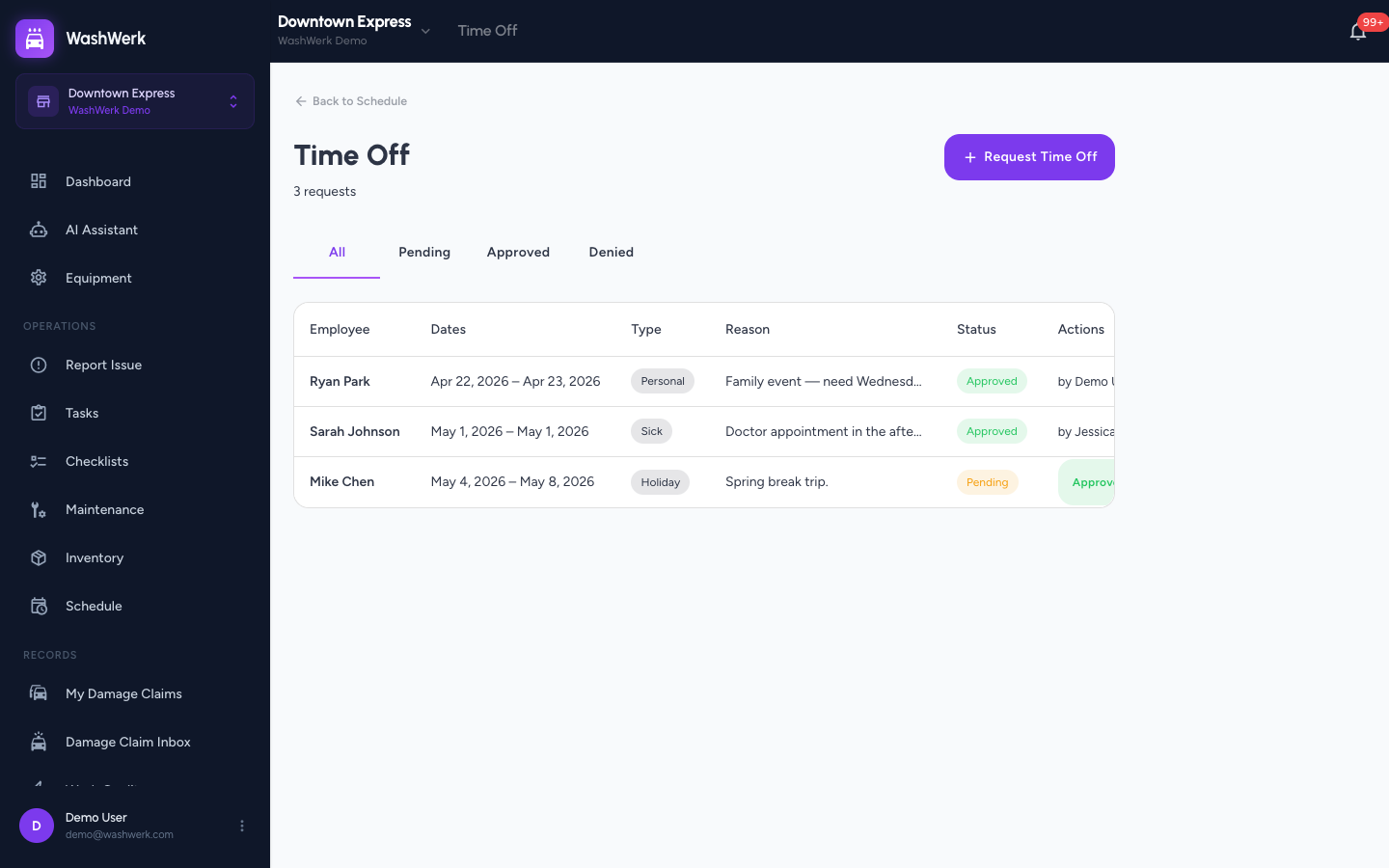
- On the Time Off page, use the All, Pending, Approved, and Denied tabs to filter by status.
What you see depends on your permission: with the Manage Scheduling permission you see every request for the store, including an Employee column; without it you see only your own requests.
Approve or deny a request
Reviewing requires the Manage Scheduling permission. Only Pending requests show review actions.
- On the Time Off page, find the pending request (the Pending tab lists them all).
- In the request's row (or card on mobile), select Approve or Deny.
The status updates to Approved or Denied and records you as the reviewer. Approved days are blocked in the schedule grid and skipped by bulk shift creation.
Expected result
A submitted request shows as Pending; once reviewed it moves to Approved or Denied with the reviewer's name. Approved time off prevents that employee from being scheduled on those dates.
Troubleshooting
- If the Submit button stays disabled: the start or end date is missing, or the end date falls before the start date. Set both dates with end on or after start.
- If you don't see Approve or Deny buttons: your role doesn't include the Manage Scheduling permission — ask an owner or manager — or the request is no longer pending. Only pending requests can be reviewed.
- If you only see your own requests: that's expected when your role doesn't include the Manage Scheduling permission — managers see all requests for the store.
- If you need to cancel a submitted request: the Time Off page has no self-cancel control. Ask a manager to deny it.