
How to scope corporate views with Saved Views (My Locations)
A Saved View groups a subset of your stores into a reusable scope. Activate one as your My Locations filter and every corporate page — dashboard, tasks, reports — narrows to just those stores. This guide covers creating, activating, editing, and clearing a view.
When to use this
Reach for a Saved View when you regularly work a fixed group of stores (a region or "my locations") and want every corporate page to filter to them at once, instead of re-selecting stores on each page.
Before you start
- Where: Corporate admin — open Saved Views from the corporate sidebar.
- Permission: Manage own Saved Views
- Available by default to: all five standard roles (Owners, Company Admins, Store Managers, Shift Leads, and Wash Attendants). (On custom roles, this needs the permission named above.)
- You must have: more than one store in the company (a view that groups stores only helps with several locations).
Create a Saved View
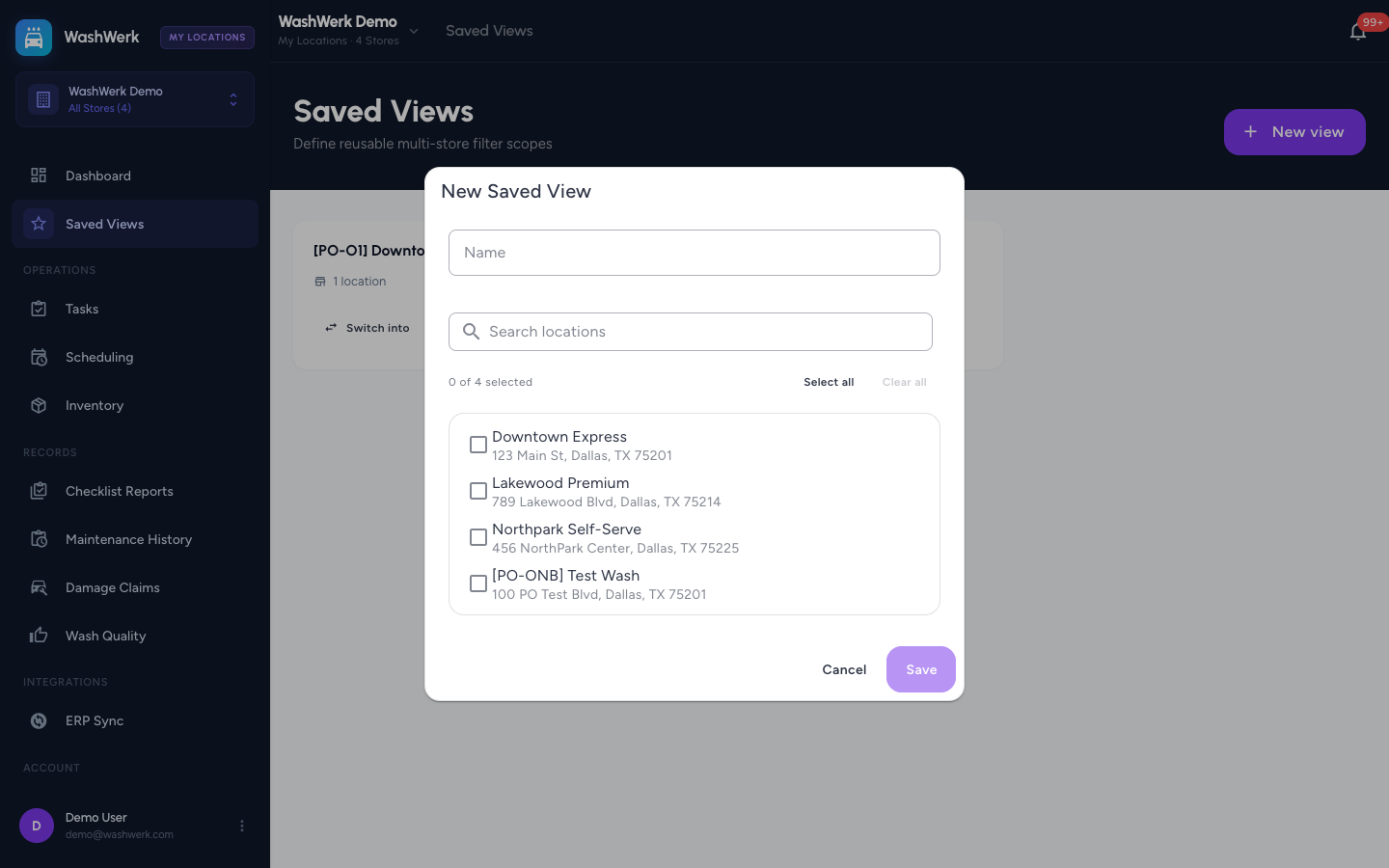
- In the corporate sidebar, open Saved Views, then select New view. The Saved View editor opens.
- Enter a Name that describes the group (for example, "North region" or "My locations").
- Optionally type in Search locations to filter the store list, then select the stores to include. Use Select all / Clear all to act on the filtered list at once.
- Select Save. The view appears as a card showing its name and store count.
Activate a view as your My Locations scope
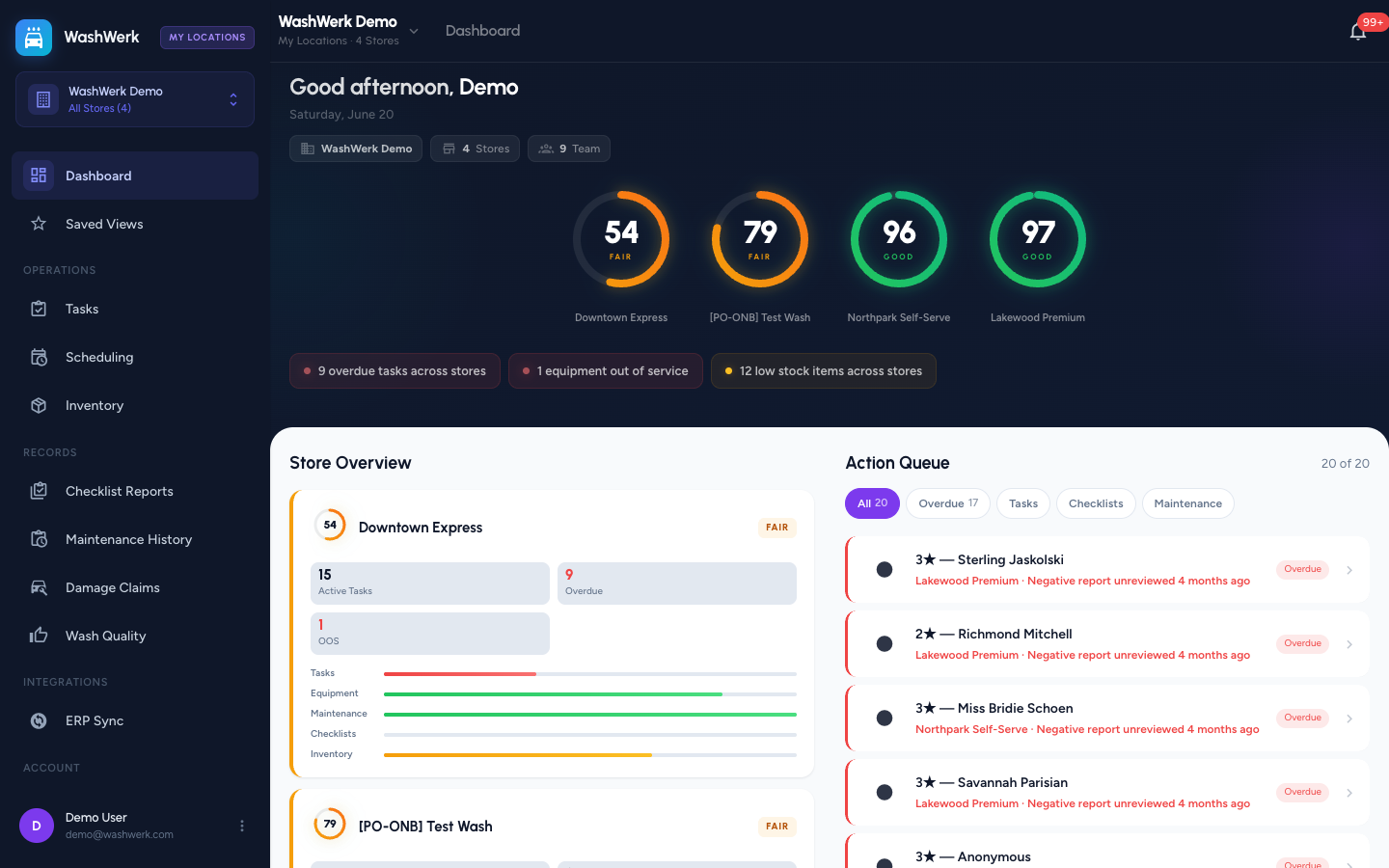
- On the Saved Views page, find the view's card and select Switch into. WashWerk applies the view and returns you to the corporate dashboard.
- Confirm the active scope: the top bar shows a My Locations chip with the view name and store count, and the context switcher reads "N of M Stores".
Edit a view
- On the Saved Views page, select Edit on the view's card.
- Change the Name or adjust which stores are selected, then select Save.
Clear the active scope
- Select the close (×) on the My Locations chip in the top bar. The scope clears and corporate pages return to showing all stores you can access.
Delete a view
- On the Saved Views page, select Delete on the view's card.
- Confirm in the prompt. If the deleted view was active, the scope clears automatically.
Expected result
Your view appears on the Saved Views page with the right store count. While it is active, the My Locations chip is visible and every corporate page is scoped to that store set until you clear it.
Troubleshooting
- If Save stays disabled: the view needs a name and at least one selected store. Add both.
- If a store you expect is missing from the editor: you can only add stores you have access to. Ask an owner to grant access first.
- If reports still show every store after switching in: reopen the page so it picks up the new scope. Confirm the My Locations chip is present in the top bar.