
How to run and troubleshoot ERP syncs
Keep your ERP connection running smoothly so inventory stays accurate: start a sync whenever you need one, review past syncs, clear up errors, manage the links between WashWerk and your ERP, and update your connection settings. This is for owners and company admins who maintain an already-connected ERP.
Before you start
- Where: Corporate view — everything here is managed from the ERP connection's detail screen.
- Permission: The View ERP Sync permission to see syncs, errors, and links; the Trigger ERP Sync permission to start a sync or retry an error; and the Configure ERP Sync permission to test, pause, resume, edit, or disconnect.
- Available by default to: Owners and Company Admins. (On custom roles, this needs the permission named above.)
- You must have: An ERP connection that's already set up (active or paused). See How to connect your ERP for inventory sync if you haven't set one up yet.
To open a connection, go to the corporate menu, open Integrations, then ERP, and select Configure on the connection. Its detail screen has the tabs Overview, Errors, Mappings, Settings, and Activity.
Start a sync and read the overview
- On the Overview tab, review the status, the last sync time, the date the connection was created, and the activity chart (when your ERP reports it).
- Select Sync Now to start a sync right away. The status and last-sync time update when it finishes.
You can also select Sync Now straight from an active connection on the ERP connections list.
Pause, resume, and test the connection
- To stop scheduled syncs, select Pause on the Overview tab. The status changes to Paused.
- To restart scheduled syncs, select Resume on a paused connection. The status returns to Active.
- To check the saved credentials still work, select Test Connection. A banner reports whether the test passed.
Review past syncs
- Open the Activity tab to see every sync with its status, what started it, which way the data moved, the start time, how long it took, and the totals. Filter by Status, and open any sync to see a breakdown by type of record.
Find and resolve sync errors
- Open the Errors tab. It shows unresolved errors by default; turn off the Unresolved only switch to see errors you've already cleared too.
- Filter by type of record (Items, Balances, Transactions, Vendors) to narrow the list.
- Select Show details on an error to see the full detail, then read the error label and message to understand what failed.
- For an error you can retry, select Retry to try it again on the next sync.
- To clear an error you've dealt with, select Acknowledge. With Unresolved only turned on, the error drops off the list once cleared.
Manage the links between WashWerk and your ERP
- Open the Mappings tab to see how WashWerk records are paired with the matching ERP records. Filter by type of record (Items, Stores, Transactions, Vendors) or search by the ERP's reference number.
- To break a wrong pairing, select the unlink icon on that row and confirm Unlink. The next sync treats the two records as separate and may pair them up again on its own.
Note: These links are created automatically as records sync. Only unlink when a record has been paired with the wrong ERP record.
Update connection settings
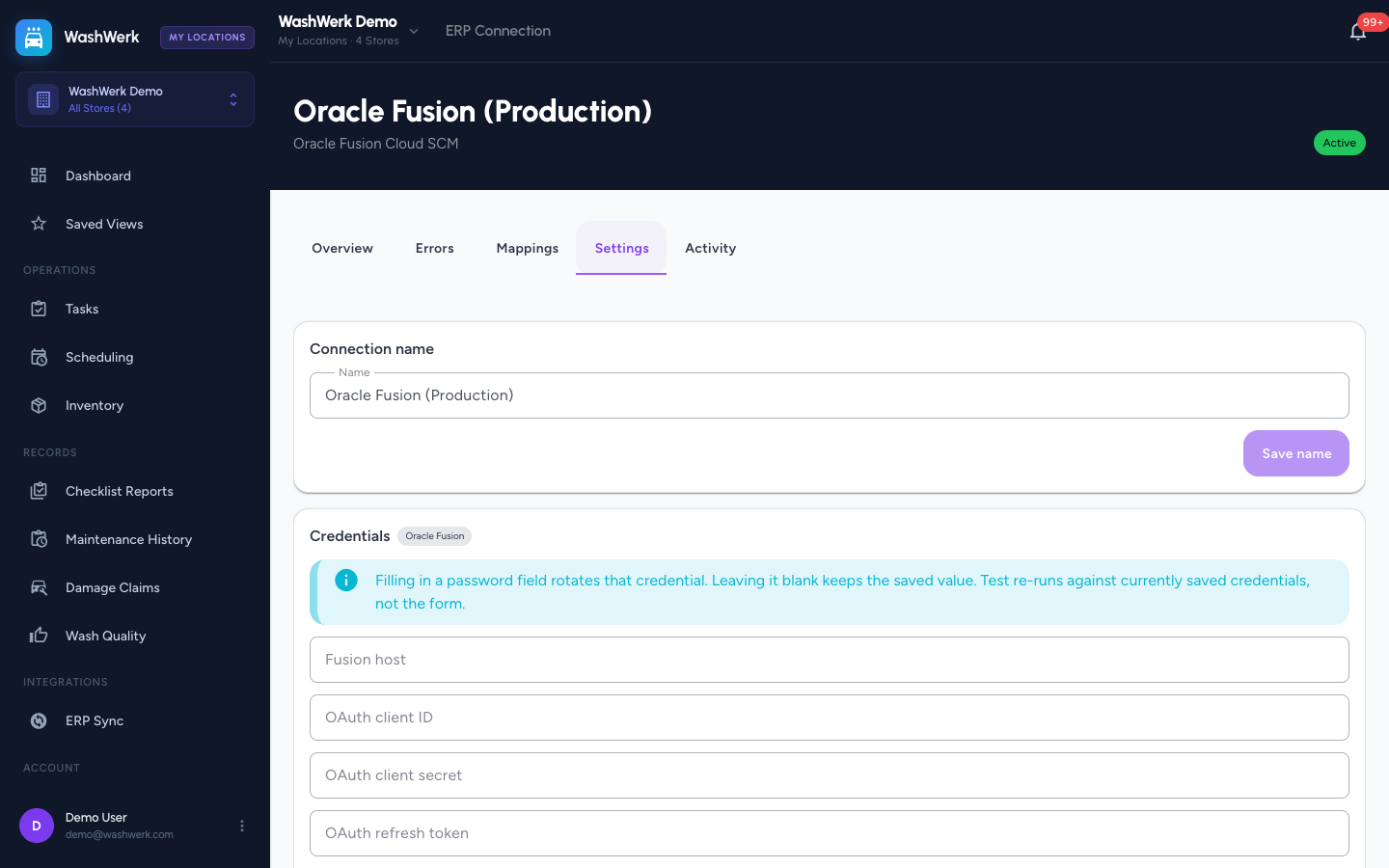
On the Settings tab you can:
- Edit the Connection name and select Save name.
- Update your ERP sign-in details — fill in only the keys you're changing (anything left blank keeps its saved value), then select Save credentials. Use Test Saved Credentials to check the saved details still work.
- Change which stores are linked — adjust each store's matching ERP location, use Refresh to reload the list of ERP locations, then select Save mapping.
Disconnect the connection
- On the Settings tab, find the Disconnect section and select Disconnect.
- Confirm in the window that appears. This stops further syncs and removes all the links to your ERP. Your WashWerk items, vendors, and transactions stay in place and become editable in WashWerk again.
Expected result
The Overview tab shows a recent successful sync, the Errors tab shows no unresolved errors, and the Mappings tab lists the current links between WashWerk and your ERP records.
Troubleshooting
- If there's no Sync Now button: the connection isn't active. Resume it from the Overview tab, or run the matching check if it's still showing Setup pending.
- If the same errors keep coming back after a retry: open the error details to read what your ERP sent back. Messages about sign-in or connection point to your sign-in details — update and re-test them on the Settings tab.
- If an item won't sync: check the Mappings tab for a "No match" label. Unlink a wrong pairing so the next sync can match it again, or keep the item in WashWerk only.
- If you can't edit a field on an item in WashWerk: that field is owned by your ERP while the connection is active. It becomes editable again only after you disconnect.