
How to install the WashWerk mobile app
Get WashWerk on your phone so you can run tasks, checklists, and inventory from the floor. This guide covers downloading the app on iPhone or Android, signing in, and enabling notifications.
Before you start
- Where: Store-level — you sign in to your assigned store from the app.
- Permission: No special permission needed.
- You must have: A WashWerk account (your work email and password). If you do not have one yet, ask your manager to add you. See How to add an employee.
Download the app
- Open the App Store (iPhone/iPad) or Google Play Store (Android) on your device.
- Search for WashWerk, then install the app published by WashWerk.
Note: WashWerk also runs in any mobile web browser at your store's web address. Install the native app for camera capture and push notifications.
Sign in
- Open the WashWerk app. The Sign In screen appears.
- Enter your work email address and select Continue.
- Enter your password and select Sign In. If your organization uses single sign-on, select Continue with [your company] instead. See How to set up SSO.
Allow notifications
- The first time you sign in, your phone asks whether WashWerk can send notifications. Select Allow so you receive task and reminder alerts. You can change this later in your device's system settings for WashWerk.
Expected result
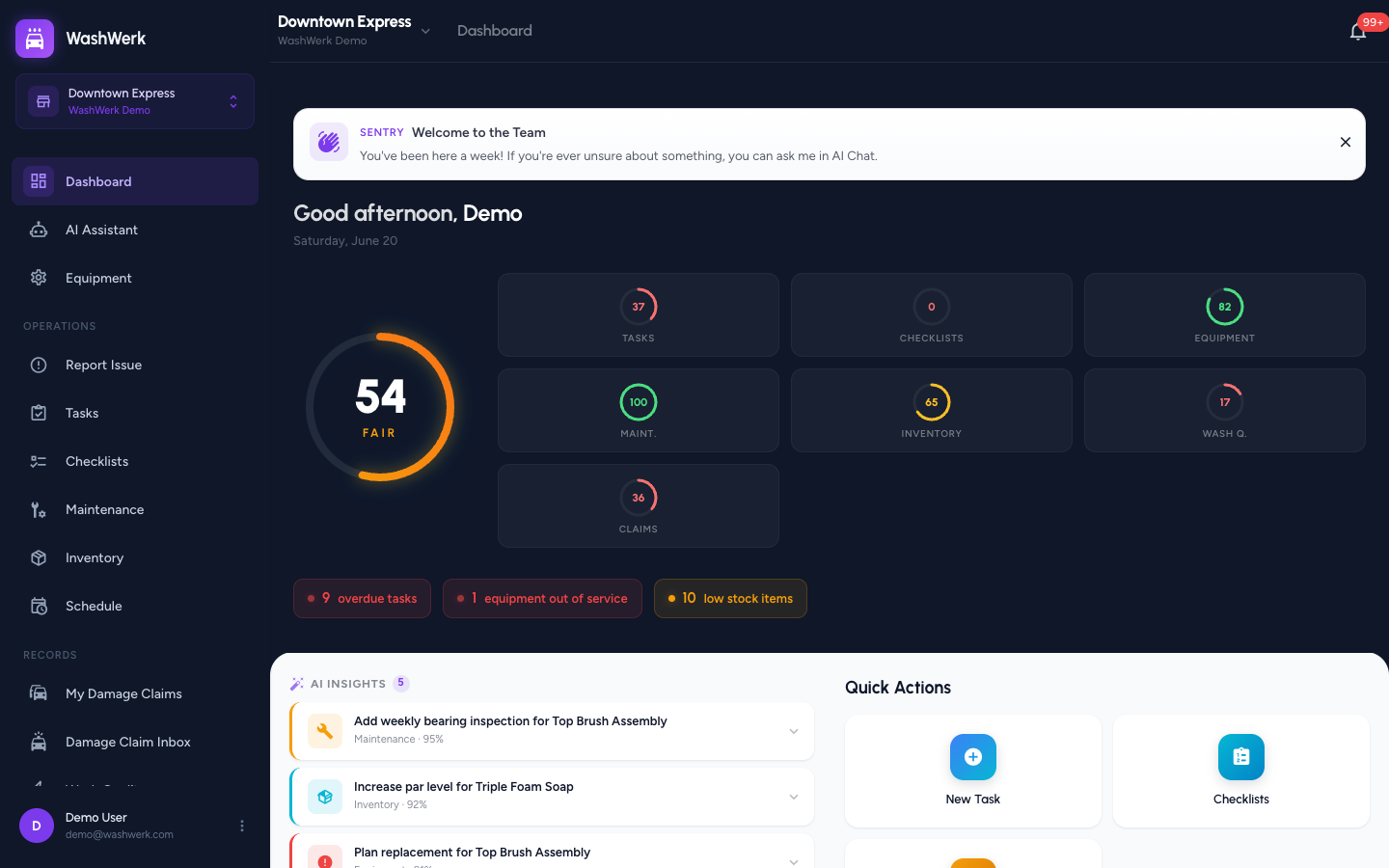
You land on your store dashboard with the bottom navigation bar. You can now run tasks, checklists, maintenance, and inventory from your phone, and you receive push notifications for activity at your store.
Troubleshooting
- If sign-in is rejected: Double-check your email and password. Reset it from Forgot password? on the sign-in screen — see How to sign in, sign out, and reset your password.
- If you have no store after signing in: Your account is not yet assigned to a store. Ask your manager to add you to one.
- If "Create an account" opens a browser: New accounts are created on the WashWerk website, not in the app. Sign up there, then return to the app and sign in.
- If you do not get notifications: Open your phone's system settings, find WashWerk, and turn notifications on.