
How to manage your company and stores
This guide covers the company- and store-level setup an owner or manager handles to keep their account accurate as the business changes: company name and logo in corporate settings, adding and removing stores, and each store's information, operating hours, and AI Insights.
Before you start
- Where: Company name and logo are in Corporate admin (open Settings from the corporate sidebar). Per-store information, hours, and AI Insights are Store-level (open a store, then go to its Settings page).
- Permission: Settings for corporate company settings. the Manage Stores permission to add or delete stores. Editing a store's settings is done in that store's context.
- Available by default to: Owners and Company Admins. (On custom roles, this needs the permission named above.)
- You must have: a company selected. To edit a store's settings, open that store.
Edit company information and logo
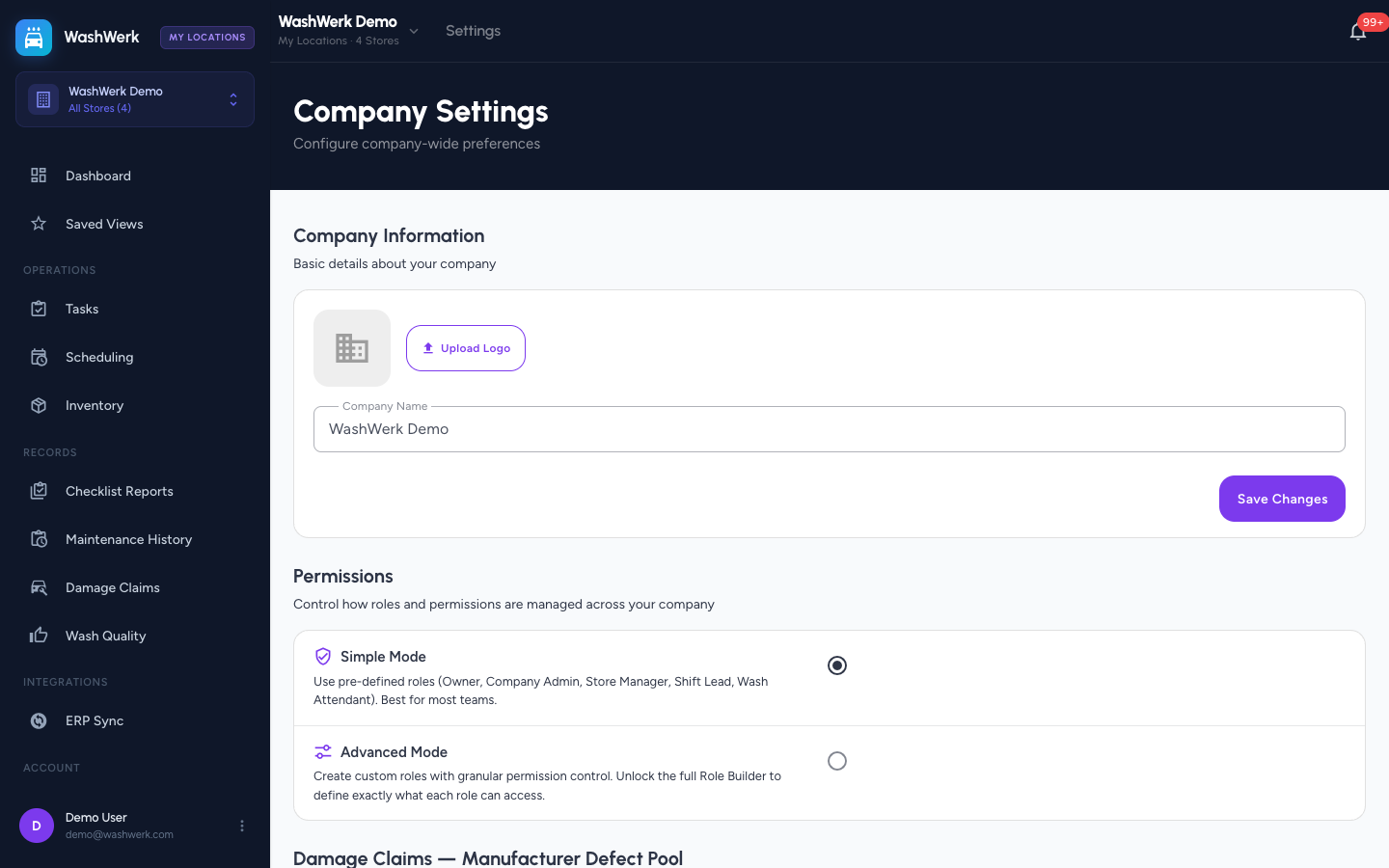
- In the corporate sidebar, open Settings. The Company Information card shows the logo and company name.
- Update Company Name, then select Save Changes.
- To change the logo, select Upload Logo and choose an image file. To clear it, select Remove.
Add a store
- Open the store switcher and choose to add a store (the Add New Store card / option), which opens the create dialog.
- Enter the Store Name, optional Address, and select a Car Wash Type (Tunnel, Self-Serve, In-Bay Automatic, or Hybrid).
- Select Create Store.
NOTE
Adding a store may require an active subscription. If you're prompted with a billing requirement, resolve billing first, then create the store.
Edit a store's information
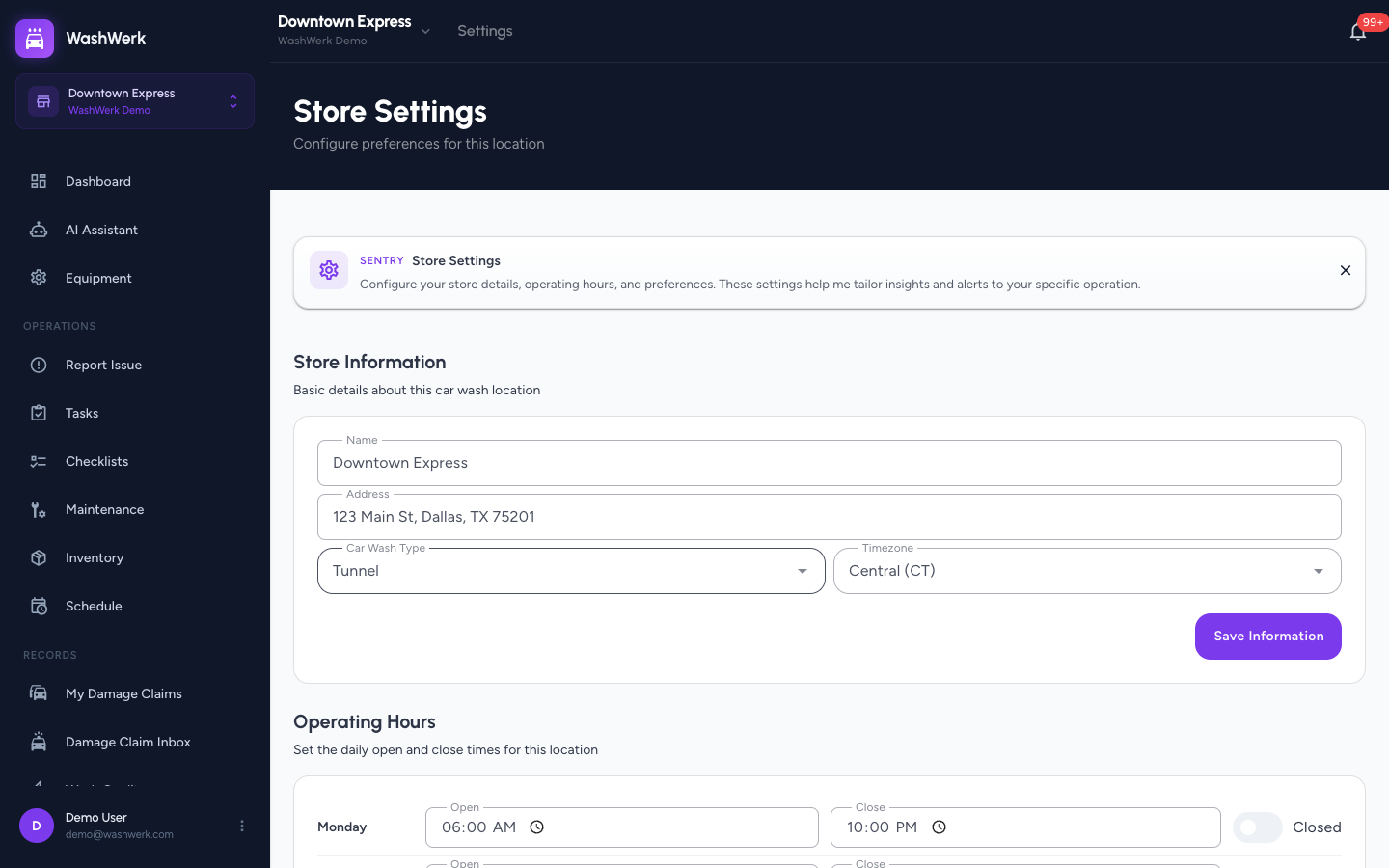
- Open the store you want to change, then go to its Settings page.
- In Store Information, update the name, address, Car Wash Type, or Timezone, then select Save Information.
Set operating hours
- On the store's Settings page, find Operating Hours.
- For each day, set the Open and Close times, or turn on Closed to mark the store shut that day.
- Optionally select Apply Monday to all to copy Monday's hours to every day, then select Save Hours.
Turn weekly AI Insights on or off
- On the store's Settings page, find AI Insights.
- Toggle Weekly AI Insights on or off, then select Save AI Settings. When on, WashWerk analyzes the store's data weekly and suggests improvements (this uses AI credits).
Delete a store
- Open Billing and go to the stores panel.
- Select delete on the store, then confirm in the prompt. Deleting a store requires the Manage Stores permission.
Expected result
Saved changes show a confirmation toast, the logo updates in the settings card, a new store appears in the store switcher, and per-store information, hours, and AI Insights persist for that location.
Troubleshooting
- If Save Changes fails on the company name: the name can't be empty — enter a value and retry.
- If the logo won't upload: use an image under the size limit; very large files are rejected.
- If you can't add or delete a store: you need the Manage Stores permission. Ask an owner to grant it.
- If you don't see a way to delete the whole company: company deletion is owner-only and isn't available from these settings — contact support if you need it.